> ## Documentation Index
> Fetch the complete documentation index at: https://docs.qontext.ai/llms.txt
> Use this file to discover all available pages before exploring further.
# Claude
> Connect Qontext to Claude
Connect Qontext to Claude via MCP to power every chat with up-to-date company context.
With Qontext + Claude, you can:
* Automatically pull relevant, up-to-date context for every prompt
* Keep full governance and permissions in Qontext
***
## Installation
Qontext is available as a connector in Claude, so you can add it in two ways: install it directly from Claude's connector directory, or add it manually as a custom connector. Both connect over remote MCP. For Claude's official connector documentation, see [Claude Docs](https://claude.com/docs/connectors/custom/remote-mcp).
In Claude, click the **+** below the message box where you write your prompt.
Click **Connectors**, then **Browse connectors**.
Search for **Qontext** and click the **+**.
Once added, click **Connect** and log in to Qontext to allow access.
Launch **Claude** in your browser or desktop app.
Go to the **Customize** tab.
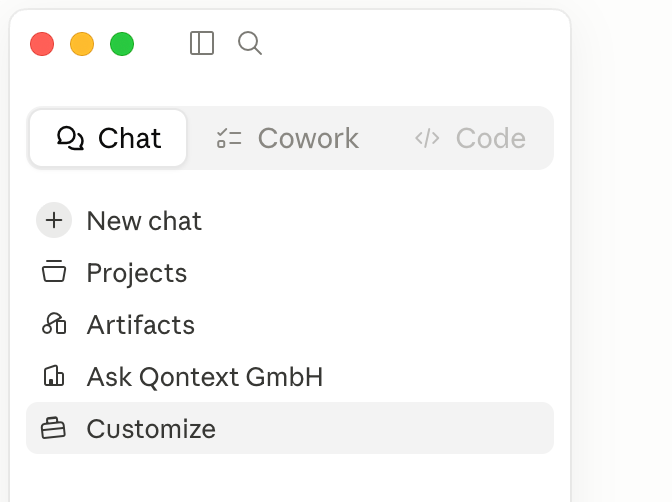
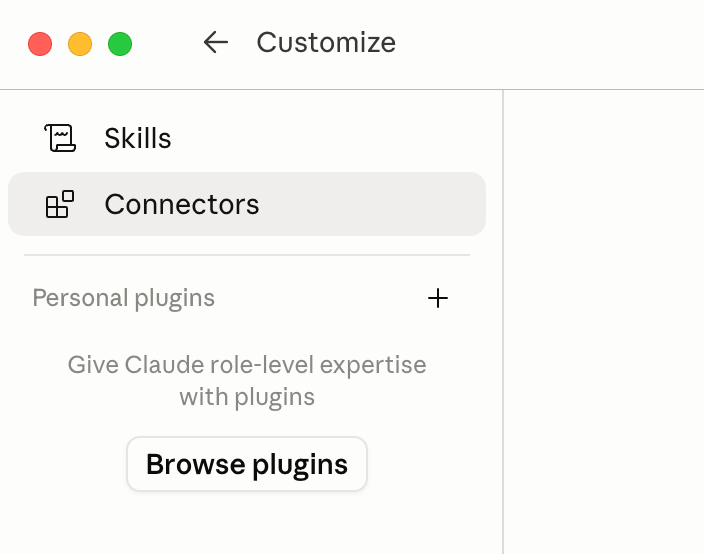 Click on the **+** and add a **custom connector** with the following details:
| Field | Value |
| :----------------- | :--------------------------- |
| **Name** | Qontext |
| **MCP Server URL** | `https://api.qontext.ai/mcp` |
Once added, click **Connect** and log in to Qontext to allow access.
From now on, Claude will automatically use Qontext to retrieve relevant context.
***
## Using Qontext in Claude
Once connected, using Qontext is simple:
Open a new conversation in Claude.
Type your question or task as usual.
Add **"Use Qontext"** anywhere in your message and send.
Claude automatically retrieves the relevant context from your context repository to complete the task.
### Example prompts
```text theme={null}
Use Qontext. What were the key takeaways from last week's sales meeting?
```
```text theme={null}
Summarize what we know about Acme Corp. Use Qontext.
```
```text theme={null}
Use Qontext to find our pricing guidelines and help me draft a proposal.
```
***
## Need help?
If you encounter issues with the Claude integration, reach out at [support@qontext.ai](mailto:support@qontext.ai).
Click on the **+** and add a **custom connector** with the following details:
| Field | Value |
| :----------------- | :--------------------------- |
| **Name** | Qontext |
| **MCP Server URL** | `https://api.qontext.ai/mcp` |
Once added, click **Connect** and log in to Qontext to allow access.
From now on, Claude will automatically use Qontext to retrieve relevant context.
***
## Using Qontext in Claude
Once connected, using Qontext is simple:
Open a new conversation in Claude.
Type your question or task as usual.
Add **"Use Qontext"** anywhere in your message and send.
Claude automatically retrieves the relevant context from your context repository to complete the task.
### Example prompts
```text theme={null}
Use Qontext. What were the key takeaways from last week's sales meeting?
```
```text theme={null}
Summarize what we know about Acme Corp. Use Qontext.
```
```text theme={null}
Use Qontext to find our pricing guidelines and help me draft a proposal.
```
***
## Need help?
If you encounter issues with the Claude integration, reach out at [support@qontext.ai](mailto:support@qontext.ai).