> ## Documentation Index
> Fetch the complete documentation index at: https://docs.qontext.ai/llms.txt
> Use this file to discover all available pages before exploring further.
# Codex
> Connect Qontext to Codex
Connect Qontext to Codex via MCP to give your agents access to your context repository.
With Qontext + Codex, you can:
* Retrieve curated high-quality company context while coding
* Access product, customer, process, and project knowledge directly from Codex
* Keep governance and permissions in Qontext
***
## Installation
Qontext connects to Codex as a custom connector using remote MCP. For Codex's official connector documentation, see [Codex Docs](https://developers.openai.com/codex/mcp).
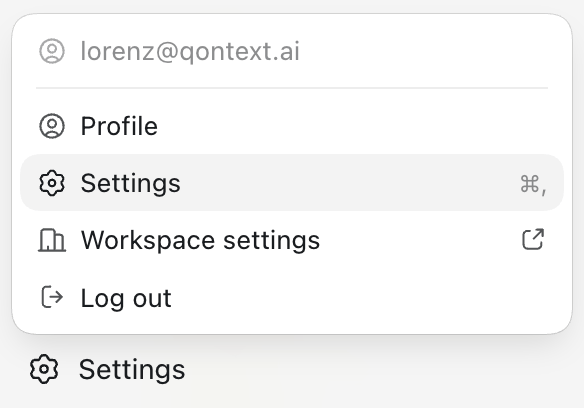
Open ChatGPT in your browser and log in. In the bottom left corner, click your profile and open **Settings**.
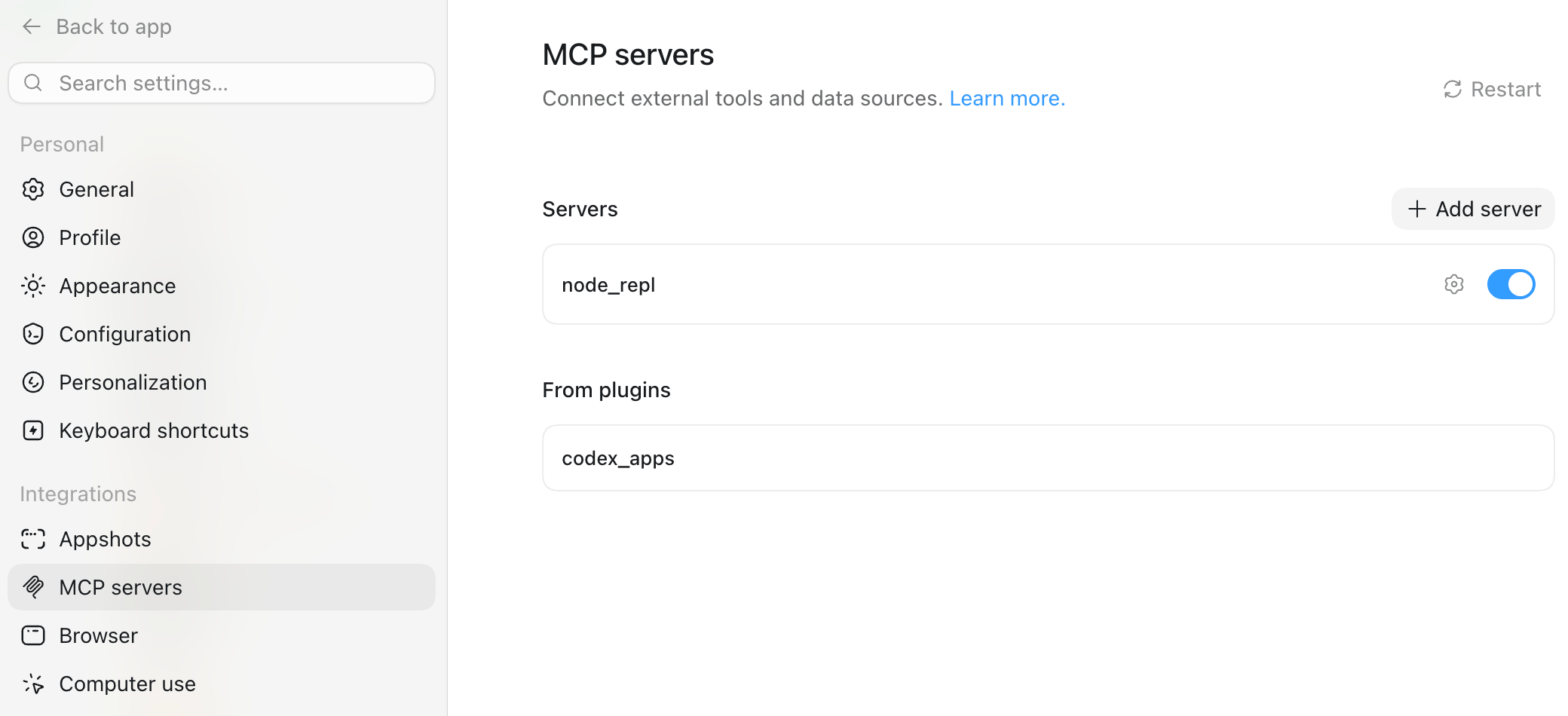
 In the settings, choose **MCP servers** in the navigation and click on\*\* + Add server\*\*.
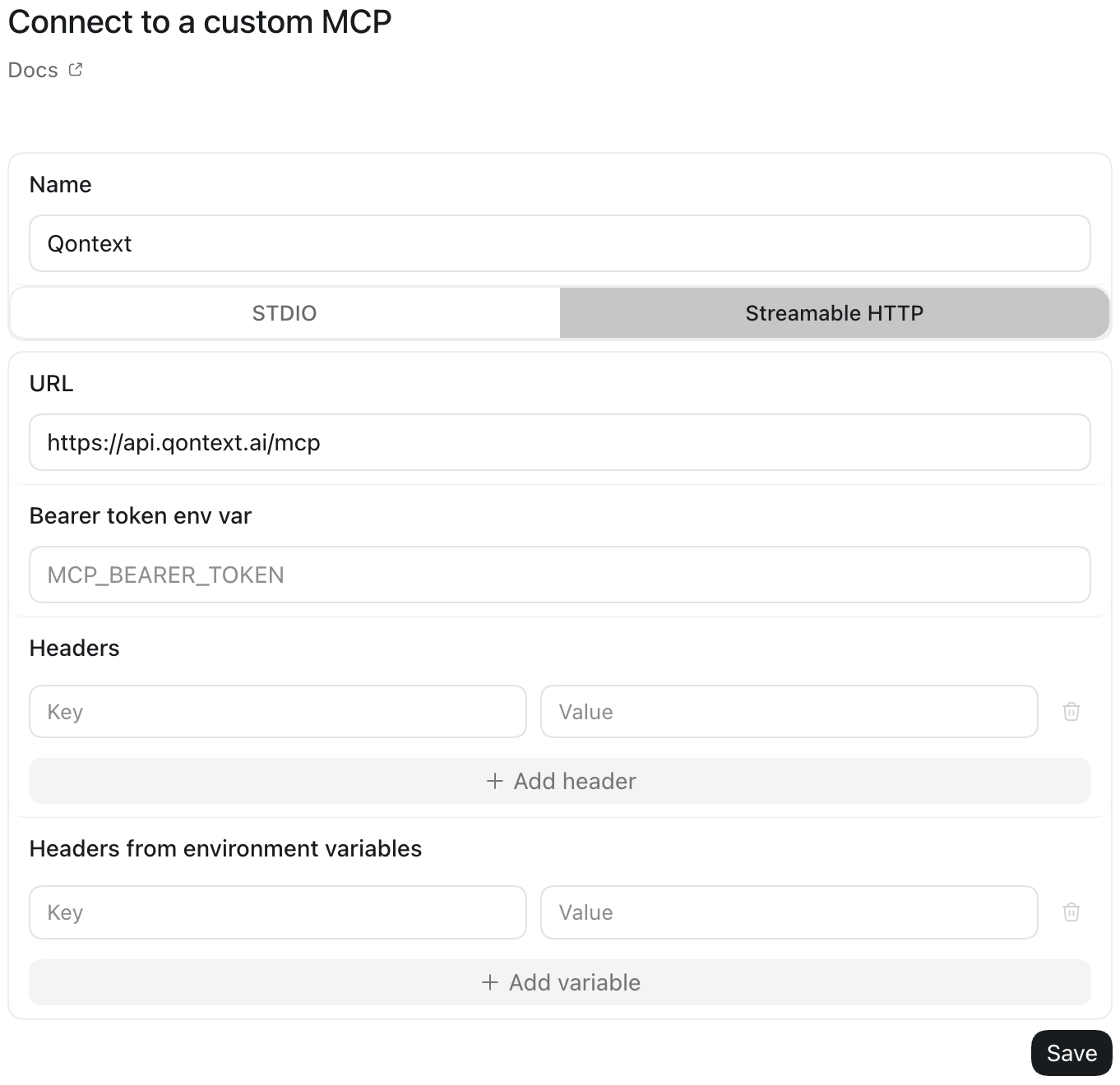
 Choose **Qontext** as the name and **Streamable HTTP** as the protocol. Then use the following **MCP server URL**:
```text theme={null}
https://api.qontext.ai/mcp
```
Choose **Qontext** as the name and **Streamable HTTP** as the protocol. Then use the following **MCP server URL**:
```text theme={null}
https://api.qontext.ai/mcp
```
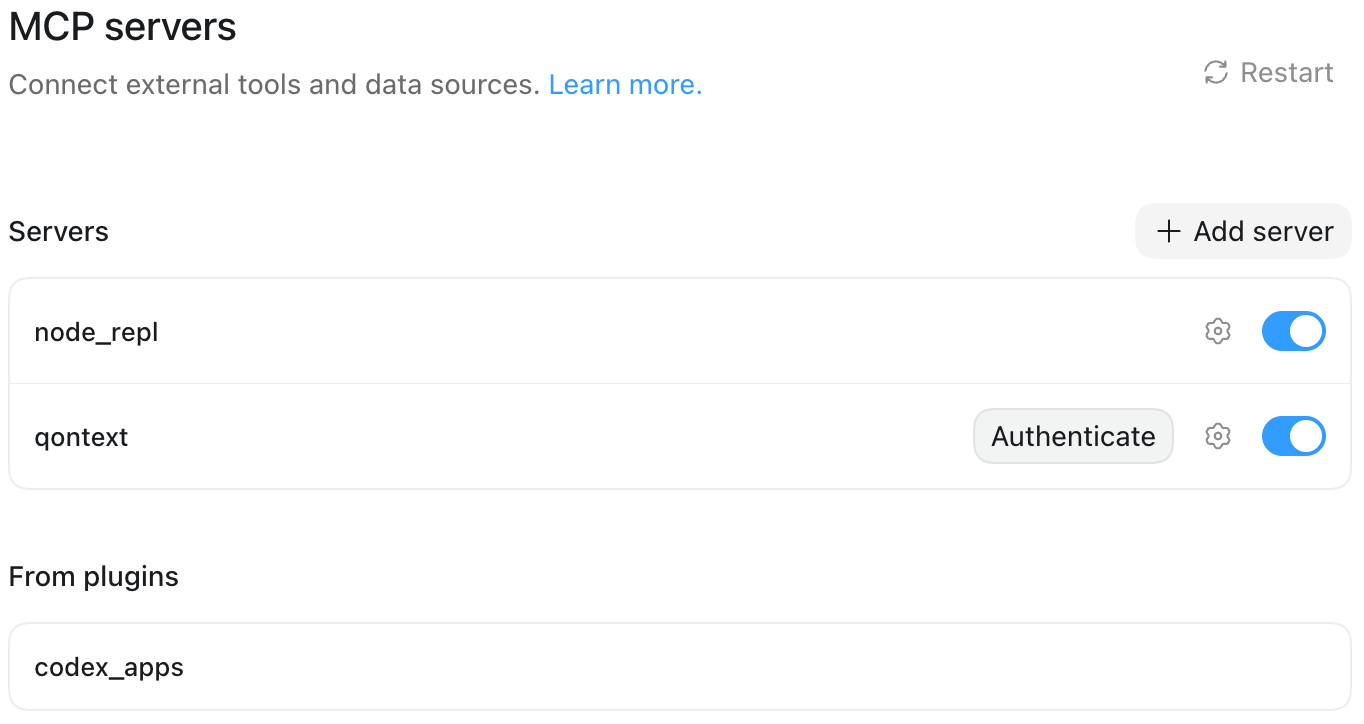
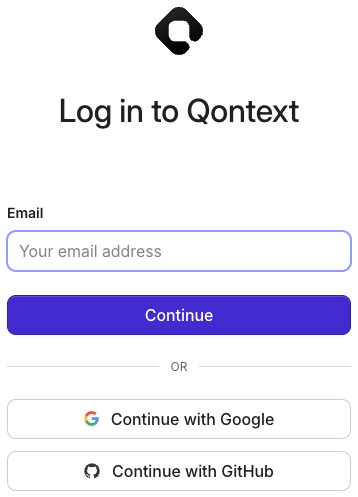
 Click on **Authenticate** and log in to Qontext.
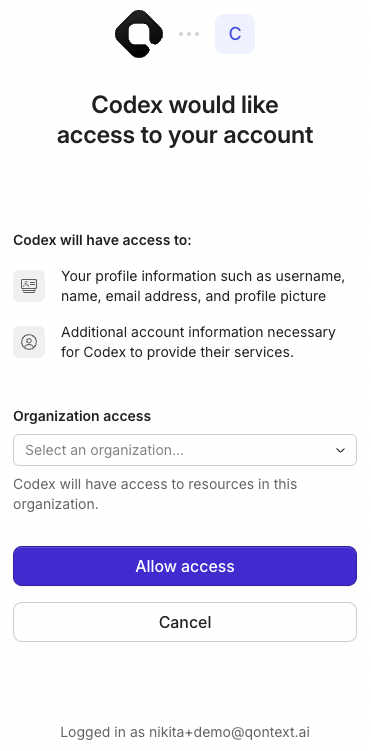
 When prompted, allow Codex access to Qontext.
From now on, Codex will use your context repository to retrieve context when you invoke Qontext.
***
## Using Qontext in Codex
Once the app is set up, using Qontext is simple:
Open a new conversation in Codex.
Add **Use Qontext** to your question or task and send the message. Codex then retrieves the context needed to give you the best answer.
ChatGPT automatically retrieves relevant context from your connected vault to complete the task.
### Example prompts
```text theme={null}
Use Qontext and create a technical handover document for this feature.
```
```text theme={null}
Use Qontext and update the project file with the implementation status.
```
```text theme={null}
Use Qontext and create a new runbook for this deployment procedure.
```
***
## Need help?
If you encounter issues with the ChatGPT integration, reach out at [support@qontext.ai](mailto:support@qontext.ai).