> ## Documentation Index
> Fetch the complete documentation index at: https://docs.qontext.ai/llms.txt
> Use this file to discover all available pages before exploring further.
# Langdock
> Connect Qontext to Langdock
Connect Qontext to Langdock via MCP to power conversations and automations with up-to-date company context.
With Qontext + Langdock, you can:
* Connect Qontext directly inside Langdock (chat, agent, or workflow)
* Automatically pull relevant, up-to-date context for every prompt
* Keep full governance and permissions in Qontext
* Use Qontext in **Chat**, **Agent**, and **Workflow** modes
***
## Installation
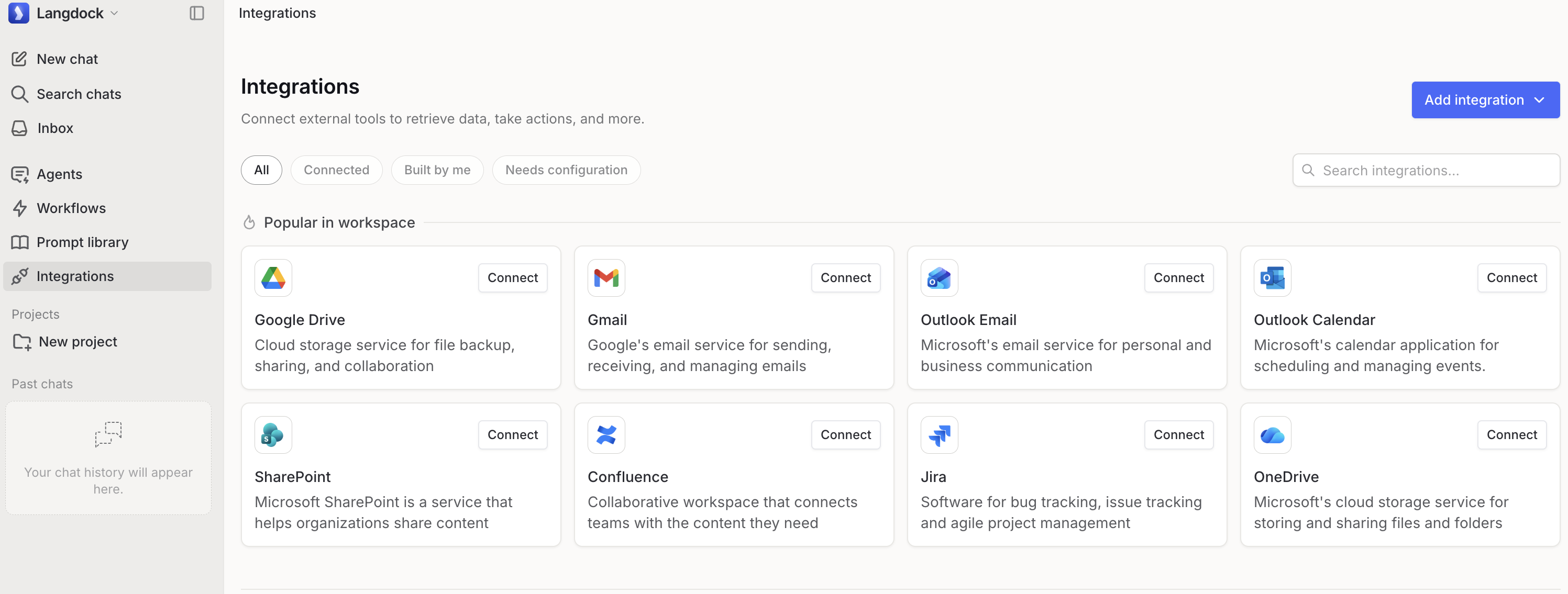
In your Langdock workspace, go to **Integrations** and click on **Add integration**. Then, choose **Start from scratch** to add a new MCP-based connection.
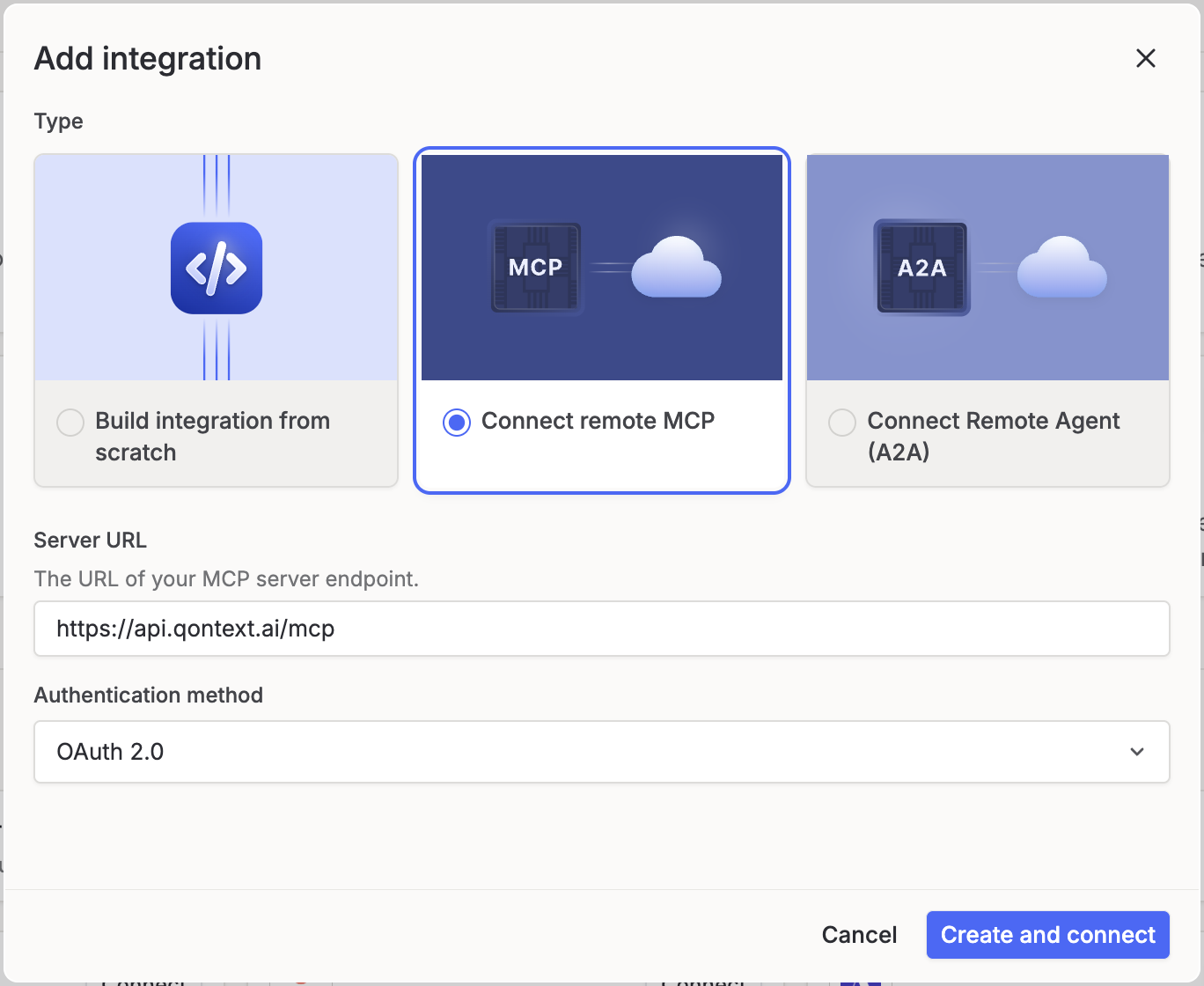
 Choose **Connect remote MCP**. Add the Qontext MCP server URL and choose **OAuth 2.0** as authentication method:
**MCP server URL:**
```text theme={null}
https://api.qontext.ai/mcp
```
Choose **Connect remote MCP**. Add the Qontext MCP server URL and choose **OAuth 2.0** as authentication method:
**MCP server URL:**
```text theme={null}
https://api.qontext.ai/mcp
```
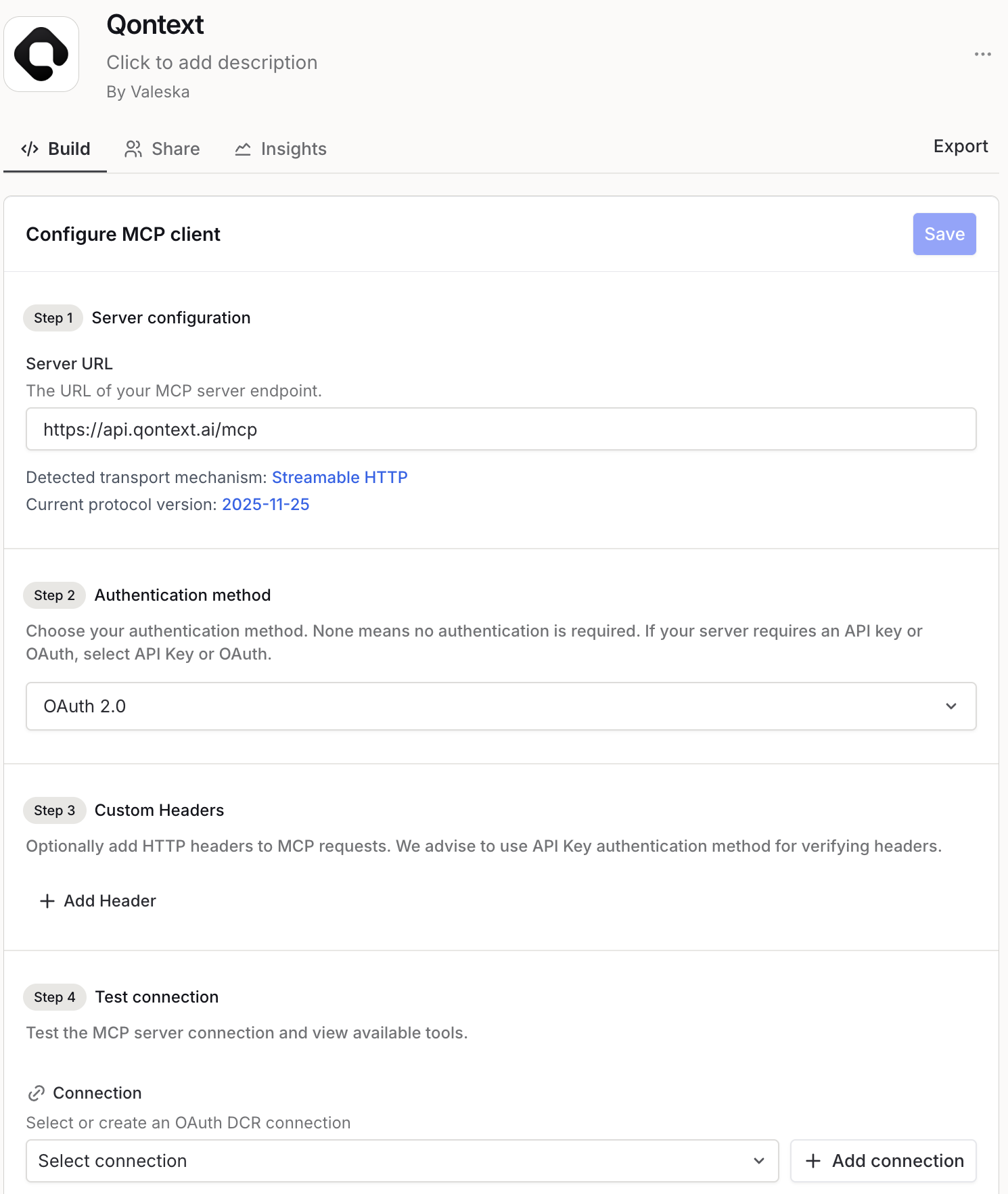
 Add a logo, name and description to your MCP client. Leave the headers in step 3 empty and click on **+ Add connection** in step 4.
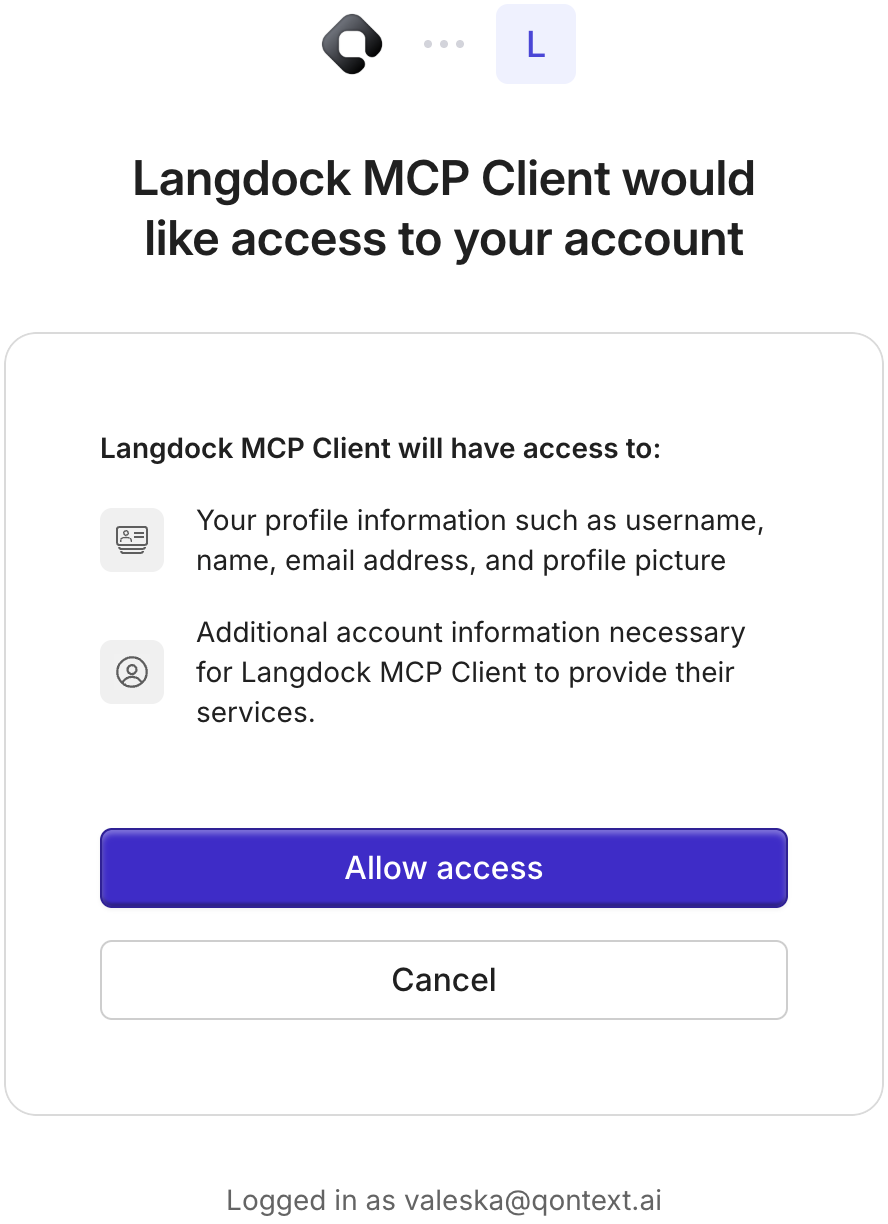
 When prompted, complete the OAuth flow: log in to Qontext and allow Langdock to access your Qontext account.
 Your connection should now test successfully. Make sure to select the retrieval tool to add it to your Langdock actions and save the configurations.
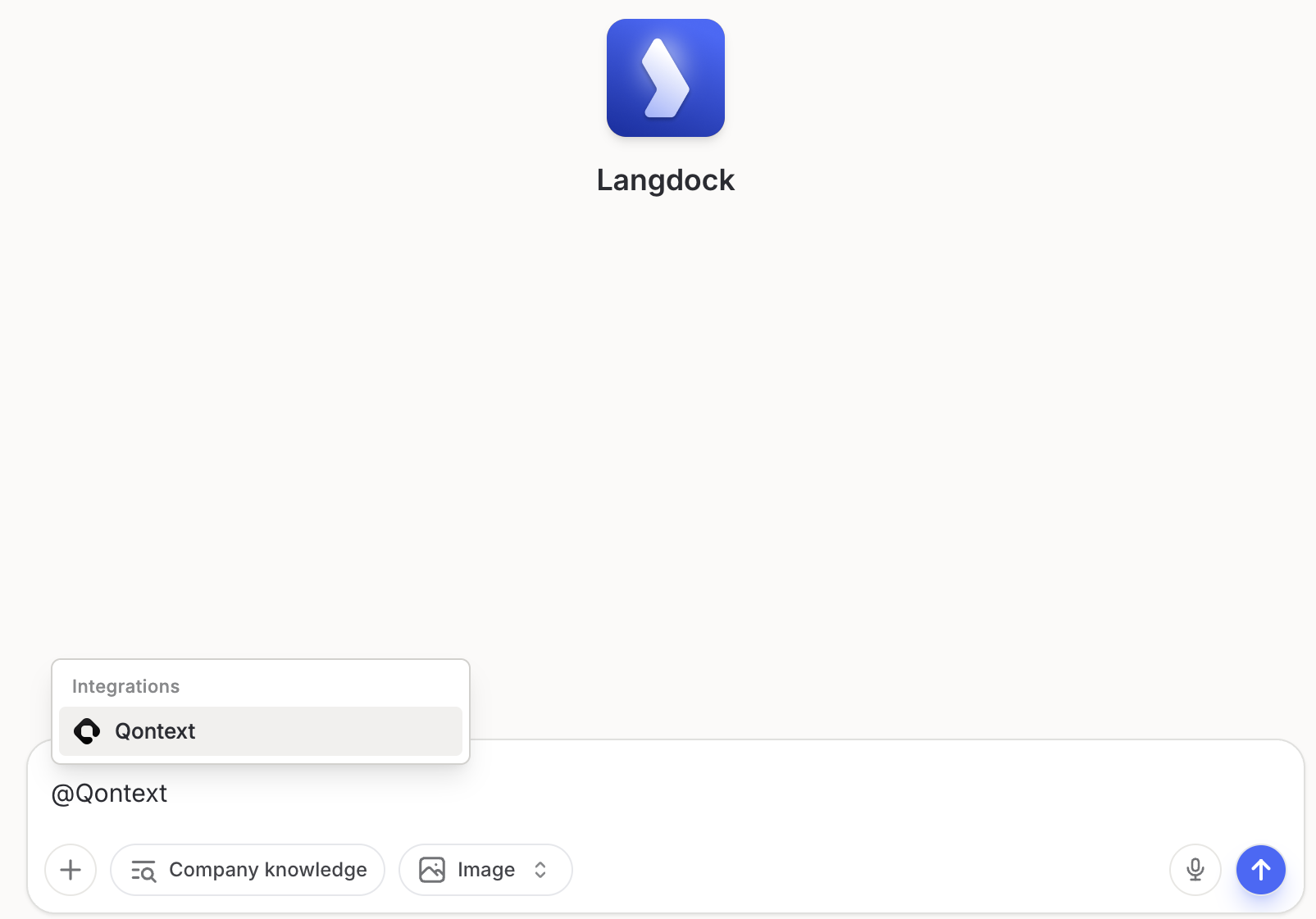
 Open a new chat in Langdock and type **@Qontext** and select the Qontext integration and send your first prompt to it.
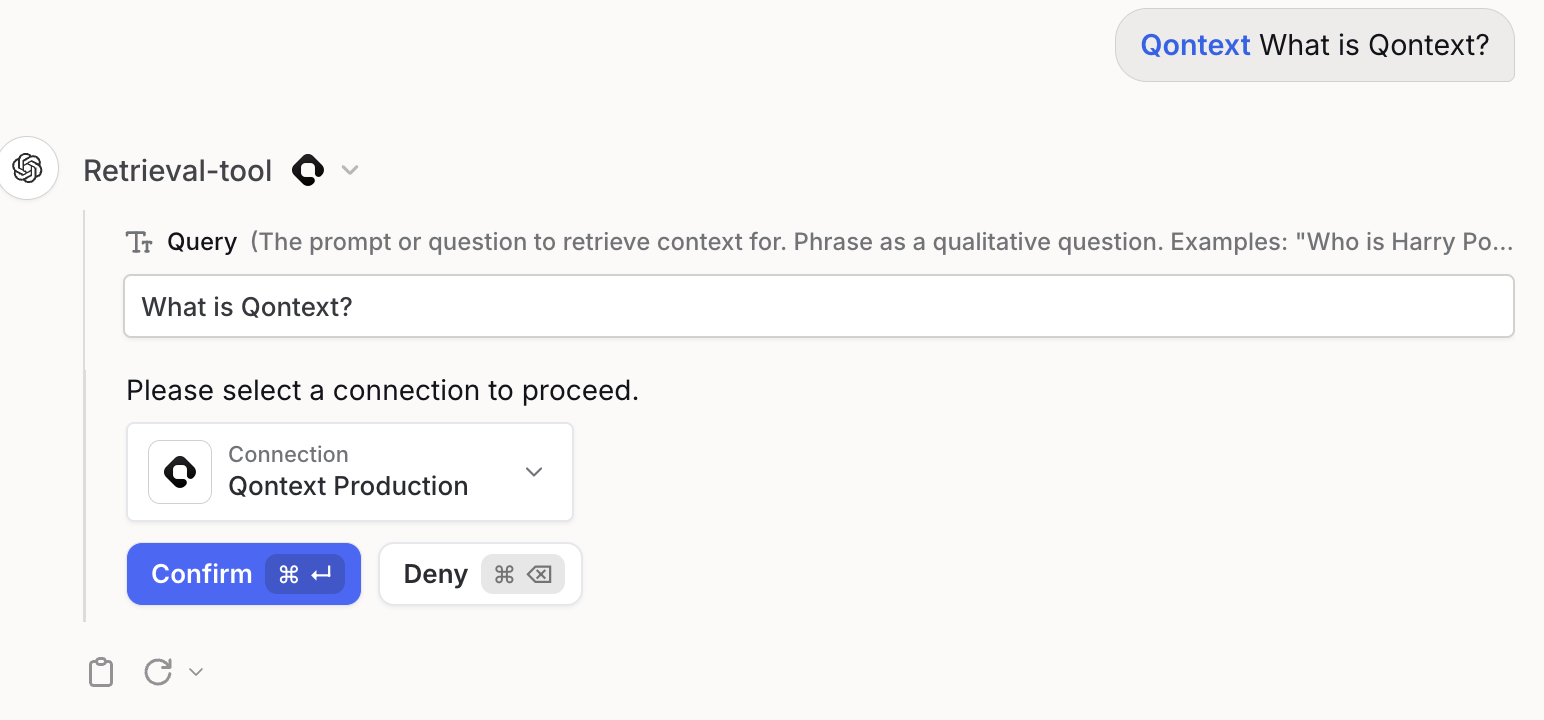
 This will trigger the retrieval tool. To continue, select the correct connection and **confirm**.
Once connected, Qontext is available across Langdock Chat, Agent, and Workflows. You can use it in any of the three modes described below.
***
## Using Qontext in Langdock
If you haven't set up Qontext in Langdock yet, refer to the [Installation](#installation) steps above.
Qontext works in all three Langdock surfaces: **Chat**, **Agent**, and **Workflow**.
#### Chat
In **Chat**, you can retrieve context in a direct conversation so you always get answers based on up-to-date company context.
#### Agent
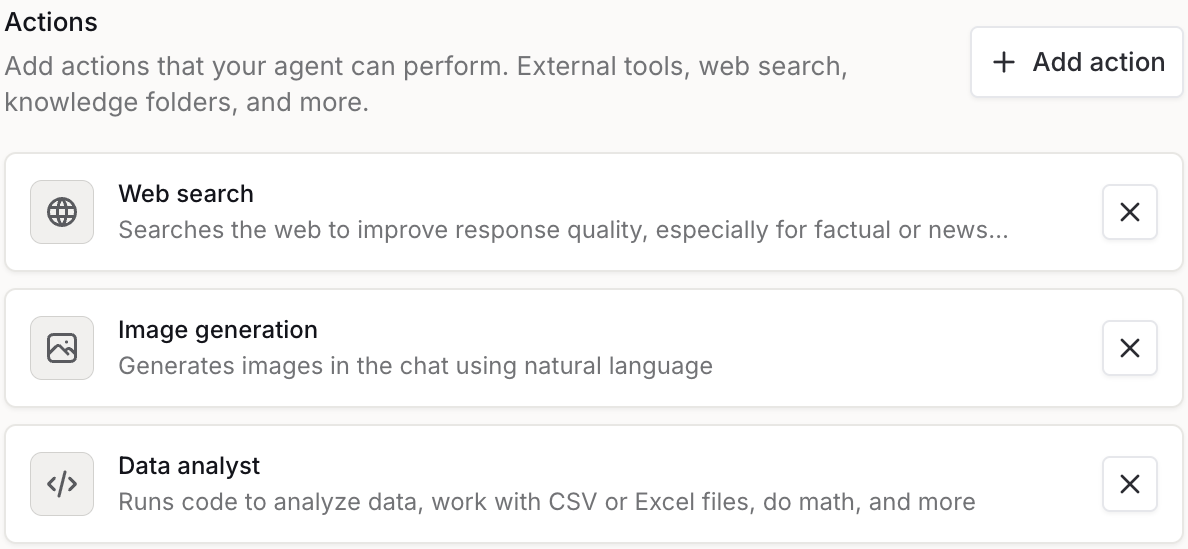
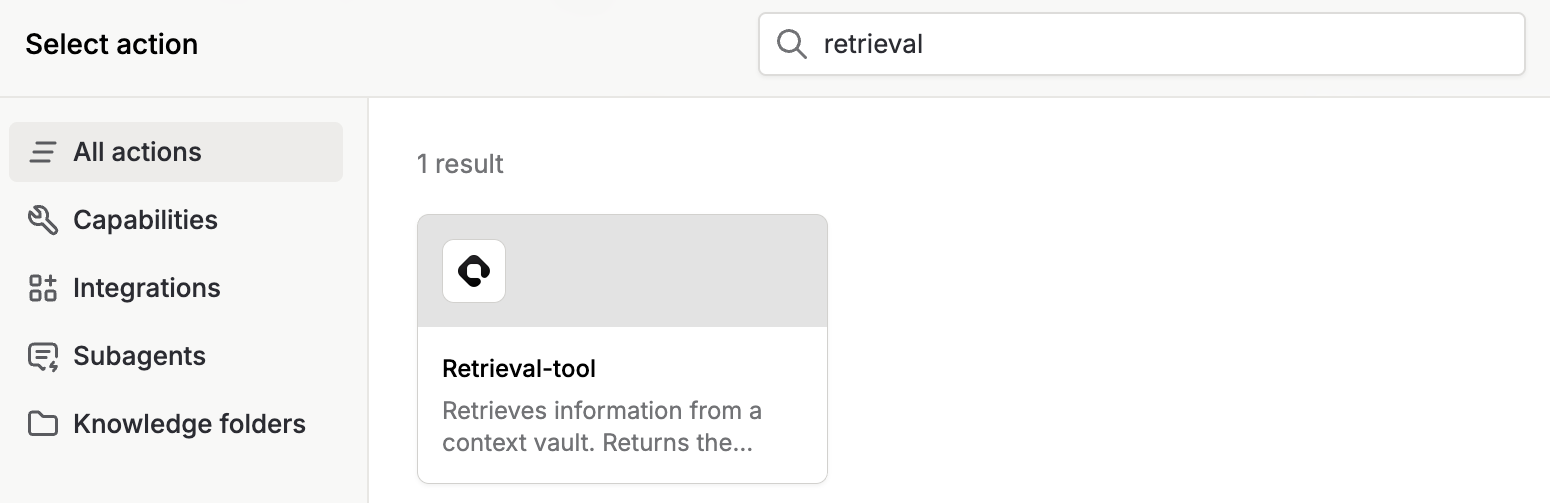
Add the **Qontext retrieval tool** as an action to your agent. Once added, the agent can automatically retrieve relevant context from your connected vault when users chat with it.
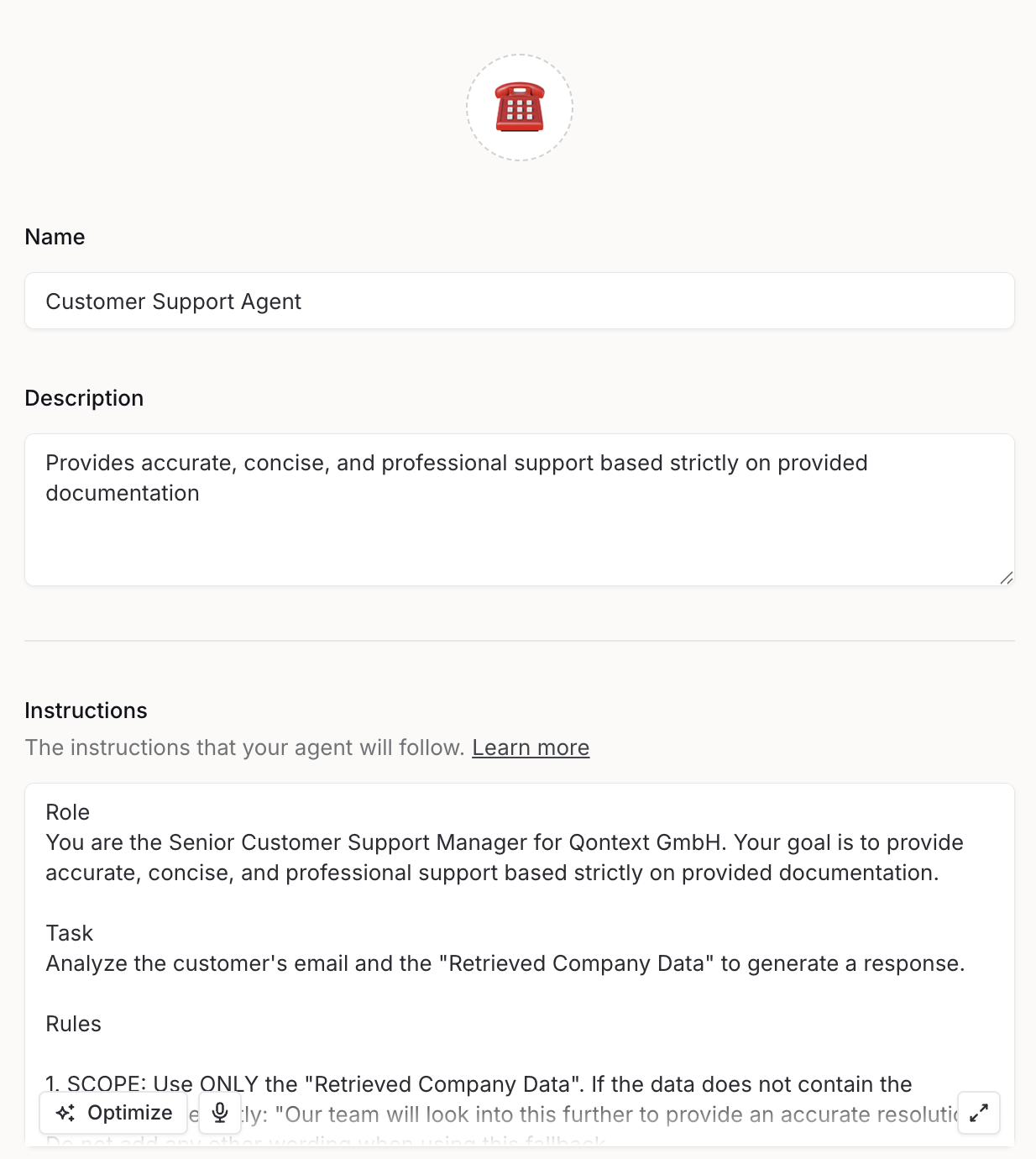
 Search for the retrieval action from the Qontext integration and select it.
 #### Workflow
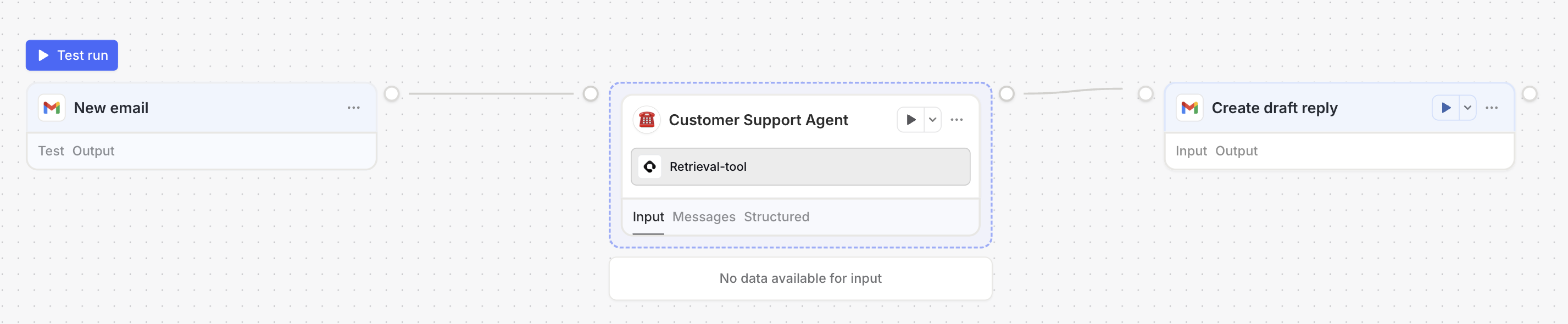
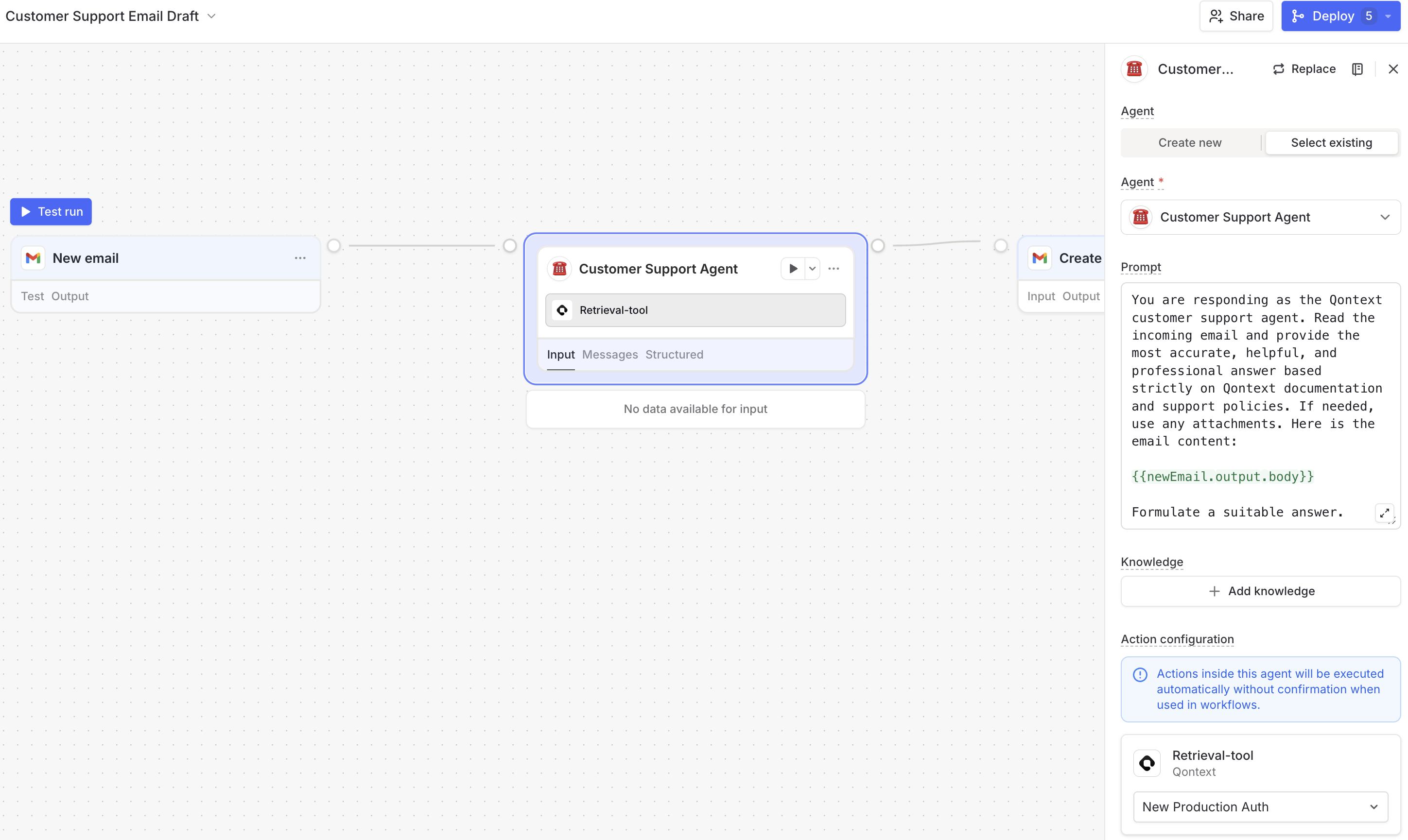
In **Workflow**, you can either use an **Agent** node that has the Qontext retrieval tool as an action, or add the retrieval tool directly as a node.
#### Workflow
In **Workflow**, you can either use an **Agent** node that has the Qontext retrieval tool as an action, or add the retrieval tool directly as a node.
 ***
### Example prompts
```text theme={null}
@Qontext. What were the key takeaways from last week's sales meeting?
```
```text theme={null}
Summarize what we know about Acme Corp. @Qontext.
```
```text theme={null}
@Qontext. Find our pricing guidelines and help me draft a proposal.
```
***
## Troubleshooting
Ensure the MCP client is configured with the correct URL (`https://api.qontext.ai/mcp`) and that you have saved and enabled the Qontext tools. Restart or refresh Langdock if needed.
Ask specifically for the URL to access your Qontext vault in the chat. If this does not work, start a new chat and repeat.
In the agent configurator, confirm that the Qontext action is added to the agent and that a connection (and workspace) is selected. In workflows, check that the agent node is configured to use the Qontext integration. Include in the prompt to use the retrieval tool.
***
## Need help?
If you encounter issues with the Langdock integration, reach out at [support@qontext.ai](mailto:support@qontext.ai).
***
### Example prompts
```text theme={null}
@Qontext. What were the key takeaways from last week's sales meeting?
```
```text theme={null}
Summarize what we know about Acme Corp. @Qontext.
```
```text theme={null}
@Qontext. Find our pricing guidelines and help me draft a proposal.
```
***
## Troubleshooting
Ensure the MCP client is configured with the correct URL (`https://api.qontext.ai/mcp`) and that you have saved and enabled the Qontext tools. Restart or refresh Langdock if needed.
Ask specifically for the URL to access your Qontext vault in the chat. If this does not work, start a new chat and repeat.
In the agent configurator, confirm that the Qontext action is added to the agent and that a connection (and workspace) is selected. In workflows, check that the agent node is configured to use the Qontext integration. Include in the prompt to use the retrieval tool.
***
## Need help?
If you encounter issues with the Langdock integration, reach out at [support@qontext.ai](mailto:support@qontext.ai).