> ## Documentation Index
> Fetch the complete documentation index at: https://docs.qontext.ai/llms.txt
> Use this file to discover all available pages before exploring further.
# Managing files via the UI
> View, create, edit, and review retrieval logs for files in Qontext
## Overview
A file in Qontext is a structured context object inside your context repository. It captures normalized, shared context about one core entity, for example a customer, product, project, process, or deal.
Files are versioned, governed, and continuously updated from connected sources. They can reference source objects and link to related files. Therefore, agents can follow entity, temporal, semantic, and causal relationships across your context repository.
***
## Viewing files
Files are available in the **Context** tab.
The context repository is shown as a folder tree. Selecting a file renders its Markdown content in the detail panel.
### Relationships and links
Files are connected through explicit references between entities, facts, and source objects. This enables:
* **Targeted context:** Load the most relevant file first, then follow links only when more context is needed.
* **Graph traversal:** Follow entity, temporal, semantic, and causal relationships across files.
* **Single source of truth:** Update context once and reuse it across clients, APIs, and workflows without duplicate copies.
### Retrieval history
Each file includes retrieval logs showing when it was accessed and how.
Logs are scoped to the selected file and include access types such as listed or read. This helps you see what an AI agent accessed, trace outputs back to specific context, and identify the most impactful files on AI responses.
***
## Creating files
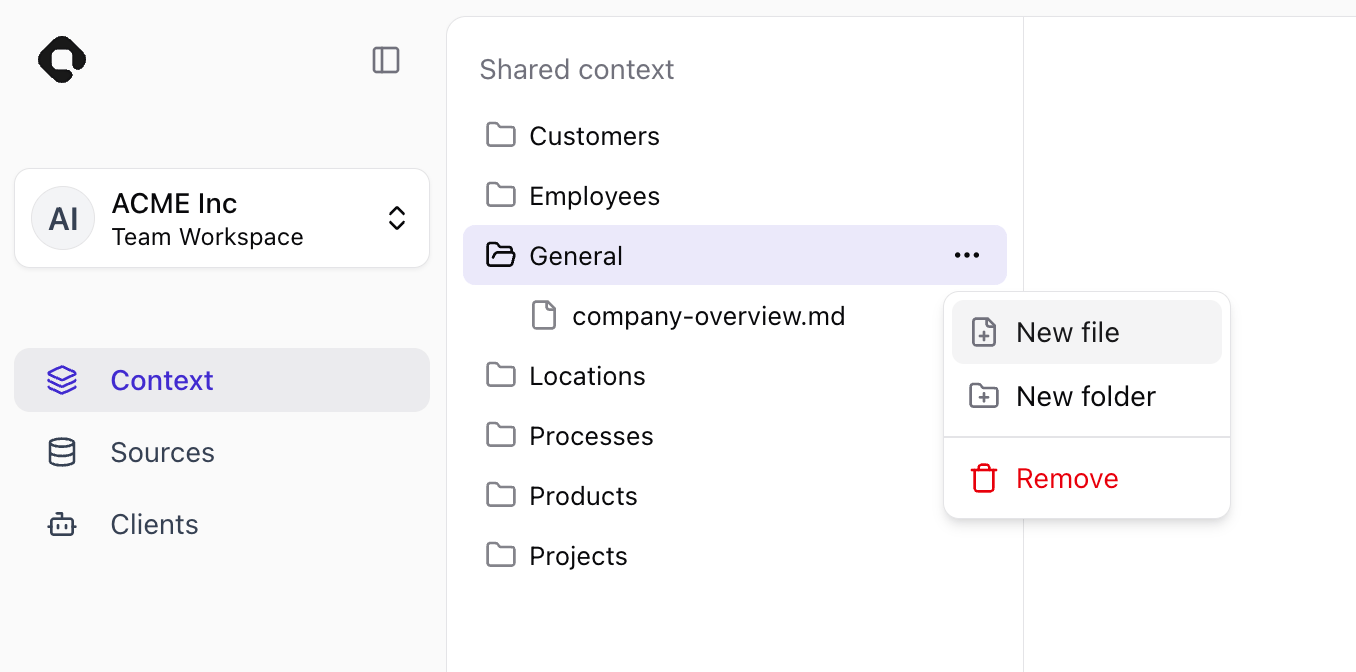
In the **Context** tab, hover over the folder where you want the file to live, open its menu by clicking on the three dots, and select **New file**.
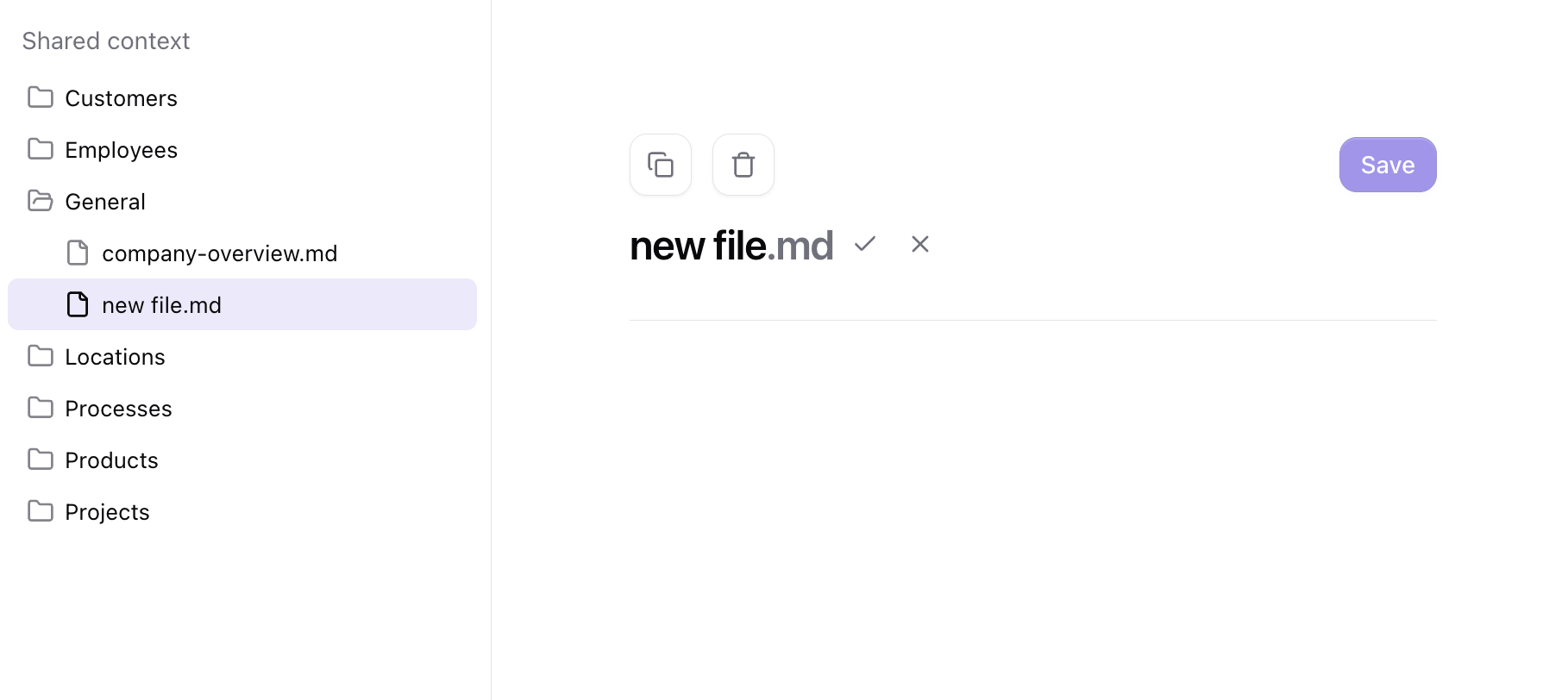
 The new file opens in the editor. Rename it and add your content, then click **Save** and submit a commit message to create it.
 ***
## Editing files
Open the **Context** tab and select a file from the repository tree.
Update content using the formatting toolbar or Markdown shortcuts.
***
## Editing files
Open the **Context** tab and select a file from the repository tree.
Update content using the formatting toolbar or Markdown shortcuts.
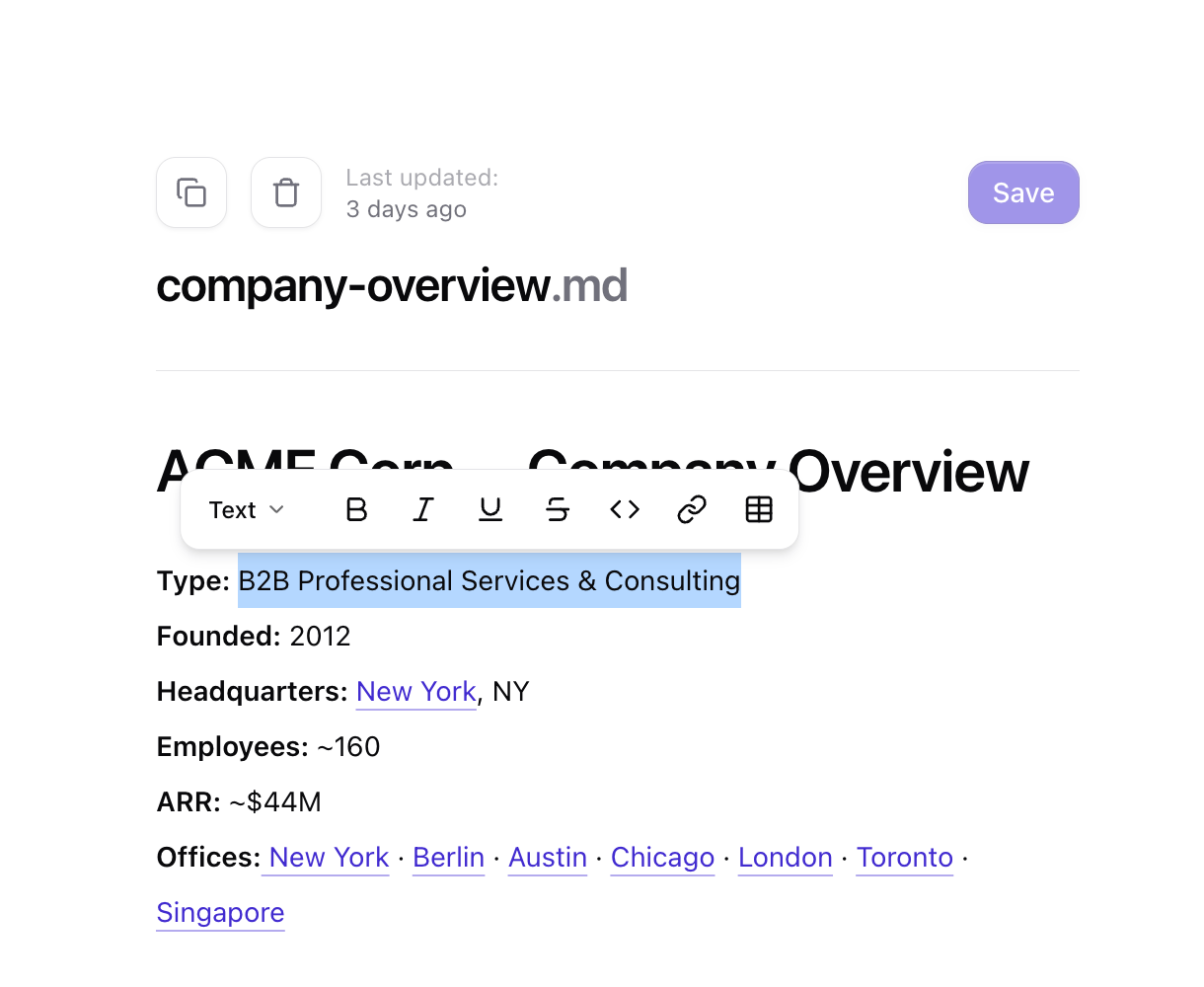 Click **Save** and submit a commit message to finalize the edit.
Additionally, you can:
* **Rename** files directly in the editor by changing the title and confirming the update.
* **Delete** a file directly in the Qontext app by using the delete action and confirming it. Deletion is permanent.
* Switch to the **raw Markdown editor** via the selector at the top right to edit the raw Markdown directly.
Click **Save** and submit a commit message to finalize the edit.
Additionally, you can:
* **Rename** files directly in the editor by changing the title and confirming the update.
* **Delete** a file directly in the Qontext app by using the delete action and confirming it. Deletion is permanent.
* Switch to the **raw Markdown editor** via the selector at the top right to edit the raw Markdown directly.