> ## Documentation Index
> Fetch the complete documentation index at: https://docs.qontext.ai/llms.txt
> Use this file to discover all available pages before exploring further.
# Native connectors
> Connect tools via connectors to sync data into Qontext
## Overview
Native connectors connect Qontext to the tools where your company context lives.
Each connector keeps selected source data up to date in the Qontext platform through syncs. This data is then used to create and continuously update your context repository. Sync logs in the platform let you monitor runs and troubleshoot.
Native connectors include tools such as [HubSpot](/sources/hubspot), [Google Drive](/sources/google-drive), [Notion](/sources/notion), and [Slack](/sources/slack). When a native connector is not available, use the API to send source data into Qontext programmatically.
***
## Connect a data source
To add a data source, open the **Sources** tab in the Qontext platform and click Connect data source.
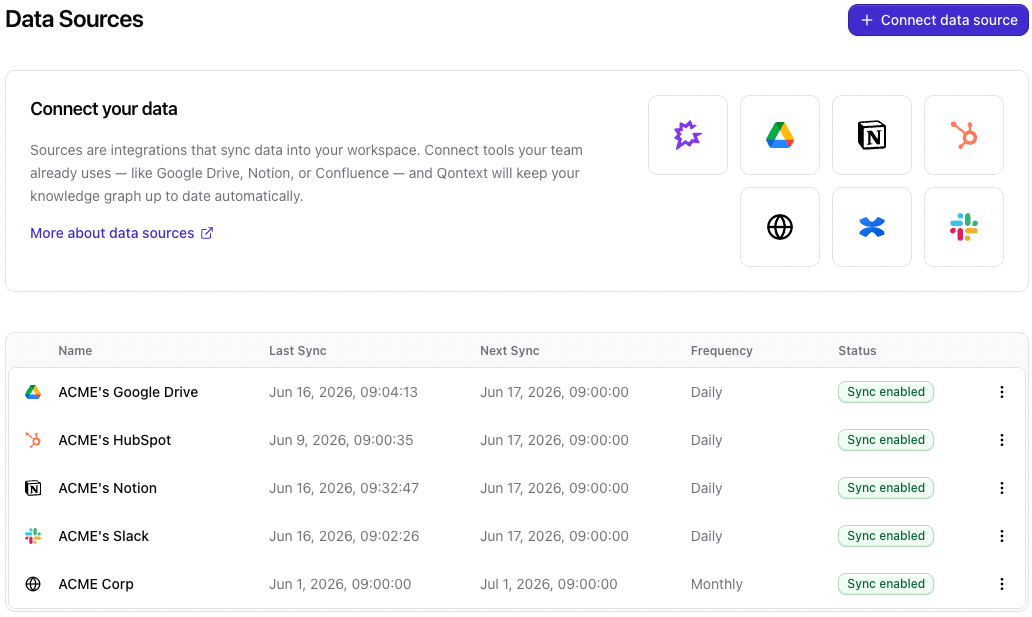
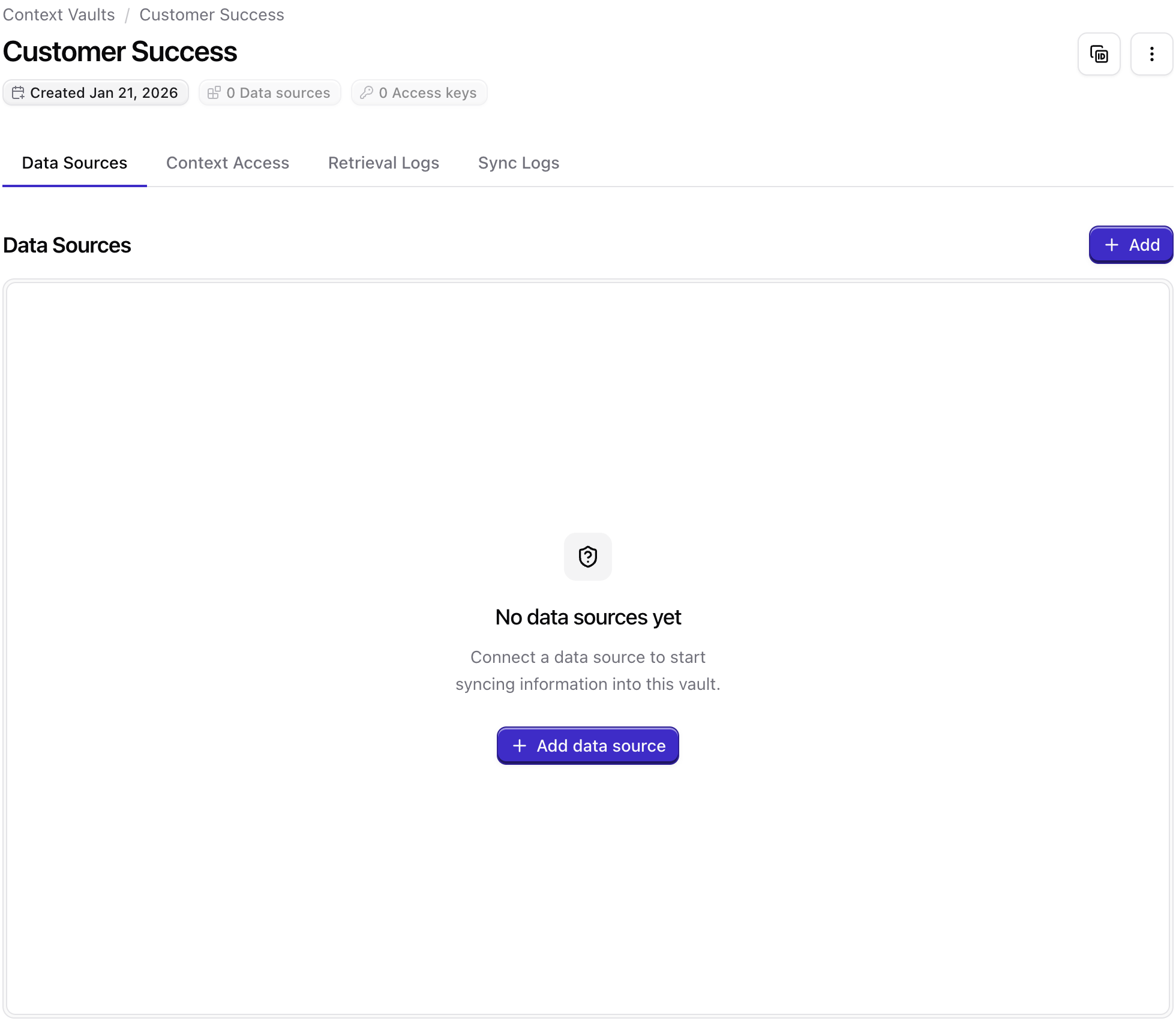 You can set filters per data source to control what data gets synced.
For setup instructions for a specific connector and a roadmap for our upcoming connectors, please refer to the [Sources](/sources/index) section.
***
## Sync logs
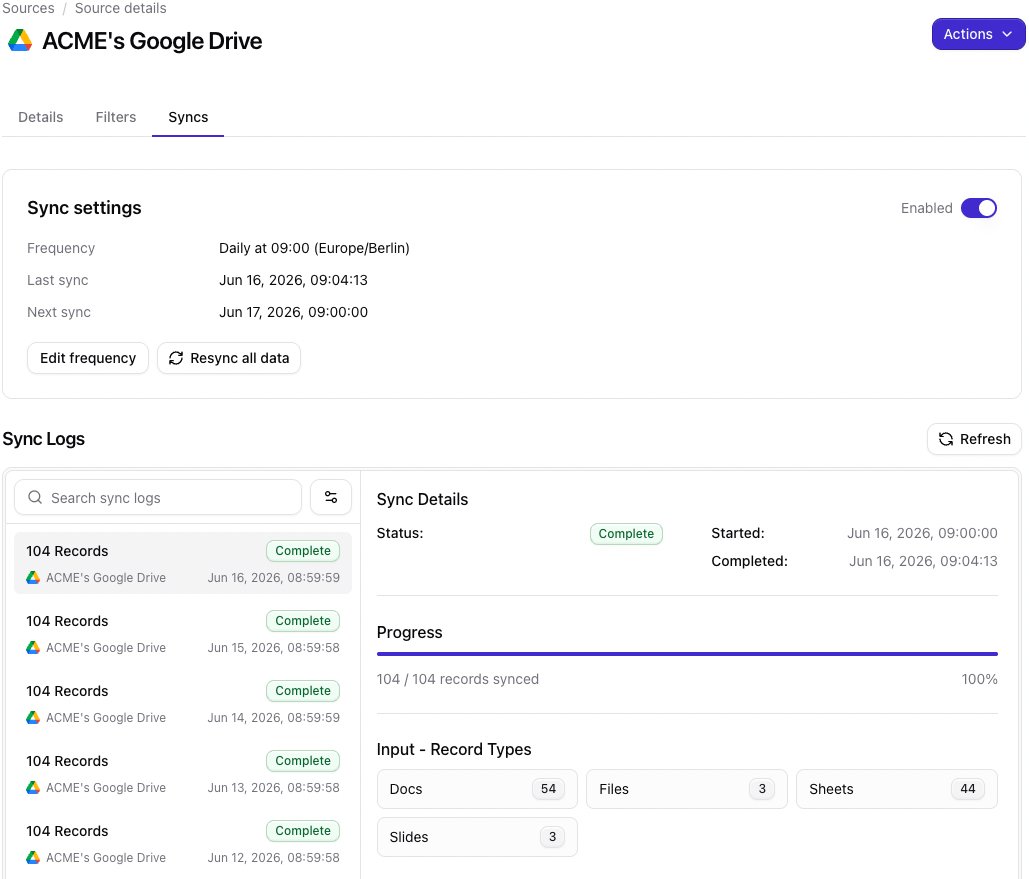
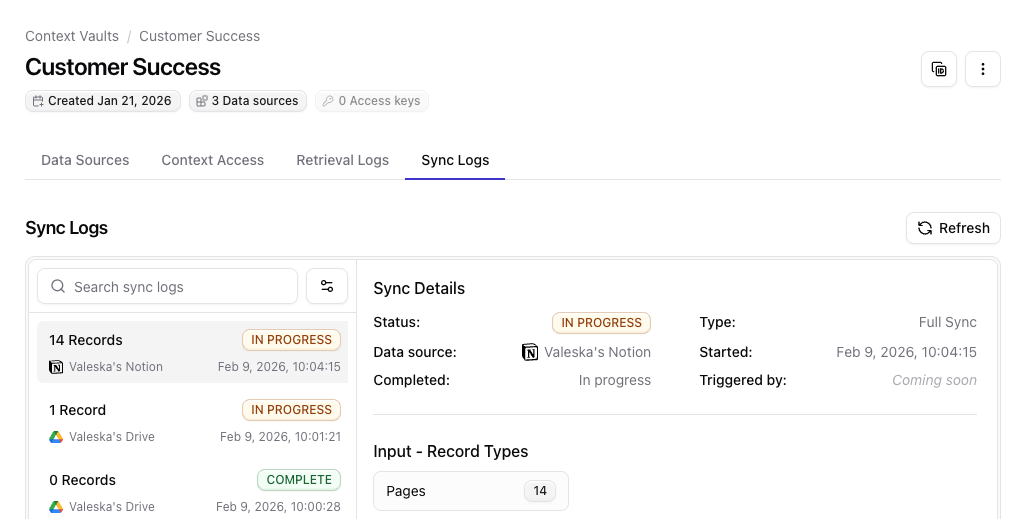
Each connected source has its own sync logs in the **Sources** tab of the Qontext platform.
Use them to see when a sync started and finished, whether it failed, which items were skipped, and which source triggered the sync.
You can set filters per data source to control what data gets synced.
For setup instructions for a specific connector and a roadmap for our upcoming connectors, please refer to the [Sources](/sources/index) section.
***
## Sync logs
Each connected source has its own sync logs in the **Sources** tab of the Qontext platform.
Use them to see when a sync started and finished, whether it failed, which items were skipped, and which source triggered the sync.
 ***
## When no native connector exists
* **Use MCP:** Use an MCP client to create, update, move, or delete files and folders directly in your context repository.
* **Use the API:** Create an API key under **Clients**, then write custom data into your context repository from your own scripts or workflow tools such as [n8n](/clients/n8n) and [Make](/clients/make).
* **Request a native connector**: To request a connector we don't offer yet, submit a request [here](https://tally.so/r/mVkKMj). We will try our best to build a connector for you.
***
## Best practices
**Prefer native connectors when available**
They keep the context repository in continuous sync with minimal setup. Use [Sources](/sources/index) to see which native connectors are available.
**Use MCP or API when no connector exists**
You can also bring data in through **self-built pipelines**: workflow tools such as [n8n](/clients/n8n) or [Make](/clients/make), or custom scripts, can write into your context repository until a native connector is available.
**Monitor sync logs**
Check sync logs after large or first-time syncs to confirm success and spot configuration or permission issues early.
***
## FAQ
Trigger a resync. If the issue persists, contact [support@qontext.ai](mailto:support@qontext.ai), so that we can resolve the issue.
It depends on the data volume of your sync. Initial syncs with large amounts of data can take up to 12 hours. Subsequent syncs process incremental changes and typically complete much faster than the initial sync.
***
## When no native connector exists
* **Use MCP:** Use an MCP client to create, update, move, or delete files and folders directly in your context repository.
* **Use the API:** Create an API key under **Clients**, then write custom data into your context repository from your own scripts or workflow tools such as [n8n](/clients/n8n) and [Make](/clients/make).
* **Request a native connector**: To request a connector we don't offer yet, submit a request [here](https://tally.so/r/mVkKMj). We will try our best to build a connector for you.
***
## Best practices
**Prefer native connectors when available**
They keep the context repository in continuous sync with minimal setup. Use [Sources](/sources/index) to see which native connectors are available.
**Use MCP or API when no connector exists**
You can also bring data in through **self-built pipelines**: workflow tools such as [n8n](/clients/n8n) or [Make](/clients/make), or custom scripts, can write into your context repository until a native connector is available.
**Monitor sync logs**
Check sync logs after large or first-time syncs to confirm success and spot configuration or permission issues early.
***
## FAQ
Trigger a resync. If the issue persists, contact [support@qontext.ai](mailto:support@qontext.ai), so that we can resolve the issue.
It depends on the data volume of your sync. Initial syncs with large amounts of data can take up to 12 hours. Subsequent syncs process incremental changes and typically complete much faster than the initial sync.