> ## Documentation Index
> Fetch the complete documentation index at: https://docs.qontext.ai/llms.txt
> Use this file to discover all available pages before exploring further.
# Skills distribution
> Create, publish, and install reusable AI instructions across your workspace
## Overview
A **skill** is a reusable package of instructions that an AI agent loads on demand. You can define a skill once with a name, description, and instructions body. The agent can activate it whenever a relevant task comes up.
In Qontext, skills are centrally managed in your workspace so they stay consistent across teams and machines. Team members install it once and keep everything up to date with a single command: `qontext skills sync`. Skills managed in Qontext are interoperable, so you can use them on any client that supports the open Agent Skills format.
***
## Anatomy of a skill
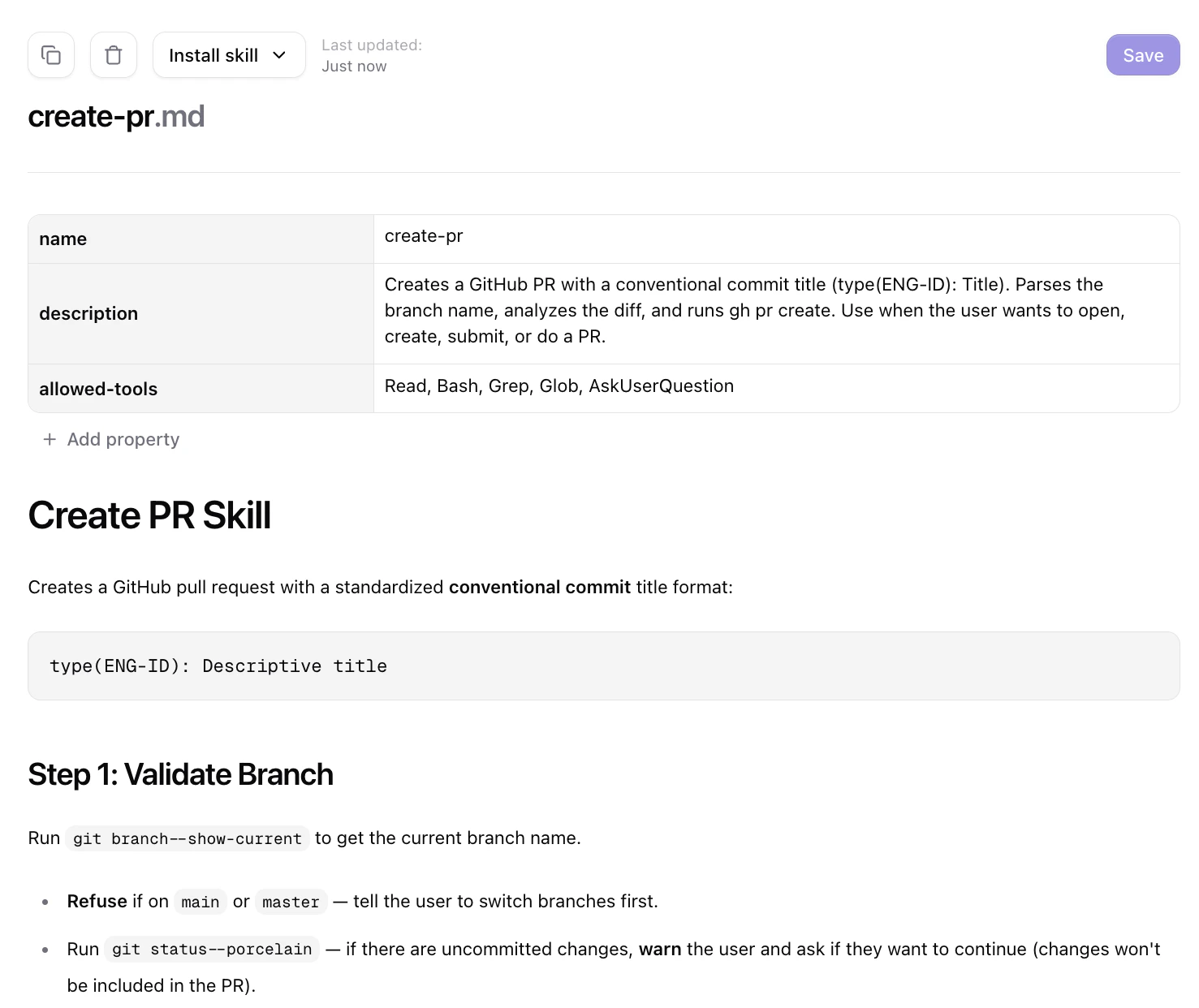
A machine-readable identifier, lowercase with hyphens (e.g. `competitor-analysis`).
What the skill does and when to use it. The agent reads this at startup to decide when to activate the skill.
The full task instructions. Define what the agent should do, what data to draw on (data scope), and what format to produce (output format).
Optional scripts, reference documents, and templates, bundled in the skill folder and loaded only when needed.
**Open format.**
Qontext skills follow the open [Agent Skills specification](https://agentskills.io/specification). Skills work with any compatible AI tool and can be imported from a context repository.
***
## Importing skills to Qontext
Use the [import-repo](https://github.com/qontext-ai/examples/blob/main/skills/import-repo) skill to migrate existing skills from GitHub or a local folder into your context repository.
**The import-repo skill is designed for initial imports.**
After a successful import it removes itself from `~/.claude/skills/import-repo/`. To import again later, reinstall it from the [Qontext examples repository](https://github.com/qontext-ai/examples/tree/main/skills/import-repo).
Make sure Claude Code or another client is installed. The import-repo skill detects and sets up the [Qontext MCP](/interfaces/MCP) automatically if it is not already configured. You will be prompted to complete an OAuth flow on first run.
Download the [import-repo skill](https://github.com/qontext-ai/examples/tree/main/skills/import-repo) from the Qontext examples repository and place it in your Claude Code skills folder (`~/.claude/skills/import-repo/`).
In Claude Code, ask it to import your skills:
> "Import my skills from \[GitHub URL or local path] to Qontext."
The skill guides you through scope, file handling, and target path, then bulk-imports everything into your workspace.
Once complete, the imported skills appear as files in the context repository, visible under **Context** in your workspace.
***
## Distributing skills
Once a skill is stored in Qontext, teammates can install it into compatible clients using the Qontext CLI (see [CLI](/interfaces/cli) and [GitHub](https://github.com/qontext-ai/cli)).
Install the CLI:
```bash theme={null}
curl -fsSL https://cli.qontext.ai | sh
```
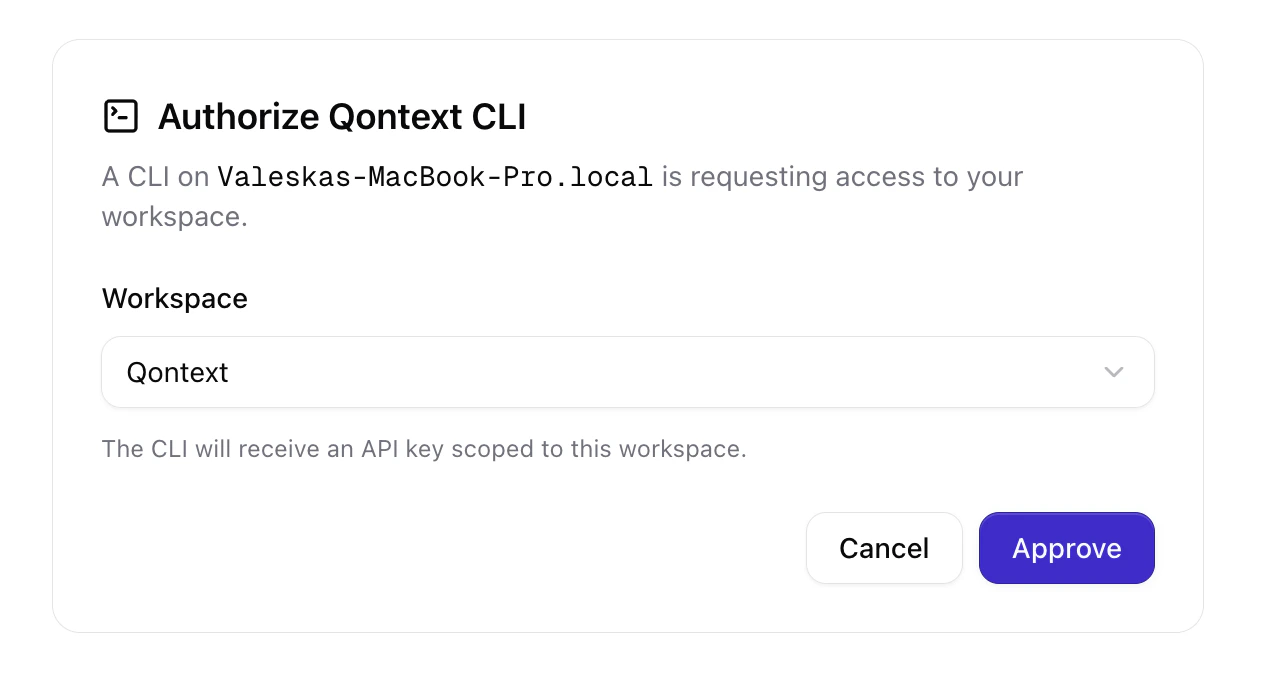
Log in to your workspace and approve the access request to your workspace:
```bash theme={null}
qontext login
```
Install a skill by passing its link to the CLI:
```bash theme={null}
qontext skills add
```
To get the link, open the **Context** tab in the app, select a skill, and click **Install skill**. You can then copy either the full install command or the short link.
To keep skills up to date, use:
```bash theme={null}
qontext skills sync
```