> ## Documentation Index
> Fetch the complete documentation index at: https://docs.qontext.ai/llms.txt
> Use this file to discover all available pages before exploring further.
# API
> Interact with Qontext via API
## Overview
The Qontext API provides programmatic access to your context repository.
Use it to build custom applications, workflows, agents, and internal tools that retrieve, search, create, and update context.
All API requests are authenticated using API keys.
***
## Creating an API key
Please refer to the [API reference](/api-reference/introduction) for all available endpoints and examples.
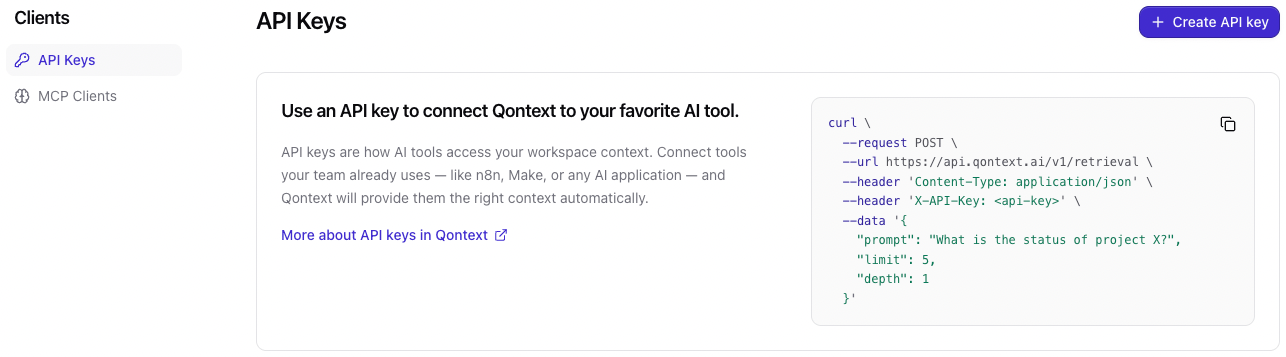
In the [Qontext app](https://app.qontext.ai), go to the **Clients** tab. To add an API key, click on **+ Create API key** in the top right corner.
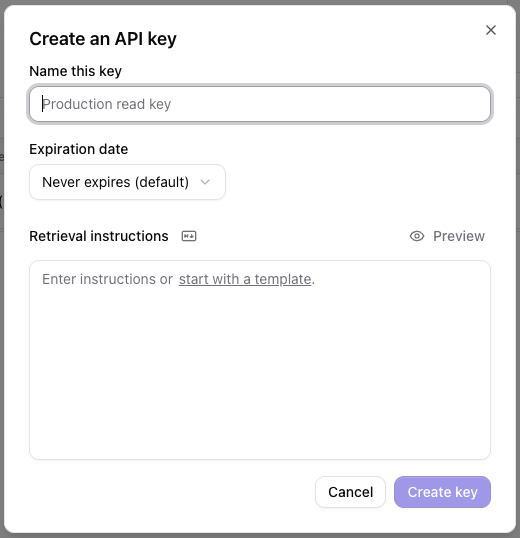
 In the **Create an API key** window, give your key a name and add an expiration date if required.
 Copy the API key and store it safely. You will not be able to view it again later.
You can now access the context repository from any application, workflow, or script by passing the key as the `X-API-Key` header in API requests.
***
## Authentication
Pass the API key as the `X-API-Key` header:
```text theme={null}
--header 'X-API-Key: q_sk_***************'
```
***
## Available operations
The API can be used to:
* Read files and folders
* Search the context repository
* Create files and folders
* Update files and folders
* Manage clients
* Manage sources
* Retrieve logs
Please refer to the [API reference](/api-reference/introduction) for endpoint documentation and examples.
***
## Best practices
**One API key per use case or environment.**
Use separate keys per workflow, agent, or environment. That enables easy revocation of access and makes the origin of retrieval logs clearly identifiable.
***
## FAQ
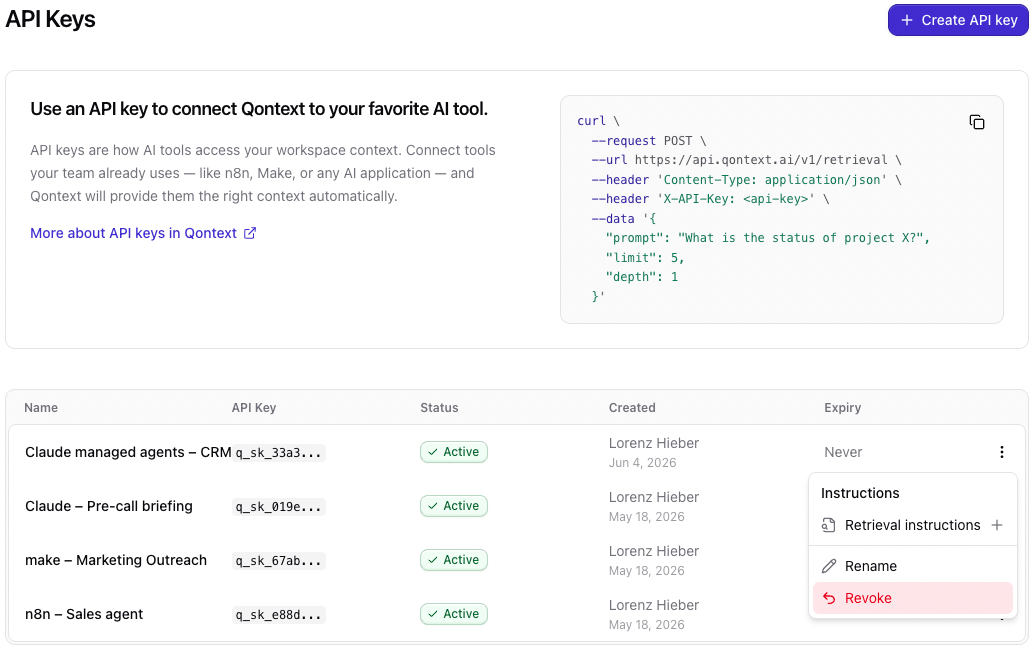
In the [Qontext app](https://app.qontext.ai), open the **Clients** tab. Click the three dots next to the key and choose **Revoke**. Once revoked, the key is automatically disabled and removed from the list. Create a new key for the same use case and update the client using it.
Copy the API key and store it safely. You will not be able to view it again later.
You can now access the context repository from any application, workflow, or script by passing the key as the `X-API-Key` header in API requests.
***
## Authentication
Pass the API key as the `X-API-Key` header:
```text theme={null}
--header 'X-API-Key: q_sk_***************'
```
***
## Available operations
The API can be used to:
* Read files and folders
* Search the context repository
* Create files and folders
* Update files and folders
* Manage clients
* Manage sources
* Retrieve logs
Please refer to the [API reference](/api-reference/introduction) for endpoint documentation and examples.
***
## Best practices
**One API key per use case or environment.**
Use separate keys per workflow, agent, or environment. That enables easy revocation of access and makes the origin of retrieval logs clearly identifiable.
***
## FAQ
In the [Qontext app](https://app.qontext.ai), open the **Clients** tab. Click the three dots next to the key and choose **Revoke**. Once revoked, the key is automatically disabled and removed from the list. Create a new key for the same use case and update the client using it.