> ## Documentation Index
> Fetch the complete documentation index at: https://docs.qontext.ai/llms.txt
> Use this file to discover all available pages before exploring further.
# CLI
> Interact with Qontext via the command line
## Overview
The [Qontext CLI](https://github.com/qontext-ai/cli) (`qontext`) brings your context repository to the command line.
Today it installs and maintains workspace [Skills](/features/skills) on your local machine: install a skill once, then keep it in sync with a single command. Skills follow the open [Agent Skills specification](https://agentskills.io/specification), so they work with any compatible AI tool.
***
## Install
```sh theme={null}
curl -fsSL https://cli.qontext.ai | sh
```
```powershell theme={null}
irm https://raw.githubusercontent.com/qontext-ai/cli/main/install.ps1 | iex
```
If you'd rather not pipe a script into a shell:
1. Download the archive for your platform from the [Releases](https://github.com/qontext-ai/cli/releases) page.
2. Verify it against `SHA256SUMS-.txt` from the same release:
* macOS / Linux: `shasum -a 256 -c SHA256SUMS-.txt`
* Windows: `Get-FileHash -Algorithm SHA256 `
3. Extract and move `qontext` (or `qontext.exe`) onto your `PATH`.
***
## Authentication
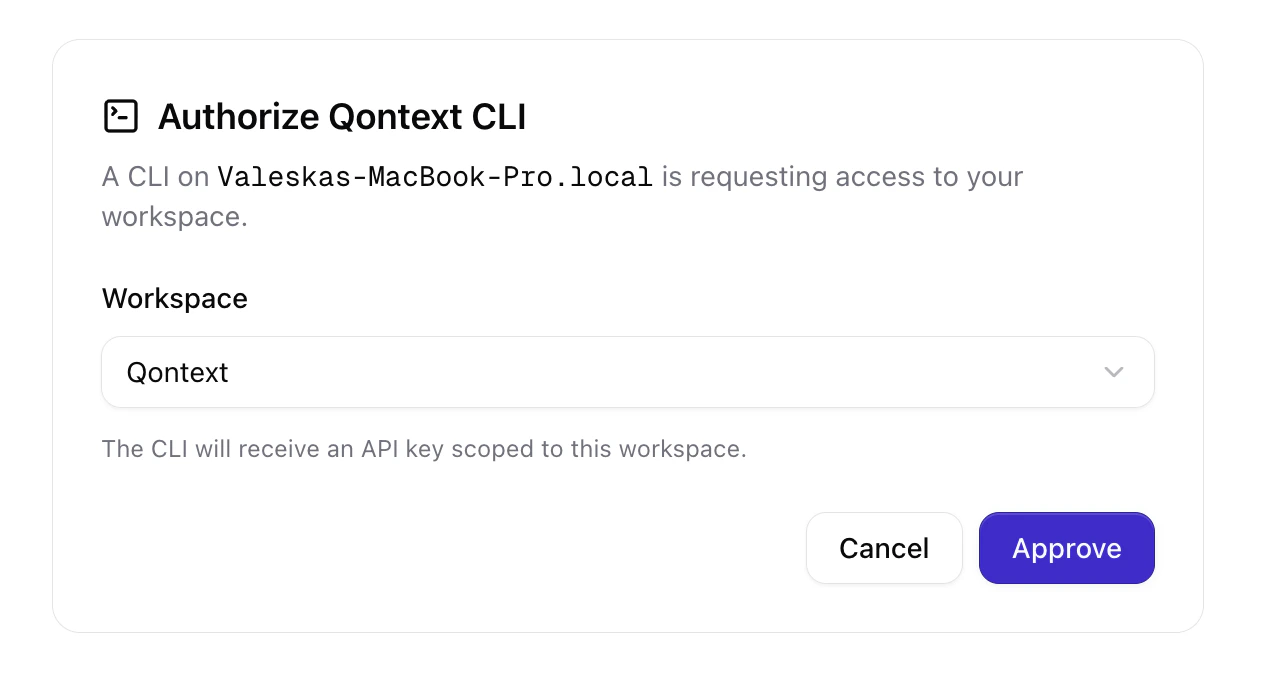
Log in to connect the CLI to your workspace and approve the access request:
```bash theme={null}
qontext login
```
***
## Managing skills
Pass a skill's link to the CLI:
```bash theme={null}
qontext skills add
```
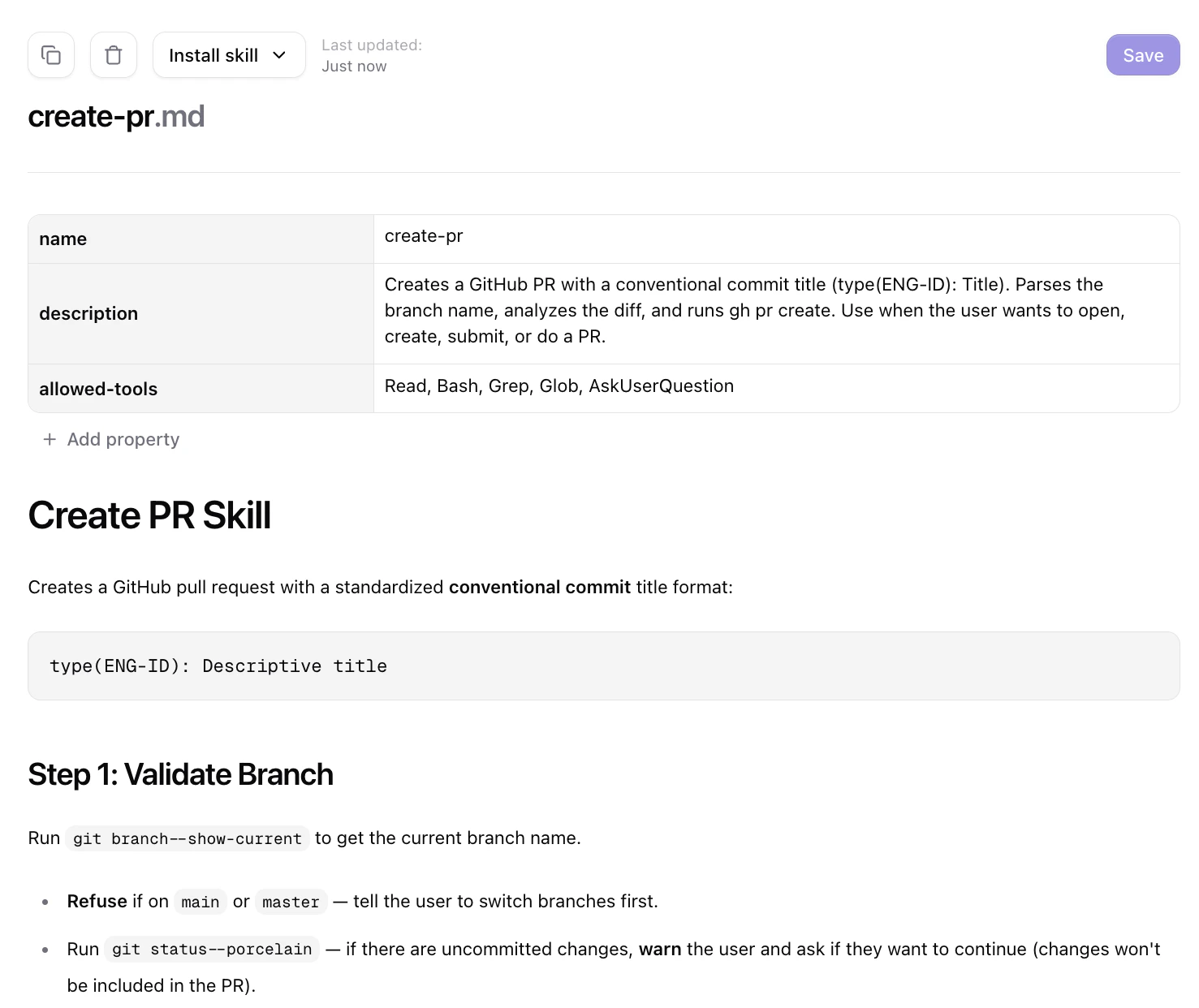
To get the link, open the **Context** tab in the [Qontext app](https://app.qontext.ai), select a skill, and click **Install skill**. Copy either the full install command or the short link.
Pull the latest version of every installed skill:
```bash theme={null}
qontext skills sync
```
Please refer to [Skills](/features/skills) for how skills are created, imported, and distributed across a workspace.
***
## Updating the CLI
Keep the CLI current with a single command:
```bash theme={null}
qontext update
```
This replaces the installed binary in place with the latest release. The CLI also checks for updates in the background and warns you once a day when a newer version is available.
***
## Command reference
| Command | Description |
| --------------------------- | ---------------------------------------------------- |
| `qontext login` | Authenticate the CLI with your workspace. |
| `qontext skills add ` | Install a skill from your context repository. |
| `qontext skills sync` | Update all installed skills to their latest version. |
| `qontext update` | Update the CLI in place to the latest release. |
***
## FAQ
Any tool that supports the open [Agent Skills specification](https://agentskills.io/specification), such as Claude Code. The CLI places skills in the client's local skills folder.
Run `qontext skills sync`. Skills stay centrally managed in your workspace, so every installed copy updates from a single source of truth.
 ***
## Managing skills
***
## Managing skills