> ## Documentation Index
> Fetch the complete documentation index at: https://docs.qontext.ai/llms.txt
> Use this file to discover all available pages before exploring further.
# Confluence
> Connect Confluence with Qontext
## Overview
The Confluence connection allows Qontext to read pages and blog posts from a connected Confluence instance and ingest their text content into your context repository.
Only spaces and pages that the connected Confluence account can access will be ingested into your context repository.
**Supported data types:**
| Object | Description |
| ------------ | ---------------------------------------------------------------------------------- |
| `Pages` | Confluence pages including nested child pages |
| `Blog posts` | Blog posts published within Confluence spaces |
| `Comments` | Footer and inline comments, fetched and appended to their parent page or blog post |
| `Tasks` | Tasks on pages, fetched and appended to the parent page content |
Comments and tasks are not ingested as standalone items. They are included in the content body of their parent page or blog post.
**Unsupported:**
| Object | Description |
| ------------- | --------------------------------------------------------- |
| `Attachments` | Files attached to pages (e.g. images, PDFs, spreadsheets) |
| `Databases` | Confluence databases |
| `Whiteboards` | Confluence whiteboards and visual collaboration content |
***
## Recommended setup
Use a **dedicated integration user** in your Confluence instance to ensure a stable and uninterrupted connection.
Create a service account such as `qontext@yourcompany.com` and grant it access to the spaces you want Qontext to ingest. This prevents sync disruptions when employee accounts or permissions change.
The integration user will:
* Authenticate the connection between Qontext and Confluence.
* Access shared spaces and pages with read-only permissions.
***
## Setting up the connection
You can connect Confluence from your Qontext workspace, authorize access in Confluence, then choose what to sync and how often. The steps below walk you through the full flow.
You can also manage all your credentials, including Confluence, from the **Sources** tab.
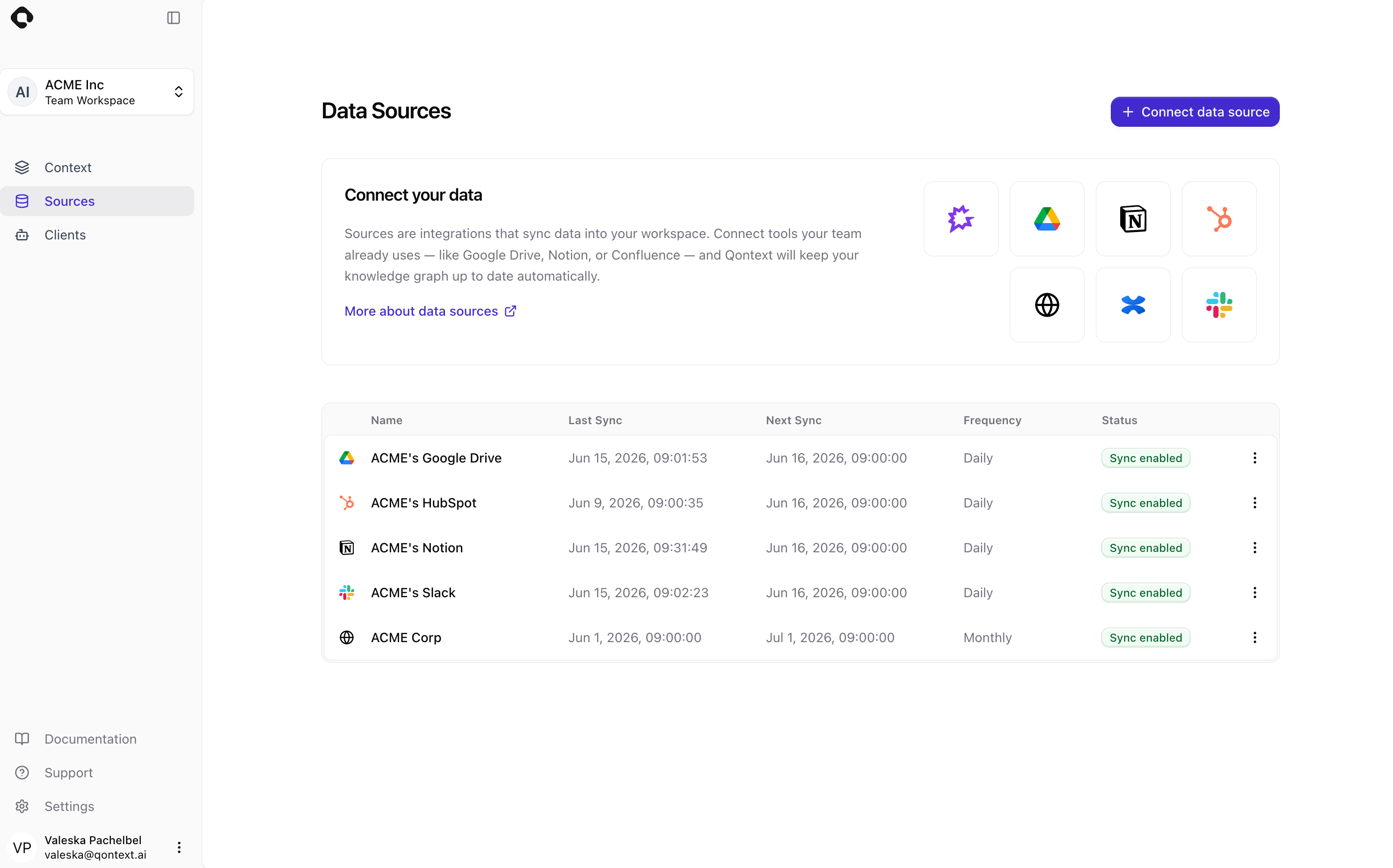
In the [**Qontext app**](https://app.qontext.ai/), open your workspace and go to the **Sources** tab, then click **+ Connect data source**.
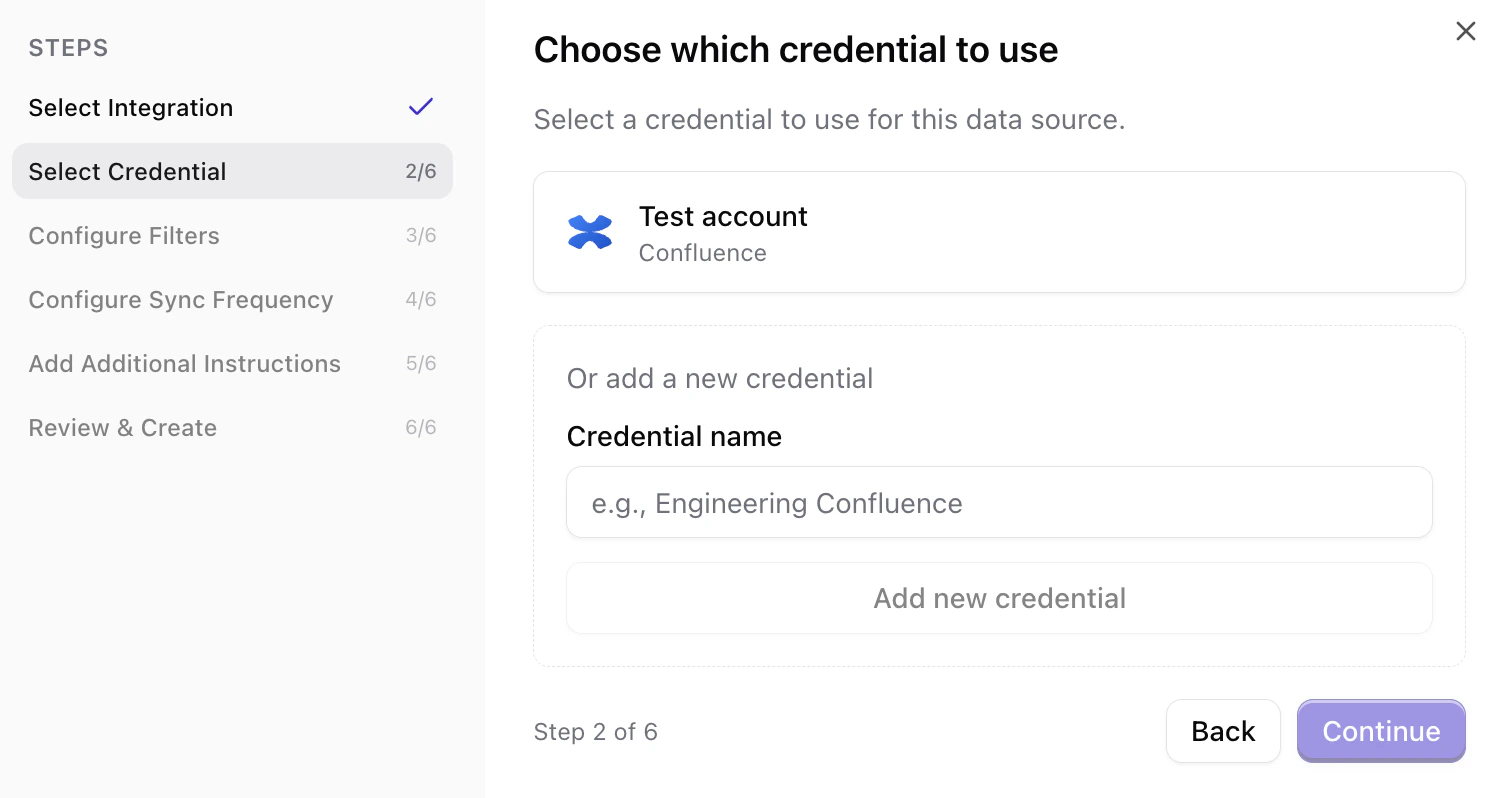
 You can **reuse existing Confluence credentials** (if you've already connected this account to Qontext) or **create a new connection**.
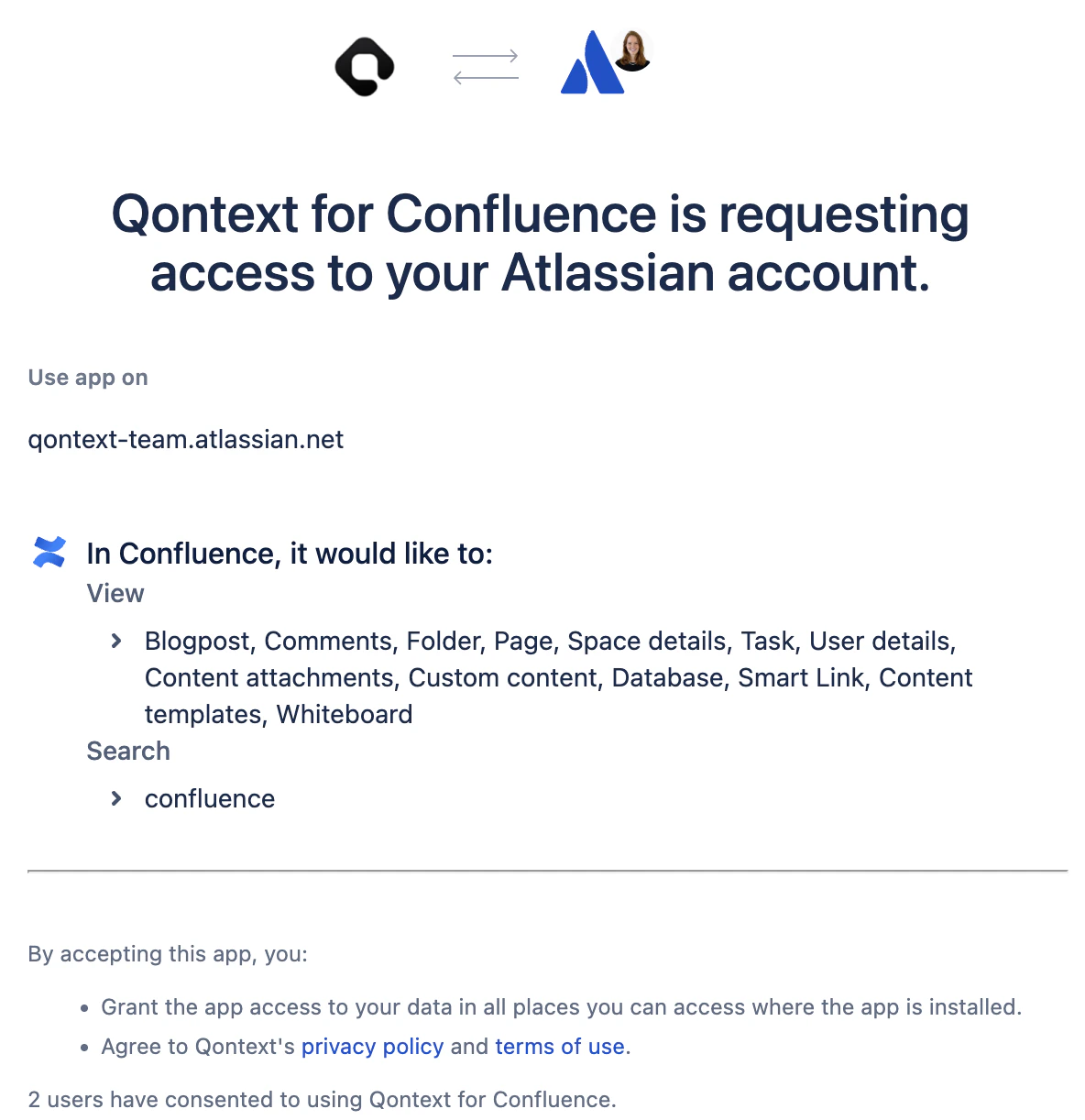
 If you create a new credential, sign in to Atlassian when prompted. On the consent screen, review the requested permissions and click **Accept** to grant Qontext read access to your Confluence content.
 Select the spaces and pages you want Qontext to ingest into your context repository. Use the search bar to find specific spaces and pages or navigate through the list.
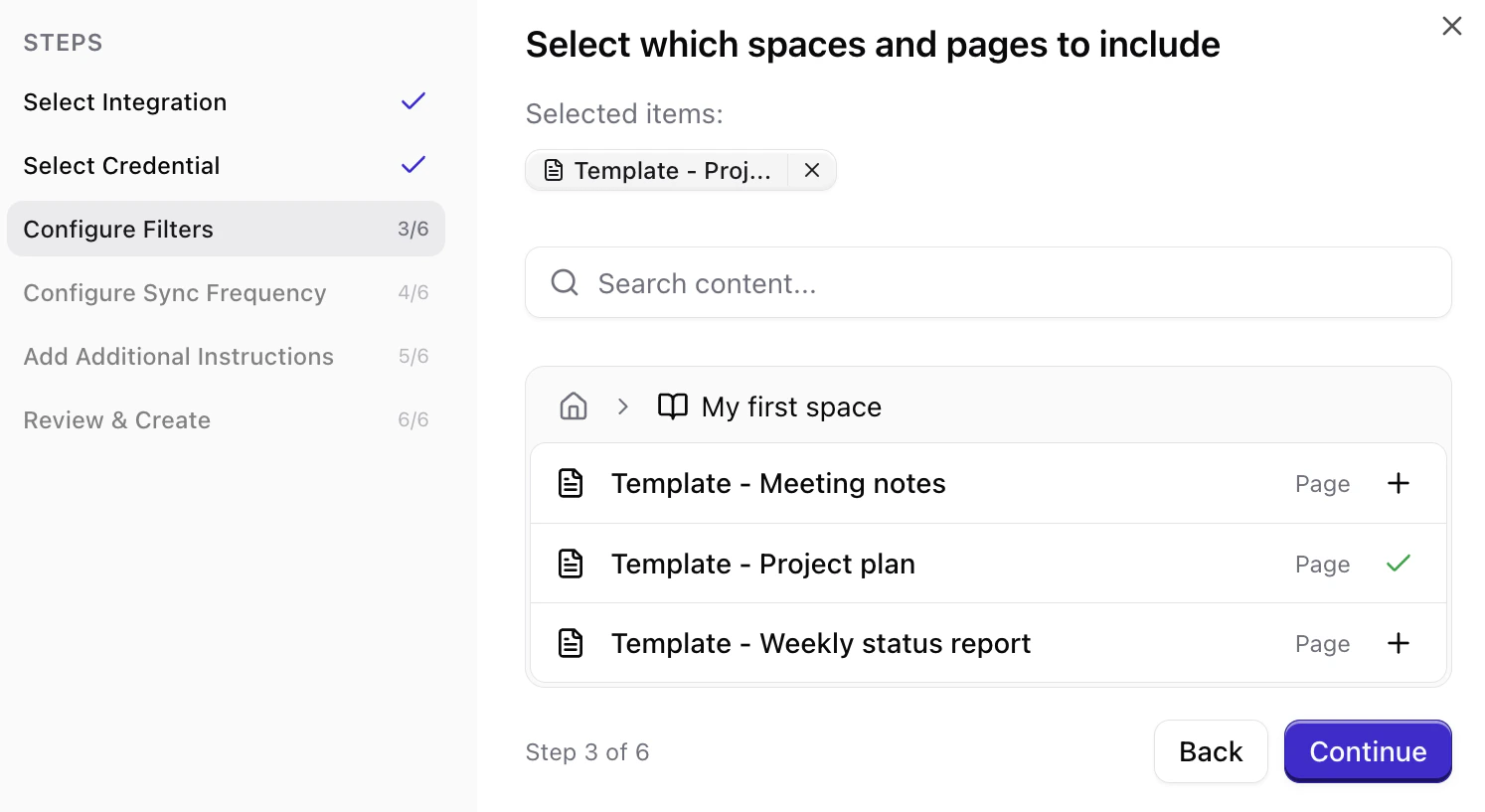 Click the **+** next to a page to add it, or click the page name to navigate into it for a more granular selection. Selected items appear at the top. To remove them from the selection, click the **x** next to it.
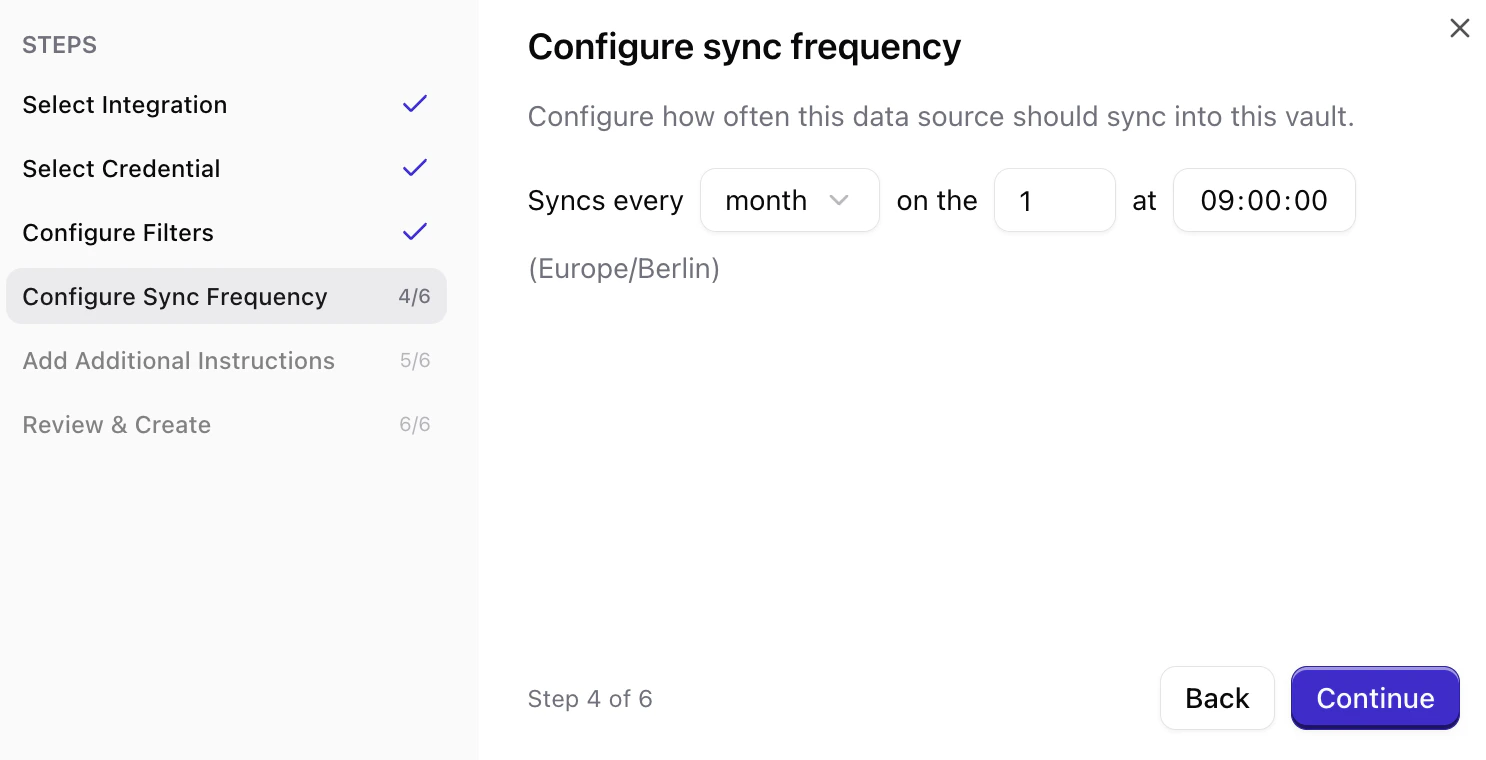
Choose how often Qontext should refresh data from Confluence (e.g. daily, weekly, monthly). More frequent syncs keep the context repository up to date but use more resources.
Click the **+** next to a page to add it, or click the page name to navigate into it for a more granular selection. Selected items appear at the top. To remove them from the selection, click the **x** next to it.
Choose how often Qontext should refresh data from Confluence (e.g. daily, weekly, monthly). More frequent syncs keep the context repository up to date but use more resources.
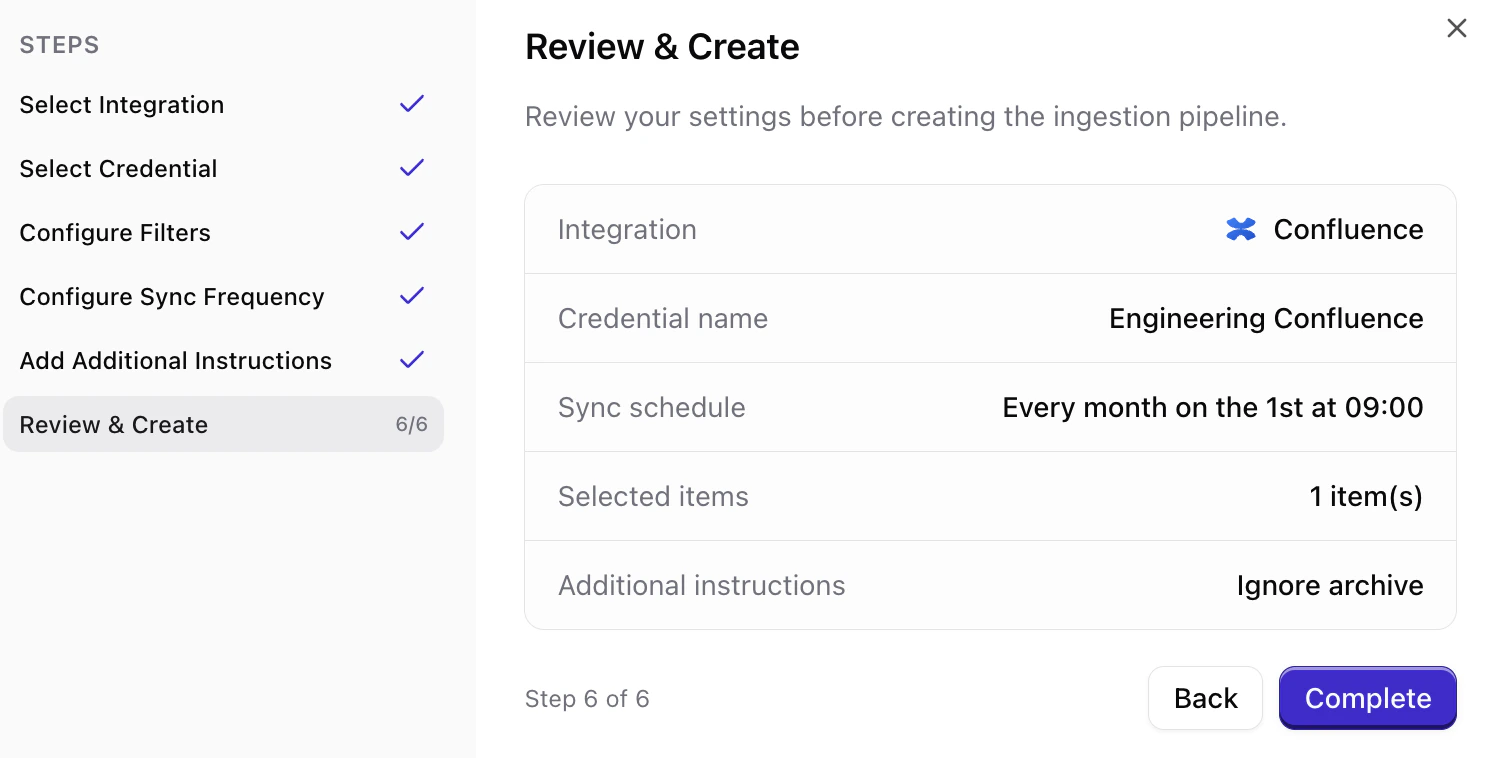
 Review your choices (name, frequency, selected pages), then confirm to create the connection. Qontext will start the initial sync shortly after.
 ***
## Managing permissions
### Confluence OAuth scopes
When connecting, you will see a consent screen titled **Qontext for Confluence is requesting access to your Atlassian account**. It lists the permissions Qontext needs; they are read-only. You'll see categories such as:
```text theme={null}
- View: Blogpost, Comments, Folder, Page, Space details, Task, User details, Content attachments, Custom content, Database, Smart Link, Content templates, Whiteboard
- Search: confluence
```
Granting these scopes is required for the connection to work. Qontext only reads data from Confluence to ingest it into your context repository; it does not create, edit, or delete any content.
### Confluence permissions
* Use a **single integration user** to manage Confluence access for Qontext to avoid permission conflicts.
* If you don't see a space or page during filter setup, verify that the connected account has permission to view it in Confluence.
***
## Sync latency
The initial sync time depends on the number of spaces and pages in scope. Large Confluence instances with many pages can take **up to 12 hours** to fully index.
Subsequent syncs process **incremental changes** and typically complete much faster than the initial sync.
***
## FAQ
Any user with **Confluence access** and permission to authorize third-party apps can set up the connection. We recommend using a dedicated service account with stable access to the spaces you want to ingest.
Qontext currently supports **Confluence Cloud** only. If you use Confluence Data Center, contact [support@qontext.ai](mailto:support@qontext.ai) to discuss your options.
Yes. You can create multiple Confluence connections from the **Sources** tab in your Qontext workspace. Add each site as a separate data source. You can also manage all your credentials from the **Source** tab in your Qontext workspace. Add each site as a separate data source. You can also manage all your credentials from the **Sources** tab.
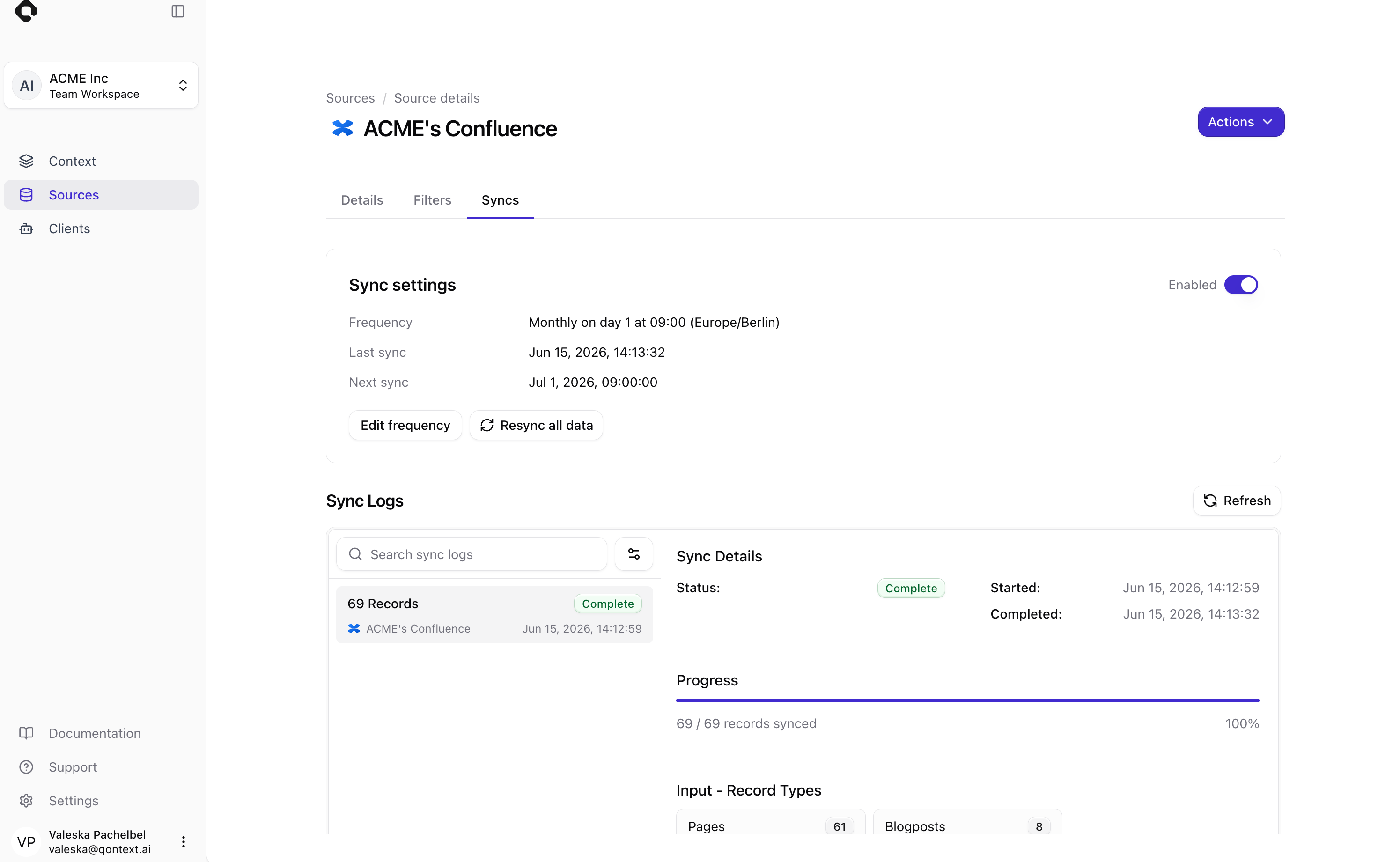
Manual refresh for Confluence connections is available via the **Sources** tab. Navigate to the respective Confluence connection and open the **Syncs** tab. In the Sync settings, you can select **Resync all data**.
***
## Managing permissions
### Confluence OAuth scopes
When connecting, you will see a consent screen titled **Qontext for Confluence is requesting access to your Atlassian account**. It lists the permissions Qontext needs; they are read-only. You'll see categories such as:
```text theme={null}
- View: Blogpost, Comments, Folder, Page, Space details, Task, User details, Content attachments, Custom content, Database, Smart Link, Content templates, Whiteboard
- Search: confluence
```
Granting these scopes is required for the connection to work. Qontext only reads data from Confluence to ingest it into your context repository; it does not create, edit, or delete any content.
### Confluence permissions
* Use a **single integration user** to manage Confluence access for Qontext to avoid permission conflicts.
* If you don't see a space or page during filter setup, verify that the connected account has permission to view it in Confluence.
***
## Sync latency
The initial sync time depends on the number of spaces and pages in scope. Large Confluence instances with many pages can take **up to 12 hours** to fully index.
Subsequent syncs process **incremental changes** and typically complete much faster than the initial sync.
***
## FAQ
Any user with **Confluence access** and permission to authorize third-party apps can set up the connection. We recommend using a dedicated service account with stable access to the spaces you want to ingest.
Qontext currently supports **Confluence Cloud** only. If you use Confluence Data Center, contact [support@qontext.ai](mailto:support@qontext.ai) to discuss your options.
Yes. You can create multiple Confluence connections from the **Sources** tab in your Qontext workspace. Add each site as a separate data source. You can also manage all your credentials from the **Source** tab in your Qontext workspace. Add each site as a separate data source. You can also manage all your credentials from the **Sources** tab.
Manual refresh for Confluence connections is available via the **Sources** tab. Navigate to the respective Confluence connection and open the **Syncs** tab. In the Sync settings, you can select **Resync all data**.
 Disconnecting stops further syncs. Content already ingested from Confluence remains in your context repository. For data removal, contact [support@qontext.ai](mailto:support@qontext.ai).
Initial sync time varies: small instances may finish in under an hour; large instances with many spaces and pages can take up to 12 hours. Subsequent syncs are incremental and faster.
Yes. All data is encrypted in transit (TLS). Qontext only accesses spaces and pages you explicitly authorize via the Atlassian OAuth flow.
By default, Qontext only ingests content the connected account can access. Additionally, you can add [filters](#configure-what-to-sync-filters) to every connection as described in the setup flow.
Yes. Confluence page-level and space-level restrictions are respected. Qontext can only access content visible to the connected account.
Go to the **Sources** page, find your Confluence credentials, and use the action dropdown to **Validate** that it is still valid. If the credential is expired or broken, select **Reconnect**. Also verify that the connected account still has access to the required spaces. If the issue persists, contact [support@qontext.ai](mailto:support@qontext.ai).
Disconnecting stops further syncs. Content already ingested from Confluence remains in your context repository. For data removal, contact [support@qontext.ai](mailto:support@qontext.ai).
Initial sync time varies: small instances may finish in under an hour; large instances with many spaces and pages can take up to 12 hours. Subsequent syncs are incremental and faster.
Yes. All data is encrypted in transit (TLS). Qontext only accesses spaces and pages you explicitly authorize via the Atlassian OAuth flow.
By default, Qontext only ingests content the connected account can access. Additionally, you can add [filters](#configure-what-to-sync-filters) to every connection as described in the setup flow.
Yes. Confluence page-level and space-level restrictions are respected. Qontext can only access content visible to the connected account.
Go to the **Sources** page, find your Confluence credentials, and use the action dropdown to **Validate** that it is still valid. If the credential is expired or broken, select **Reconnect**. Also verify that the connected account still has access to the required spaces. If the issue persists, contact [support@qontext.ai](mailto:support@qontext.ai).