> ## Documentation Index
> Fetch the complete documentation index at: https://docs.qontext.ai/llms.txt
> Use this file to discover all available pages before exploring further.
# Google Drive
> Connect Google Drive with Qontext
## Overview
The Google Drive connection allows Qontext to ingest documents, presentations, tables, and text files from a connected Google Drive into your context repository.
Only files and folders that the connected Google account can access will be ingested into your context repository.
**Supported file types include:**
| File type | Description |
| --------------- | ---------------- |
| `Google Docs` | Documents |
| `Google Slides` | Presentations |
| `Google Sheets` | Spreadsheets |
| `txt` | Plain text files |
| `md` | Markdown files |
***
## Recommended setup
Use a **dedicated integration user** in your Google Workspace to ensure a stable and uninterrupted connection.
Create a service account such as `qontext@yourcompany.com` and grant it access to the files and folders you want Qontext to ingest. This prevents sync interruptions if employee accounts change or are deactivated.
The integration user will:
* Authenticate the connection between Qontext and Google Drive.
* Access required resources with read and download permissions.
***
## Setting up the connection
You can connect Google Drive from your Qontext workspace, authorize access in Google, then choose what to sync and how often. The steps below walk you through the full flow.
You can also manage all your credentials, including Google Drive, from the **Sources** page.
In the [Qontext app](https://app.qontext.ai), open your workspace and go to the **Sources** tab, then click **+ Connect data source**.
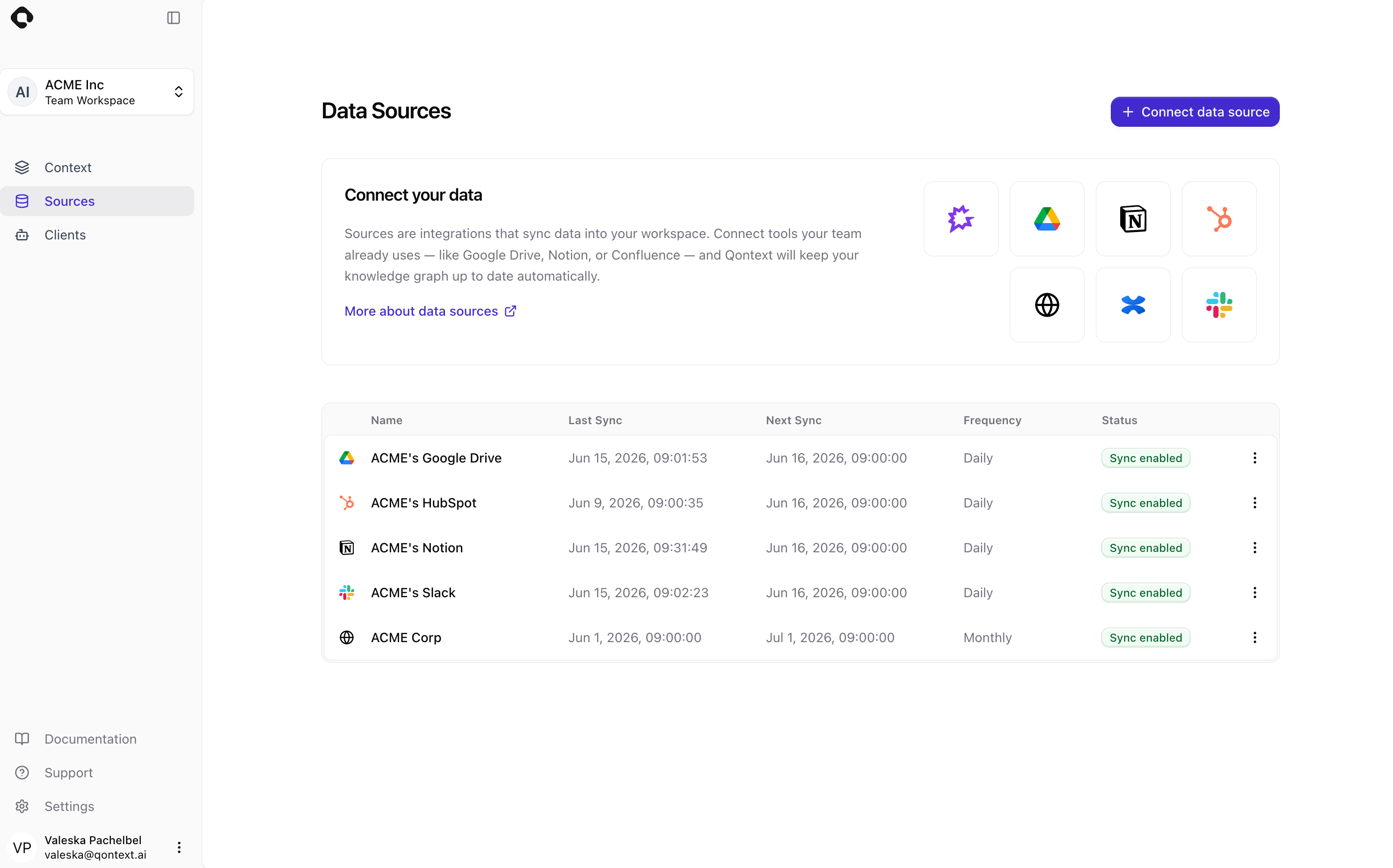 Choose **Google Drive** from the list of available data sources. This starts the Google Drive connection flow.
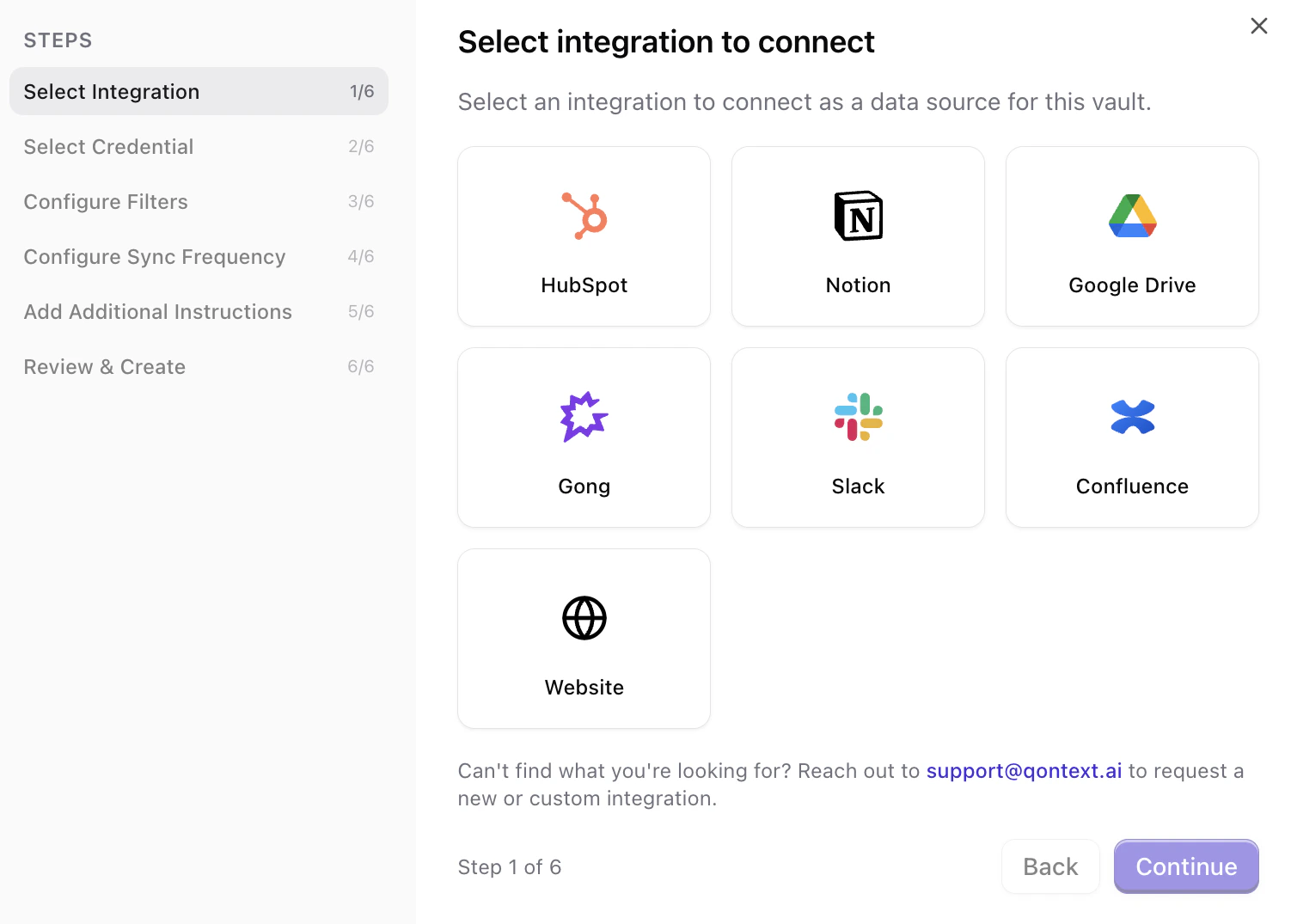 You can **reuse existing Google Drive credentials** (if you’ve already connected this account to Qontext) or **create a new connection**.
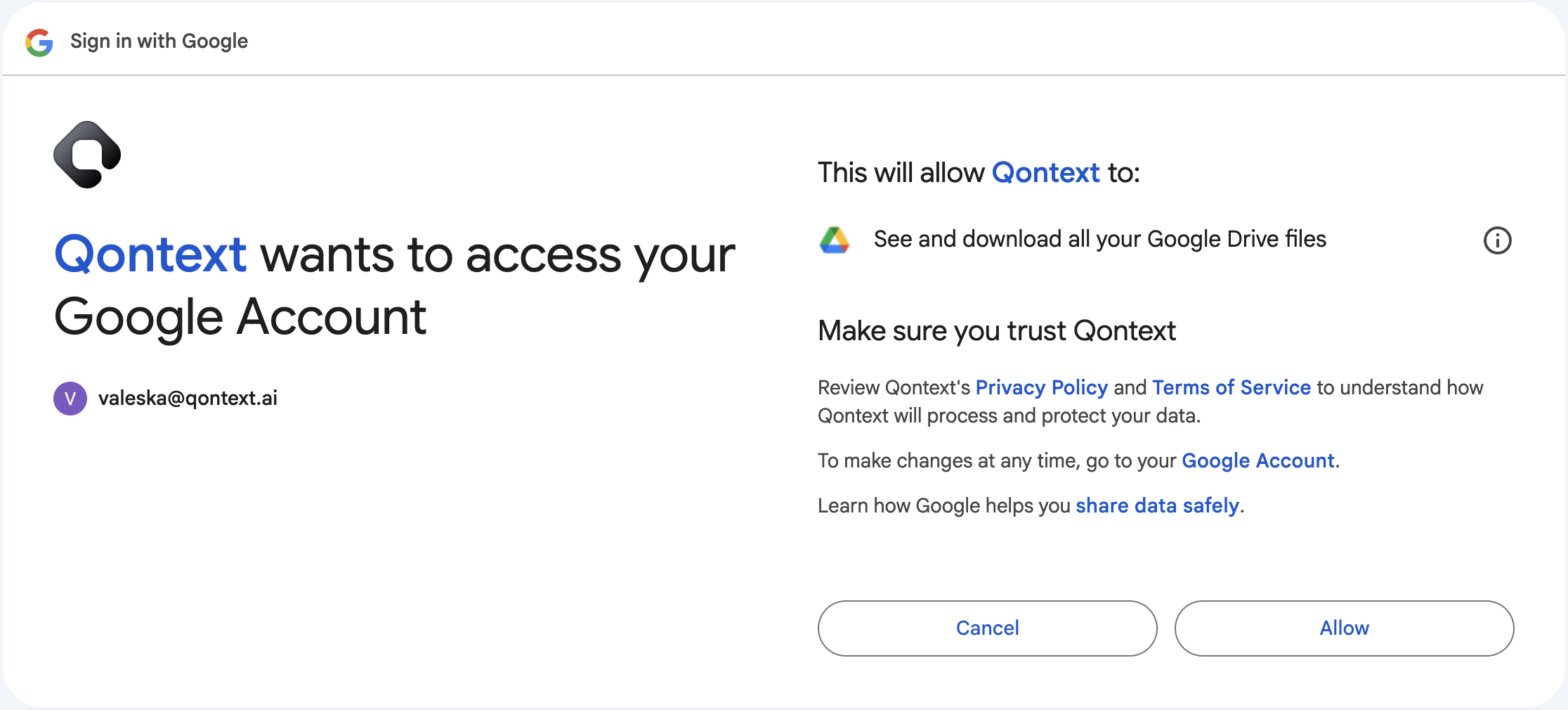
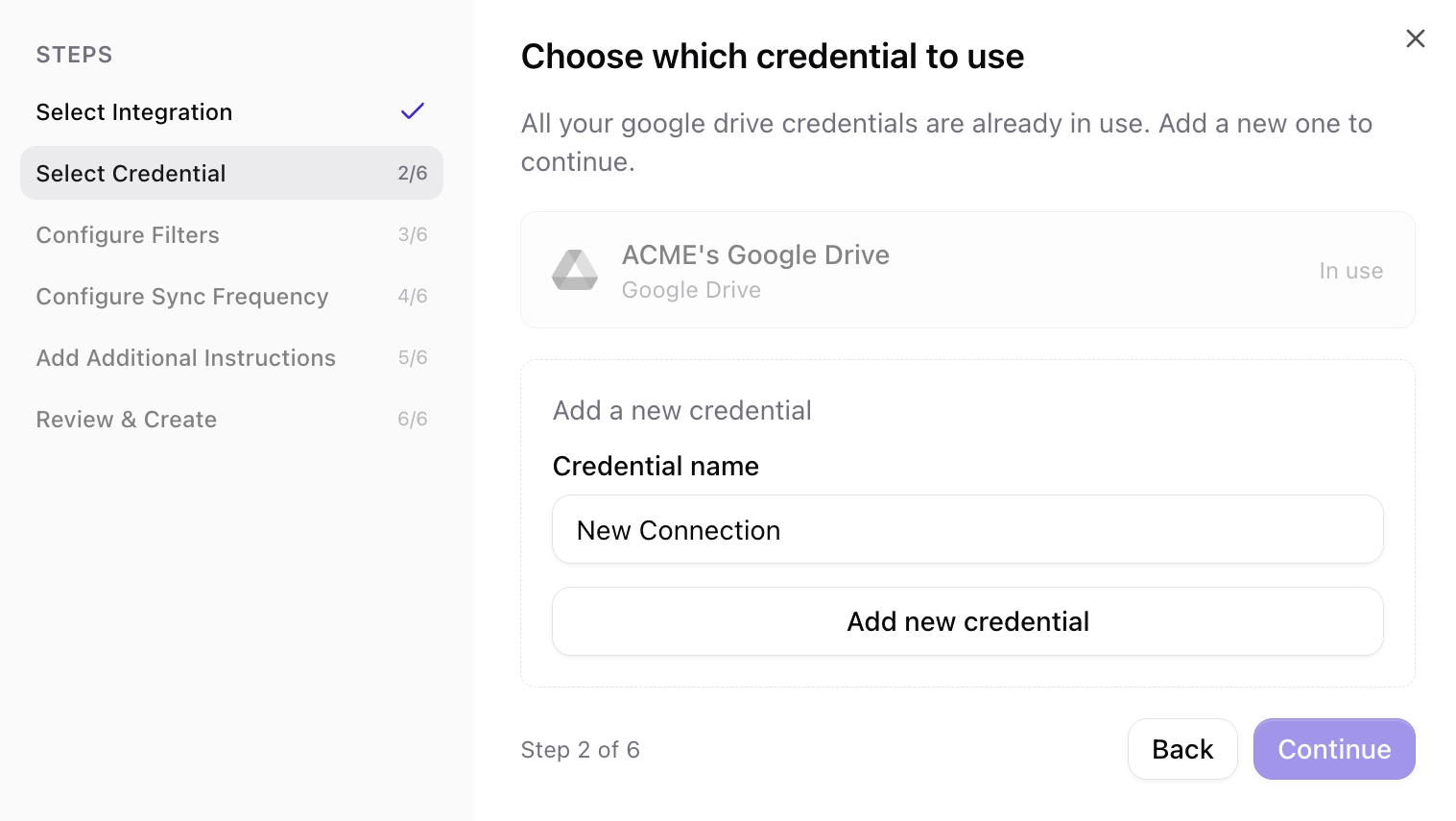 If you create a new connection, select the Google account that has access to the files you want to ingest, and approve the requested OAuth scopes.
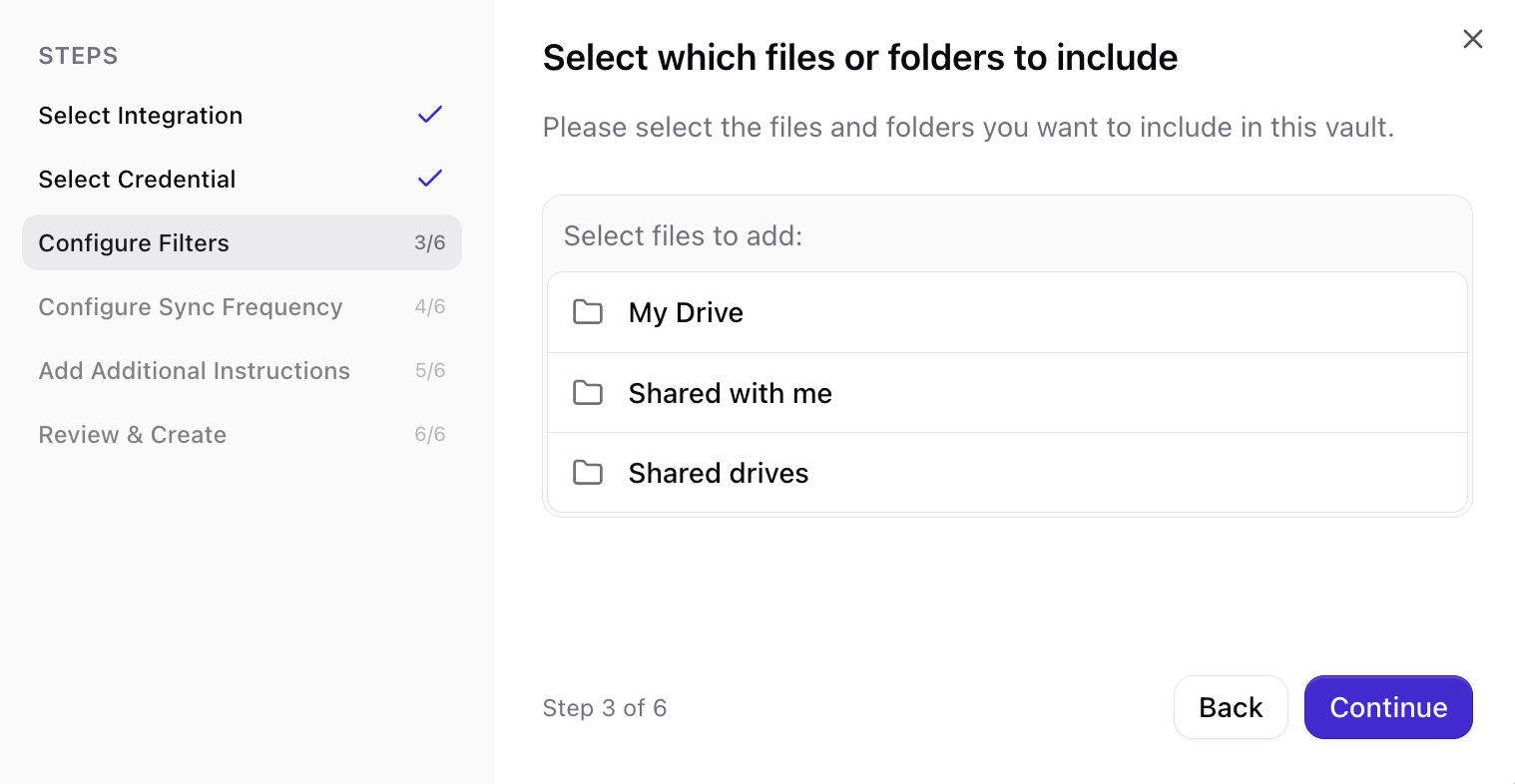
 Select the folders and files you want Qontext to ingest into your context repository. You can add folders or individual files.
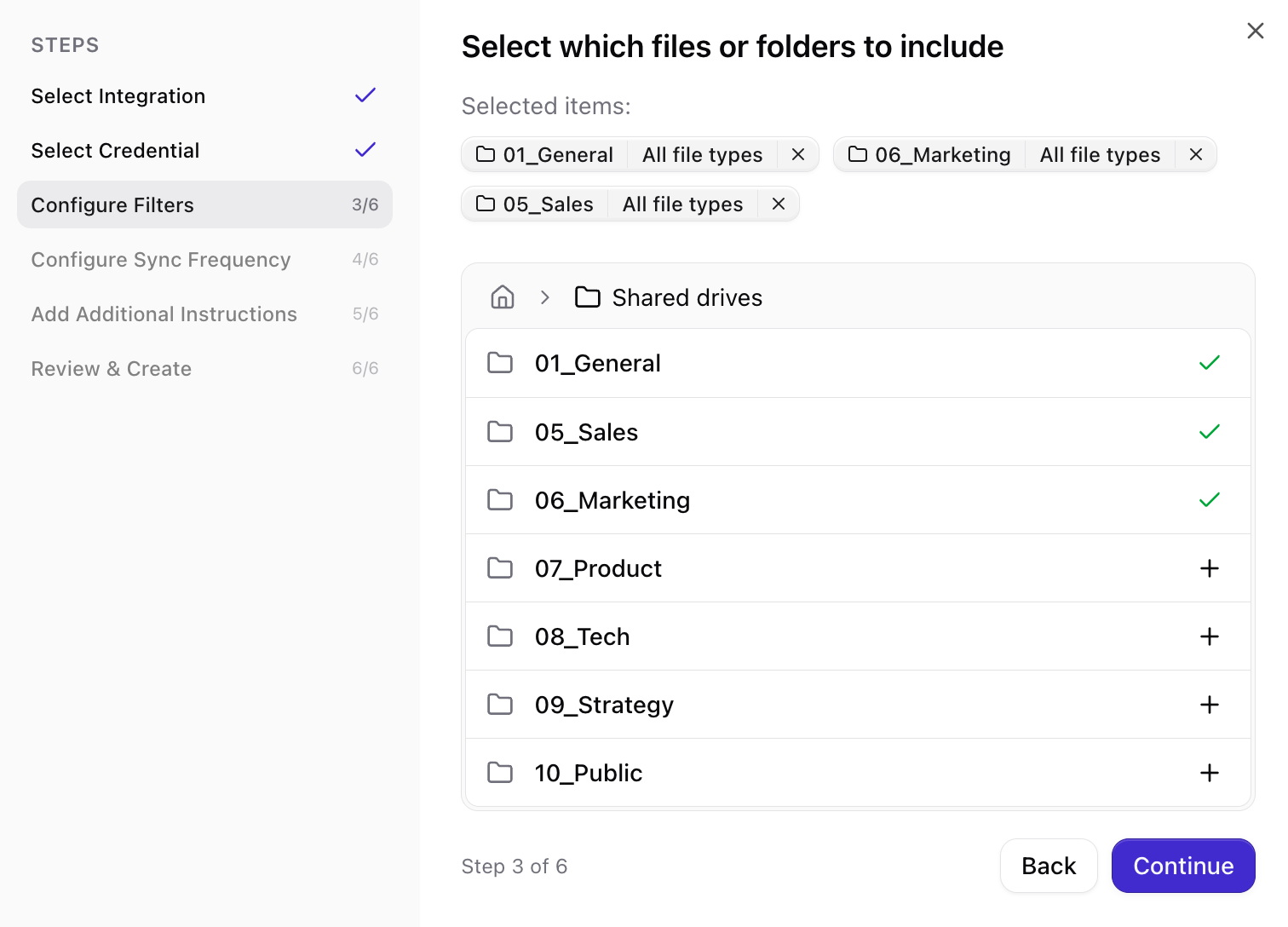
 Click the **+** next to a folder to add it; open the folder to add subfolders or individual files and select them the same way. Files over 10MB or in an unsupported format cannot be selected. Any such files inside a selected folder are excluded from sync automatically.
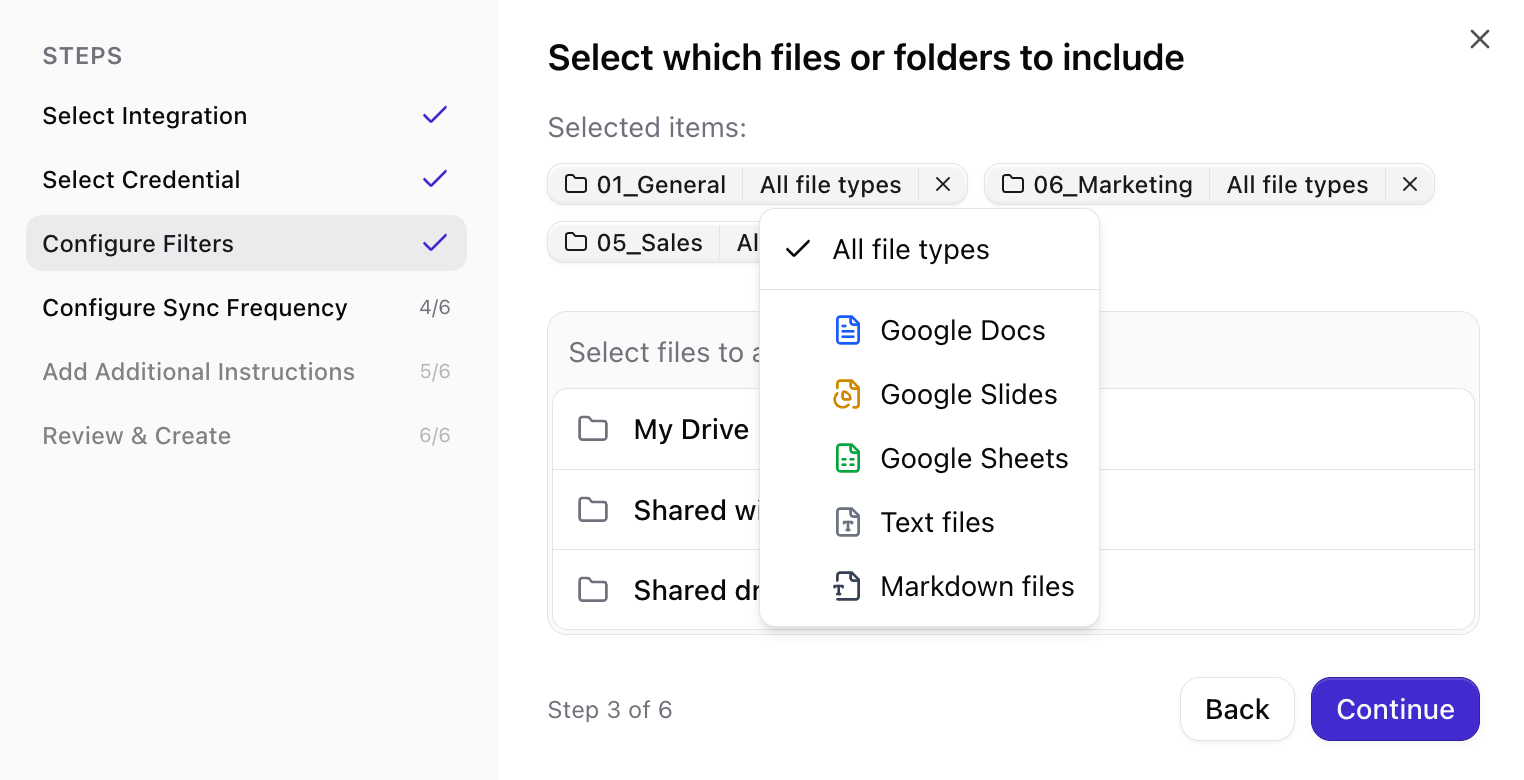
 Selected items appear at the top. Click **All file types** next to a folder to limit which file types are synced from that folder. Use the checkmark next to an item to remove it from the selection.
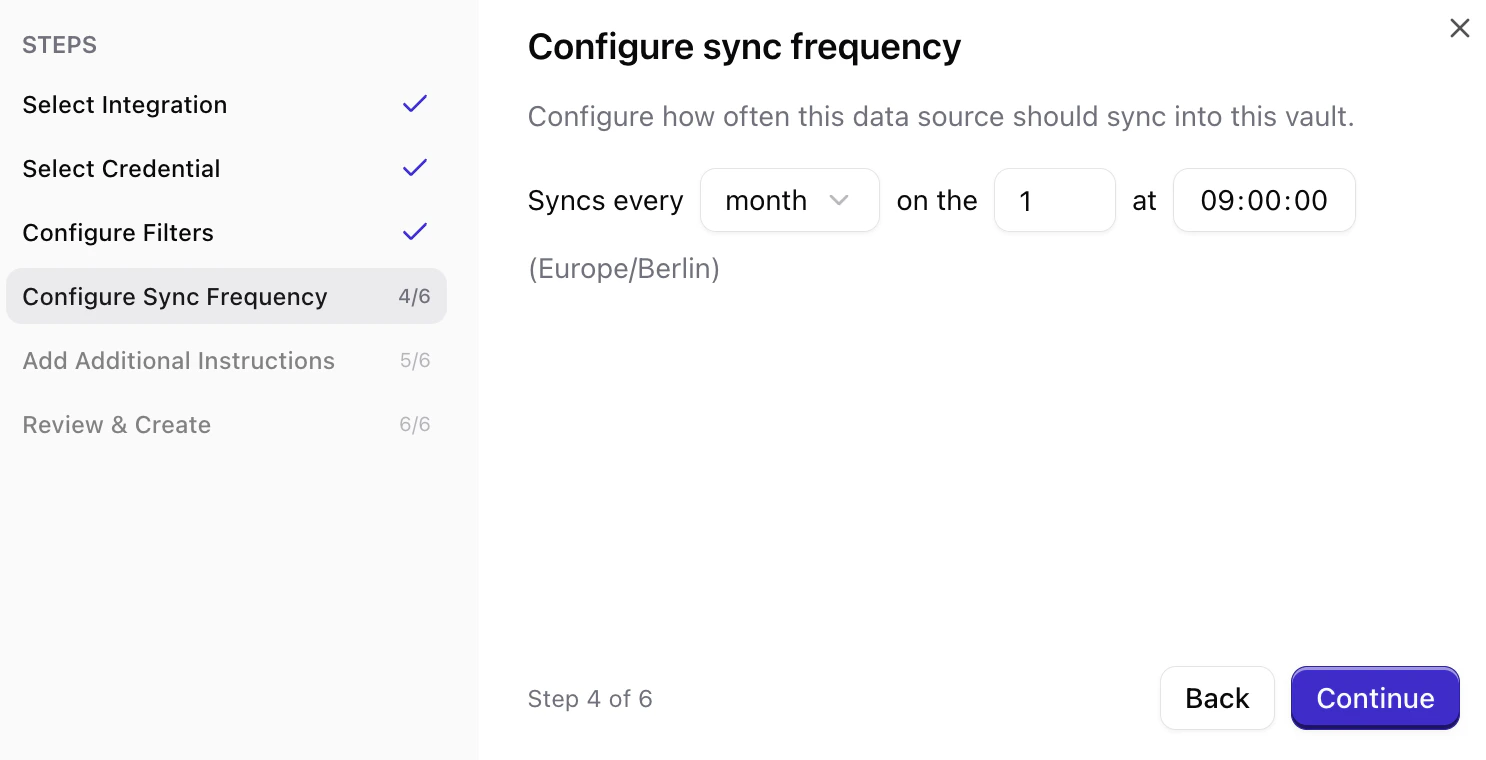
 Choose how often Qontext should refresh data from Google Drive (e.g. daily, weekly, monthly). More frequent syncs keep the context repository up to date but use more resources.
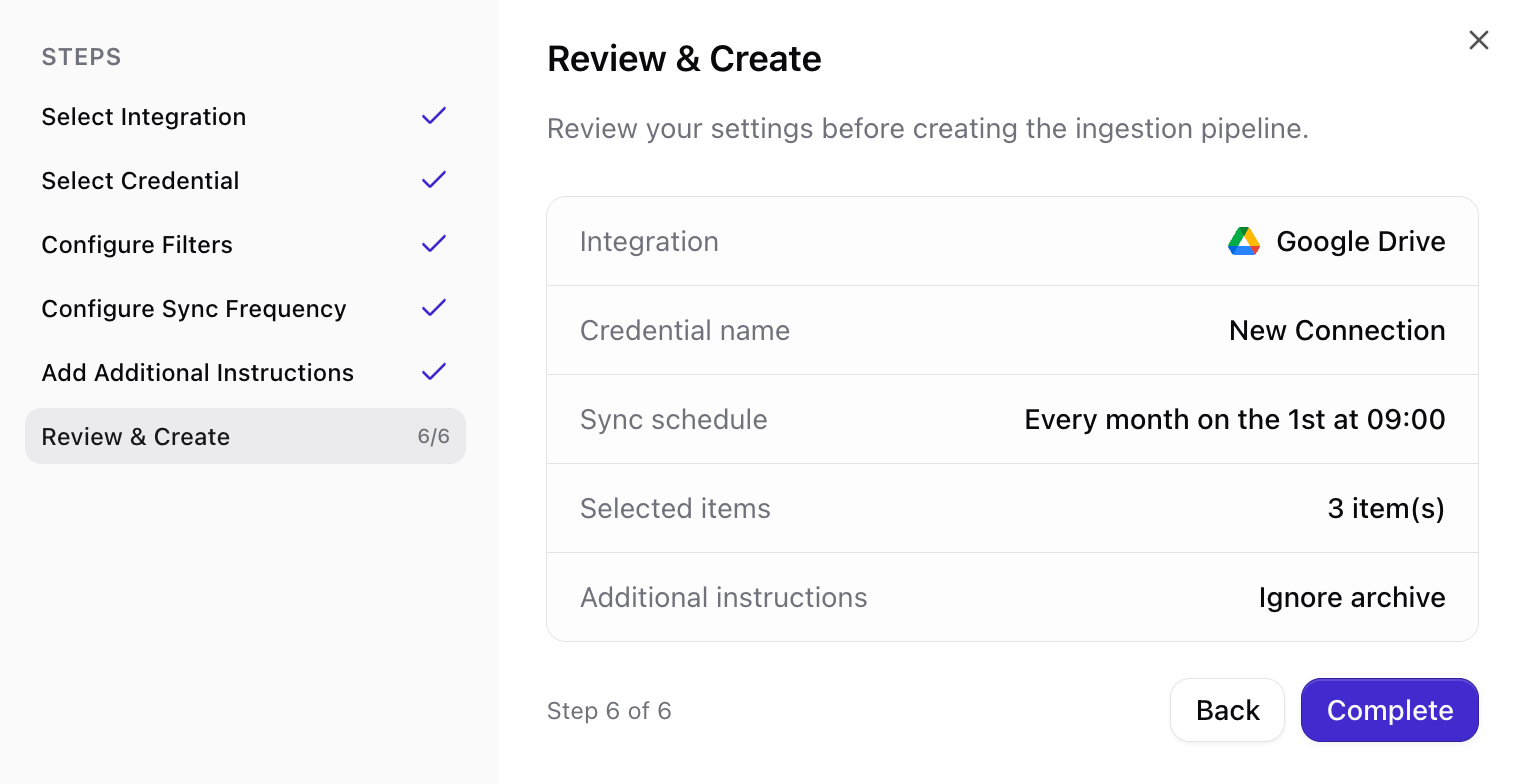
 Review your choices (account, filters, frequency), then confirm to create the connection. Qontext will start the initial sync shortly after.
 ***
## Managing permissions
### Google Drive OAuth scopes
When connecting, you will be asked to grant scopes that allow Qontext to read and download files. Example scope descriptions you may see:
```text theme={null}
- See and download all your Google Drive files
- See information about your Google Drive files
```
These are required for Qontext to read data from Google Drive and ingest it into your context repository.
### Google Drive permissions
* Use a **single person** or **service account** to manage Drive permissions for Qontext. This avoids accidental permission changes that break syncs.
* If you don’t see a file in Qontext’s Drive tree, verify download permissions using the file’s **File info -> Details** and ensure `Viewers and commenters can see the option to download, print, and copy` is enabled.
***
## Sync latency
Qontext preprocesses Drive content before ingesting it into the context repository. The initial synchronization time depends on the volume and type of files. Workspaces with many files may take up to 12 hours to fully index.
Subsequent syncs process **incremental changes** and typically complete much faster than the initial sync.
***
## FAQ
Qontext supports Google Docs, Google Slides, Google Sheets, `txt` and `md`. Files that cannot be downloaded or do not contain extractable text will be skipped.
Yes. You can create multiple Google Drive connections at any time in the **Sources** tab in your Qontext workspace.
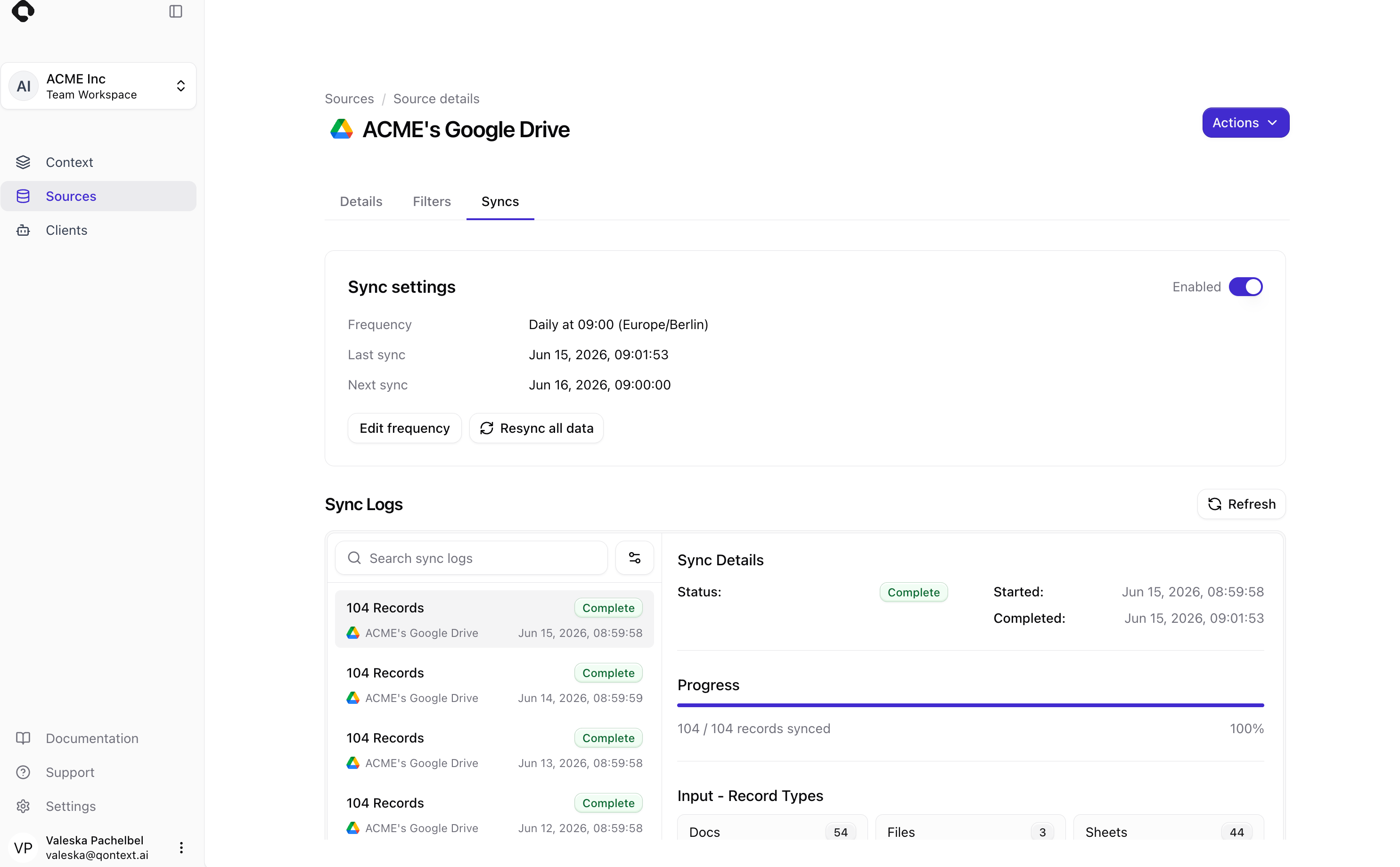
Manual refresh for Google Drive connections is available via the **Sources** tab. Navigate to the respective Google Drive connection and open the **Syncs** tab. In the Sync settings, you can select **Resync all data**.
***
## Managing permissions
### Google Drive OAuth scopes
When connecting, you will be asked to grant scopes that allow Qontext to read and download files. Example scope descriptions you may see:
```text theme={null}
- See and download all your Google Drive files
- See information about your Google Drive files
```
These are required for Qontext to read data from Google Drive and ingest it into your context repository.
### Google Drive permissions
* Use a **single person** or **service account** to manage Drive permissions for Qontext. This avoids accidental permission changes that break syncs.
* If you don’t see a file in Qontext’s Drive tree, verify download permissions using the file’s **File info -> Details** and ensure `Viewers and commenters can see the option to download, print, and copy` is enabled.
***
## Sync latency
Qontext preprocesses Drive content before ingesting it into the context repository. The initial synchronization time depends on the volume and type of files. Workspaces with many files may take up to 12 hours to fully index.
Subsequent syncs process **incremental changes** and typically complete much faster than the initial sync.
***
## FAQ
Qontext supports Google Docs, Google Slides, Google Sheets, `txt` and `md`. Files that cannot be downloaded or do not contain extractable text will be skipped.
Yes. You can create multiple Google Drive connections at any time in the **Sources** tab in your Qontext workspace.
Manual refresh for Google Drive connections is available via the **Sources** tab. Navigate to the respective Google Drive connection and open the **Syncs** tab. In the Sync settings, you can select **Resync all data**.
 If you disconnect the Drive connection, no new files will be ingested. Content already ingested from Drive will remain in your context repository. For data removal requests, contact [support@qontext.ai](mailto:support@qontext.ai).
Yes. All data is encrypted in transit (TLS) and at rest. Qontext only accesses files you explicitly authorize via Google OAuth scopes.
By default, Qontext only ingests files the connected Google account can access. Additionally, you can add [filters](#configure-what-to-sync-filters) to every connection as described in the setup flow.
If you disconnect the Drive connection, no new files will be ingested. Content already ingested from Drive will remain in your context repository. For data removal requests, contact [support@qontext.ai](mailto:support@qontext.ai).
Yes. All data is encrypted in transit (TLS) and at rest. Qontext only accesses files you explicitly authorize via Google OAuth scopes.
By default, Qontext only ingests files the connected Google account can access. Additionally, you can add [filters](#configure-what-to-sync-filters) to every connection as described in the setup flow.