> ## Documentation Index
> Fetch the complete documentation index at: https://docs.qontext.ai/llms.txt
> Use this file to discover all available pages before exploring further.
# HubSpot
> Connect your HubSpot CRM with Qontext
## Overview
The HubSpot connection lets Qontext securely and regularly read CRM data from your connected HubSpot account. That data is structured and stored in your context repository so your AI tools can use it for retrieval and answers.
Only data that the connected HubSpot user can access is ingested. Use an account with access to the contacts, companies, and deals you want in Qontext.
**Supported data types:**
| Object | Description |
| ----------- | ----------------------------------------------------------------------- |
| `Contacts` | People and their key details from your CRM |
| `Companies` | Organizations linked to your contacts and deals |
| `Deals` | Sales opportunities and their pipeline stages |
| `Leads` | Lead records and their properties |
| `Notes` | Insights and updates added to CRM records |
| `Tasks` | To-dos and follow-ups tracked in HubSpot |
| `Emails` | Email conversations tracked and linked to contacts, companies, or deals |
| `Meetings` | Scheduled or logged meetings with prospects or clients |
| `Calls` | Call records associated with a contact or company |
***
## Recommended setup
Use a **dedicated integration user** in your HubSpot workspace to ensure a stable connection.
Create a service account such as `qontext@yourcompany.com` with **Super Admin** rights. This keeps the integration active even if employee accounts change or are deactivated.
The integration user will:
* Authenticate the connection between Qontext and HubSpot.
* Maintain consistent access to required HubSpot data.
***
## Setting up the connection
You can connect HubSpot from your Qontext workspace, authorize access in HubSpot, then choose what to sync and how often. The steps below walk you through the full flow.
You can also manage all your credentials, including HubSpot, from the **Sources** page.
In the [Qontext app](https://app.qontext.ai), open your workspace and go to the **Sources** tab, then click **+ Connect data source**.
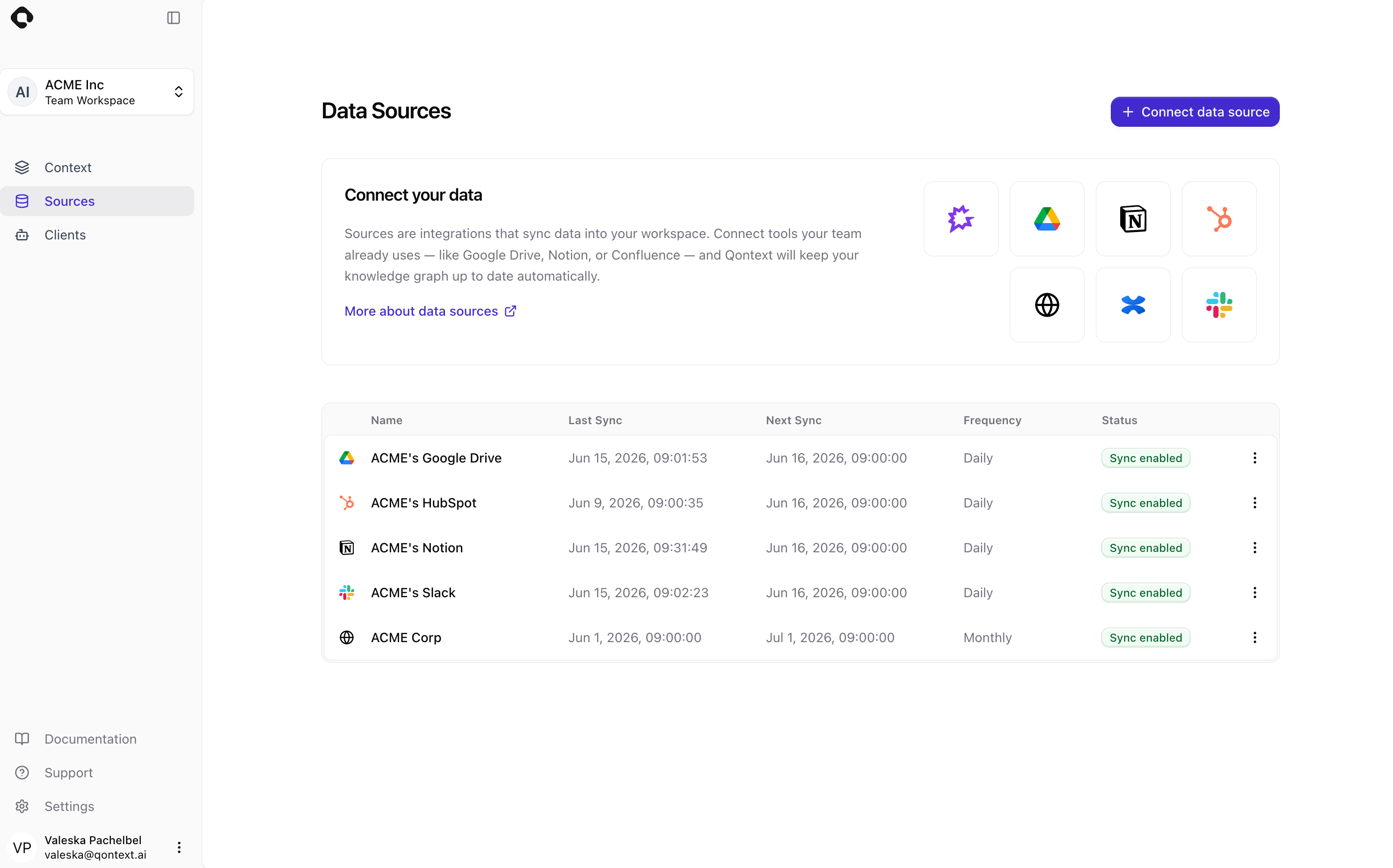 Choose **HubSpot** from the list of available data sources. This starts the HubSpot connection flow.
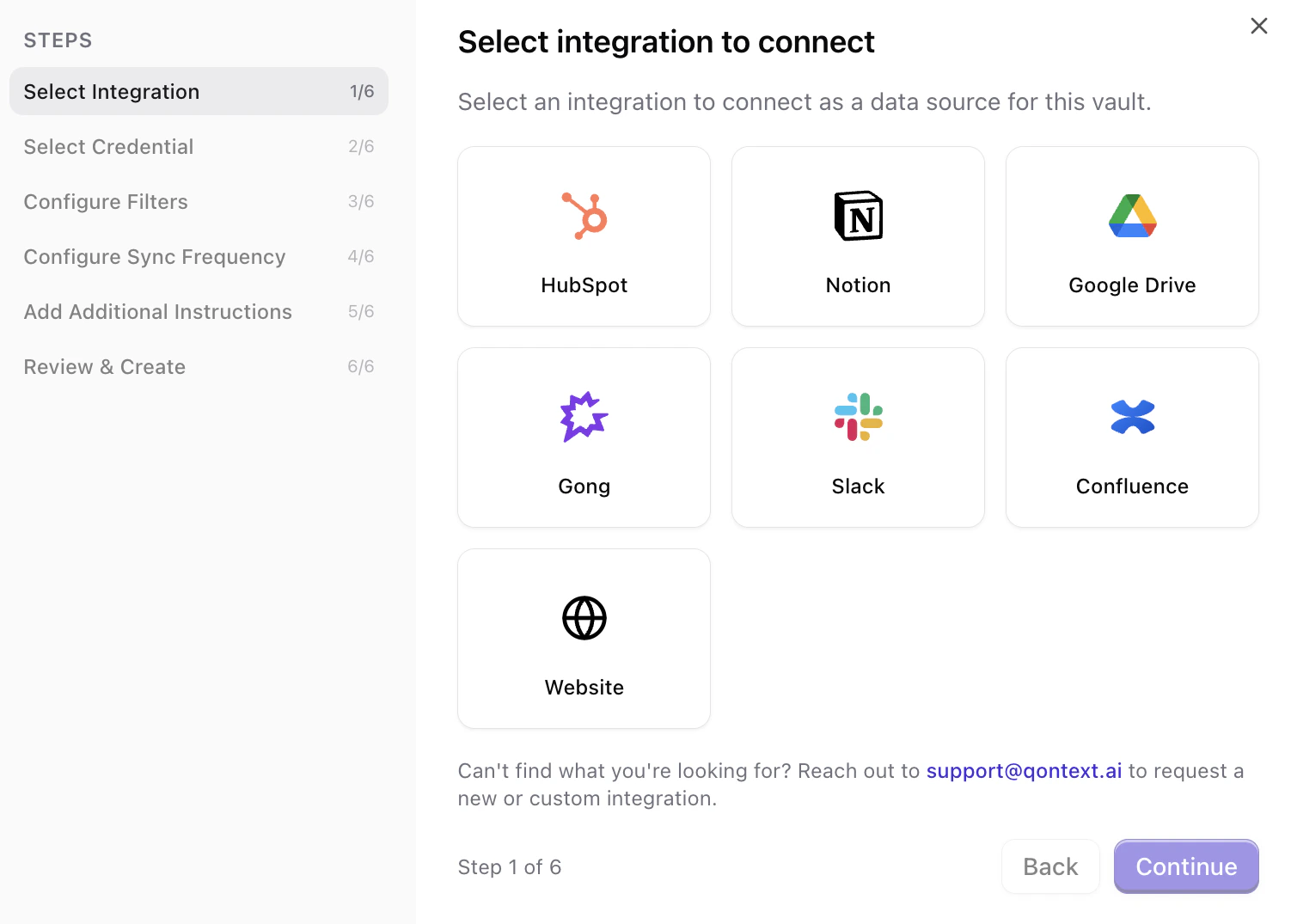 You can **reuse existing credentials** (if you’ve already connected this HubSpot account to Qontext) or **create a new connection**.
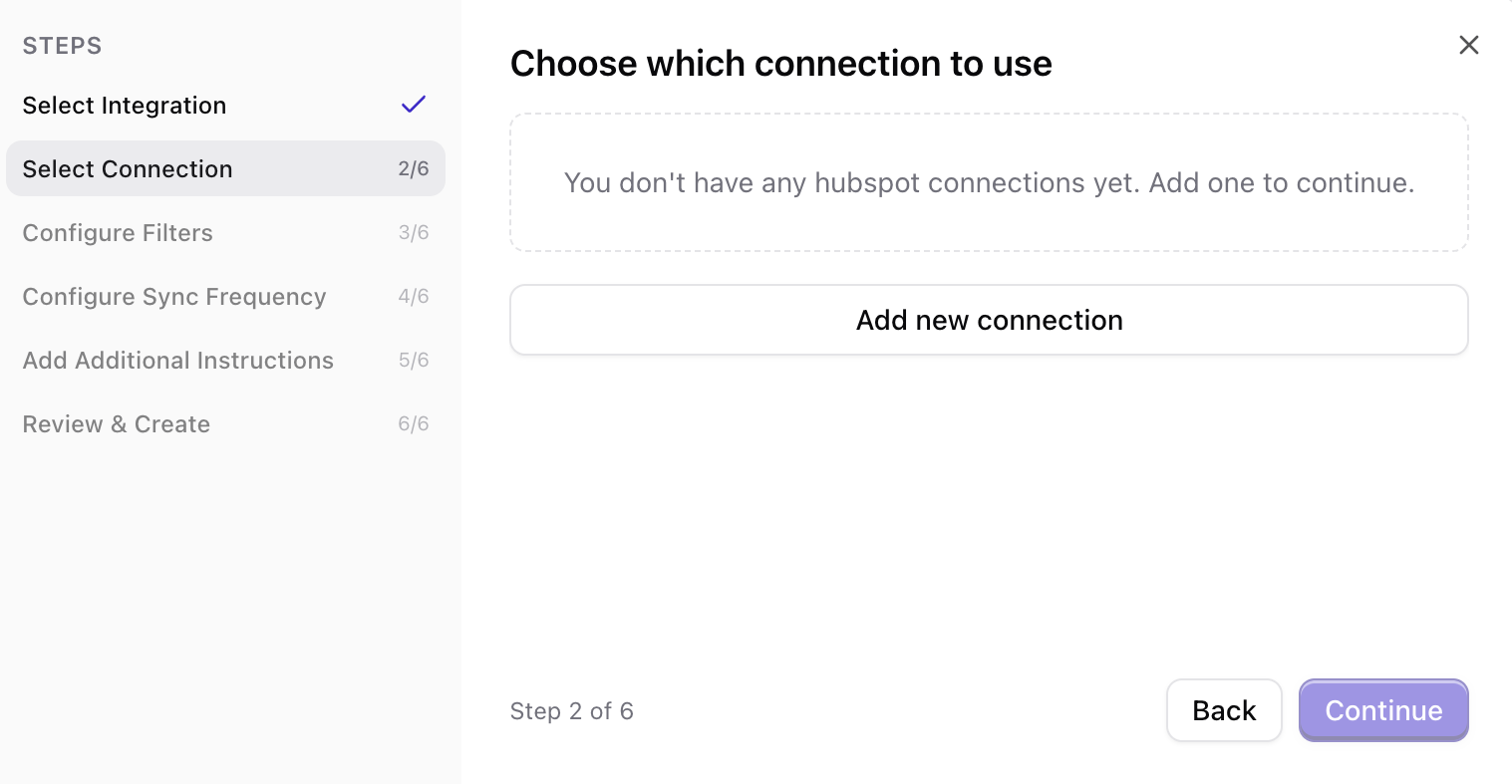 If you create a new connection, sign in to HubSpot when prompted and select the HubSpot account you want to use.
On the HubSpot consent screen, review the requested permissions and click **Connect app** to approve. This completes the OAuth flow and grants Qontext read access to the CRM data you authorize.
If you create a new connection, sign in to HubSpot when prompted and select the HubSpot account you want to use.
On the HubSpot consent screen, review the requested permissions and click **Connect app** to approve. This completes the OAuth flow and grants Qontext read access to the CRM data you authorize.
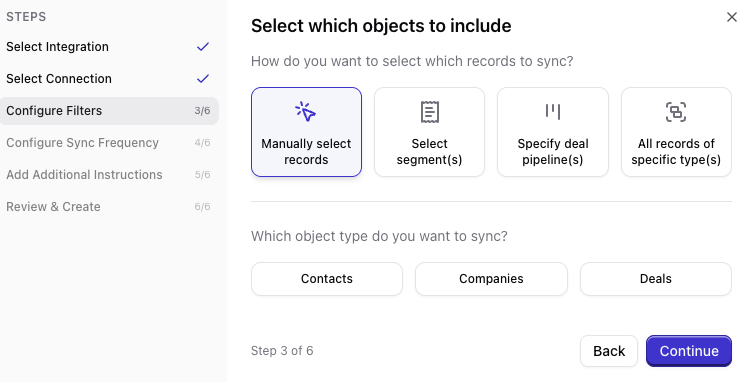
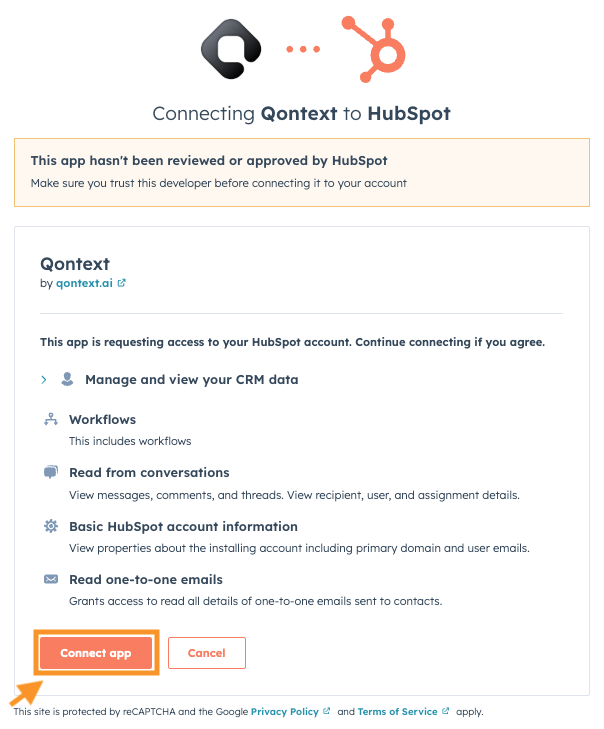 By default, Qontext can sync a broad set of data. You can narrow it using one or more of these options so only the data you need is ingested into your context repository.
Pick specific contacts, companies, or deals by searching and selecting them. Use this when you only want a defined set of records.
By default, Qontext can sync a broad set of data. You can narrow it using one or more of these options so only the data you need is ingested into your context repository.
Pick specific contacts, companies, or deals by searching and selecting them. Use this when you only want a defined set of records.
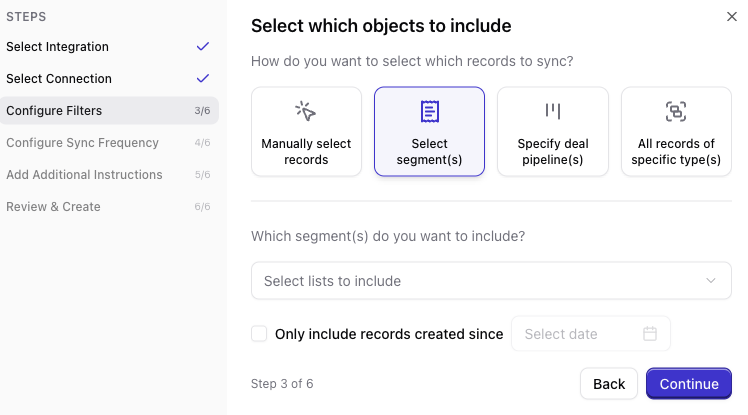
 Sync data from one or more HubSpot lists or segments. Useful when you already manage audiences in HubSpot and want the same scope in Qontext.
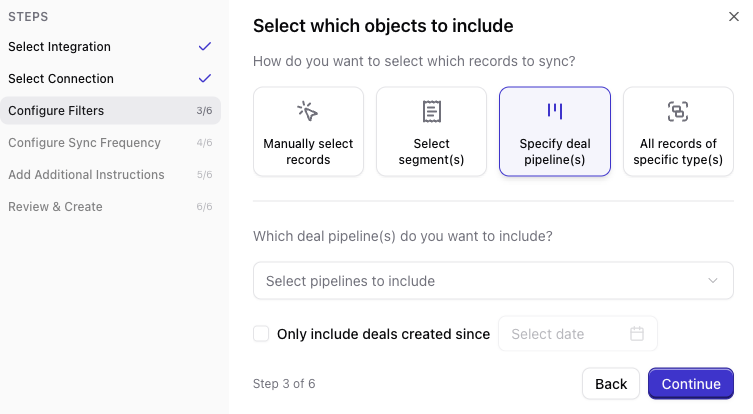
 Ingest deals from selected pipelines. Only deals in the chosen pipelines will be synced.
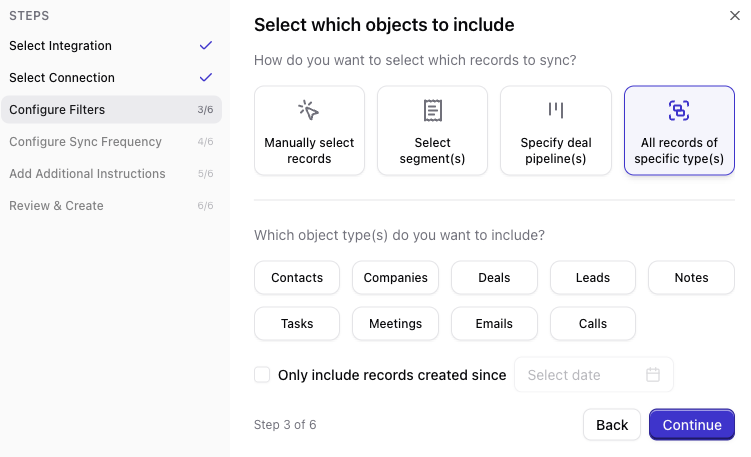
 Choose which object types to sync. This controls the breadth of data without picking specific records.
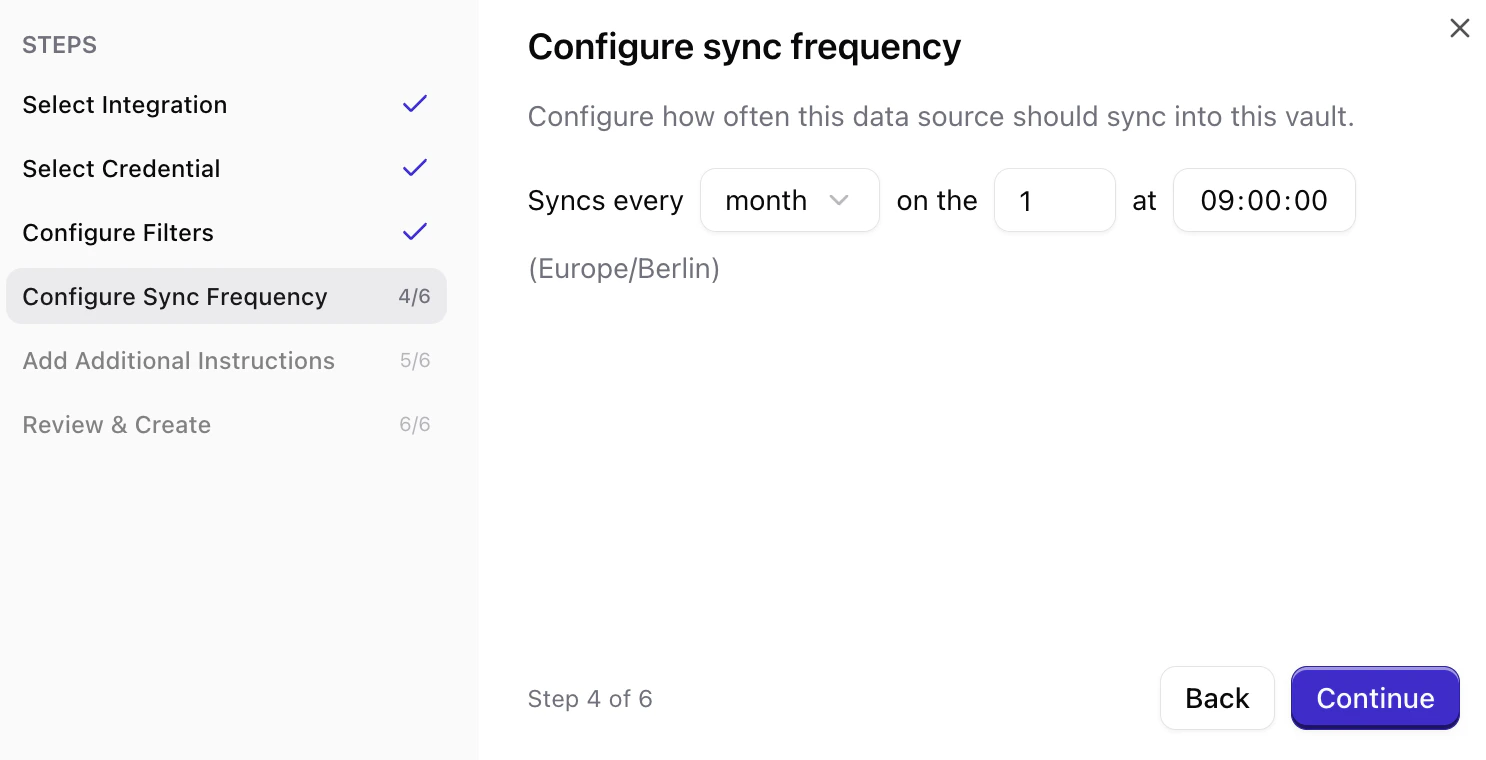
 Choose how often Qontext should refresh data from HubSpot (e.g. daily, weekly, monthly). More frequent syncs keep the context repository up to date but use more resources.
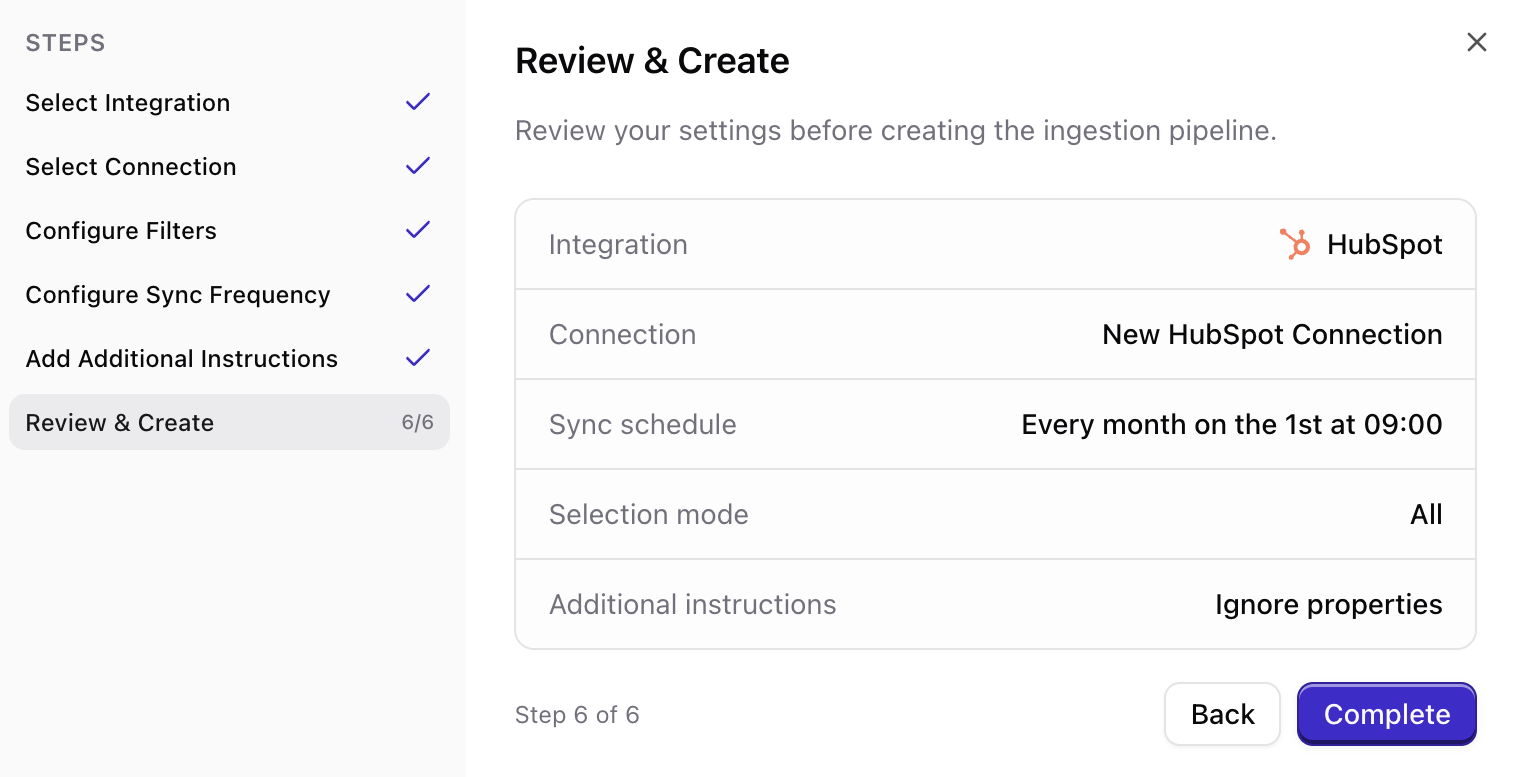
 Review your choices (account, filters, frequency), then confirm to create the connection. Qontext will start the initial sync shortly after.
 ***
## HubSpot OAuth scopes
When you create a new connection, you’ll see a consent screen listing the permissions (scopes) Qontext needs; they are read-only. You'll see a section like *("Manage and view your CRM data")* with scopes such as:
```text theme={null}
- View details about contact lists.
- View properties and other details about appointments.
- View properties and other details about carts.
- View details about commerce payments.
- View properties and other details about companies.
- [...]
- View properties and other details about contacts.
- View properties and other details about courses.
- View details about custom objects in the CRM.
- View properties and other details about deals.
- View details about submissions to any of your feedback surveys.
```
Granting these scopes is required for the connection to work. Qontext does not write or delete data in HubSpot.
***
## Sync latency
Qontext preprocesses and structures your HubSpot data before ingesting it into the context repository. The **first sync** can take a while depending on how much data you are syncing (contacts, companies, deals, etc.).
As a guideline, allow **up to 12 hours** after creating the connection for the initial sync to finish.
***
## FAQ
Yes. You can connect multiple HubSpot accounts by following the steps above for each connection. Add each account from the **Sources** tab in your workspace.
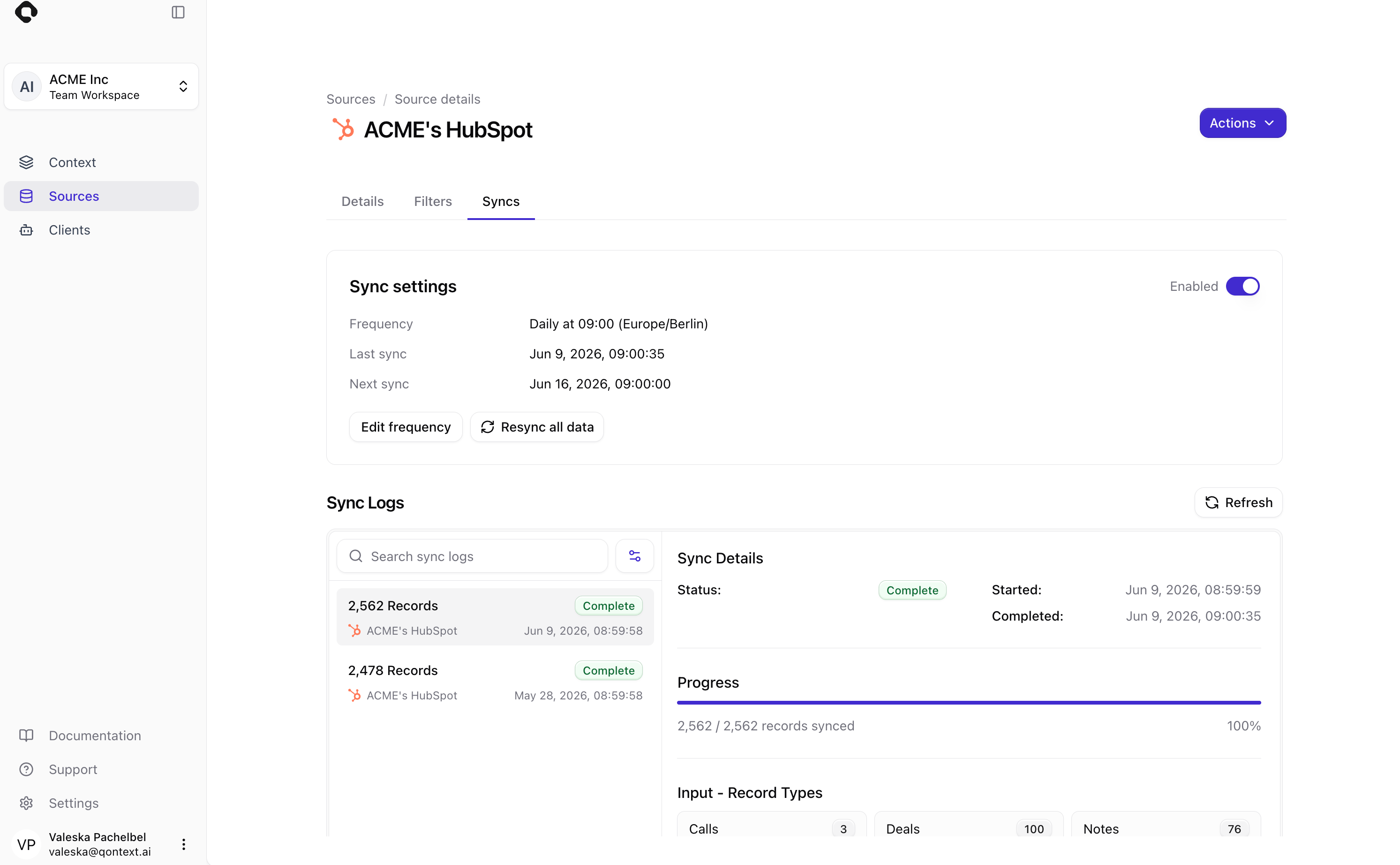
Manual refresh for HubSpot connections is available via the **Sources** tab. Navigate to the respective HubSpot connection and open the **Syncs** tab. In the Sync settings, you can select **Resync all data**.
***
## HubSpot OAuth scopes
When you create a new connection, you’ll see a consent screen listing the permissions (scopes) Qontext needs; they are read-only. You'll see a section like *("Manage and view your CRM data")* with scopes such as:
```text theme={null}
- View details about contact lists.
- View properties and other details about appointments.
- View properties and other details about carts.
- View details about commerce payments.
- View properties and other details about companies.
- [...]
- View properties and other details about contacts.
- View properties and other details about courses.
- View details about custom objects in the CRM.
- View properties and other details about deals.
- View details about submissions to any of your feedback surveys.
```
Granting these scopes is required for the connection to work. Qontext does not write or delete data in HubSpot.
***
## Sync latency
Qontext preprocesses and structures your HubSpot data before ingesting it into the context repository. The **first sync** can take a while depending on how much data you are syncing (contacts, companies, deals, etc.).
As a guideline, allow **up to 12 hours** after creating the connection for the initial sync to finish.
***
## FAQ
Yes. You can connect multiple HubSpot accounts by following the steps above for each connection. Add each account from the **Sources** tab in your workspace.
Manual refresh for HubSpot connections is available via the **Sources** tab. Navigate to the respective HubSpot connection and open the **Syncs** tab. In the Sync settings, you can select **Resync all data**.
 If you disconnect your HubSpot account from a connected workspace, no new data will be synced. Existing HubSpot data in the context repository will remain available for now. An upcoming update will introduce configurable data retention options upon disconnection. If you need to remove data for compliance or testing reasons, please contact [support@qontext.ai](mailto:support@qontext.ai).
Absolutely. All HubSpot data processed through Qontext is encrypted in transit and at rest. Qontext only accesses data you explicitly authorize via HubSpot OAuth scopes, ensuring your information remains secure and private.
By default, Qontext only ingests the data authorized through HubSpot’s OAuth scopes. Additionally, you can set [filters](#configure-what-to-sync-filters) when creating the HubSpot connection.
If the connected HubSpot user’s permissions are reduced or revoked, Qontext may lose access to certain data. To maintain uninterrupted syncs, we recommend using a **dedicated HubSpot service account** with stable permissions.
Sync failures usually occur due to expired OAuth tokens or insufficient permissions. Try reconnecting HubSpot in your **Sources** tab. If the issue persists, contact our team at [support@qontext.ai](mailto:support@qontext.ai) for faster troubleshooting.
If you disconnect your HubSpot account from a connected workspace, no new data will be synced. Existing HubSpot data in the context repository will remain available for now. An upcoming update will introduce configurable data retention options upon disconnection. If you need to remove data for compliance or testing reasons, please contact [support@qontext.ai](mailto:support@qontext.ai).
Absolutely. All HubSpot data processed through Qontext is encrypted in transit and at rest. Qontext only accesses data you explicitly authorize via HubSpot OAuth scopes, ensuring your information remains secure and private.
By default, Qontext only ingests the data authorized through HubSpot’s OAuth scopes. Additionally, you can set [filters](#configure-what-to-sync-filters) when creating the HubSpot connection.
If the connected HubSpot user’s permissions are reduced or revoked, Qontext may lose access to certain data. To maintain uninterrupted syncs, we recommend using a **dedicated HubSpot service account** with stable permissions.
Sync failures usually occur due to expired OAuth tokens or insufficient permissions. Try reconnecting HubSpot in your **Sources** tab. If the issue persists, contact our team at [support@qontext.ai](mailto:support@qontext.ai) for faster troubleshooting.