> ## Documentation Index
> Fetch the complete documentation index at: https://docs.qontext.ai/llms.txt
> Use this file to discover all available pages before exploring further.
# Website
> Crawl and ingest content from any public website into your context repository
## Overview
The Website connection allows Qontext to crawl public web pages and ingest their text content into your context repository.
**Supported content:**
| Crawl type | Description |
| ------------- | ------------------------------------------------------------------------------------- |
| `Single Page` | Crawls only the specific URL provided. Best for individual articles or pages |
| `Deep Crawl` | Crawls the URL and follows all internal links. Best for entire sites or documentation |
**Unsupported:**
| Content | Description |
| ------------------ | ----------------------------------------------------------------------------- |
| `Videos` | Video files and embedded video content |
| `Restricted sites` | Some websites (e.g. LinkedIn) block automated crawling and cannot be ingested |
***
## Setting up the connection
You can add a website from your Qontext workspace, enter the URL, choose a crawl type, and set a sync frequency. The steps below walk you through the full flow.
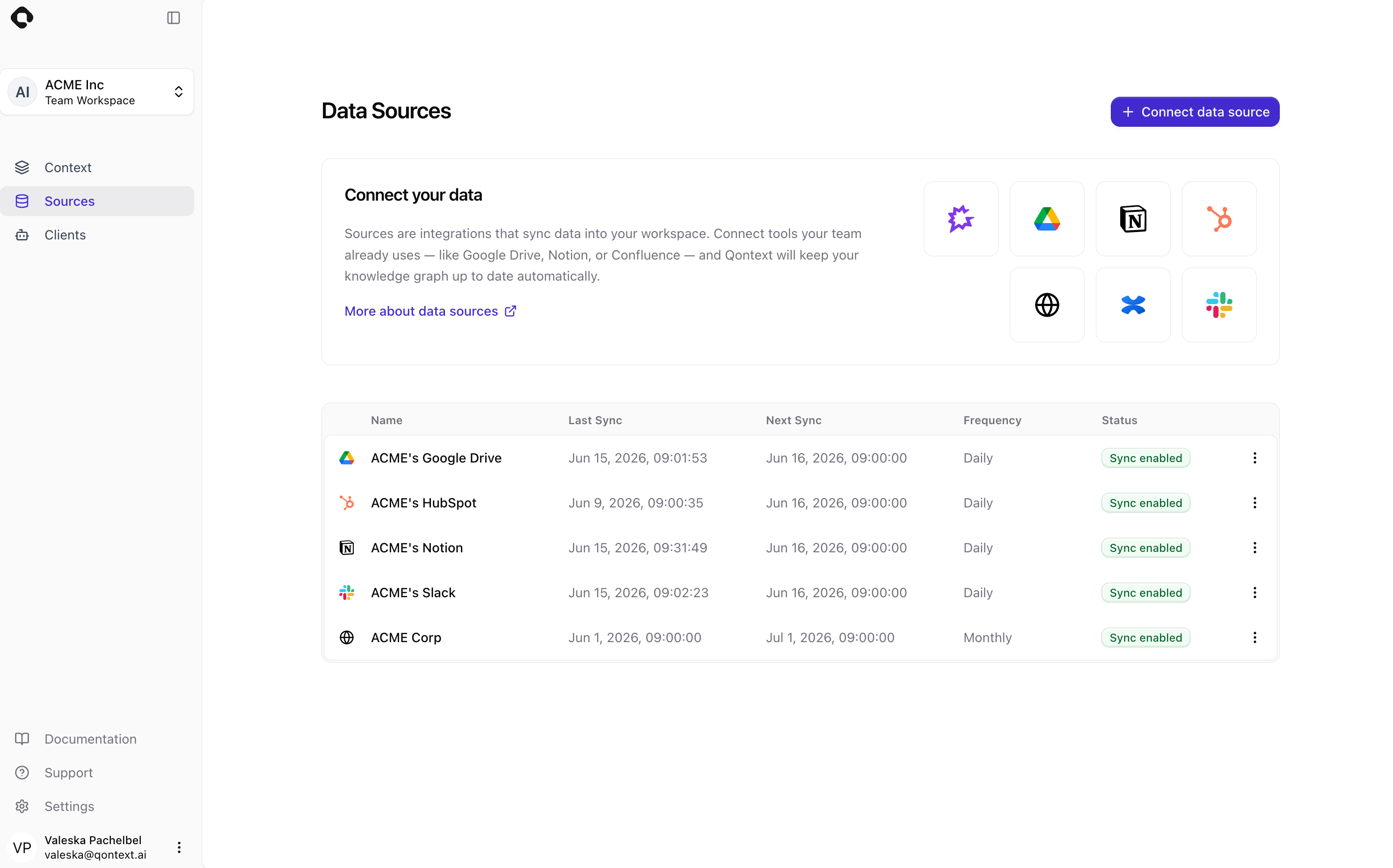
In the [Qontext app](https://app.qontext.ai), open your workspace and go to the **Sources** tab, then click **+ Connect data source**.
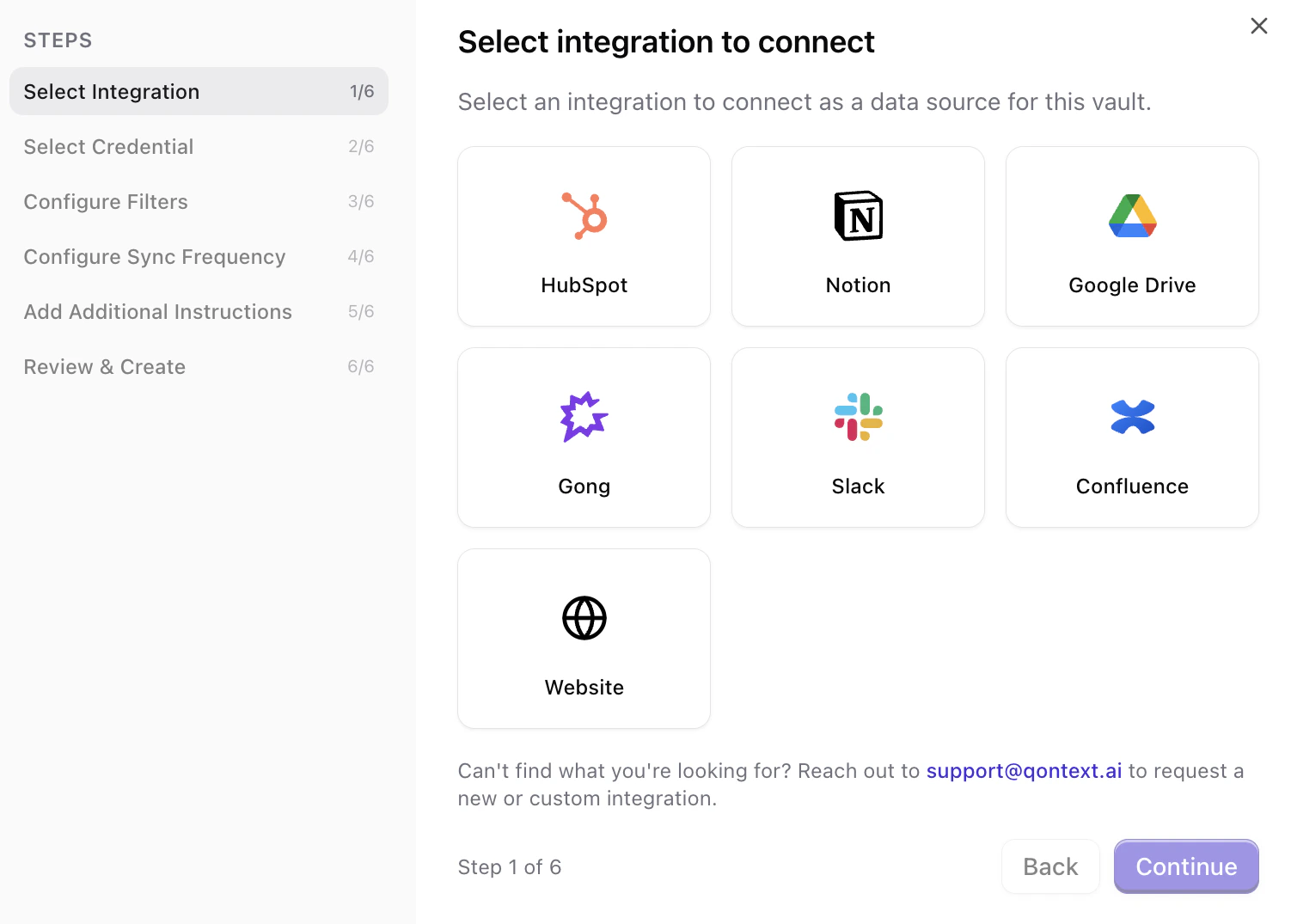
 Choose **Website** from the list of available data sources. This starts the website connection flow.
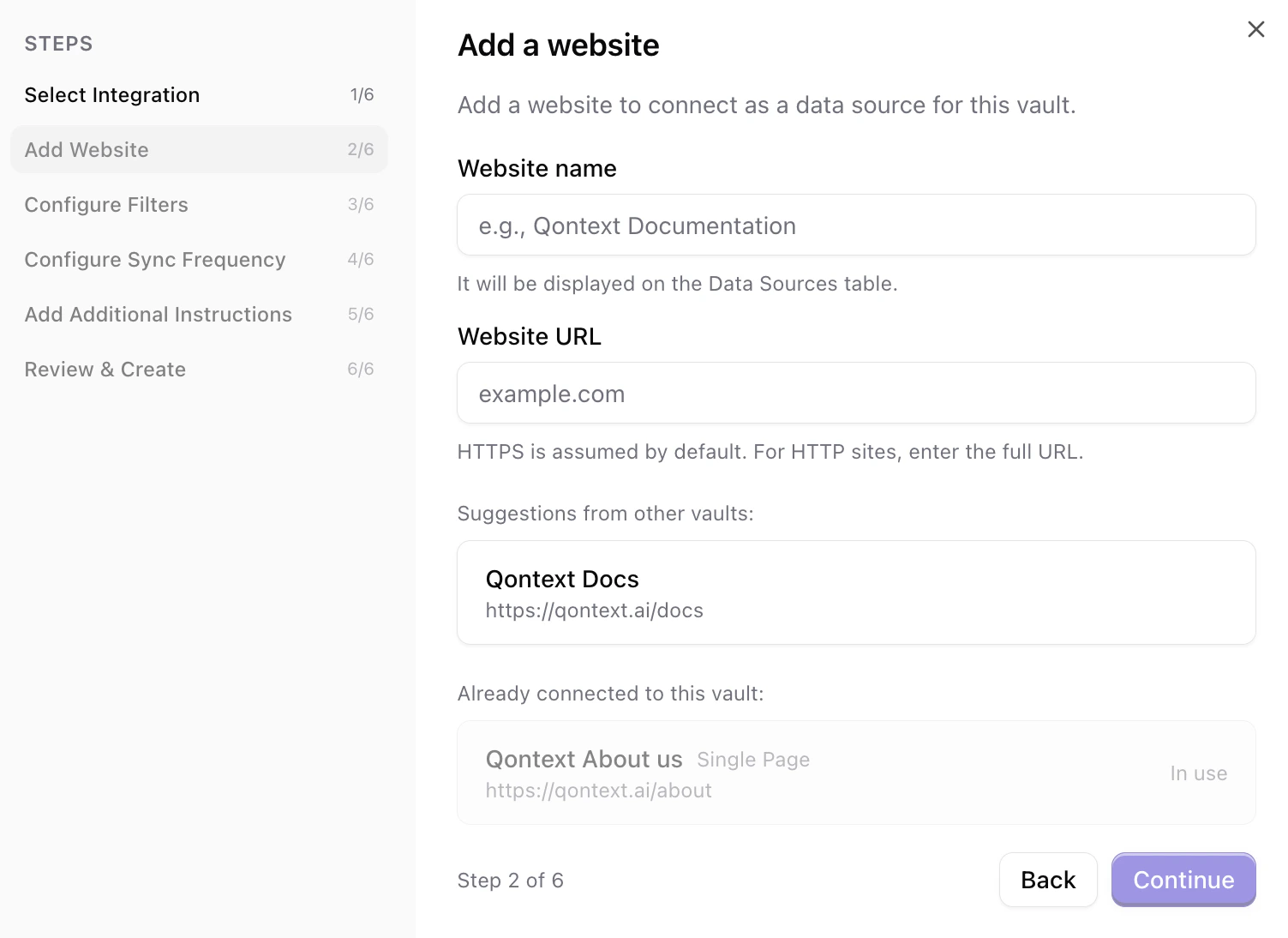
 Give the website a **name**, which will be displayed on the Sources table. Then, enter the **website URL** you want to crawl. HTTPS is assumed by default; for HTTP sites, enter the full URL.
URLs used in other workspaces are shown for reference. URLs already connected to this workspace are displayed and cannot be connected again, but the crawl type of an already ingested website can be edited in the **Sources** tab.
Give the website a **name**, which will be displayed on the Sources table. Then, enter the **website URL** you want to crawl. HTTPS is assumed by default; for HTTP sites, enter the full URL.
URLs used in other workspaces are shown for reference. URLs already connected to this workspace are displayed and cannot be connected again, but the crawl type of an already ingested website can be edited in the **Sources** tab.
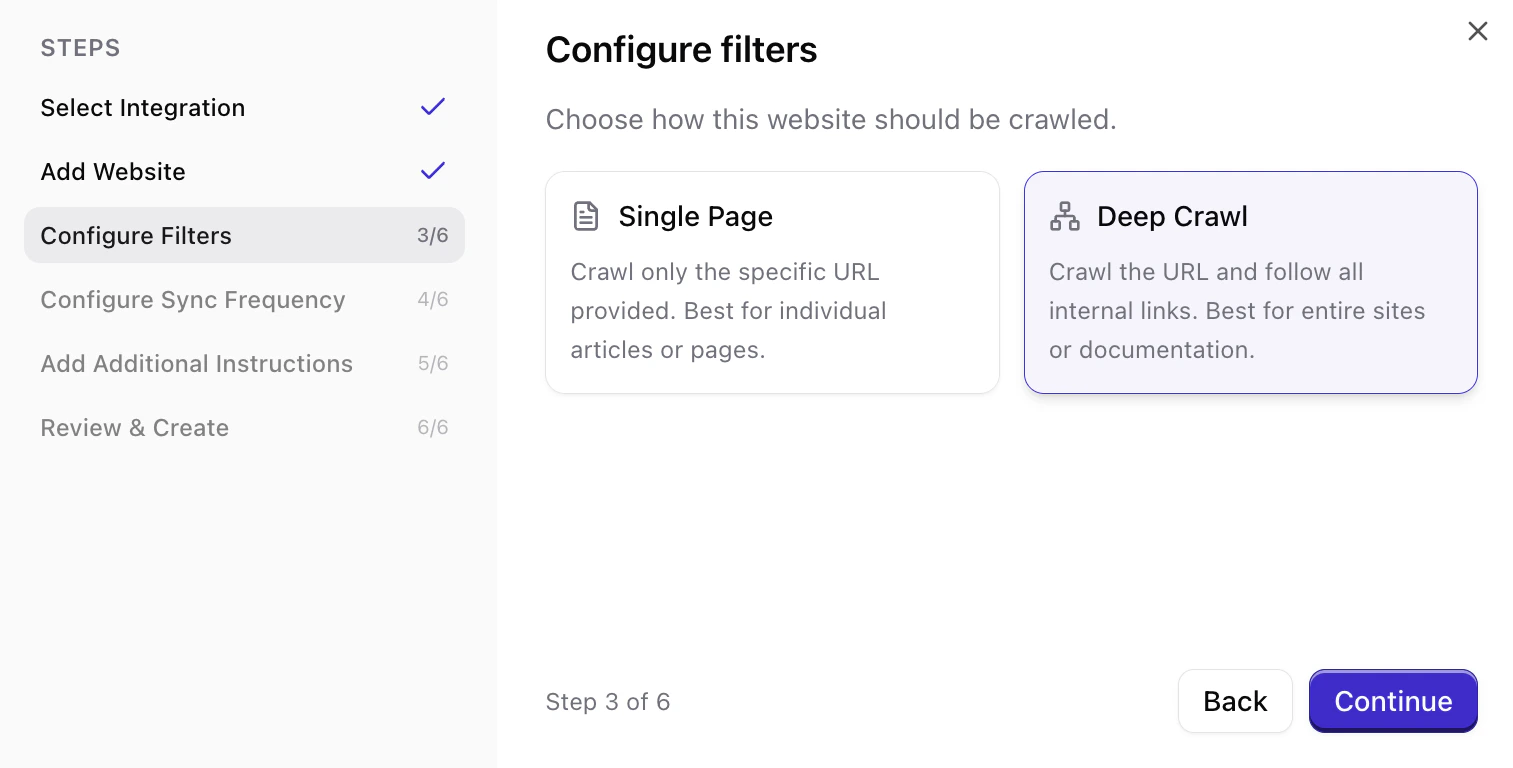
 Select how the website should be crawled. **Single Page** crawls only the specific URL provided and is best for individual articles or pages. **Deep Crawl** crawls the URL and follows all internal links, making it best for entire sites or documentation.
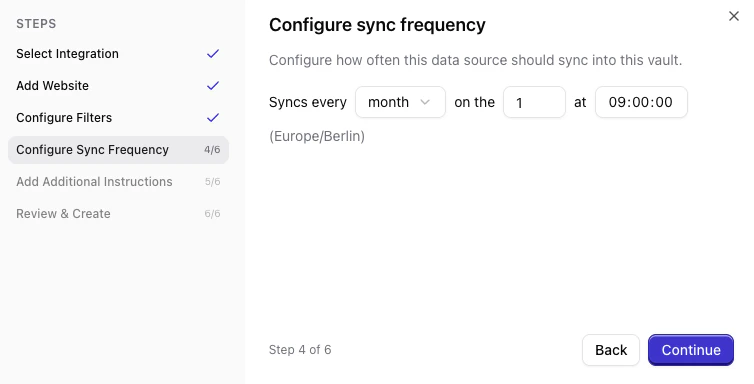
 Choose how often Qontext should re-crawl the website (e.g. daily, weekly, monthly). More frequent syncs keep the context repository up to date but use more resources.
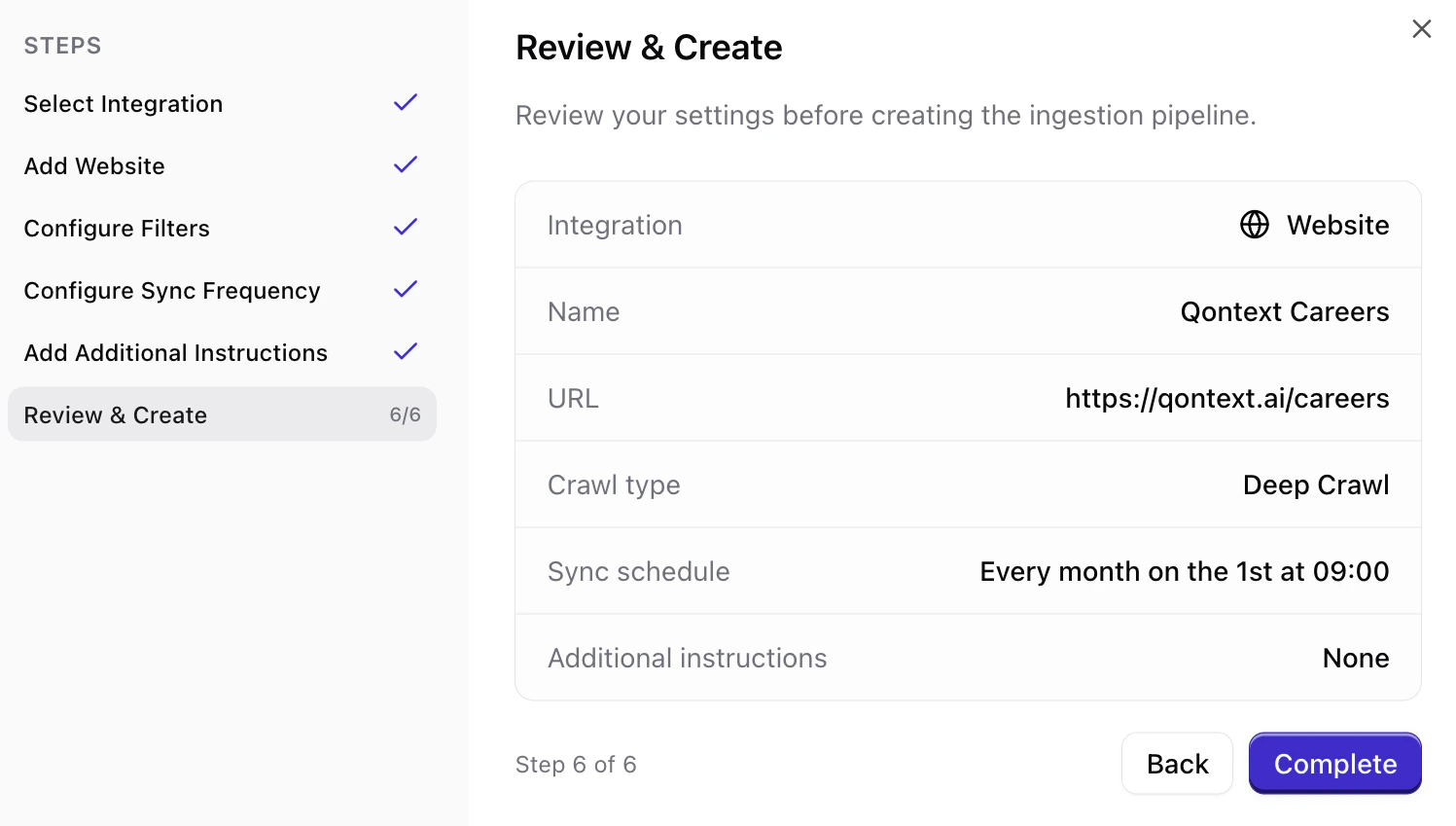
 Review your choices (name, URL, crawl type, frequency), then click **Complete** to create the connection. Qontext will start the initial crawl shortly after.
 ***
## Sync latency
The crawl time depends on the crawl type and the size of the website. Most can be ingested within minutes.
***
## FAQ
Use **Single Page** when you want to ingest a specific article, blog post, or landing page. Use **Deep Crawl** when you want to ingest an entire site or documentation portal. Qontext will follow all internal links starting from the URL you provide.
A Deep Crawl follows up to 100 pages starting from the provided URL. If you need to limit the scope, consider using Single Page for specific URLs instead.
Yes. You can add as many website connections as you need from the **Sources** tab. Each website is a separate data source with its own crawl type and sync schedule.
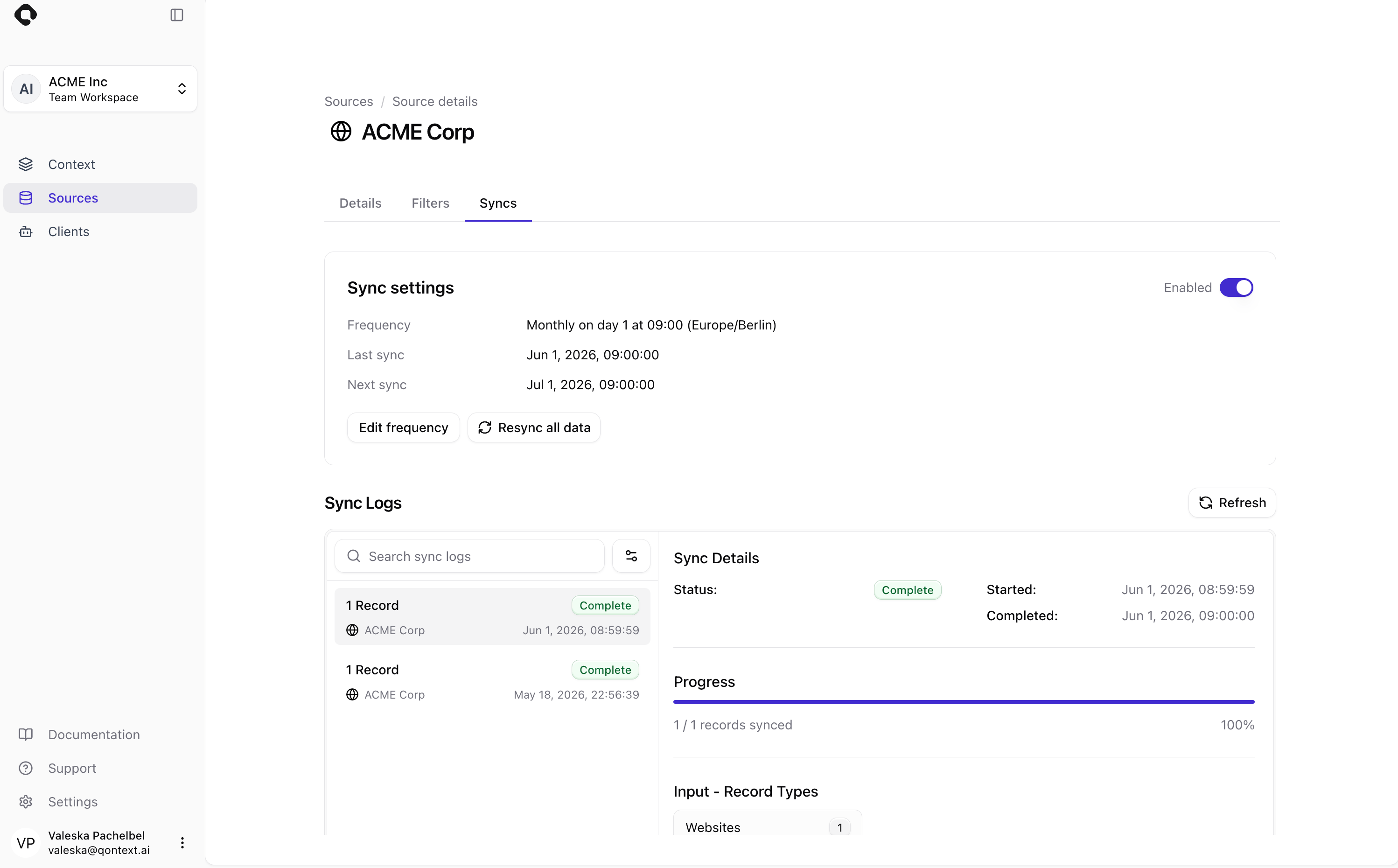
Manual refresh for website connections is available via the **Sources** tab. Navigate to the respective website connection and open the **Syncs** tab. In the Sync settings, you can select **Resync all data**.
***
## Sync latency
The crawl time depends on the crawl type and the size of the website. Most can be ingested within minutes.
***
## FAQ
Use **Single Page** when you want to ingest a specific article, blog post, or landing page. Use **Deep Crawl** when you want to ingest an entire site or documentation portal. Qontext will follow all internal links starting from the URL you provide.
A Deep Crawl follows up to 100 pages starting from the provided URL. If you need to limit the scope, consider using Single Page for specific URLs instead.
Yes. You can add as many website connections as you need from the **Sources** tab. Each website is a separate data source with its own crawl type and sync schedule.
Manual refresh for website connections is available via the **Sources** tab. Navigate to the respective website connection and open the **Syncs** tab. In the Sync settings, you can select **Resync all data**.
 If a previously crawled page is no longer accessible, it will not be updated during the next sync. Content already ingested remains in your context repository. For data removal, contact [support@qontext.ai](mailto:support@qontext.ai).
Qontext re-crawls the website based on the sync frequency you set (daily, weekly, or monthly). Each sync picks up the newest version of the pages and discovers new pages (for Deep Crawl).
If a previously crawled page is no longer accessible, it will not be updated during the next sync. Content already ingested remains in your context repository. For data removal, contact [support@qontext.ai](mailto:support@qontext.ai).
Qontext re-crawls the website based on the sync frequency you set (daily, weekly, or monthly). Each sync picks up the newest version of the pages and discovers new pages (for Deep Crawl).