

X-API-Key is also supported. Send one authentication header: if both are present, X-API-Key takes precedence, even when its value is invalid.
Workspace access
The key determines the workspace and the files and folders the client can access. Configure its Access Controls in the app; see Access management. Keys inherit their creator’s permissions by default. A key inheriting an owner’s or admin’s permissions can change file protection. Permissions assigned directly to a key are limited to Can read or Can edit; those grants do not allow changing protection. Use separate keys for each application or environment. Keep secrets in environment variables or a secret manager, outside source code and browser applications.Creating an API key
1
Go to Clients
In the Qontext app, go to Clients → API Keys. To add an API key, click + Create API key in the top right corner.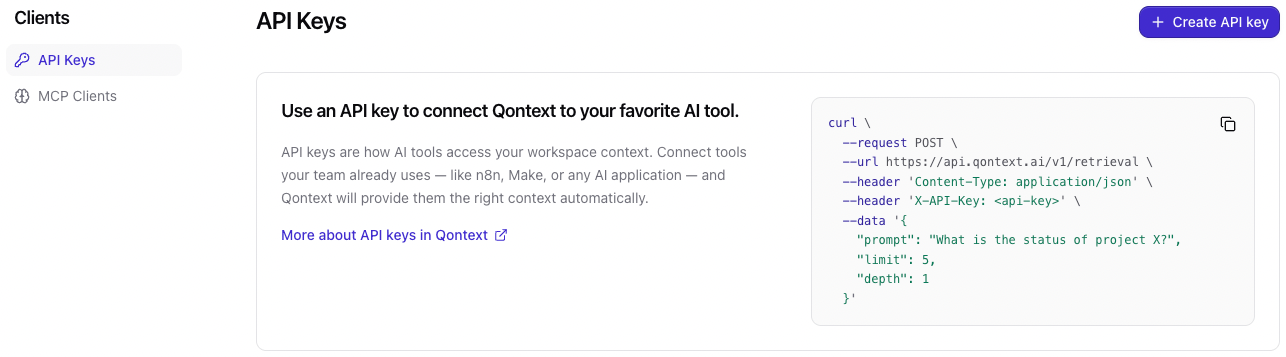
2
Create API key
In the Create an API key window, give your key a name and add an expiration date if required.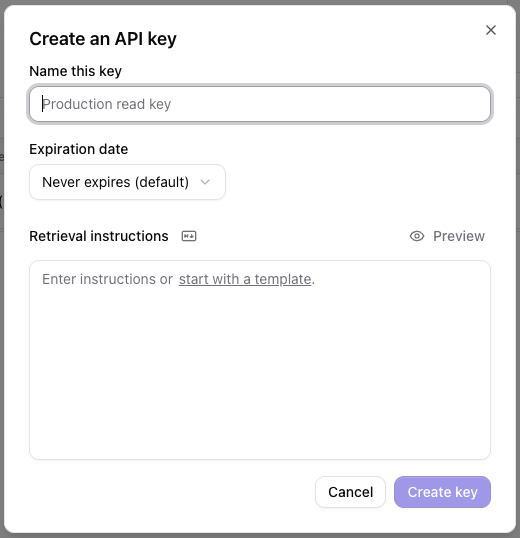
3
Copy API key
Copy the API key and store it safely. You will not be able to view it again later.
4
Access Qontext
You can now access the context repository from any application, workflow, or script by sending
Authorization: Bearer <your-api-key> with API requests.Rotating an API key
Rotate a key to replace its secret while keeping the key itself in place. Rotate when a secret may have been exposed, when it was shared more widely than intended, or on a regular schedule as part of your security practices. Owners, admins, and the member who created the key can rotate it.The current secret stops working immediately. There is no overlap period, so any client still using the old secret fails until you update it with the new one.
1
Open the API key
In the Qontext app, go to Clients → API Keys. Click the three dots next to the key and choose Rotate, or open the key and select Rotate in the Danger zone.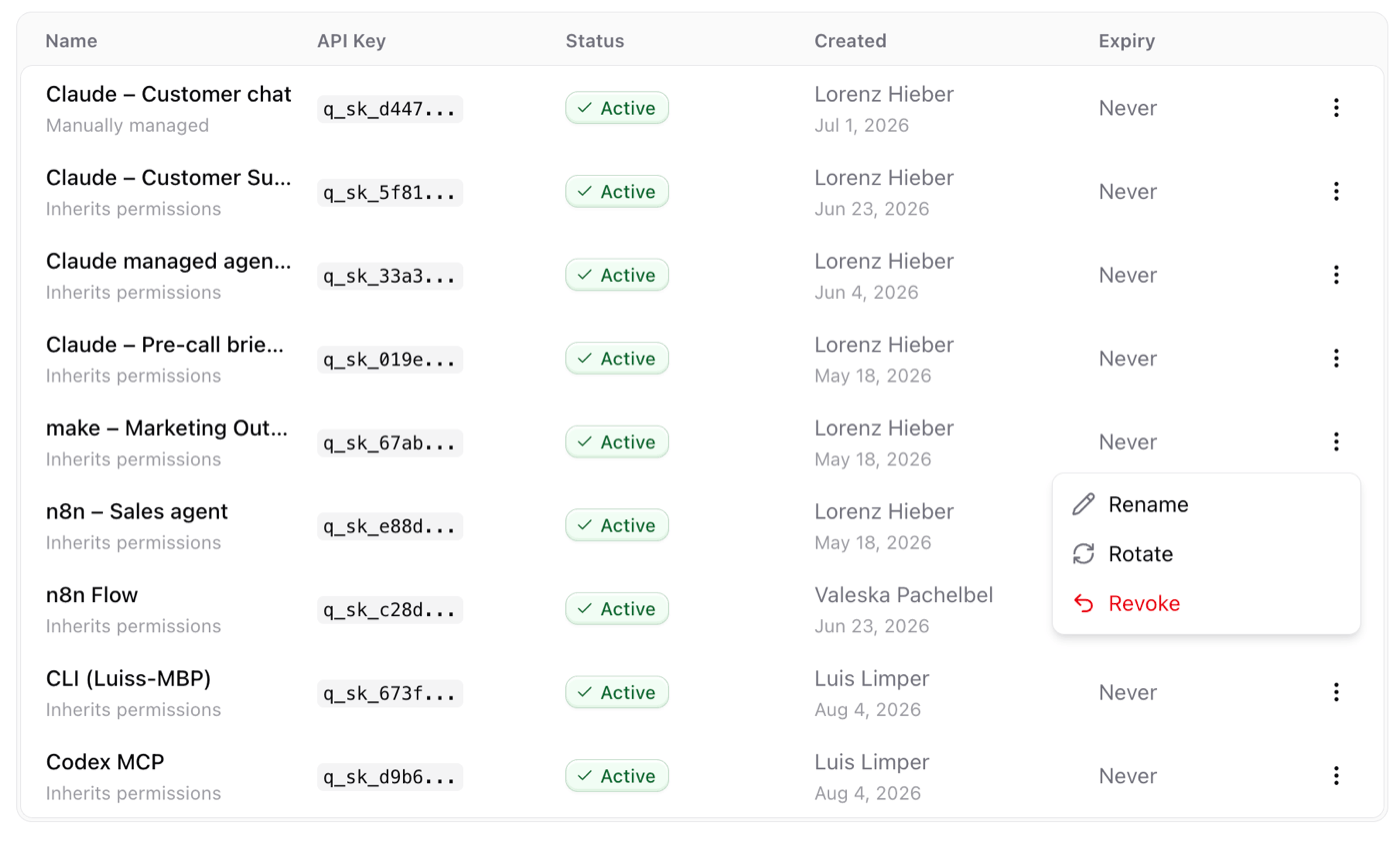
2
Confirm the rotation
Check that you are rotating the right key, then select Rotate key.
3
Copy the new API key
Copy the new API key and store it safely. You will not be able to view it again later.
4
Update the client
Replace the old secret wherever the key is used and send it using
Authorization: Bearer <your-api-key>. Send a request to confirm the client works again.