

Overview
Access controls decide who can read, edit or change permissions to each file and folder in your context repository. They apply to three kinds of principals:- Users: workspace members
- API keys: credentials used by Clients and agents to access your context repository
- Qontext Tag: the read-only Client that answers questions from the context repository in Slack
Access levels
Every grant is one of four levels.How access is inherited
Access is evaluated as a chain, from the top of the repository down to the file or folder you are looking at:- The workspace baseline set by each member’s role
- The access set on each parent folder, from the outermost folder inward
- The access set on the file or folder itself
Access can be widened deeper in the tree, not narrowed.A file or folder can grant more access than it inherits, but it cannot take away access that was granted higher up. To restrict a folder subtree, set the narrower access on the parent folder.
Access controls for users
Every member gets a default level of access across the whole repository. You can then customize access for individual files and folders on top of that default.Default access
The access that applies across the repository by default is managed in your context repository settings. Set it once here, and every file and folder inherits it unless a more specific grant overrides it.1
Open your context repository settings.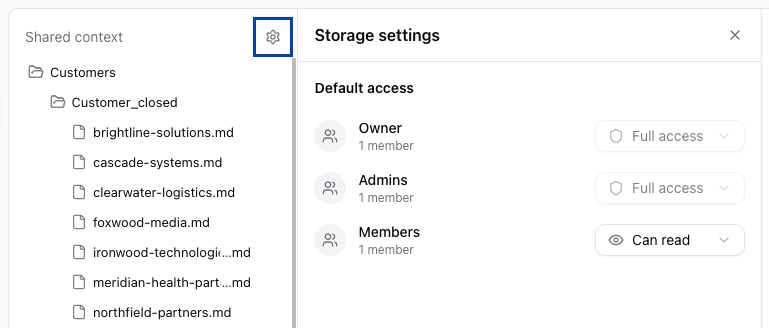
2
Choose Can read, Can edit, or Full access, or set No access to remove the default grant.
Customize access for a file or folder
Grant individual members access to a specific file or folder. This is how you give a group Can edit on its own area of the repository while keeping everyone else at Can read, or hide a sensitive folder from everyone except its owners. Access for a file or folder is managed in the Access management section of its settings.1
In Context, open the settings of the file or folder you want to manage.
2
Add a member or change the level of one already listed.
3
Choose Can read, Can edit, or Full access, or set No access to remove the grant.
Roles still apply.Access controls build on top of workspace roles. A member’s role sets their baseline across the workspace; default, folder, and file access refine it. See Member settings.
GroupsMembers can be organized into groups: named collections of workspace members. Support for granting a group access to files and folders is rolling out, so you can manage access for a whole group at once instead of member by member.
Access controls for API keys
An API key’s access decides what the clients and agents using it can retrieve and change. When you create a key, you choose how it gets that access:- Inherit permissions: the key inherits its creator’s permissions and stays in sync as those permissions change. This is the default. A key inheriting an owner’s or admin’s permissions can also manage file protection.
- Manually manage: set the key’s access yourself, so it is independent of any user. A manually managed key can hold different levels on different files and folders, letting you scope each client to exactly the context it needs.
In API key settings
Use this when you are working from a key and want to decide which parts of the repository it can reach. This is the per-key view of everything you would otherwise set file by file.1
Open Clients and select the API key you want to manage.
2
Go to its Access Controls tab to see every file and folder the key can reach.
3
Add a file or folder and choose Can read or Can edit, or change an existing grant.
In file / folder settings
Use this when you are working from a file or folder and want to decide which keys can reach it. API keys appear in the same Access management section as users.1
In Context, open the settings of the file or folder and go to Access management.
2
Add a key or change the level of one already listed.
3
Choose Can read or Can edit, or set No access to remove the grant.
Direct grants and inherited permissions differ.Permissions assigned directly to a key are limited to Can read or Can edit. This limit does not cap inherited permissions: a key inheriting an owner’s or admin’s permissions can perform operations that require Full access, including changing file protection.
Access controls for Qontext Tag
Qontext Tag has its own read-only access to the context repository. Its access does not change based on the permissions of the person asking a question in Slack.1
Open Clients and select Qontext Tag.
2
In the access card, grant Can read across all files and folders or choose individual files and folders.