

- Retrieve curated high-quality company context while coding
- Access product, customer, process, and project knowledge directly from Codex
- Keep governance and permissions in Qontext
Installation
Qontext is available as a plugin in ChatGPT and Codex. Install it directly from the shared plugin directory, or add it manually as an MCP server in the ChatGPT desktop app. Both options connect to Qontext over MCP.- From the plugin directory
- As an MCP server
1
Open the Qontext plugin
In the ChatGPT desktop app, open Plugins, search for Qontext, and select the Qontext plugin. You can also open the Qontext plugin directly.
2
Install the plugin
Click Install plugin. If Qontext is already installed for your ChatGPT account, it is also available in Codex.
3
Connect to Qontext
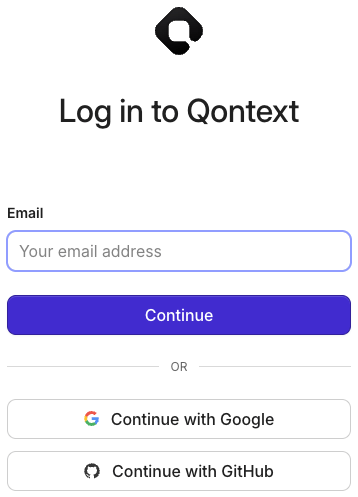
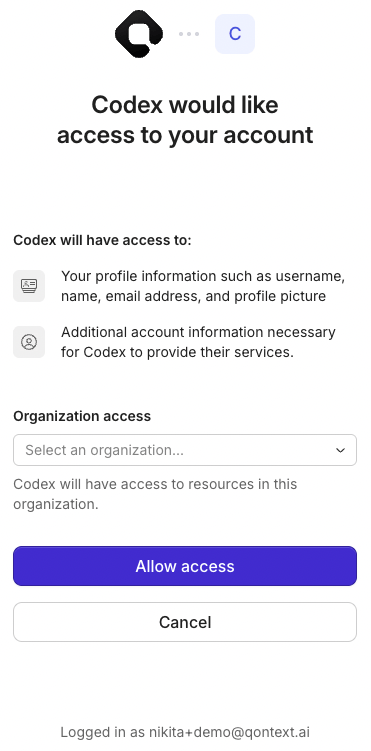
If prompted, click Connect, log in to Qontext, and allow access.
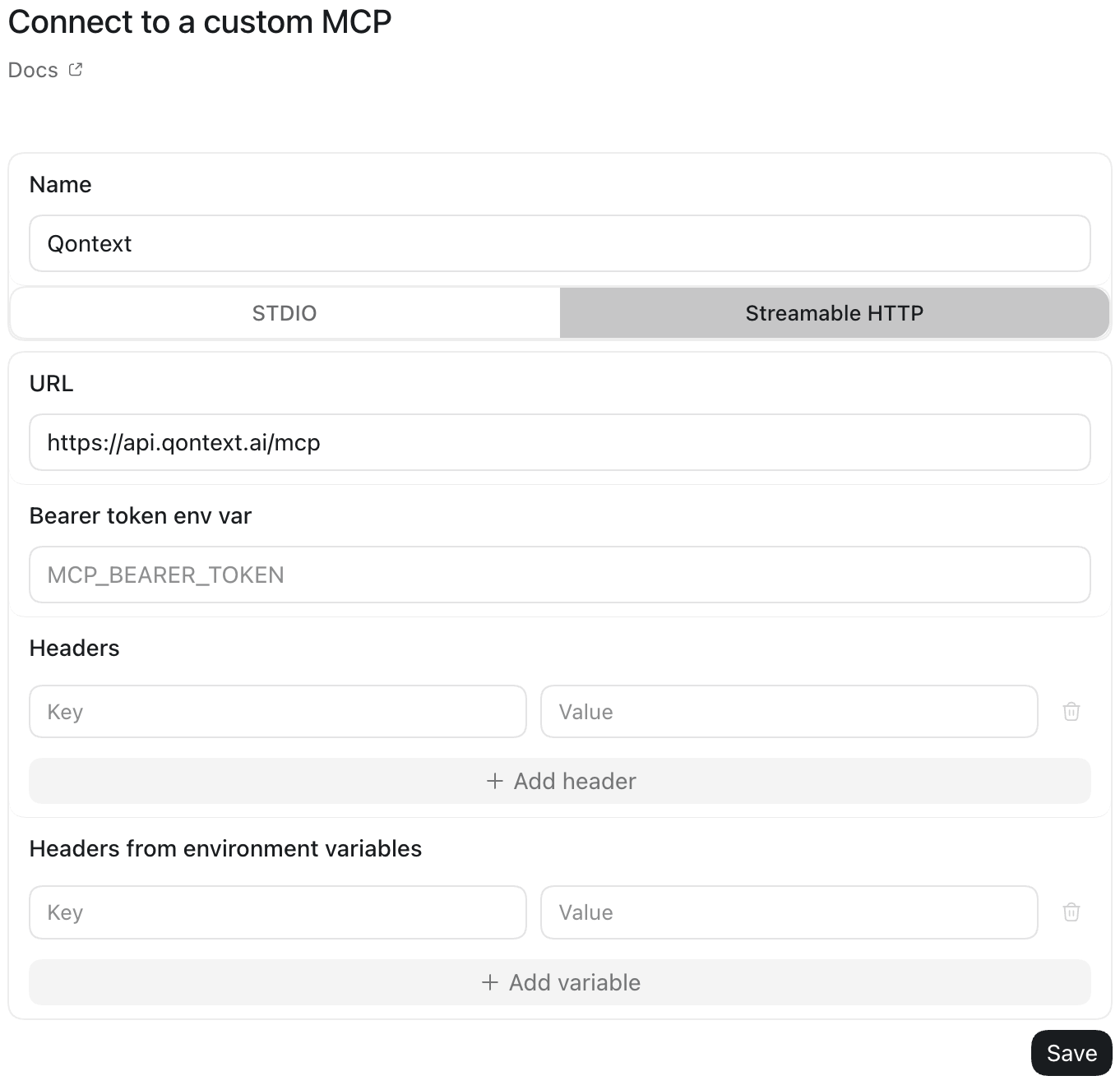
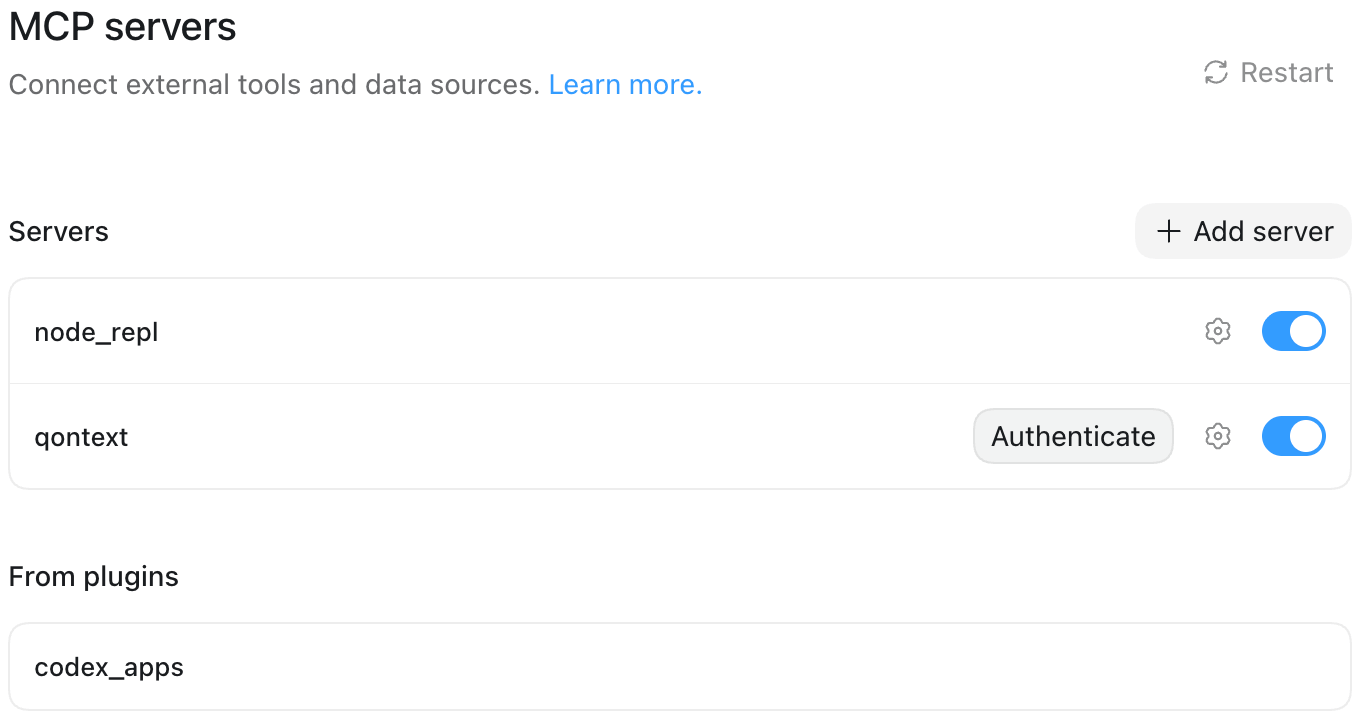
A manually configured MCP server is shared with Codex CLI and the IDE extension when they use the same Codex host.
From now on, Codex will use your context repository to retrieve context when you invoke Qontext.
Using Qontext in Codex
After installing the plugin, start a new Codex task and ask Codex to use Qontext. For a manually configured MCP server, start a new task after restarting the desktop app.1
Start a new task
Open a new task in Codex.
2
Invoke Qontext
Type @Qontext or add Use Qontext to your question or task. Codex then retrieves the context needed to complete the task.
3
Get context-aware responses
Codex automatically retrieves relevant context from your connected context repository to complete the task.