

Overview
Native connectors connect Qontext to the tools where your company context lives. Each connector keeps selected source data up to date in the Qontext platform through syncs. This data is then used to create and continuously update your context repository. Sync logs in the platform let you monitor runs and troubleshoot. Native connectors include tools such as HubSpot, Google Drive, Notion, and Slack. When a native connector is not available, use the API to send source data into Qontext programmatically.Connect a data source
1
Open Sources in the Qontext platform
To add a data source, open the Sources tab in the Qontext platform and click Connect data source.
2
Configure filters (optional)
You can set filters per data source to control what data gets synced.For setup instructions for a specific connector and a roadmap for our upcoming connectors, please refer to the Sources section.
Sync logs
Each connected source has its own sync logs in the Sources tab of the Qontext platform. Use them to see when a sync started and finished, whether it failed, which items were skipped, and which source triggered the sync.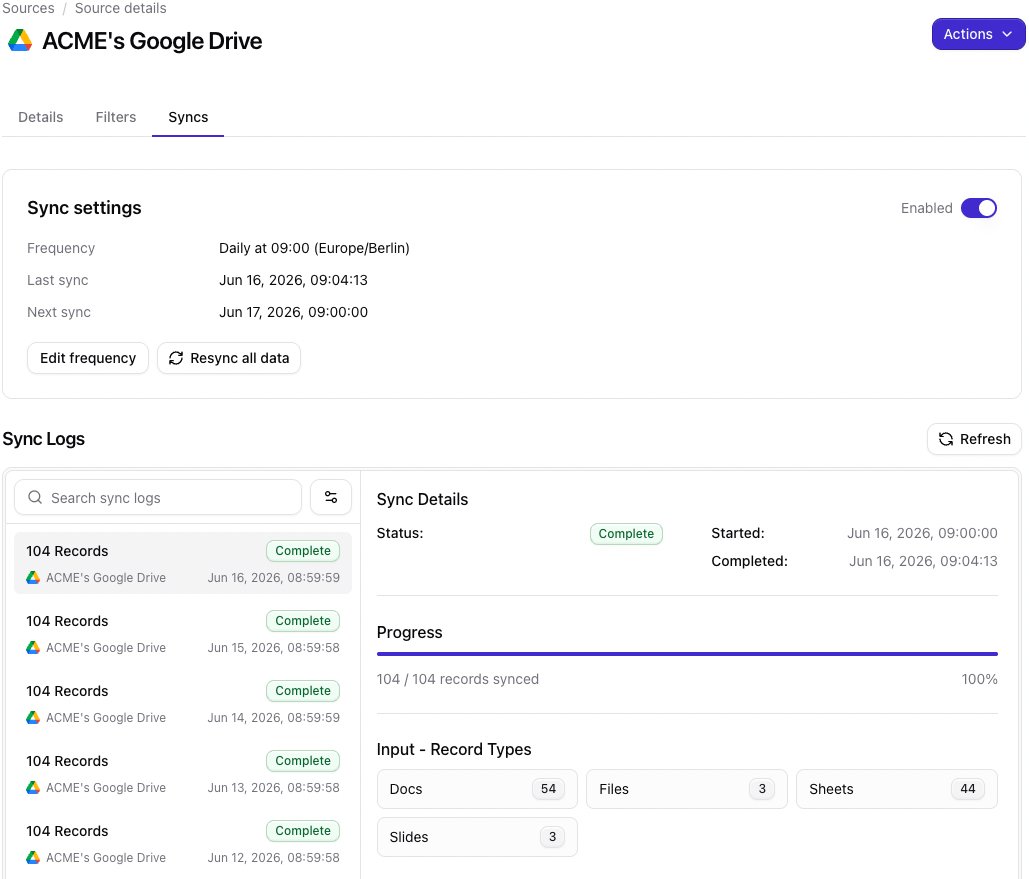
When no native connector exists
- Use MCP: Connect an MCP client to write and manage context directly in your repository.
- Use the API: Create an API key under Clients, then write custom data into your context repository from your own scripts or workflow tools such as n8n and Make.
- Request a native connector: To request a connector we don’t offer yet, submit a request here. We will try our best to build a connector for you.
Best practices
Prefer native connectors when availableThey keep the context repository in continuous sync with minimal setup. Use Sources to see which native connectors are available.
Monitor sync logsCheck sync logs after large or first-time syncs to confirm success and spot configuration or permission issues early.
FAQ
What if my sync fails?
What if my sync fails?
In Sync settings, select Sync latest data to pull recent changes, or Resync all data to rebuild the source from scratch. If the issue persists, contact support@qontext.ai, so that we can resolve the issue.
How long does a sync take?
How long does a sync take?
It depends on the data volume of your sync. Initial syncs with large amounts of data can take up to 12 hours. Subsequent syncs process incremental changes and typically complete much faster than the initial sync.