

- Bring relevant, up-to-date company context into your Claude conversations
- Keep full governance and permissions in Qontext
Installation
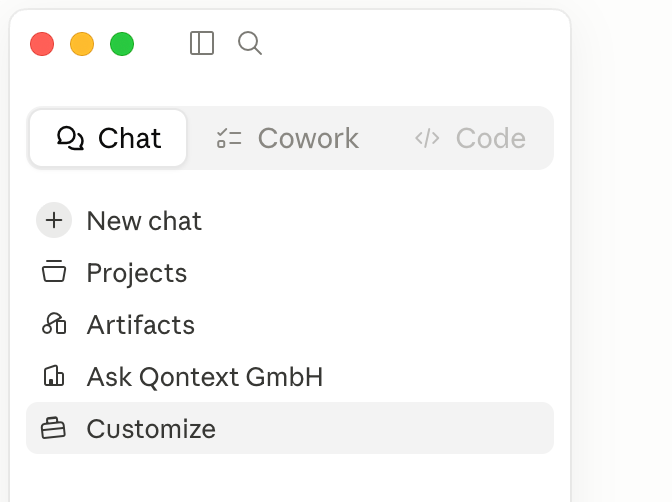
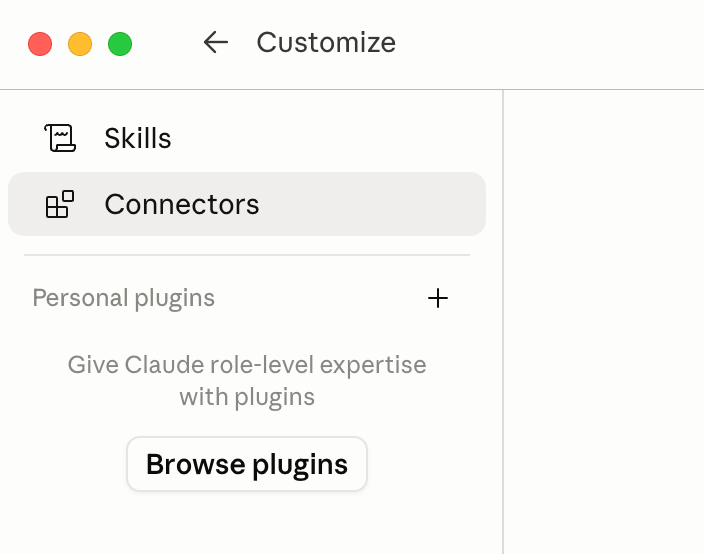
Qontext is available as a connector in Claude, so you can add it in two ways: install it directly from Claude’s connector directory, or add it manually as a custom connector. Both connect over remote MCP. For Claude’s official connector documentation, see Claude Docs.- From the connector directory
- As a custom connector
1
Open the connector menu
In Claude, click the + below the message box where you write your prompt.
2
Browse connectors
Click Connectors, then Browse connectors.
3
Add Qontext
Search for Qontext and click the +.
4
Connect
Once added, click Connect and log in to Qontext to allow access.
Set up Qontext for your organization
On Claude Team and Enterprise plans, Owners and Primary Owners can add shared organization instructions that apply to everyone in the organization. This gives everyone a shared default for when Claude should retrieve context from Qontext.1
Open your organization settings
In Claude, go to Organization settings → Organization and access.
2
Add an organization instruction
Find Organization instructions and add something like:
Use Qontext as the source of truth for company-specific context. Before answering or acting on tasks involving our products, customers, projects, policies, processes, terminology, or past decisions, retrieve the relevant context from Qontext.
3
Save the instruction
Click Save changes.
Using Qontext in Claude
Once connected, using Qontext is simple:1
Start a new chat
Open a new conversation in Claude.
2
Write your prompt
Type your question or task as usual.
3
Trigger Qontext
Add “Use Qontext” anywhere in your message and send.
4
Get context-aware responses
Claude automatically retrieves the relevant context from your context repository to complete the task.