

Overview
The Qontext API provides programmatic access to your context repository. Use it to build custom applications, workflows, agents, and internal tools that retrieve, search, create, and update context. All API requests are authenticated using API keys.Creating an API key
Please refer to the API reference for all available endpoints and examples.1
Go to Clients
In the Qontext app, go to Clients → API Keys. To add an API key, click + Create API key in the top right corner.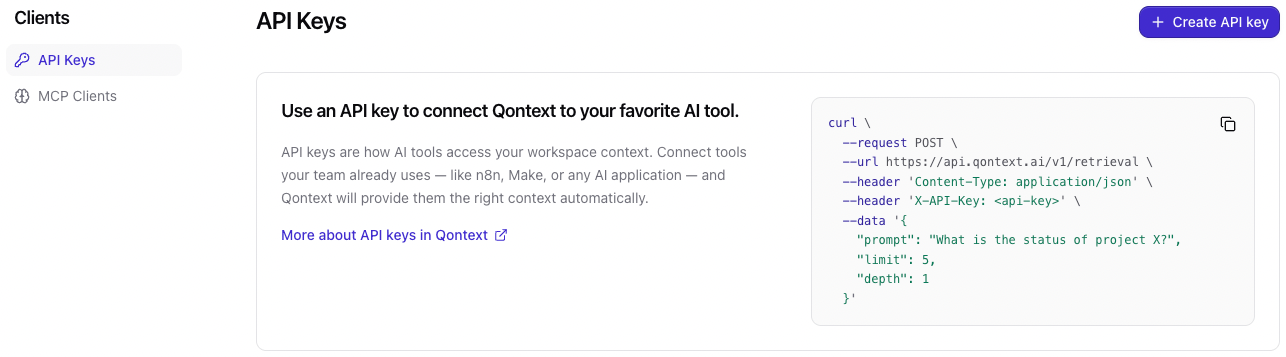
2
Create API key
In the Create an API key window, give your key a name and add an expiration date if required.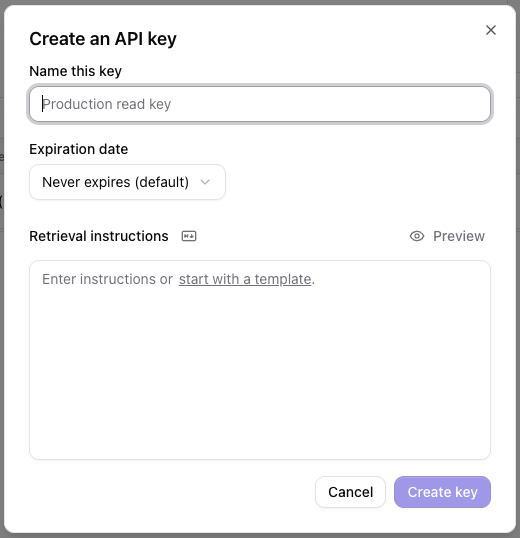
3
Copy API key
Copy the API key and store it safely. You will not be able to view it again later.
4
Access Qontext
You can now access the context repository from any application, workflow, or script by passing the key as the
X-API-Key header in API requests.Authentication
Pass the API key as theX-API-Key header:
Rotating an API key
Rotate a key to replace its secret while keeping the key itself in place. Rotate when a secret may have been exposed, when it was shared more widely than intended, or on a regular schedule as part of your security practices. Owners, admins, and the member who created the key can rotate it.The current secret stops working immediately. There is no overlap period, so any client still using the old secret fails until you update it with the new one.
1
Open the API key
In the Qontext app, go to Clients → API Keys. Click the three dots next to the key and choose Rotate, or open the key and select Rotate in the Danger zone.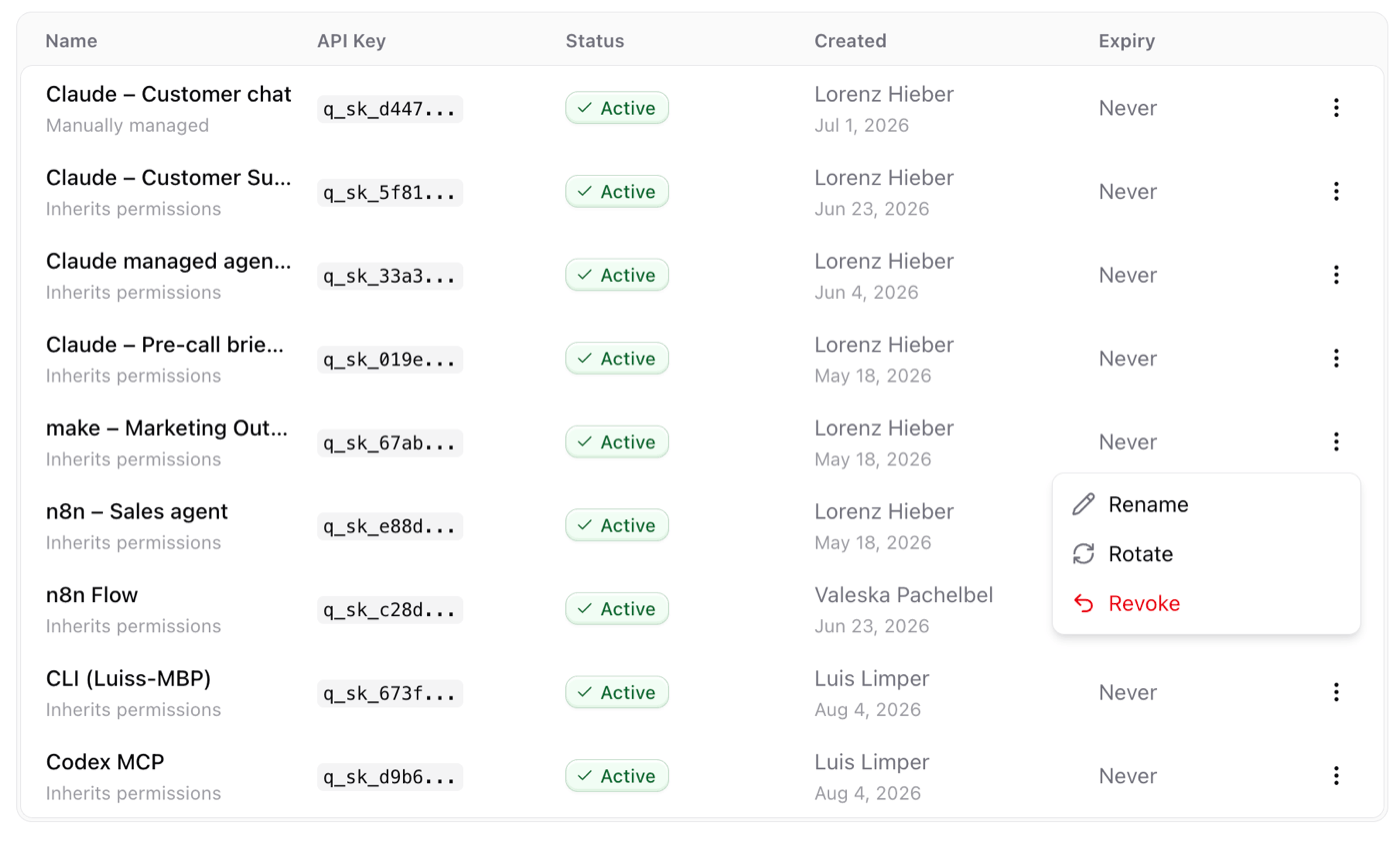
2
Confirm the rotation
Check that you are rotating the right key, then select Rotate key.
3
Copy the new API key
Copy the new API key and store it safely. You will not be able to view it again later.
4
Update the client
Replace the old secret wherever the key is used and pass the new key as the
X-API-Key header. Send a request to confirm the client works again.What stays the same
Rotation keeps the key’s name, access controls, expiration date, and retrieval logs. It does not extend the expiration date; replace an expired key with a new one.Available operations
The API can be used to:- Read files and folders
- Search the context repository
- Create files and folders
- Update files and folders
- Manage clients
- Manage sources
- Retrieve logs
Best practices
One API key per use case or environment.Use separate keys per workflow, agent, or environment. That enables easy revocation of access and makes the origin of retrieval logs clearly identifiable.
FAQ
What should I do if an API key is lost or exposed?
What should I do if an API key is lost or exposed?
Rotate the key, then immediately update every client that uses it. The previous secret stops working as soon as the key is rotated.
When should I revoke an API key?
When should I revoke an API key?
Revoke a key when it is no longer needed. Rotate it when you need a new secret but want to keep the key’s existing access controls and retrieval logs.