

Prerequisites
- A Qontext account and at least one vault with ingested data
- Access to Gemini Enterprise in your Google Cloud project
Installation
Step 1: Infrastructure and security setup
Set up your Google Cloud project and secure credentials before writing agent code.Create or select a project
Open the Google Cloud Console and create a new project or select an existing one from the project picker in the top bar.
Enable required APIs
In the left navigation go to APIs & Services → Enabled APIs & services, then enable:
- Vertex AI API
- Secret Manager API
- Discovery Engine API
- Generative Language API
- Gemini for Google Cloud API
- Cloud Resource Manager API
Create an app (if needed)
If you don’t already have one, create an app in your project.
Configure Secret Manager
Store your Qontext API key and vault ID in Secret Manager so the agent can read them at runtime. Choose either the UI or the CLI.
- Via UI
- Via CLI
-
In the left navigation, open Security → Secret Manager.
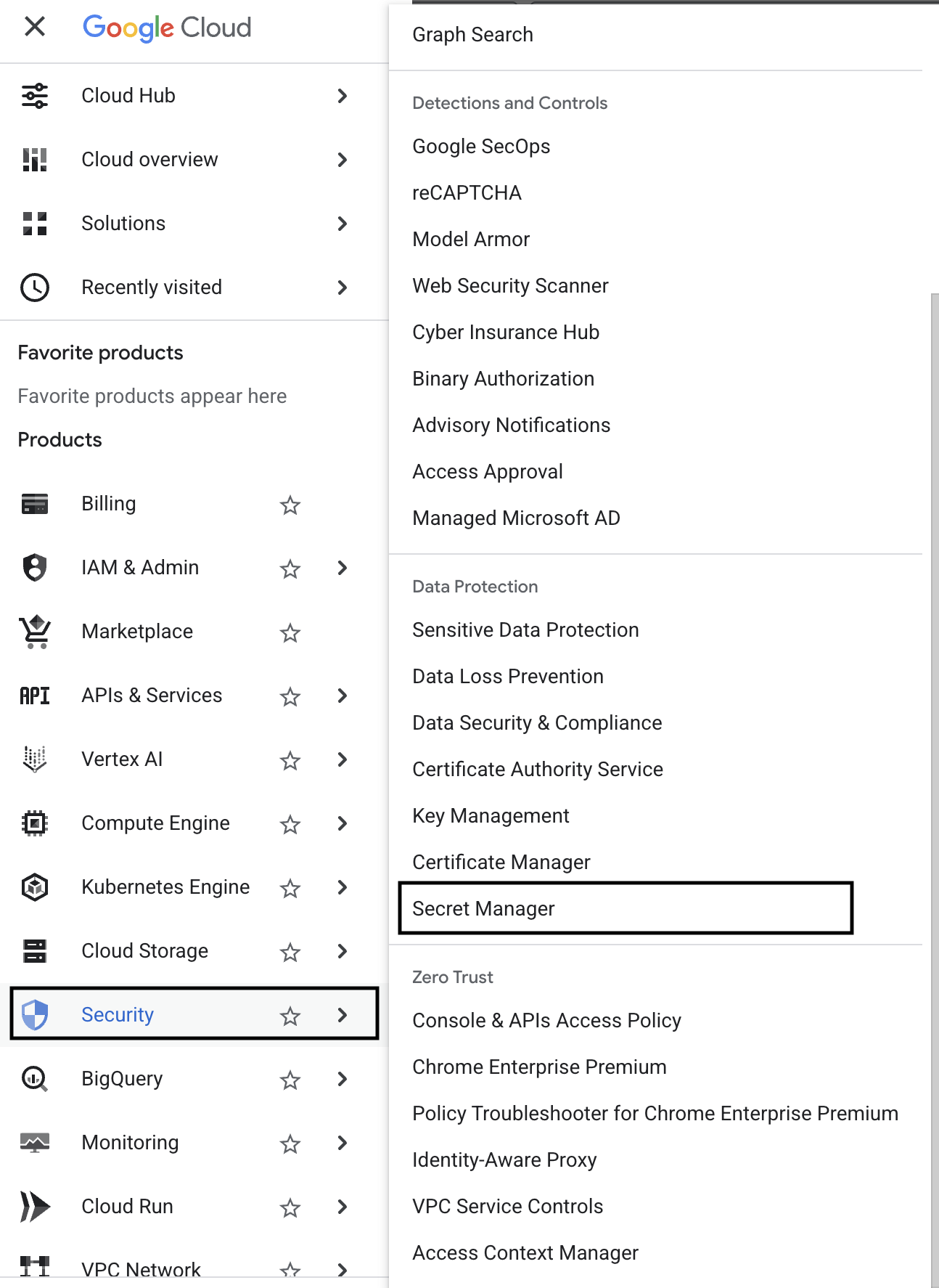
-
Click Create secret for each of the following:
- Name:
QONTEXT_API_KEY_SECRET— value: your Qontext API key - Name:
QONTEXT_VAULT_ID_SECRET— value: your vault ID
- Name:
-
Grant the agent’s service account access to these secrets:
- Go to IAM & Admin → IAM.
- Enable Include Google-provided role grants (checkbox at top right).
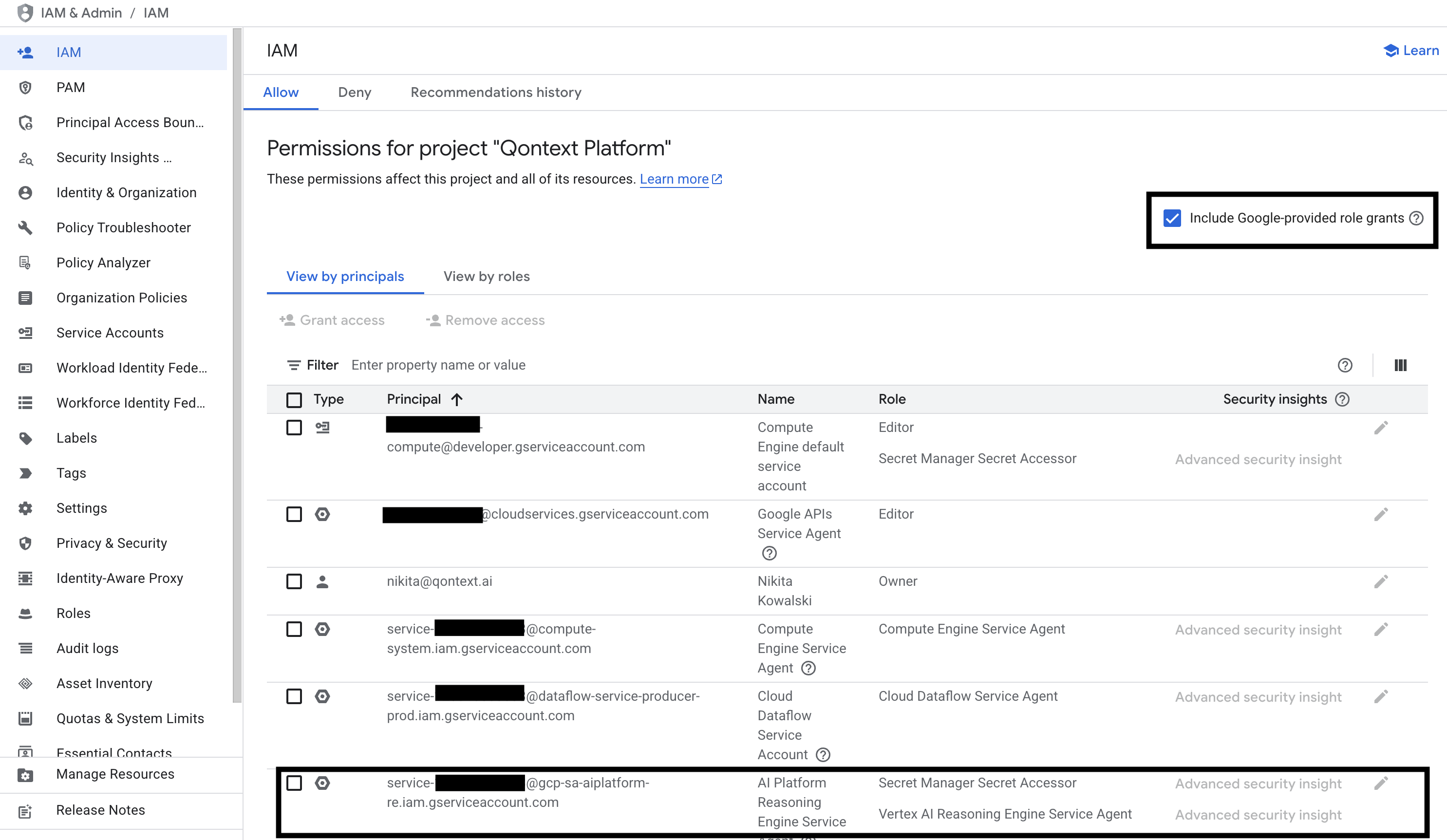
- Find the Vertex AI Reasoning Engine service agent (e.g.
service-PROJECT_NUMBER@gcp-sa-aiplatform-re.iam.gserviceaccount.com) and ensure it has:- Secret Manager Secret Accessor
- Vertex AI Reasoning Engine Service Agent
Step 2: Set up your local development environment
Prepare your machine for ADK development and the example agent.Create a project directory and virtual environment
Run the following to create a dedicated folder for your agent and isolate dependencies in a virtual environment:
Shell
Install the ADK and required libraries
Install the Agent Development Kit, Secret Manager client, and an async HTTP client:
Shell
Add the agent code and requirements
Use the example agent and requirements file from the Qontext examples repository and add a .env file:
- agent.py — main agent logic and Qontext retrieval tool
- requirements.txt — dependencies for local and deployed runs
- .env: create a .env file in the same folder and save your project ID as
GCP_PROJECT_ID
qontext_agent directory. Adjust the agent (e.g. functions, model, or prompt) to match your use case.Step 3: Local testing and debugging
Test the agent on your machine with the ADK web UI before deploying.Run the ADK web UI
From the parent directory of your agent folder (so ADK can find the agent module), start the web interface:
Shell
Test the agent
Open http://127.0.0.1:8000 in your browser. Verify that:
- The agent responds to prompts
- It uses the correct Qontext vault
- Conversational memory works across turns (ADK session state)
- If you encounter any problems, reach out to support@qontext.ai
Step 4: Deploy to Vertex AI Agent Engine
After local testing, deploy the agent to Google Cloud’s managed runtime. From your project root (one level above the agent folder), run:Shell
YOUR_PROJECT_ID and YOUR_REGION (e.g. europe-west1).
Save the URL that appears in the command output. You will need it for the agent connection in Step 5 (Google Cloud / Gemini Enterprise).
Step 5: Connect and go live
Connect your deployed agent to Gemini Enterprise so you can use it in chat.Open the Agents tab
In Gemini Enterprise, go to your project and region, then open the Agents tab for your app (the same app you used in Step 4).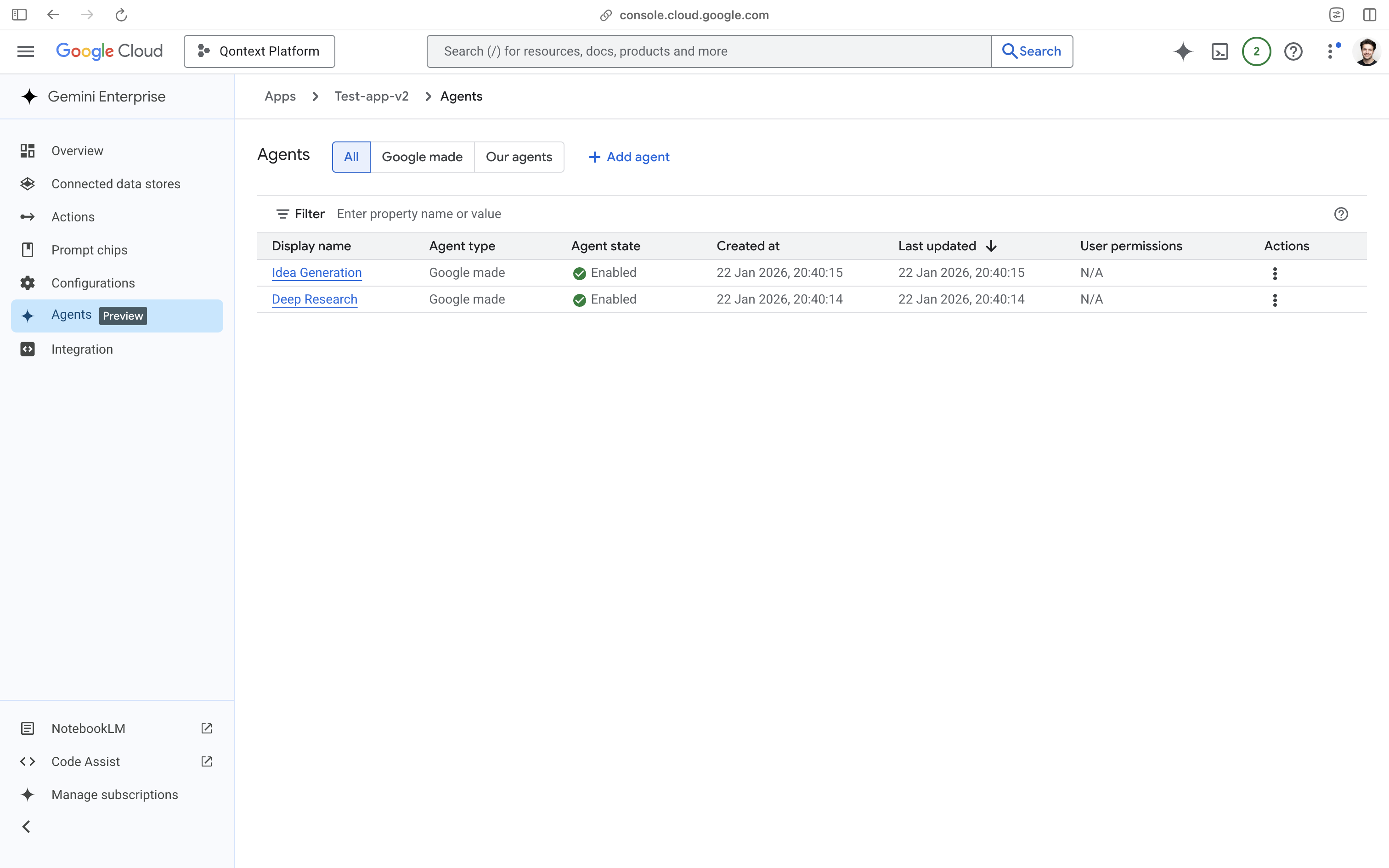
Name the agent and add the Agent Engine URL
Give the agent a meaningful name and description. In the URL field, enter the Agent Engine reasoning engine URL that the CLI returned after Step 4 (when you ran 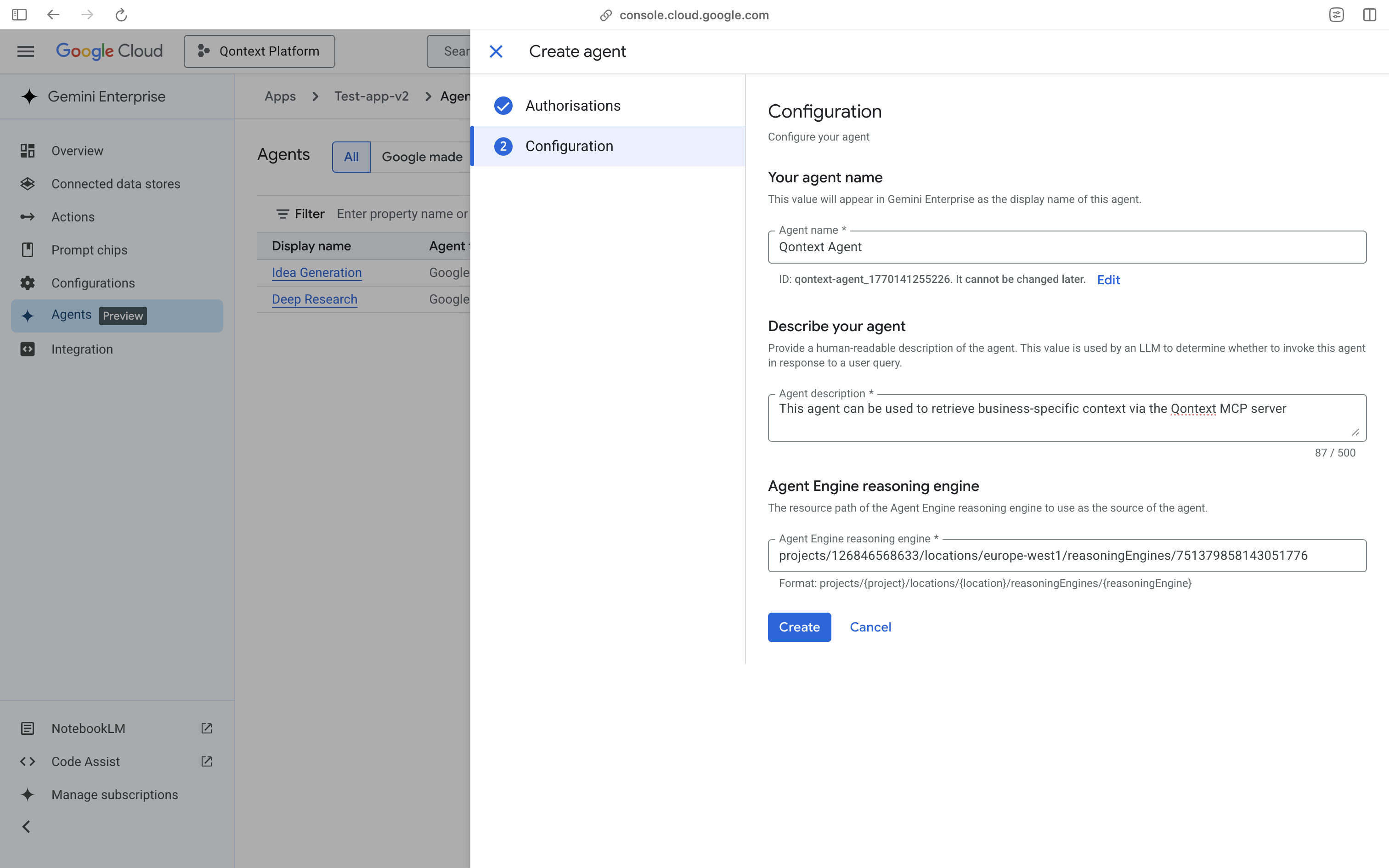
adk deploy agent_engine).Need Help? If you encounter issues with the Gemini integration, reach out to support@qontext.ai. Also, check the Vertex AI Agent Development Kit docs for more deployment and configuration options.