Documentation Index
Fetch the complete documentation index at: https://docs.qontext.ai/llms.txt
Use this file to discover all available pages before exploring further.
Connect Qontext to Claude via MCP to power every chat with up-to-date company context.
With Claude + Qontext, you can:
- Automatically pull relevant, up-to-date context for every prompt
- Keep full governance and permissions in Qontext
Installation
Claude Desktop Setup
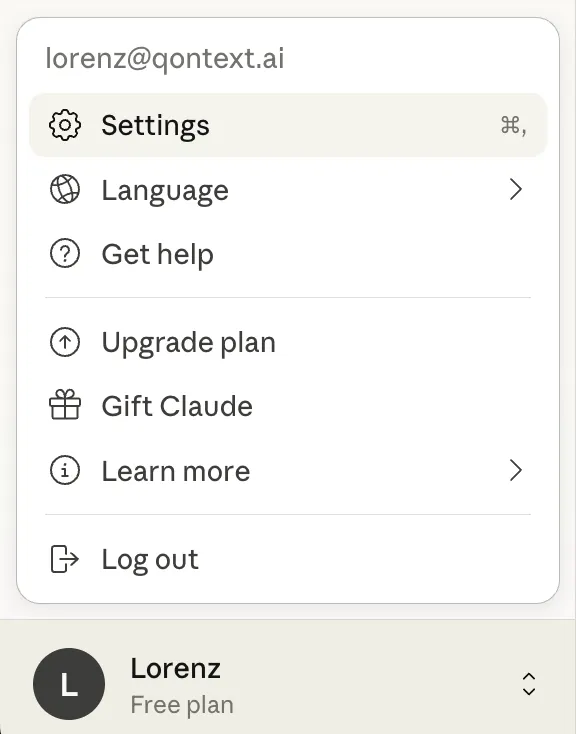
Open Claude
Launch the Claude desktop application.
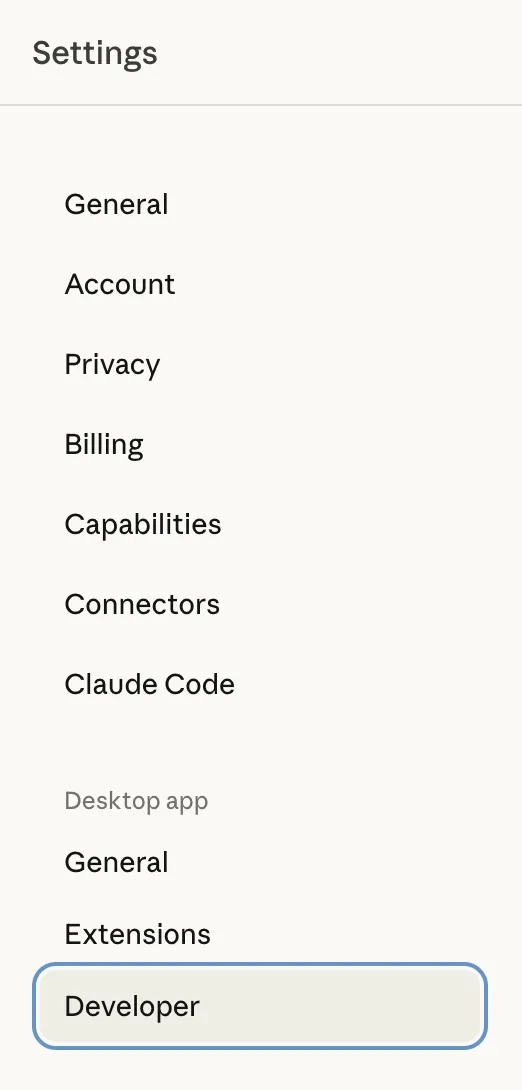
Open Developer Settings
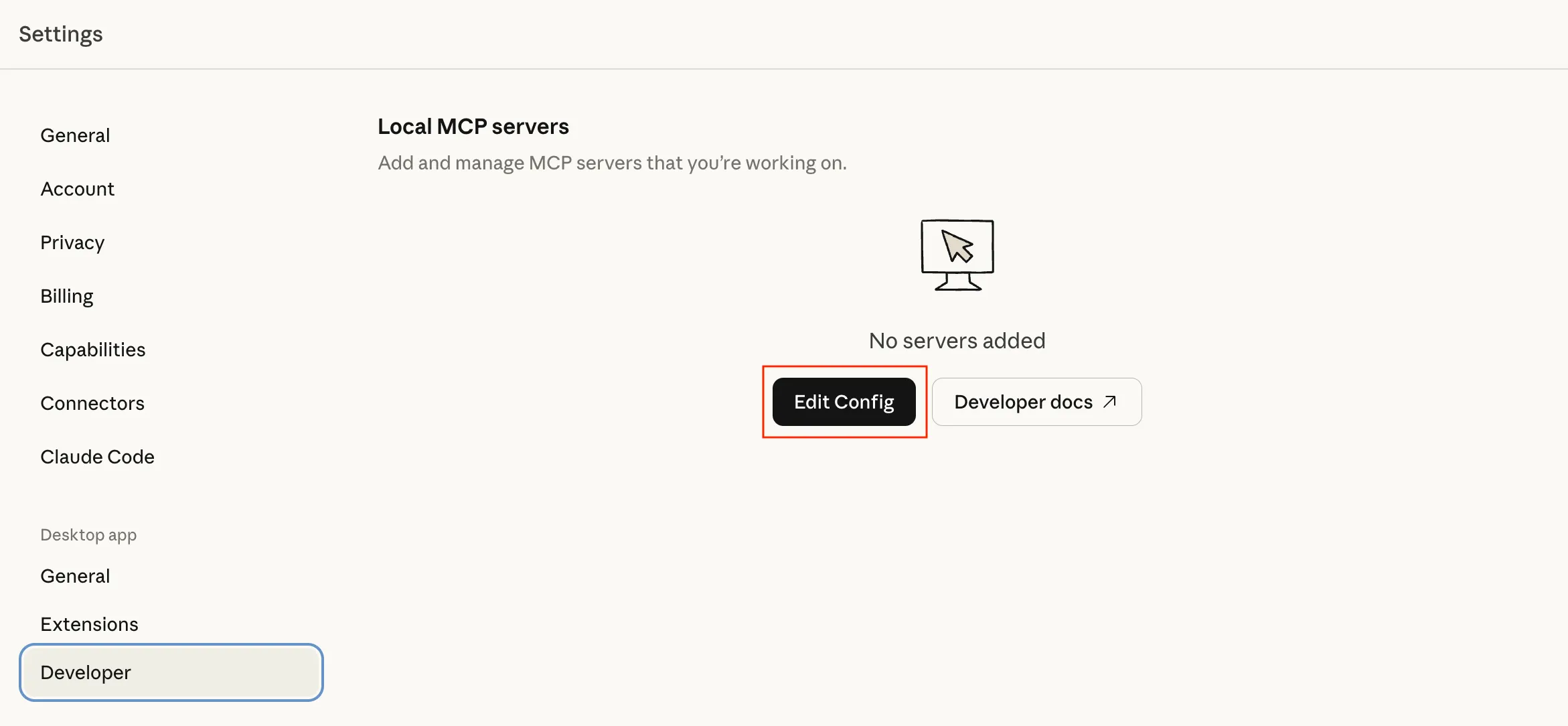
Go to Settings → Developer. Edit Configuration
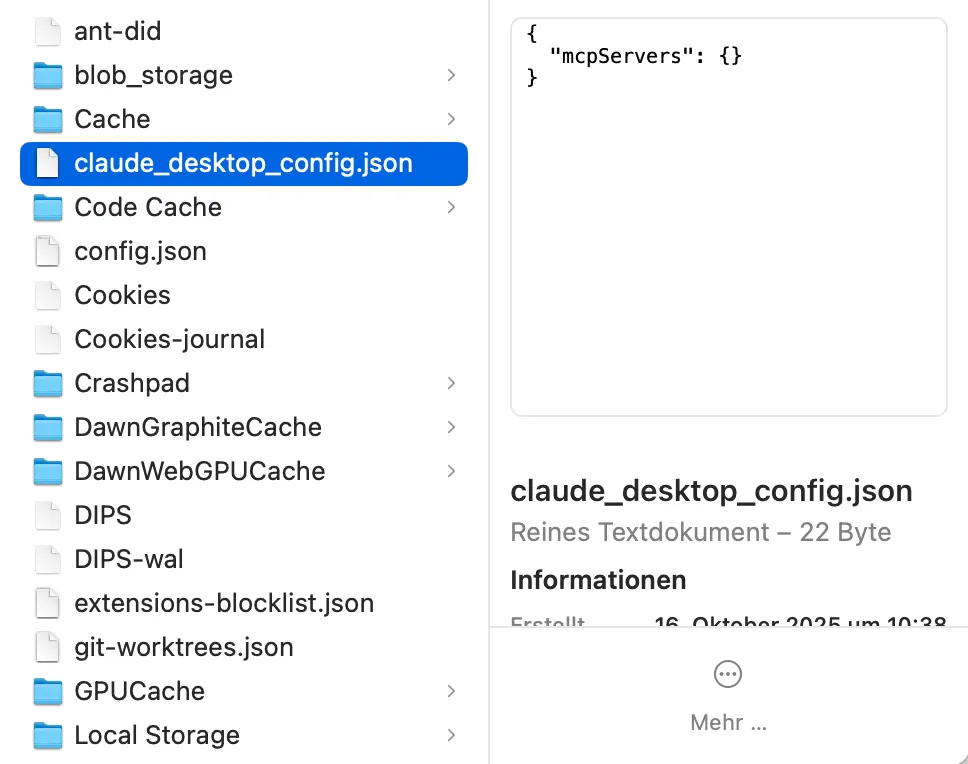
Click Edit configuration to open the config file. Add Qontext MCP Server
Paste the following configuration:{
"mcpServers": {
"qontext-ai": {
"command": "npx",
"args": ["mcp-remote", "https://api.qontext.ai/mcp"]
}
}
}
Restart Claude
Close Claude completely and restart it.
Connect Your Qontext Workspace
After restarting, you will be asked to give the MCP access to your Qontext workspace. Then, you should see that the Qontext MCP Server is connected.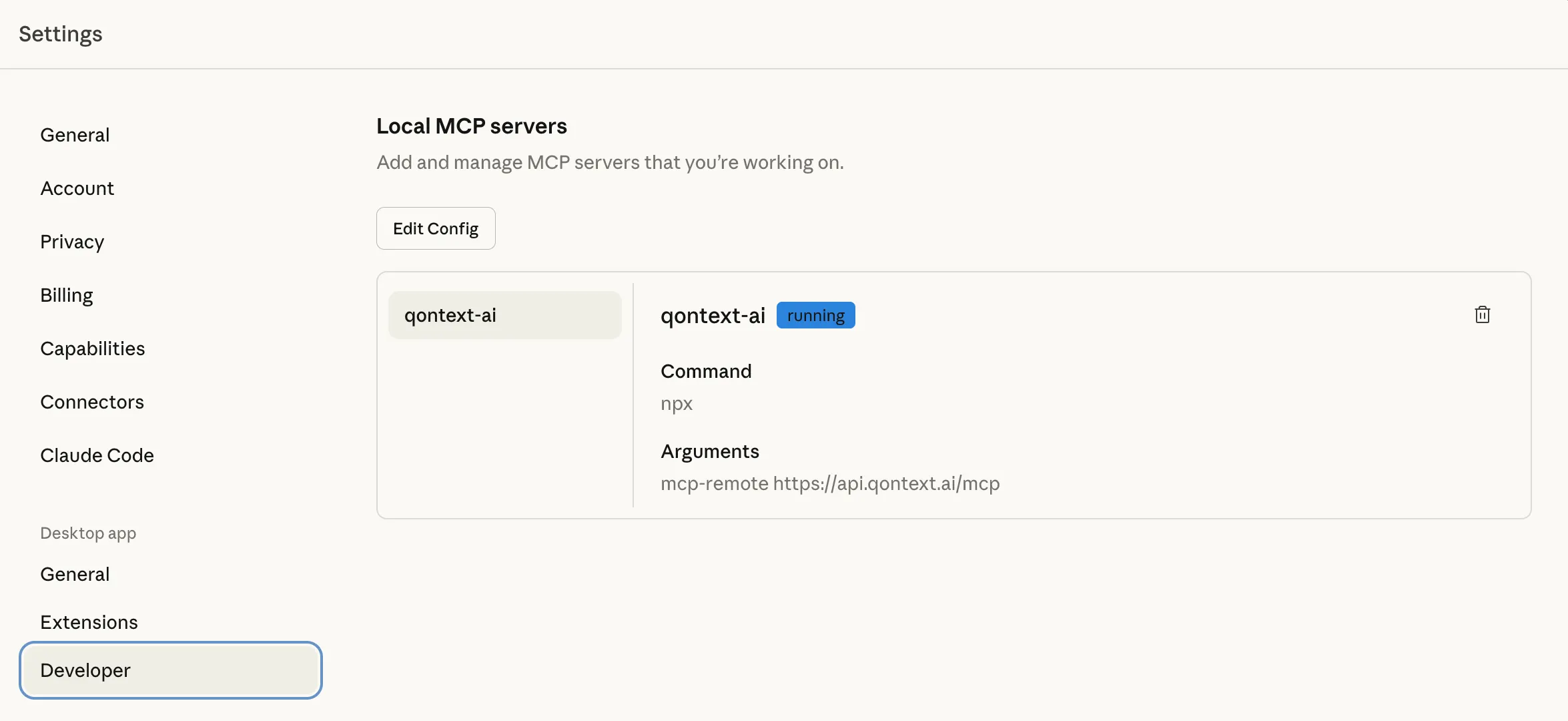
From now on, Claude will automatically use Qontext to retrieve relevant context.
Claude Pro / Teams Setup
Open Claude
Launch Claude in your browser or desktop app.
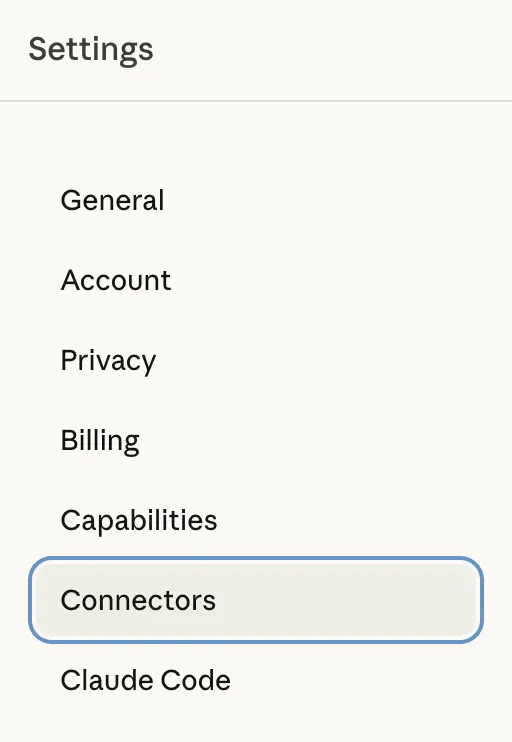
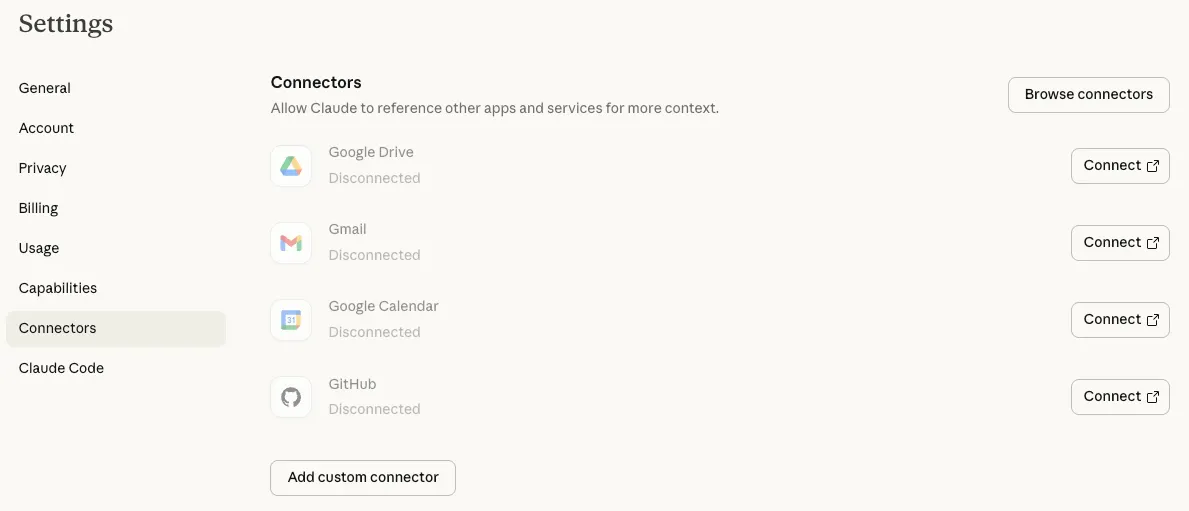
Open Connectors
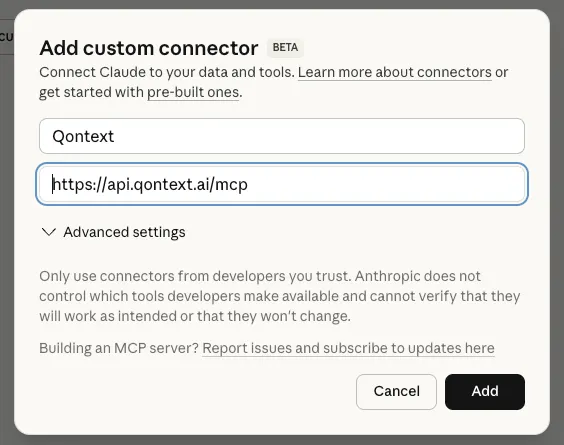
Go to Settings → Connectors. Add Custom Connector
Add a Custom Connector with the following details:| Field | Value |
|---|
| Name | Qontext |
| MCP Server URL | https://api.qontext.ai/mcp |
Connect
Once added, click Connect and log in to Qontext to allow access.
From now on, Claude will automatically use Qontext to retrieve relevant context.
Using Qontext in Claude
Once connected, using Qontext is simple:
Start a New Chat
Open a new conversation in Claude.
Write Your Prompt
Type your question or task as usual.
Trigger Qontext
Add “Use Qontext” anywhere in your message and send.
Get Context-Aware Responses
Claude automatically retrieves the relevant context from your context repository to complete the task.
Example prompts
Use Qontext. What were the key takeaways from last week's sales meeting?
Summarize what we know about Acme Corp. Use Qontext.
Use Qontext to find our pricing guidelines and help me draft a proposal.
Troubleshooting
Claude doesn't show Qontext as connected
Make sure you’ve restarted Claude completely after editing the configuration file. Check that the JSON syntax in your config is valid.
I can't find the Developer settings
Developer settings are available in the Claude desktop app. If you’re using Claude in the browser, use the Claude Pro setup with Connectors instead.
Need help?
If you encounter issues with the Claude integration, reach out at support@qontext.ai.