

Overview
The Google Drive connection allows Qontext to ingest documents, presentations, tables, and text files from a connected Google Drive into your context repository.Only files and folders that the connected Google account can access will be ingested into your context repository.
| File type | Description |
|---|---|
Google Docs | Documents |
Google Slides | Presentations |
Google Sheets | Spreadsheets |
txt | Plain text files |
md | Markdown files |
Recommended setup
Use a dedicated integration user in your Google Workspace to ensure a stable and uninterrupted connection.
The integration user will:
- Authenticate the connection between Qontext and Google Drive.
- Access required resources with read and download permissions.
Setting up the connection
You can connect Google Drive from your Qontext workspace, authorize access in Google, then choose what to sync and how often. The steps below walk you through the full flow.You can also manage all your credentials, including Google Drive, from the Sources page.
Open Sources in your workspace
In the Qontext app, open your workspace and go to the Sources tab, then click + Connect data source.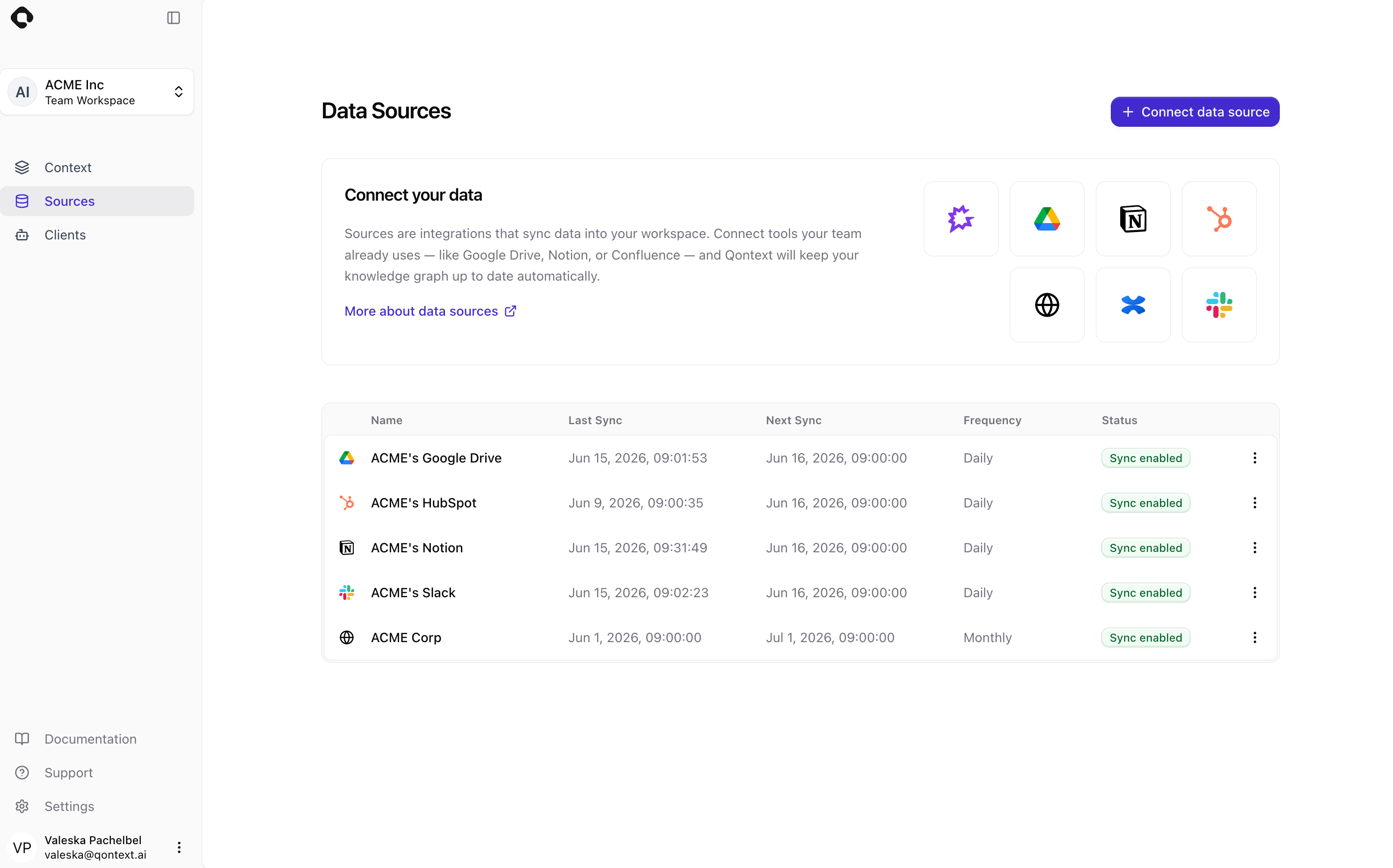
Select Google Drive as the data source
Choose Google Drive from the list of available data sources. This starts the Google Drive connection flow.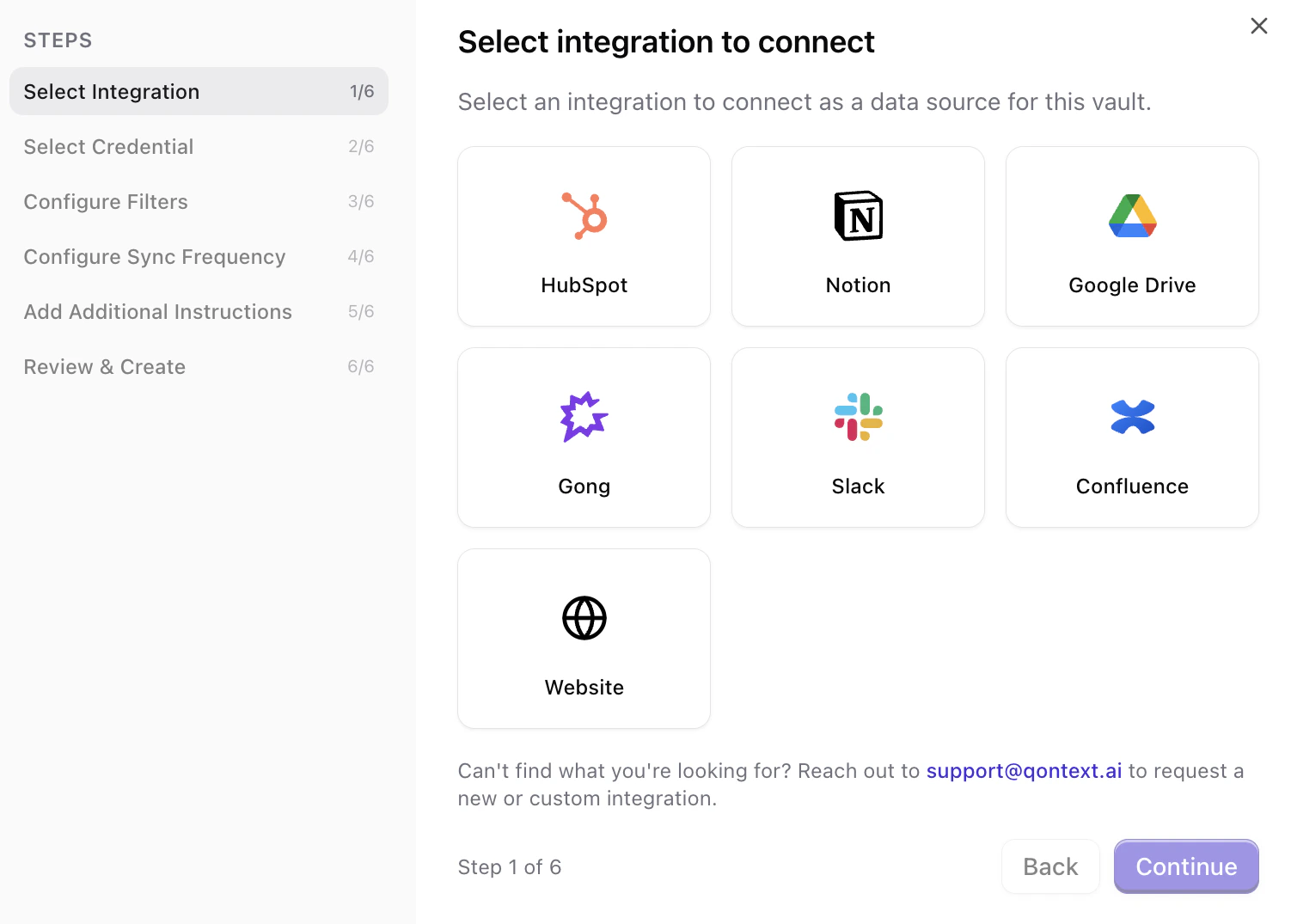
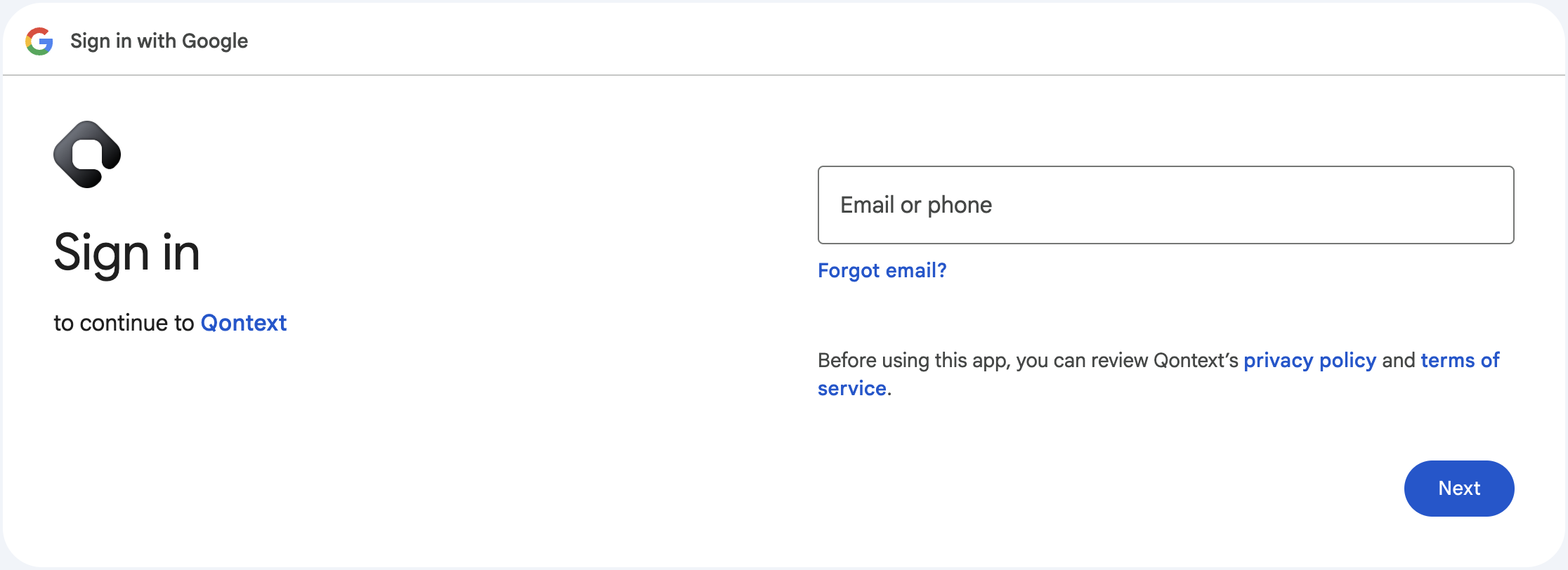
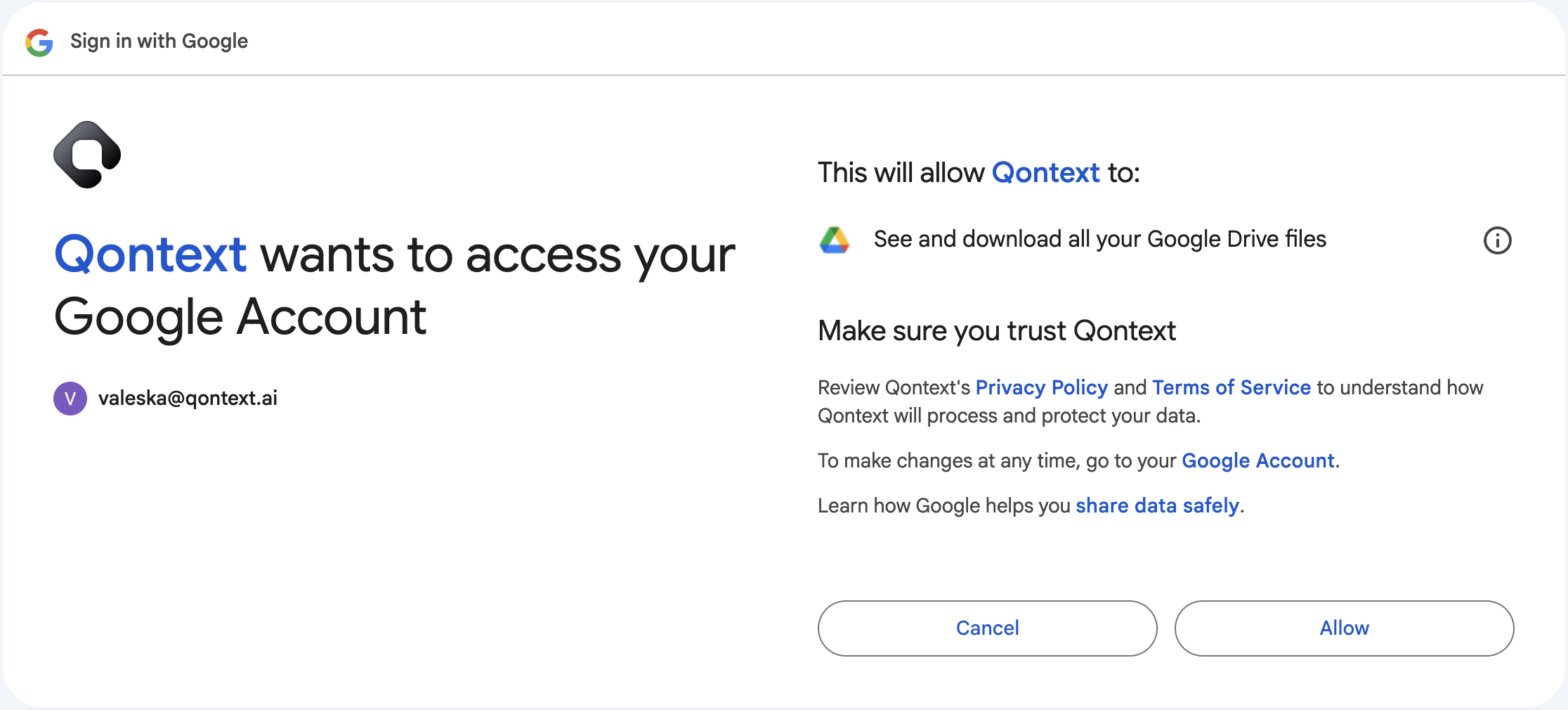
Choose Google account and grant scopes
You can reuse existing Google Drive credentials (if you’ve already connected this account to Qontext) or create a new connection.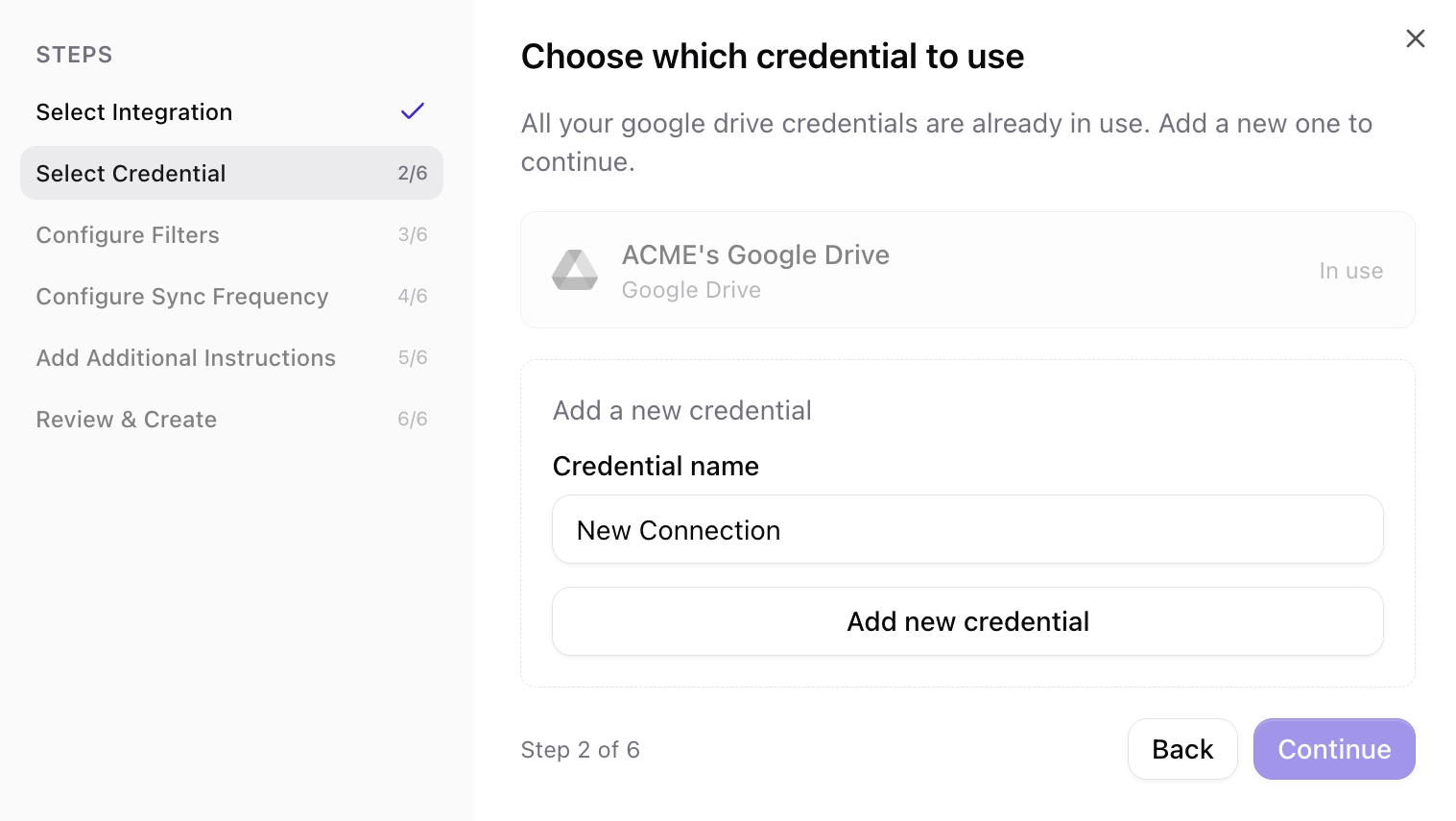
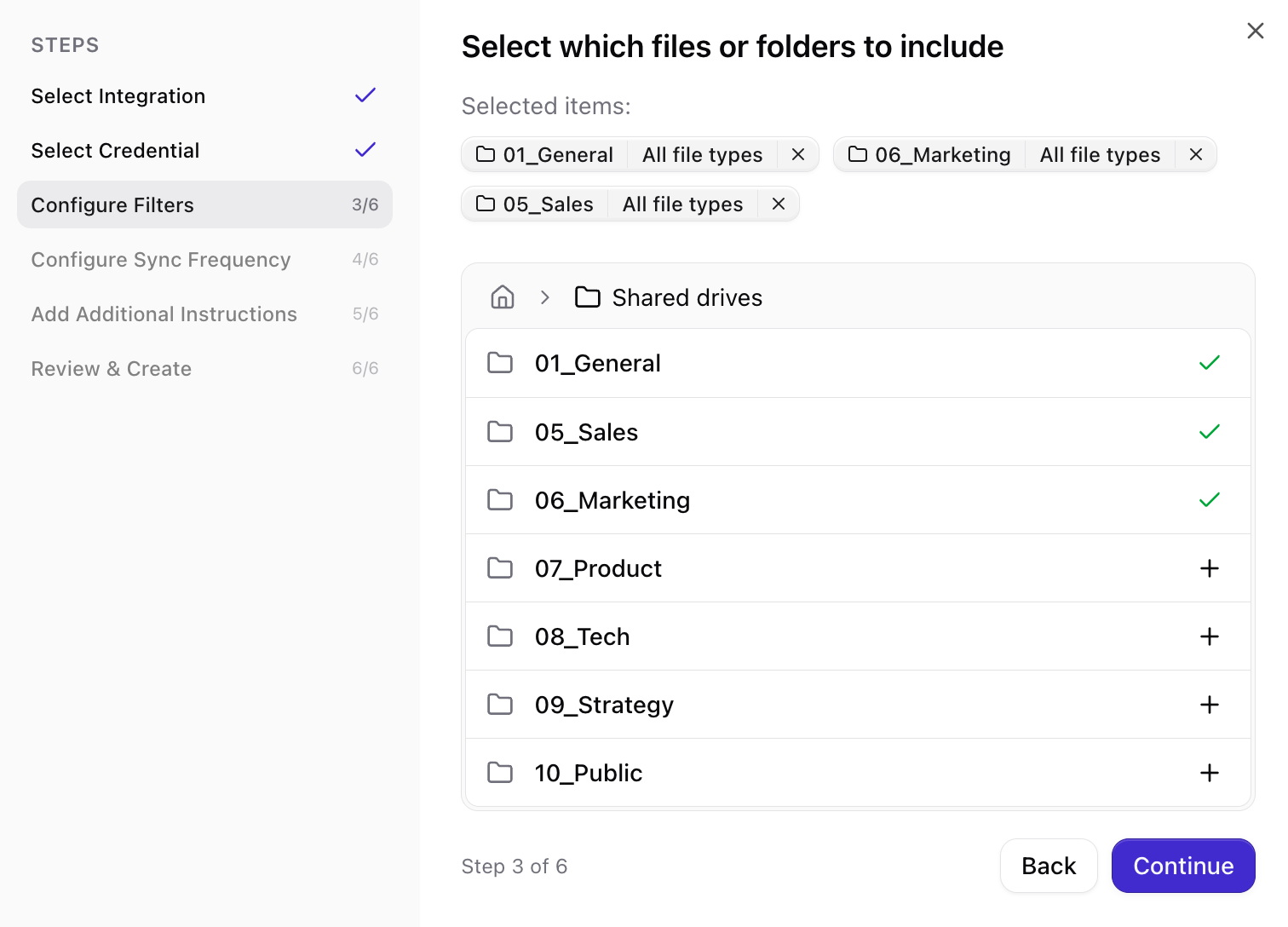
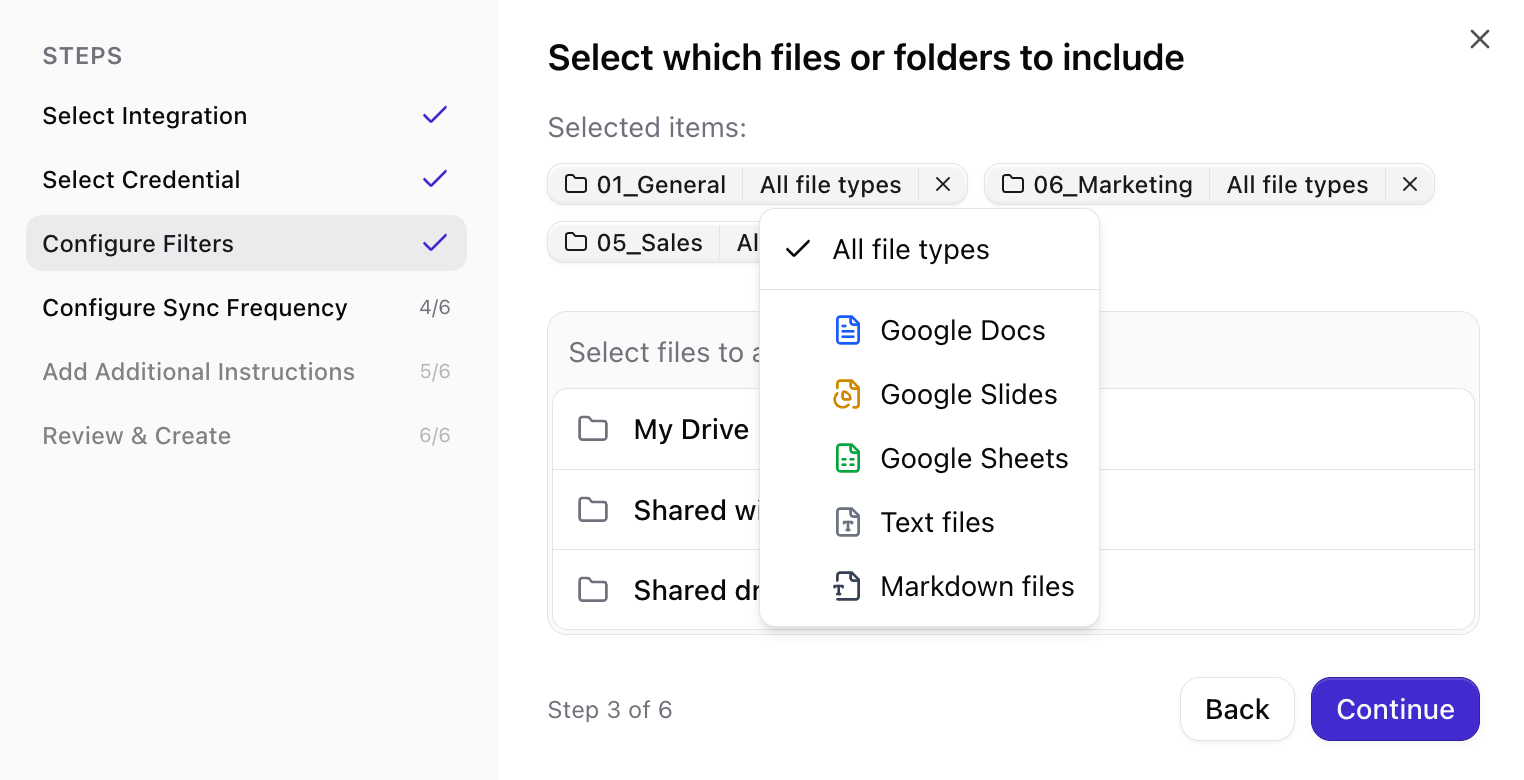
Configure what to sync (filters)
Select the folders and files you want Qontext to ingest into your context repository. You can add folders or individual files.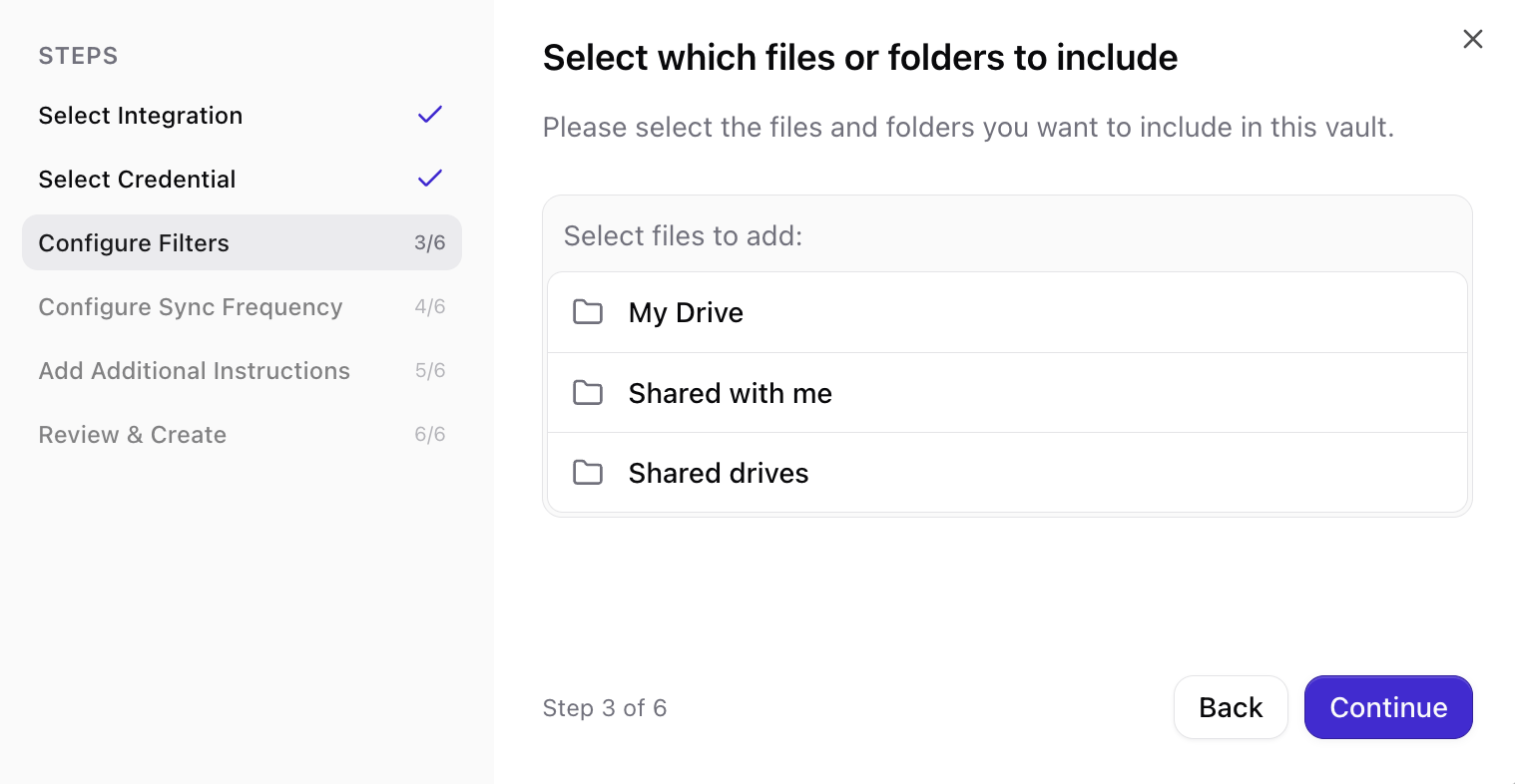
Set sync frequency
Choose how often Qontext should refresh data from Google Drive (e.g. daily, weekly, monthly). More frequent syncs keep the context repository up to date but use more resources.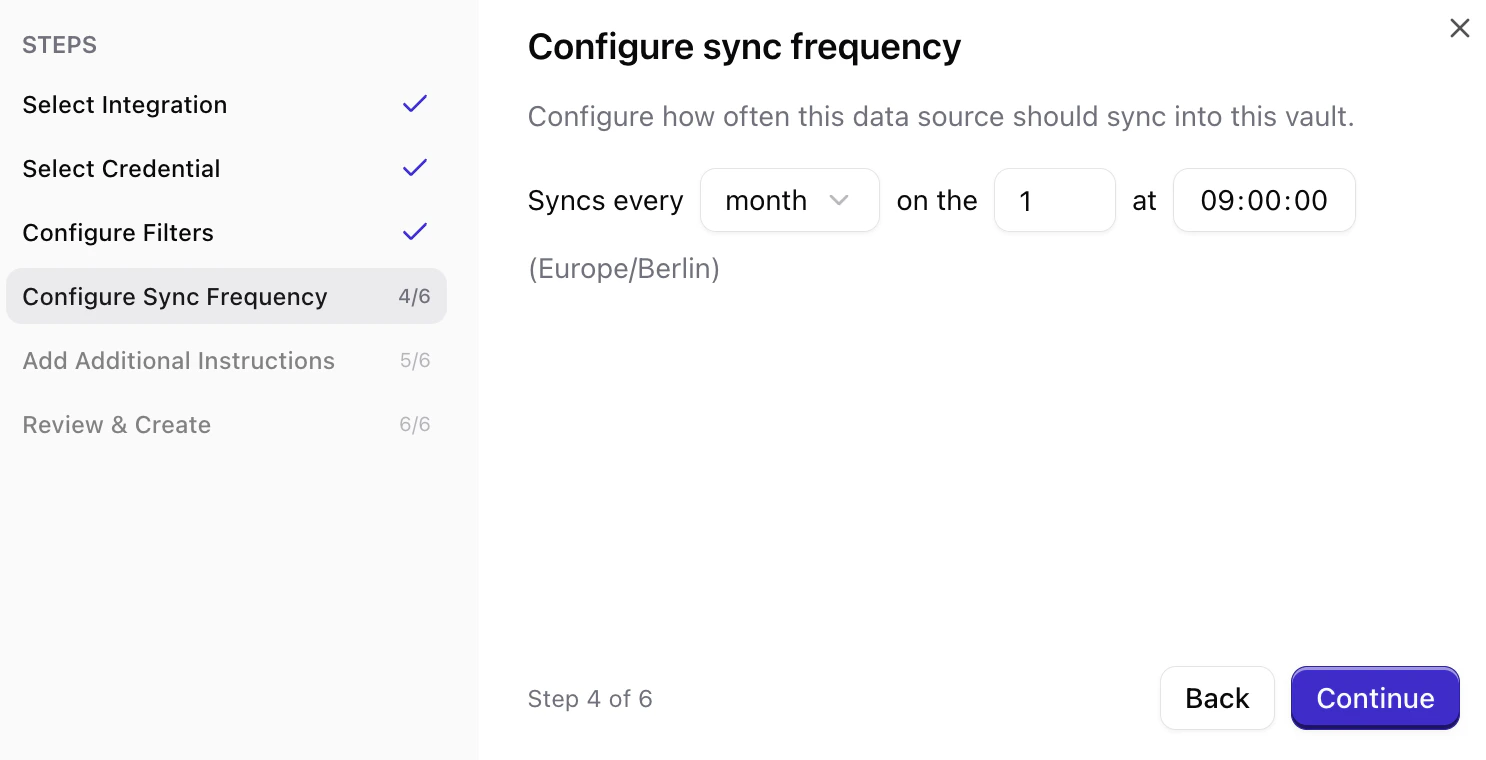
Set ingestion instructions (optional)
You can add source instructions that tell Qontext how to interpret or prioritize the synced data (e.g. which files to exclude from ingestion). This step is optional.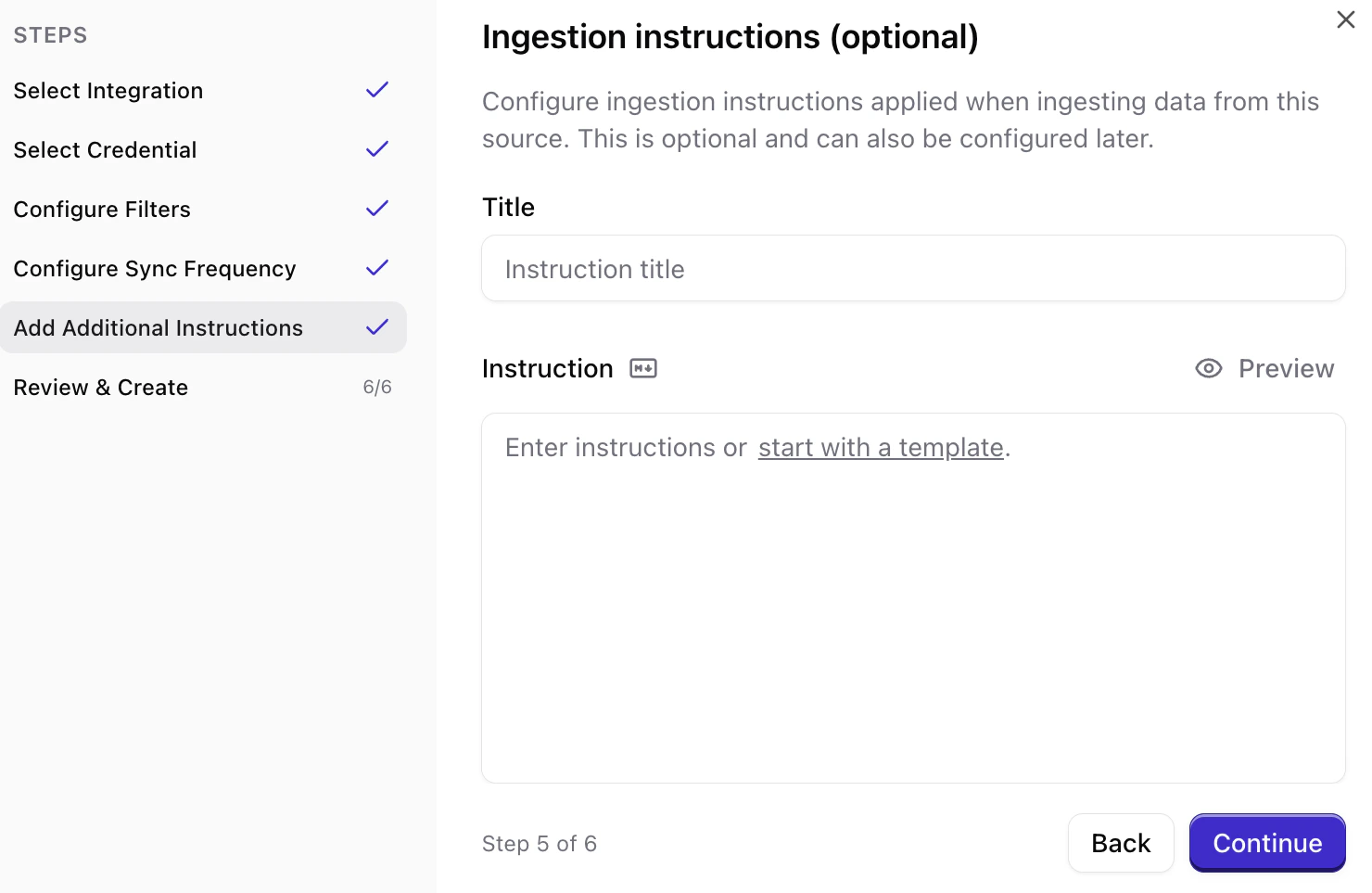
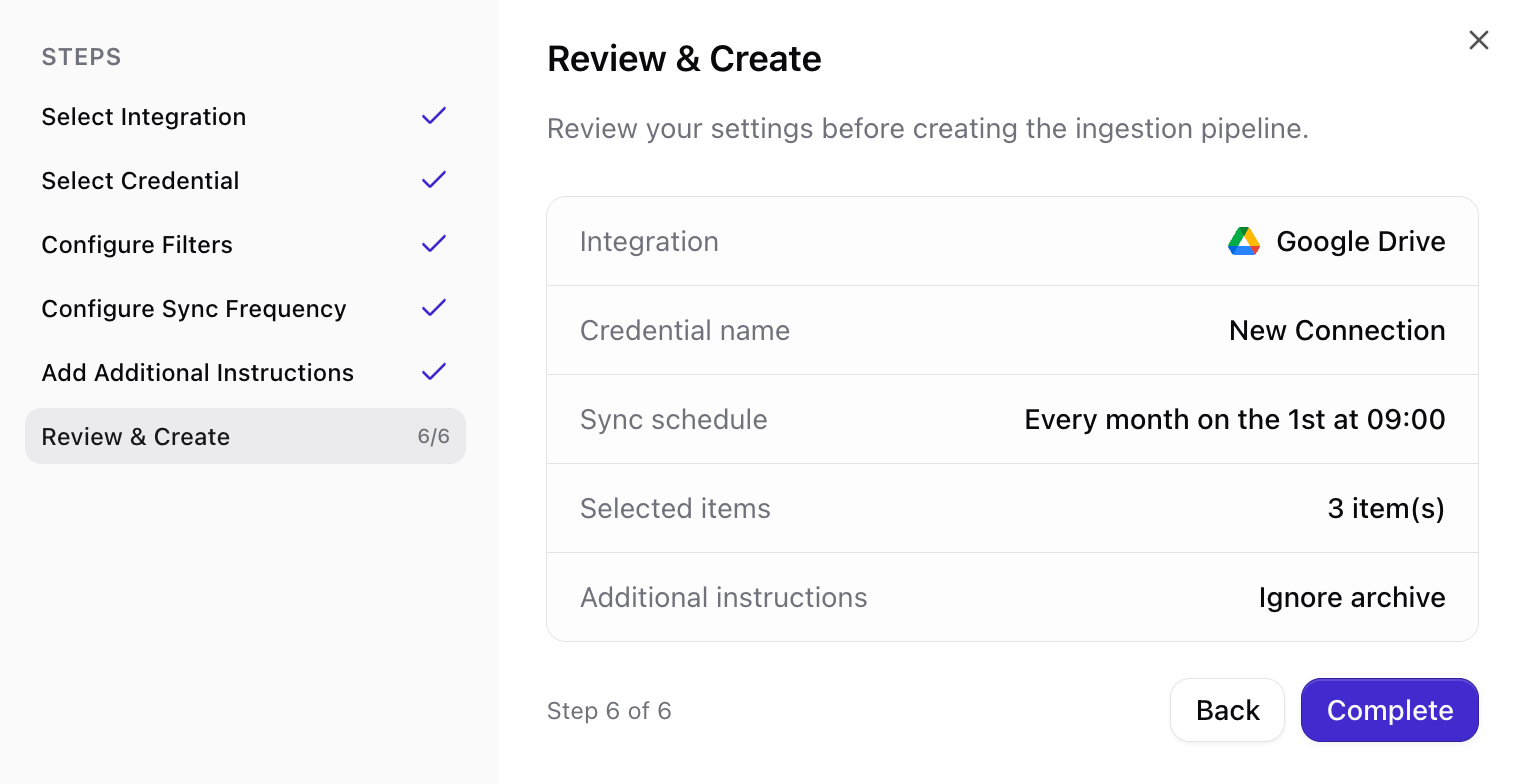
Managing permissions
Google Drive OAuth scopes
When connecting, you will be asked to grant scopes that allow Qontext to read and download files. Example scope descriptions you may see:Google Drive permissions
- Use a single person or service account to manage Drive permissions for Qontext. This avoids accidental permission changes that break syncs.
- If you don’t see a file in Qontext’s Drive tree, verify download permissions using the file’s File info -> Details and ensure
Viewers and commenters can see the option to download, print, and copyis enabled.
Sync latency
Qontext preprocesses Drive content before ingesting it into the context repository. The initial synchronization time depends on the volume and type of files. Workspaces with many files may take up to 12 hours to fully index.Subsequent syncs process incremental changes and typically complete much faster than the initial sync.
FAQ
Which Google Drive files are supported?
Which Google Drive files are supported?
Qontext supports Google Docs, Google Slides, Google Sheets,
txt and md. Files that cannot be downloaded or do not contain extractable text will be skipped.Can I connect multiple Google Drive accounts?
Can I connect multiple Google Drive accounts?
Yes. You can create multiple Google Drive connections at any time in the Sources tab in your Qontext workspace.
How do I manually refresh Google Drive data?
How do I manually refresh Google Drive data?
Manual refresh for Google Drive connections is available via the Sources tab. Navigate to the respective Google Drive connection and open the Syncs tab. In the Sync settings, you can select Resync all data.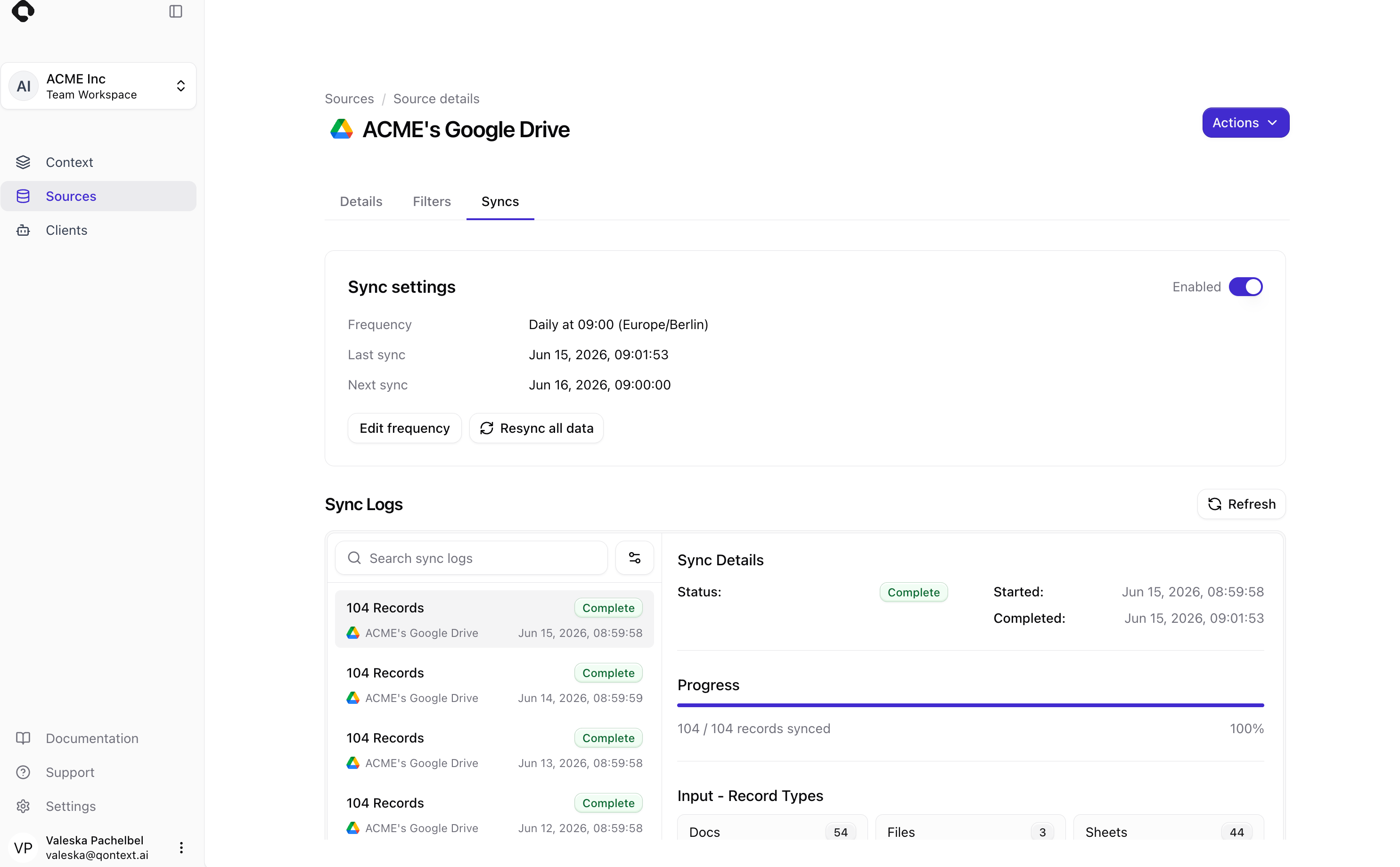
What happens if I disconnect Google Drive?
What happens if I disconnect Google Drive?
If you disconnect the Drive connection, no new files will be ingested. Content already ingested from Drive will remain in your context repository. For data removal requests, contact support@qontext.ai.
Is my Google Drive data secure?
Is my Google Drive data secure?
Yes. All data is encrypted in transit (TLS) and at rest. Qontext only accesses files you explicitly authorize via Google OAuth scopes.
How can I limit what Qontext accesses?
How can I limit what Qontext accesses?
By default, Qontext only ingests files the connected Google account can access. Additionally, you can add filters to every connection as described in the setup flow.