












Documentation Index
Fetch the complete documentation index at: https://docs.qontext.ai/llms.txt
Use this file to discover all available pages before exploring further.
Overview
Context Access lets you control which AI tools access your vaults and what they can retrieve. Depending on where you want to use Qontext, you can either create API keys for programmatic access (ingestion and retrieval) or connect MCP clients to the Qontext MCP server so they can read from your vaults. Retrieval returns the right context at the right time; retrieval logs in the app help you debug and audit usage.Usage
Managing API keys
To ingest or retrieve data via the Qontext API, create an API key scoped to your vault.In the Qontext app, open the workspace and vault. Then go to the Context Access tab. To add an API key, click on + Add in the top right corner.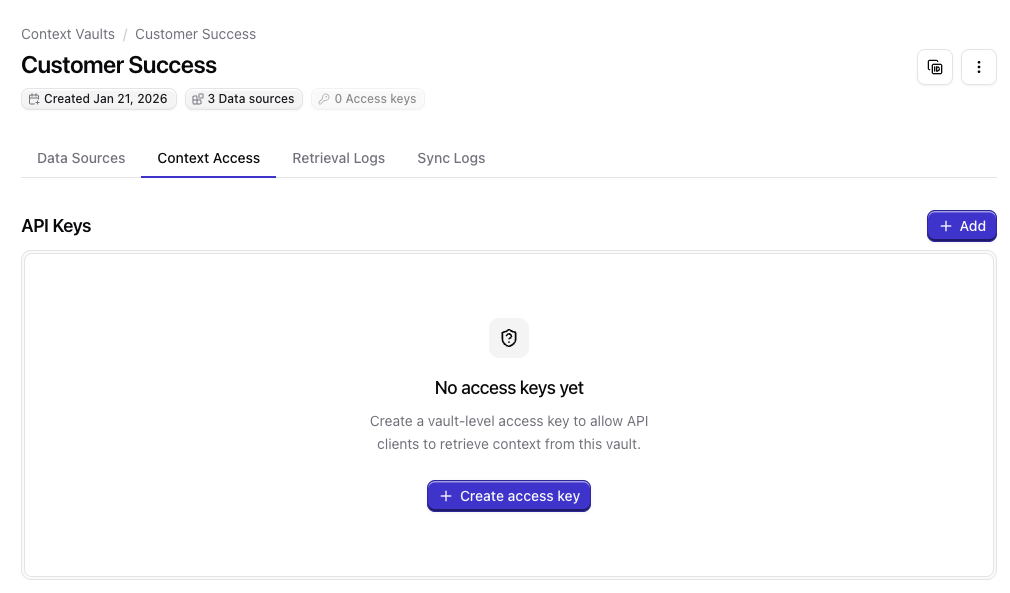
In the Create an API key window, give your key a name, add an expiration date if required, and enter retrieval instructions. For more information on instructions, see System Instructions.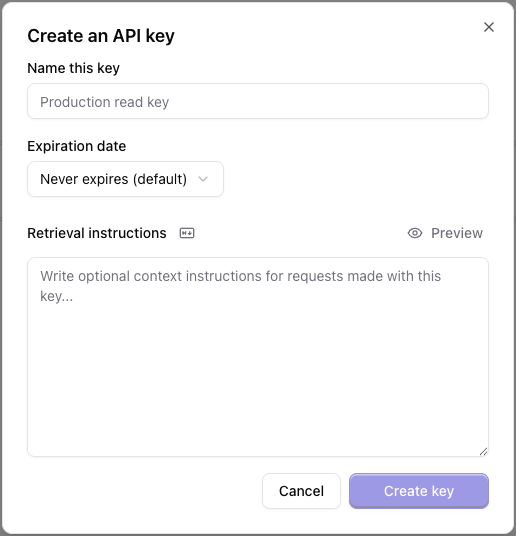
You can now access the vault from anywhere if you use the key in the API requests as the
X-API-Key header. You can ingest and retrieve context in your workflows and agents with minimal setup (e.g. using our native n8n and Make nodes, or the Gemini agent setup), or call the API from any other tool, script, or application.Managing MCP clients
To allow chats and agents that support MCP (Model Context Protocol) to retrieve context from your vaults, you can connect the Qontext MCP server directly: MCP server URL:Retrieving context
With an API key or MCP client connected, your AI gets the right context at the right time from your Context Vault. Qontext returns structured, relevant facts and relationships, not just keyword matches. In the background, the following steps happen during retrieval:- Semantic Analysis: Understands the intent and information needs from your prompt.
- Graph Traversal: Explores entities and their relationships in your Context Vault.
- Context Assembly: Compiles relevant data from connected sources into a list of facts and information.
- Relevance Scoring & Reranking: Prioritizes the most useful information for accuracy and completeness.
Reviewing retrieval logs
To review retrieval logs and understand when context was retrieved, which API key was used, and high-level usage, open the vault in the Qontext app and use the retrieval logs in the Context Access area.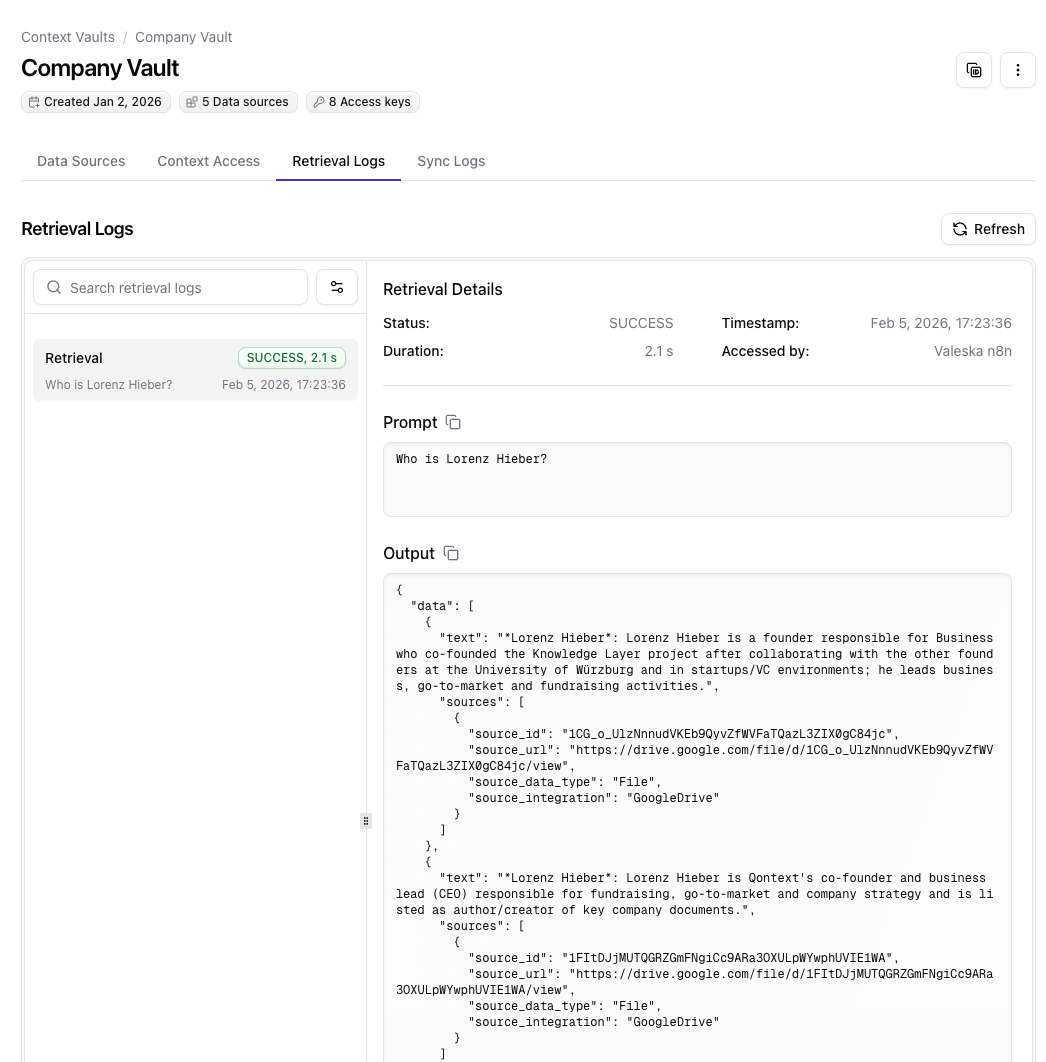
Best practices
One API key per use case or environment.Use separate keys per workflow, agent, or environment. That enables easy revocation, makes the origin of retrieval logs clearly identifiable, and lets you use API-key-level system instructions where needed.
Check retrieval logs after connecting a tool.To confirm that calls succeed and the right key is being used after you connect a new workflow, agent, or chat client, use retrieval logs in the Qontext app. This helps catch misconfiguration early.
FAQ
What do I do if I lost my API key?
What do I do if I lost my API key?
In the Qontext app, open the vault and go to Context Access. Click the three dots next to the key and choose Revoke. Once revoked, the key is automatically disabled and removed from the list. Create a new key to replace it for this vault and use case.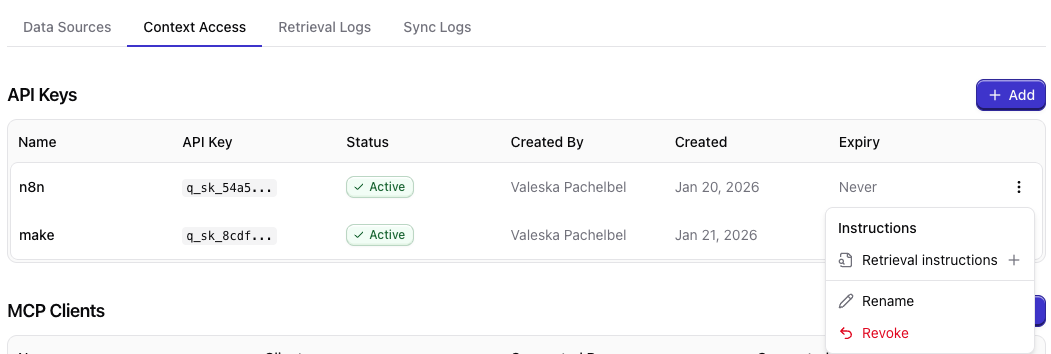
Where do I find my vault ID?
Where do I find my vault ID?
You can copy the vault ID in the platform using the copy button in the top right corner when the vault is open. You can also find it in the vault’s URL in your browser.