

Documentation Index
Fetch the complete documentation index at: https://docs.qontext.ai/llms.txt
Use this file to discover all available pages before exploring further.
Overview
The Slack connection allows Qontext to read messages and threads from channels in a connected Slack workspace and ingest their text content into your Context Vault.Only channels and content that the connected Slack app can access will be ingested into your vault.
| Object | Description |
|---|---|
Channel messages | Messages posted in channels the app is invited to |
Threads | Replies and thread conversations linked to channel messages |
Setting up the connection
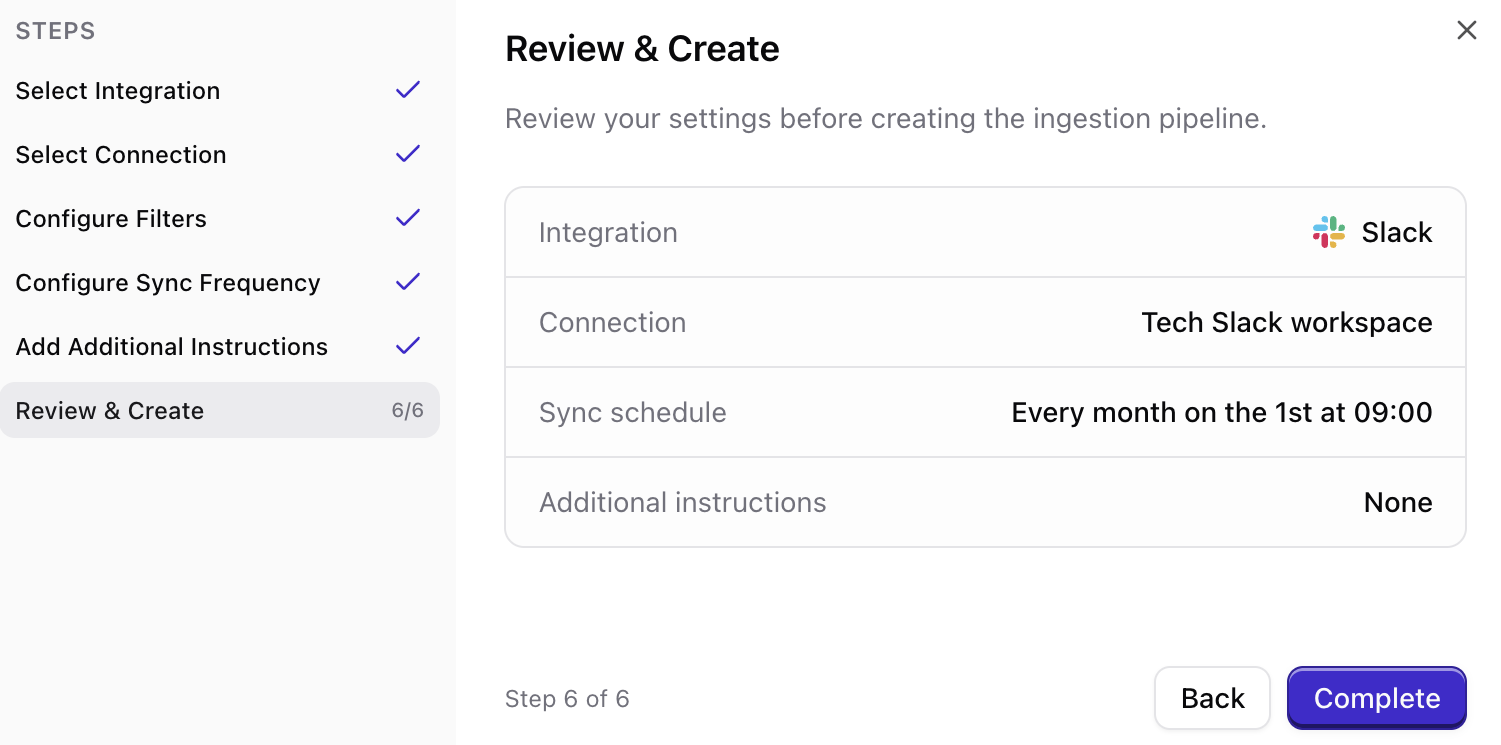
You can connect Slack from your Qontext vault, authorize access in Slack, then choose how often to sync. The steps below walk you through the full flow.You can also manage all your credentials, including Slack, from the Credentials page. Credentials created there can be reused across any vault.
Open Data Sources in your vault
In the Qontext app, open the vault where you want Slack data, then go to the Data Sources tab and click Add data source.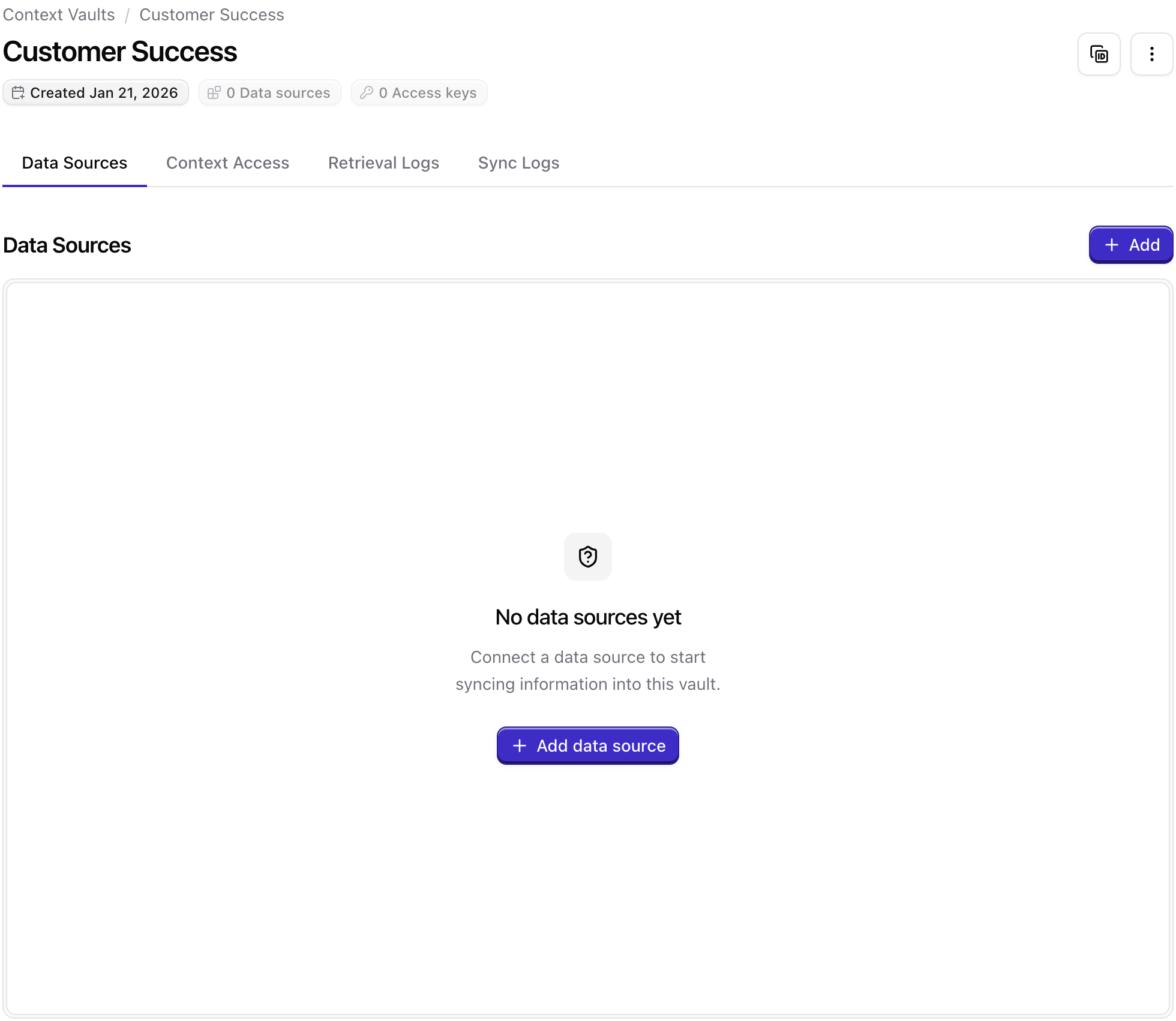
Select Slack as the data source
Choose Slack from the list of available data sources. This starts the Slack connection flow.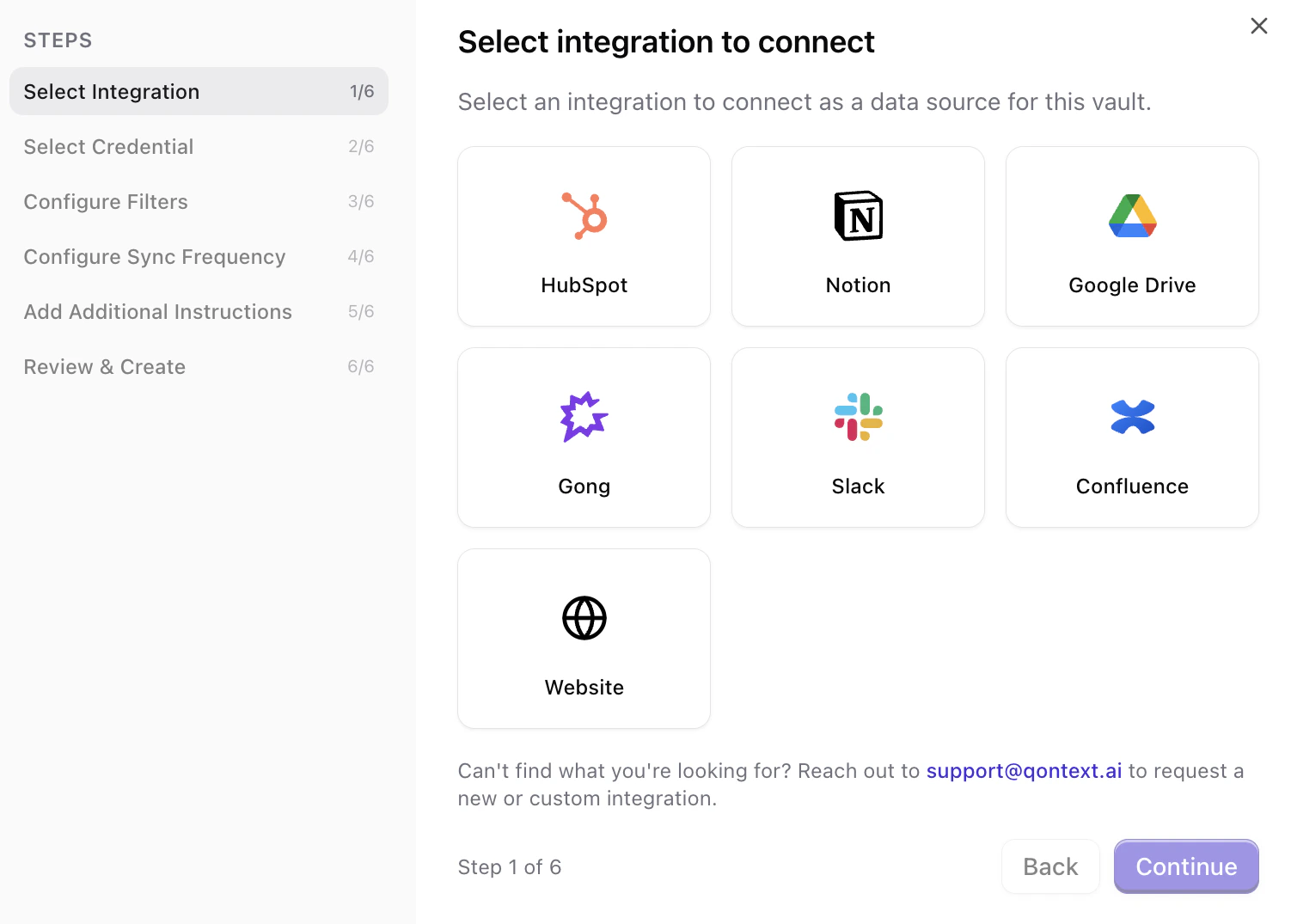
Connect your Slack workspace
You can reuse an existing connection (if you’ve already connected this Slack workspace to Qontext) or create a new connection.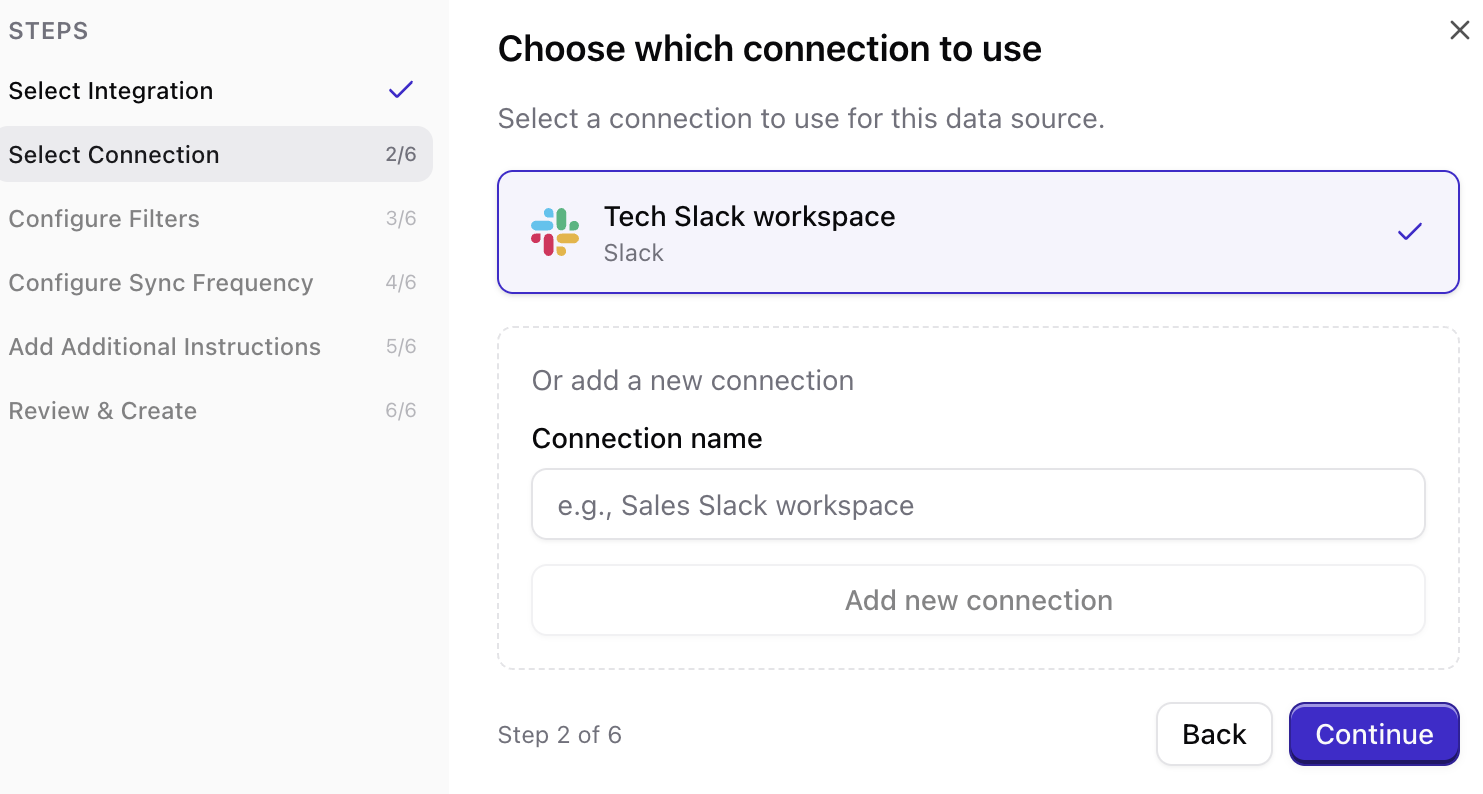
Configure what to sync (filters)
Select the channels you want Qontext to ingest. Only channels in which the Qontext app is a member can be ingested.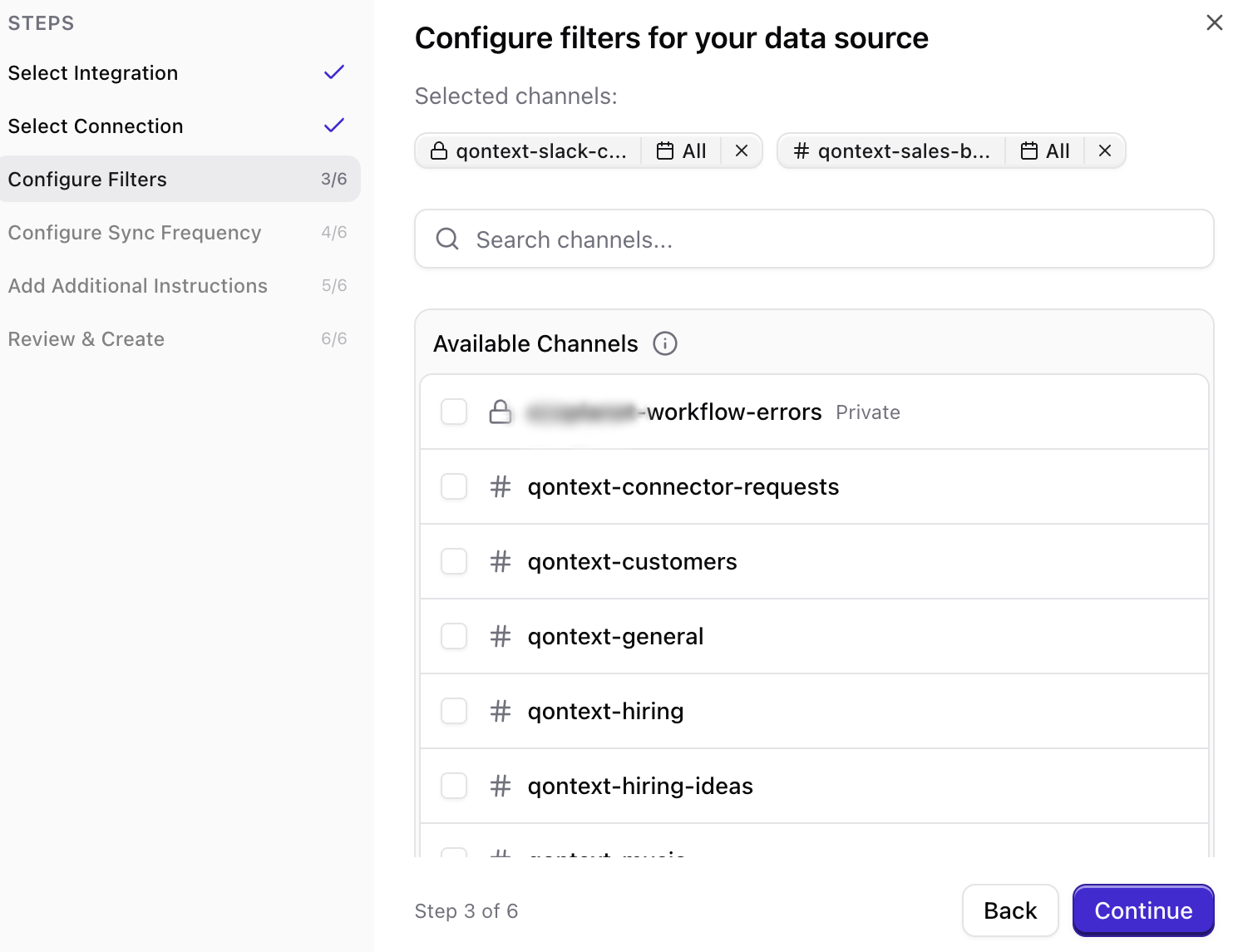
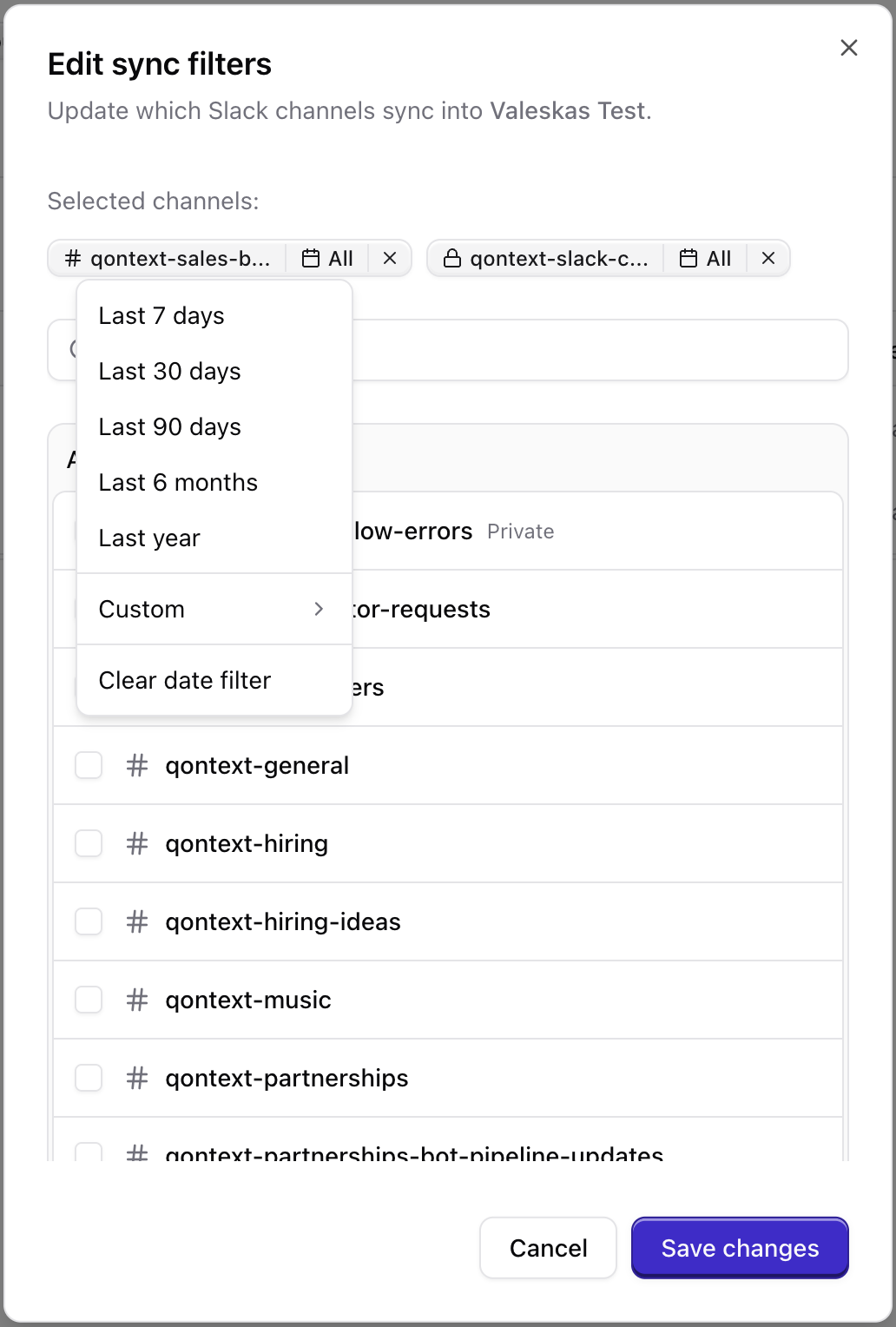
Public channels are automatically joined by the Qontext app when you select them.For private channels, the Qontext app must be added as a member first. In Slack, open the channel and type
/invite @Qontext.Set sync frequency
Choose how often Qontext should refresh data from Slack (e.g. daily, weekly, monthly). More frequent syncs keep the vault up to date but use more resources.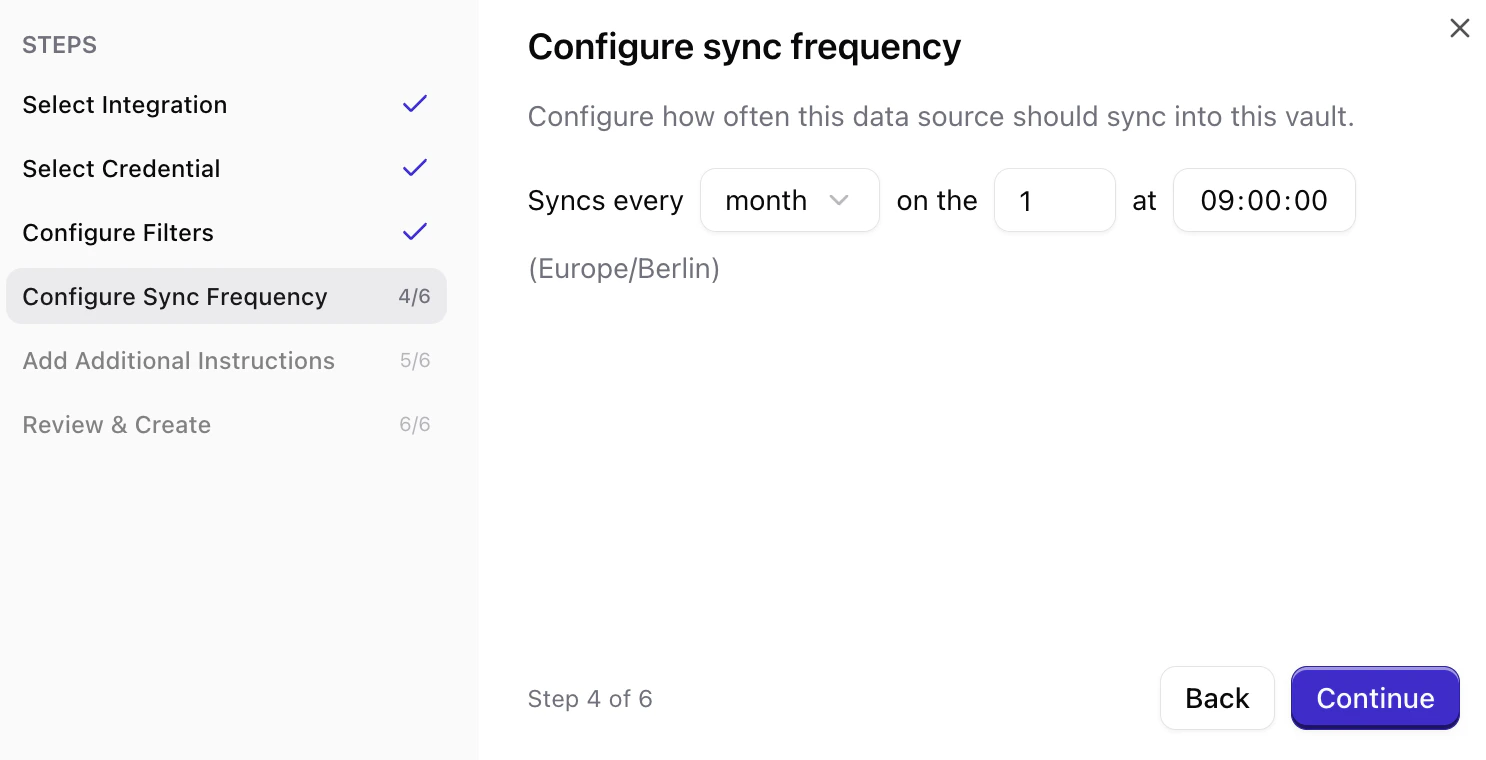
Set ingestion instructions (optional)
You can add ingestion instructions that tell Qontext how to interpret or prioritize the synced data. This step is optional.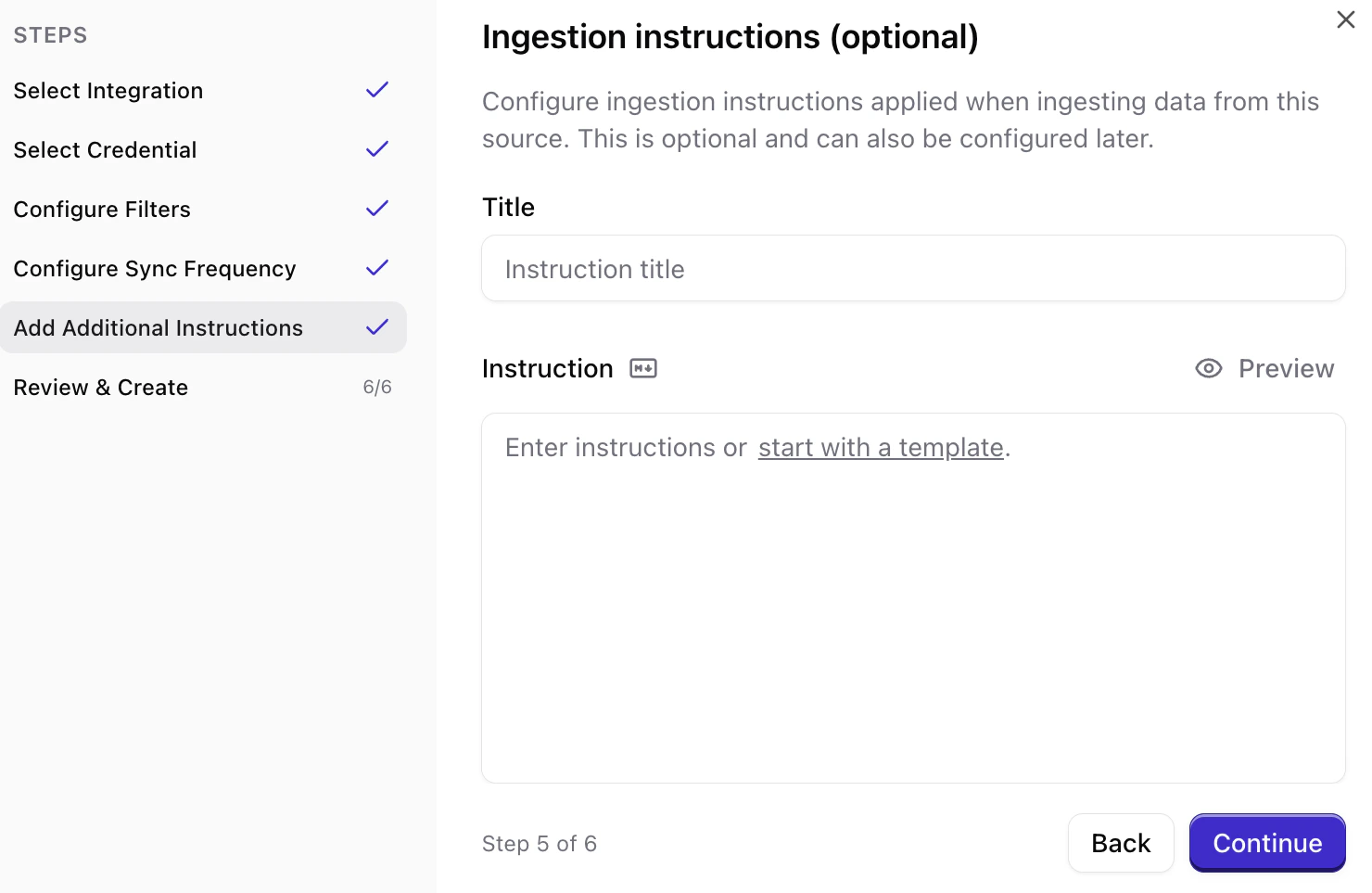
Managing permissions
Slack OAuth scopes
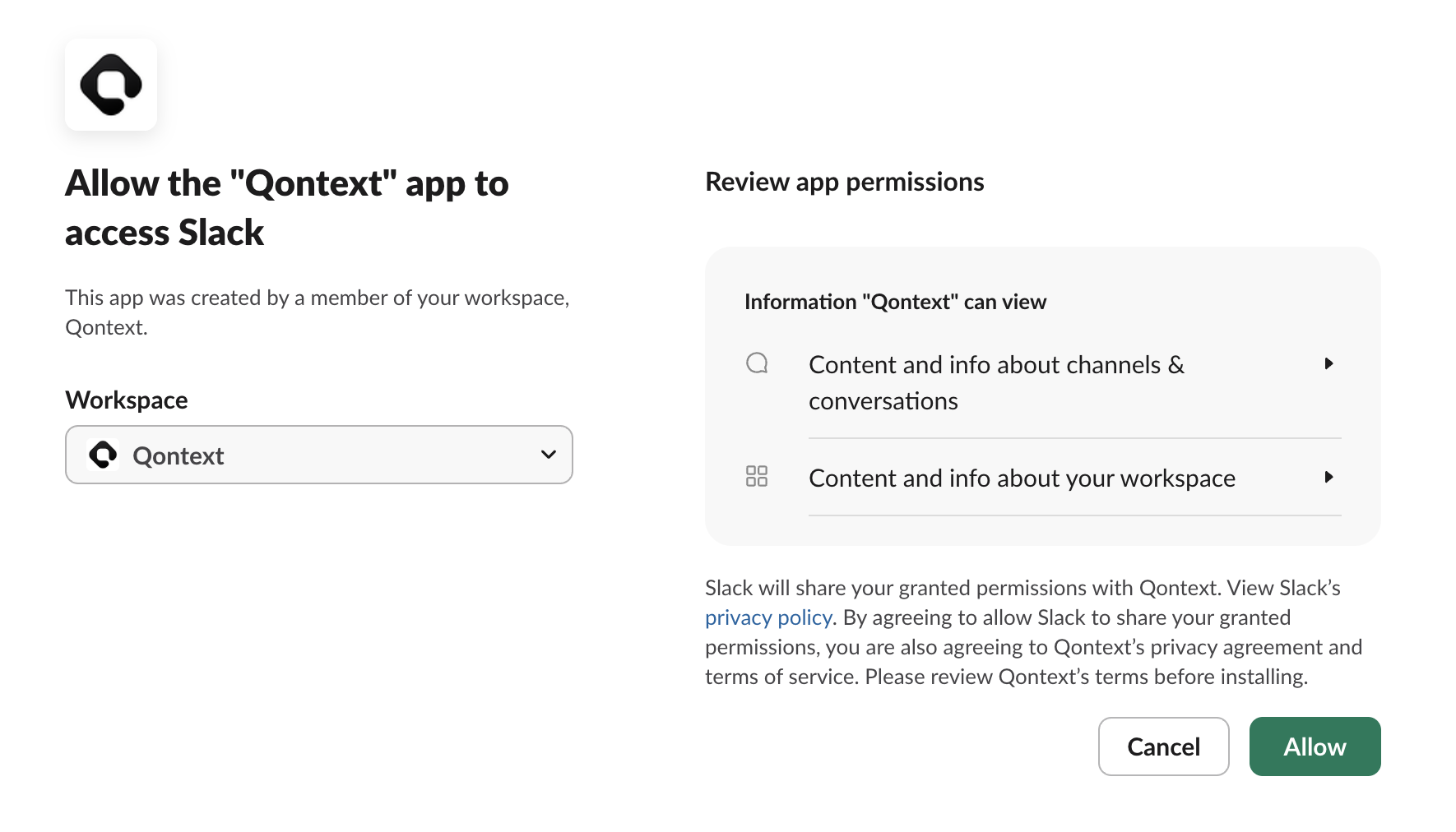
When you connect Slack, you’ll see a consent screen titled Allow the ‘Qontext’ app to access Slack. It lists the permissions (scopes) Qontext needs; they are read-only. You’ll see categories such as:Sync latency
The initial sync time depends on how many channels and messages are in scope. Large workspaces with many active channels can take up to 12 hours to fully index.Subsequent syncs process incremental changes and typically complete much faster than the initial sync.
FAQ
Who can set up the Slack connection?
Who can set up the Slack connection?
Any Slack workspace Admin or member with permission to install apps can set up the Slack connection. Ensure the account can invite the Qontext app to the channels you want to ingest.
Can I connect multiple Slack workspaces to one Qontext vault?
Can I connect multiple Slack workspaces to one Qontext vault?
Yes. You can connect multiple Slack workspaces from the Data Sources tab in your Qontext vault. Add each workspace as a separate data source.
What happens if I disconnect Slack?
What happens if I disconnect Slack?
Disconnecting stops further syncs. Content already ingested from Slack remains in your vault until you request deletion. For data removal, contact support@qontext.ai.
How long does the first Slack sync take?
How long does the first Slack sync take?
Initial sync time varies: small or lightly used workspaces may finish in under an hour; very active workspaces with many channels and messages can take up to 12 hours. Subsequent syncs are incremental and faster.
What should I do if my Slack sync fails?
What should I do if my Slack sync fails?
Reconnect the integration and verify that the Qontext app is still invited to the relevant channels and has the required scopes. If the issue persists, contact support@qontext.ai.
Is my Slack data secure?
Is my Slack data secure?
Yes. All data is encrypted in transit (TLS) and at rest. Qontext only accesses channels and messages you explicitly authorize via the Slack OAuth flow.
How can I connect to personal Slack channels?
How can I connect to personal Slack channels?
For private channels, the Qontext app must be added as a member first. In Slack, open the channel and type
/invite @Qontext.