

Documentation Index
Fetch the complete documentation index at: https://docs.qontext.ai/llms.txt
Use this file to discover all available pages before exploring further.
Overview
A file in Qontext captures shared context about a single entity (a person, project, deal, or any object relevant to your company). Files stay up to date from your connected sources and can link to related files so you can follow relationships across your knowledge graph.Viewing files
Your context repository is visible in the Context tab. It appears as a folder tree; selecting a file renders its Markdown in the detail panel.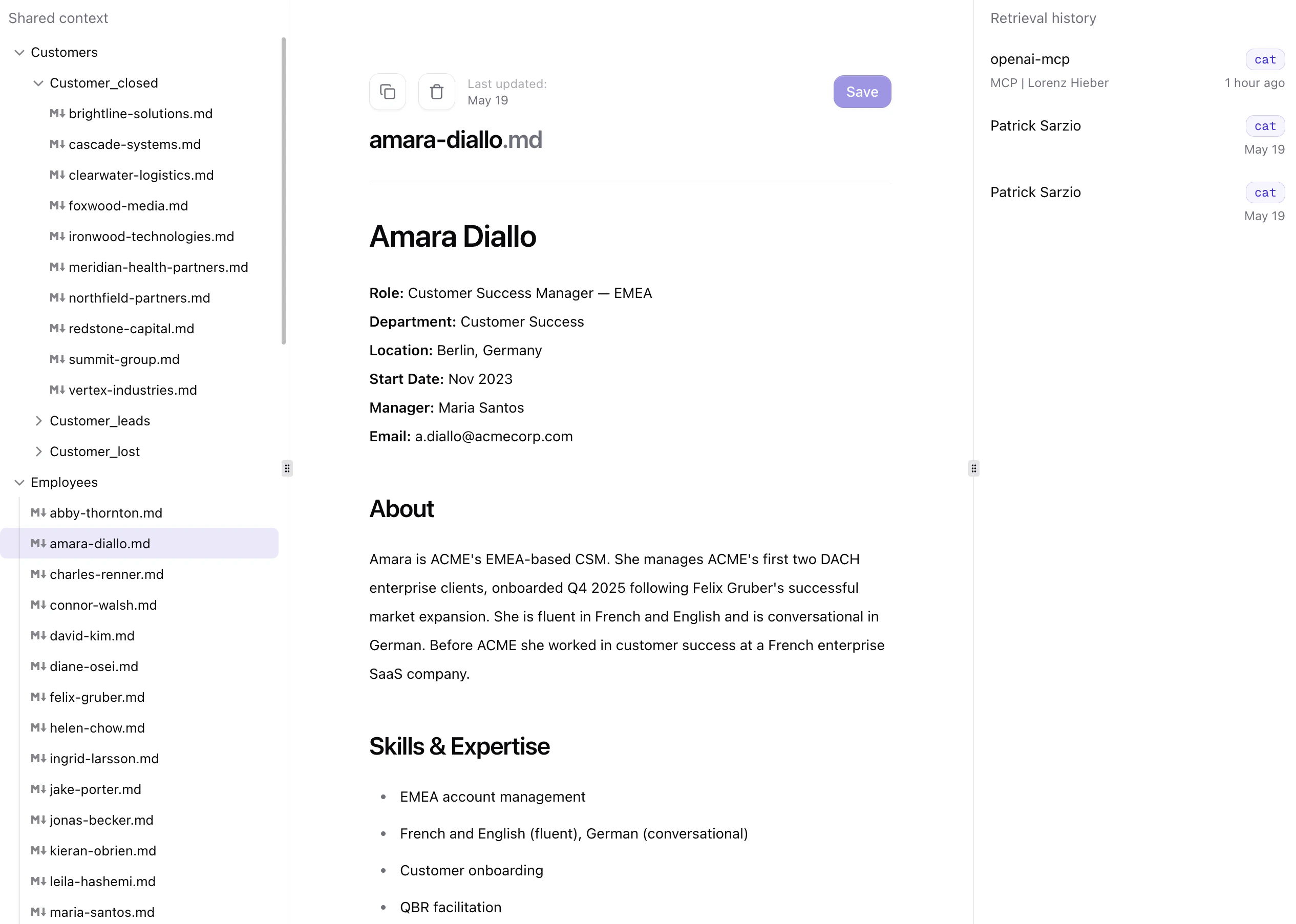
Relationships and links
Related entities are mapped as clickable links, so you can move from one file to connected ones without leaving the Context tab. This benefits LLMs by:- Efficient context window: modular notes with targeted links pull only what’s needed.
- Knowledge graph navigation: explicit relationships between entities enable step‑by‑step agent traversal.
- Single source of truth: update one file, avoid conflicting copies.
Retrieval history
Each file includes a retrieval history that logs when this file was accessed, including the access type (listed vs read). It shows only this file’s events.Each access to this file is logged automatically. The log is per‑file and shows only how this file was accessed. This lets you audit what an AI agent actually saw when generating a response, trace unexpected outputs back to specific queries, and understand how often a file influences AI answers over time.
Editing files
Additionally, you can:
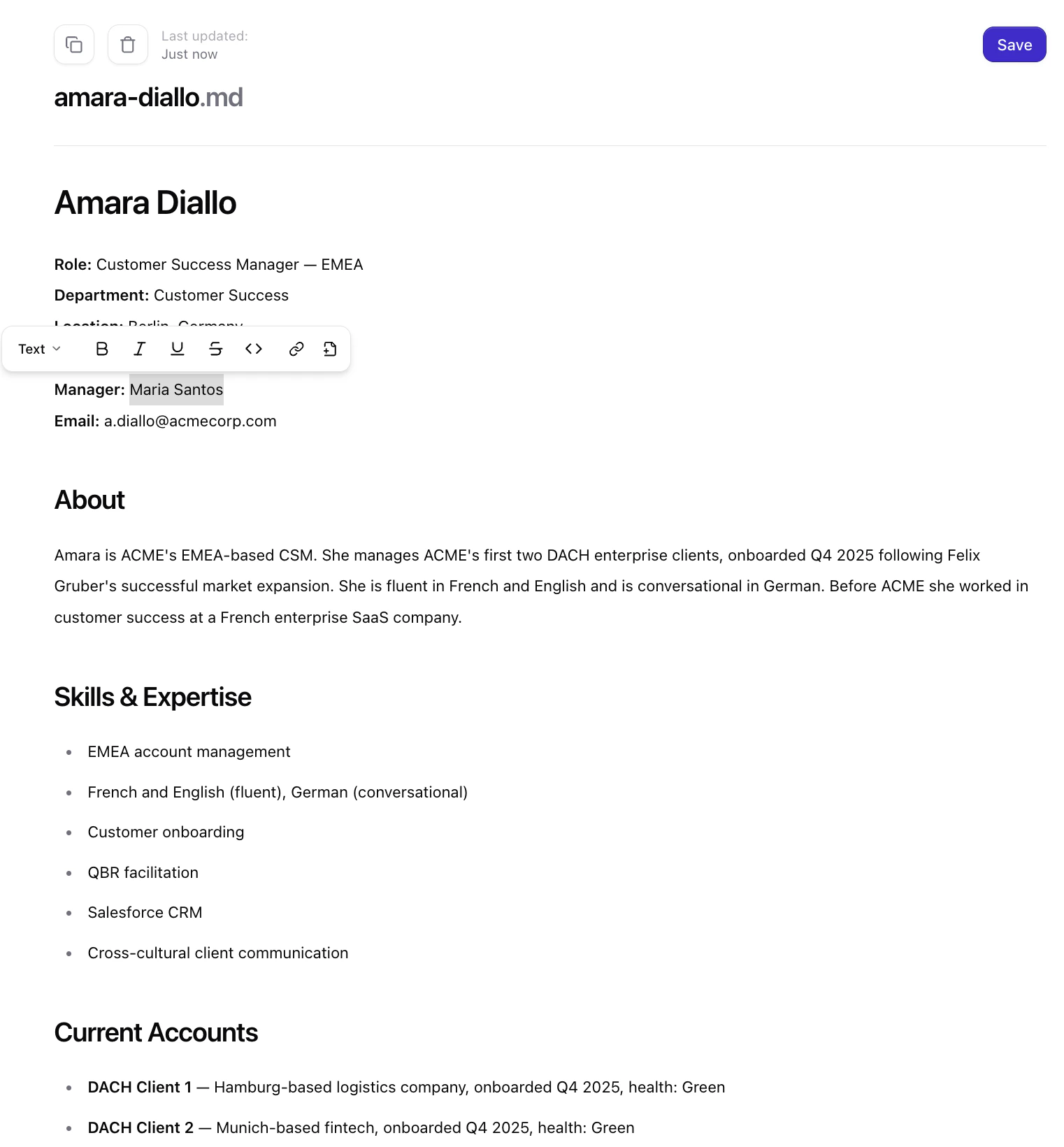
- Rename files directly in the editor by changing the title and confirming the update.
- Delete a file using the delete action, then confirm. Deleting is permanent.