

Overview
The Website connection allows Qontext to crawl public web pages and ingest their text content into your context repository. Supported content:
Unsupported:
Setting up the connection
You can add a website from your Qontext workspace, enter the URL, choose a crawl type, and set a sync frequency. The steps below walk you through the full flow.1
Open Sources in your workspace
In the Qontext app, open your workspace and go to the Sources tab, then click + Connect data source.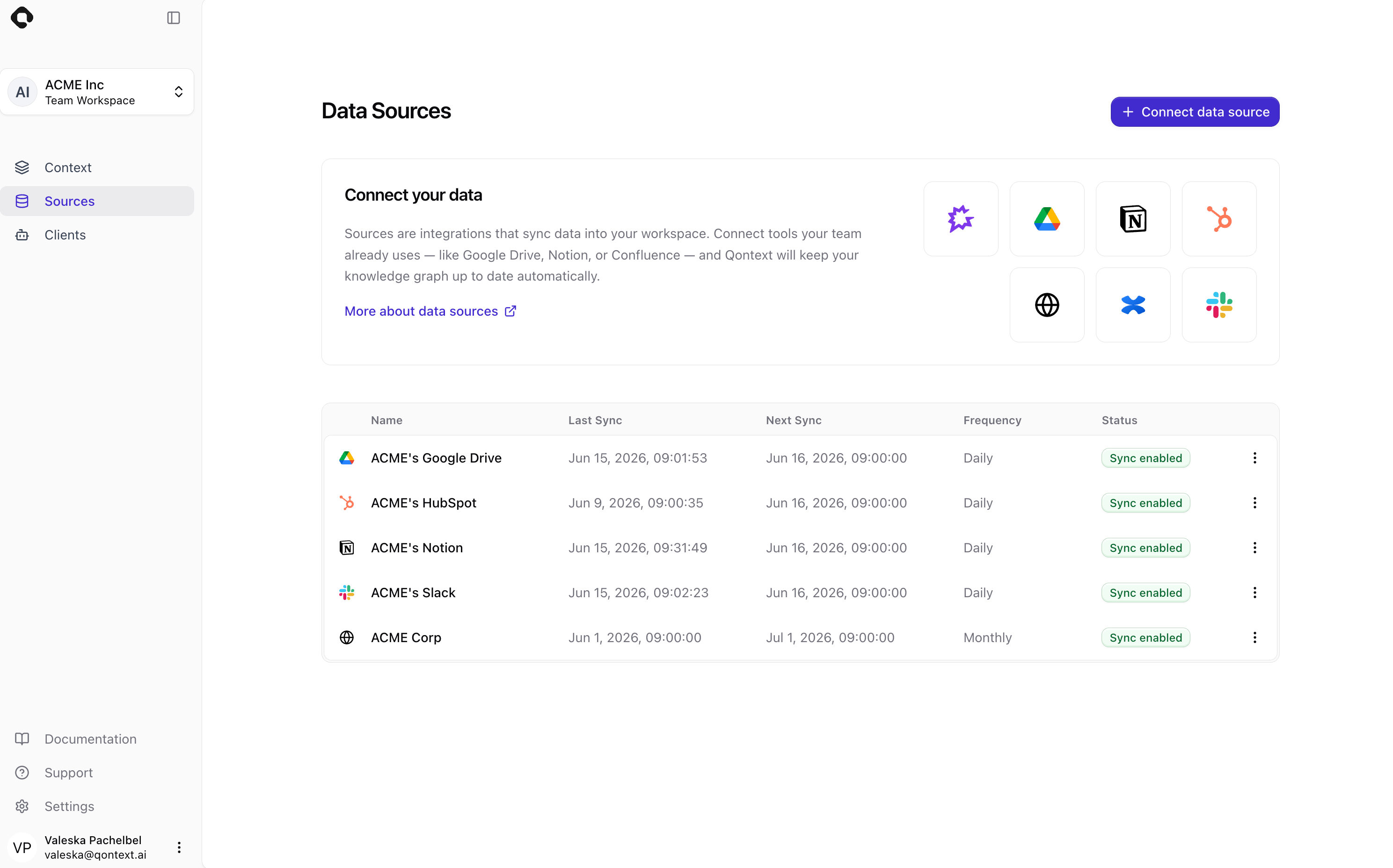
2
Select Website as the data source
Choose Website from the list of available data sources. This starts the website connection flow.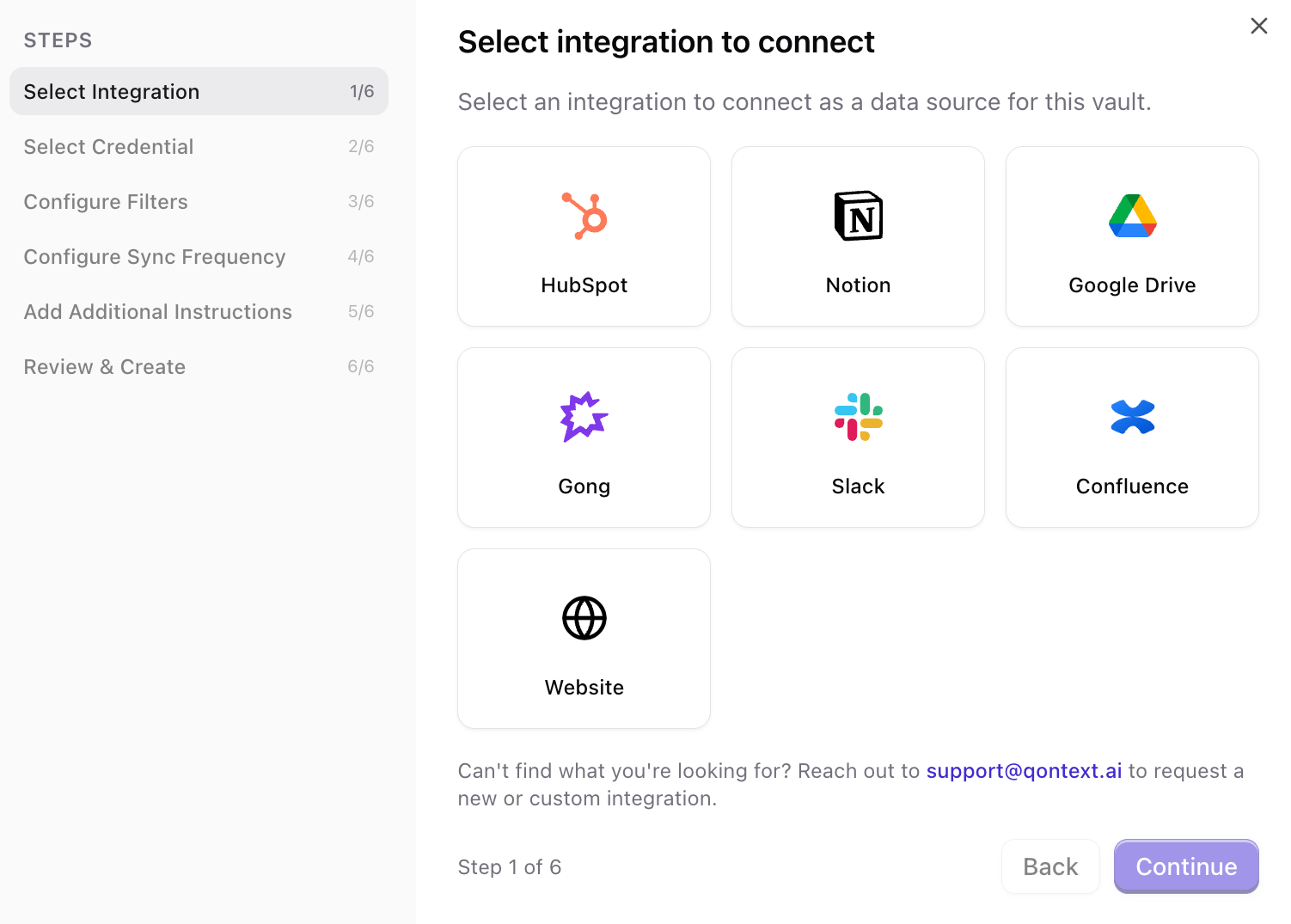
3
Enter the website URL
Give the website a name, which will be displayed on the Sources table. Then, enter the website URL you want to crawl. HTTPS is assumed by default; for HTTP sites, enter the full URL.URLs used in other workspaces are shown for reference. URLs already connected to this workspace are displayed and cannot be connected again, but the crawl type of an already ingested website can be edited in the Sources tab.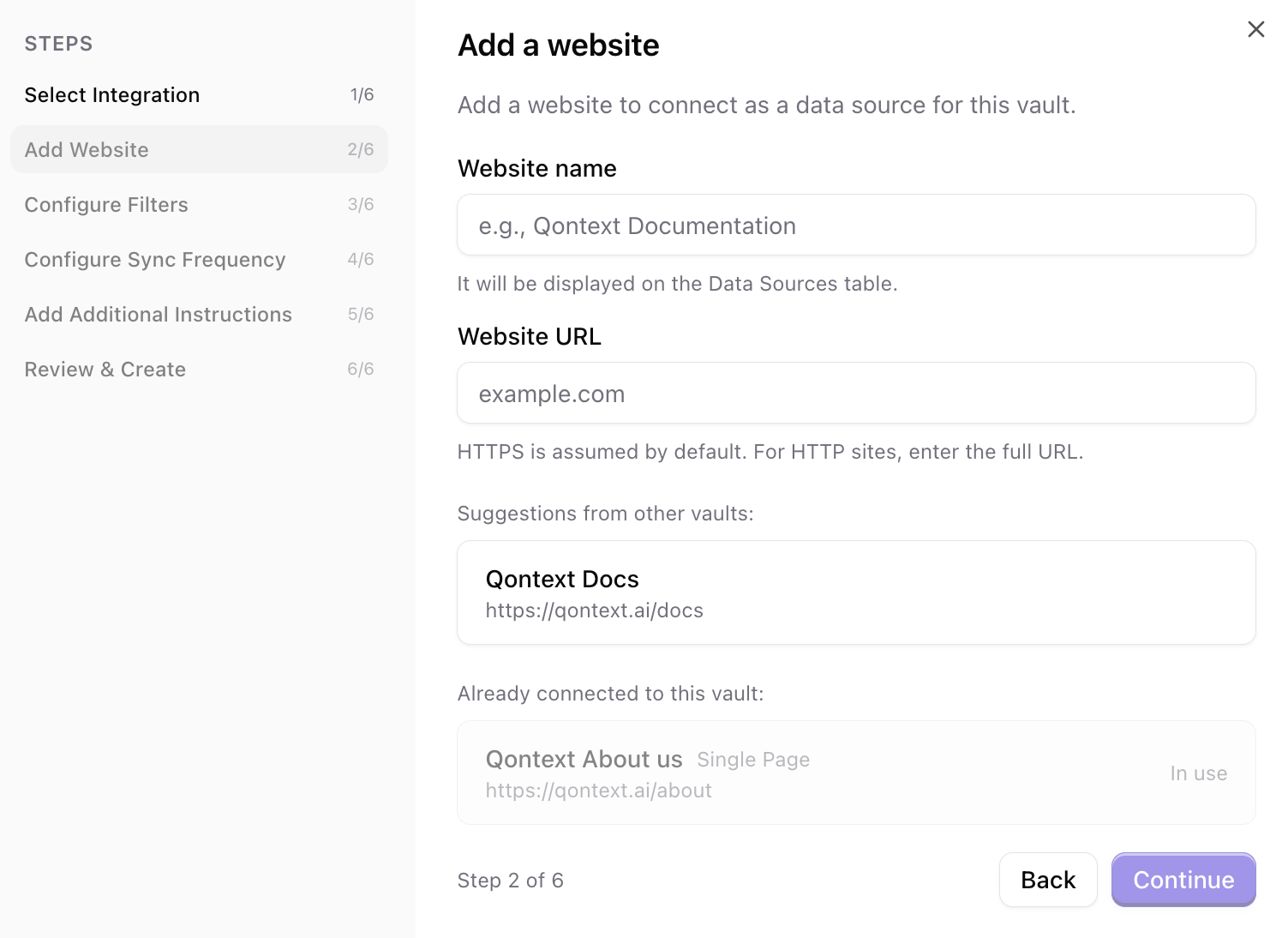
4
Choose crawl type
Select how the website should be crawled. Single Page crawls only the specific URL provided and is best for individual articles or pages. Deep Crawl crawls the URL and follows all internal links, making it best for entire sites or documentation.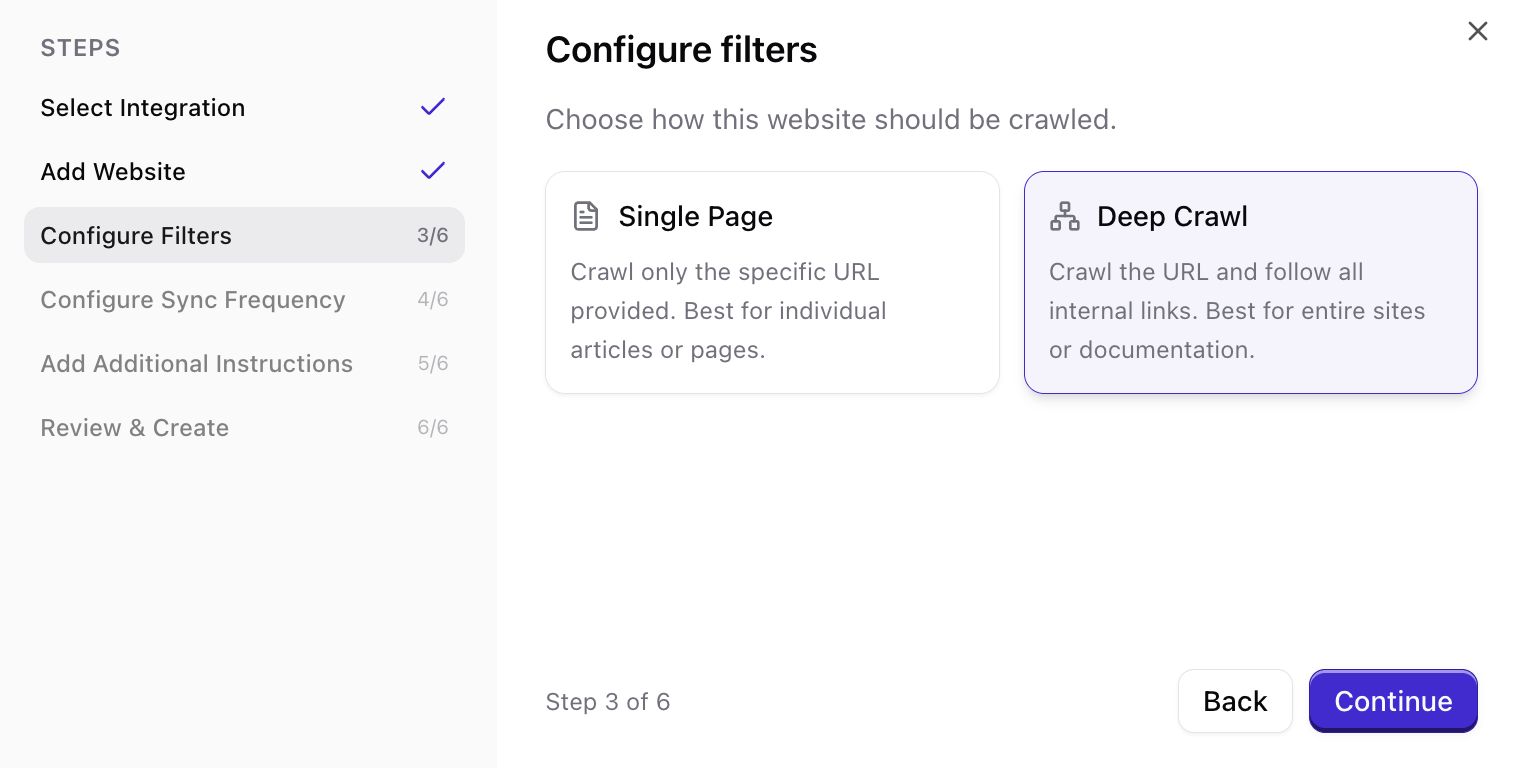
5
Set sync frequency
Choose how often Qontext should re-crawl the website (e.g. daily, weekly, monthly). More frequent syncs keep the context repository up to date but use more resources.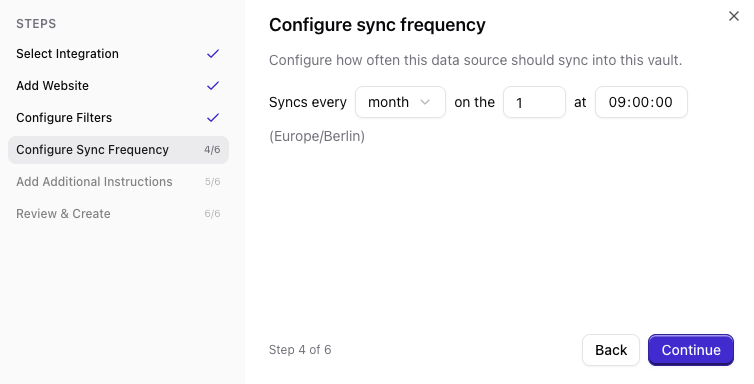
6
Review and create connection
Review your choices (name, URL, crawl type, frequency), then click Complete to create the connection. Qontext will start the initial crawl shortly after.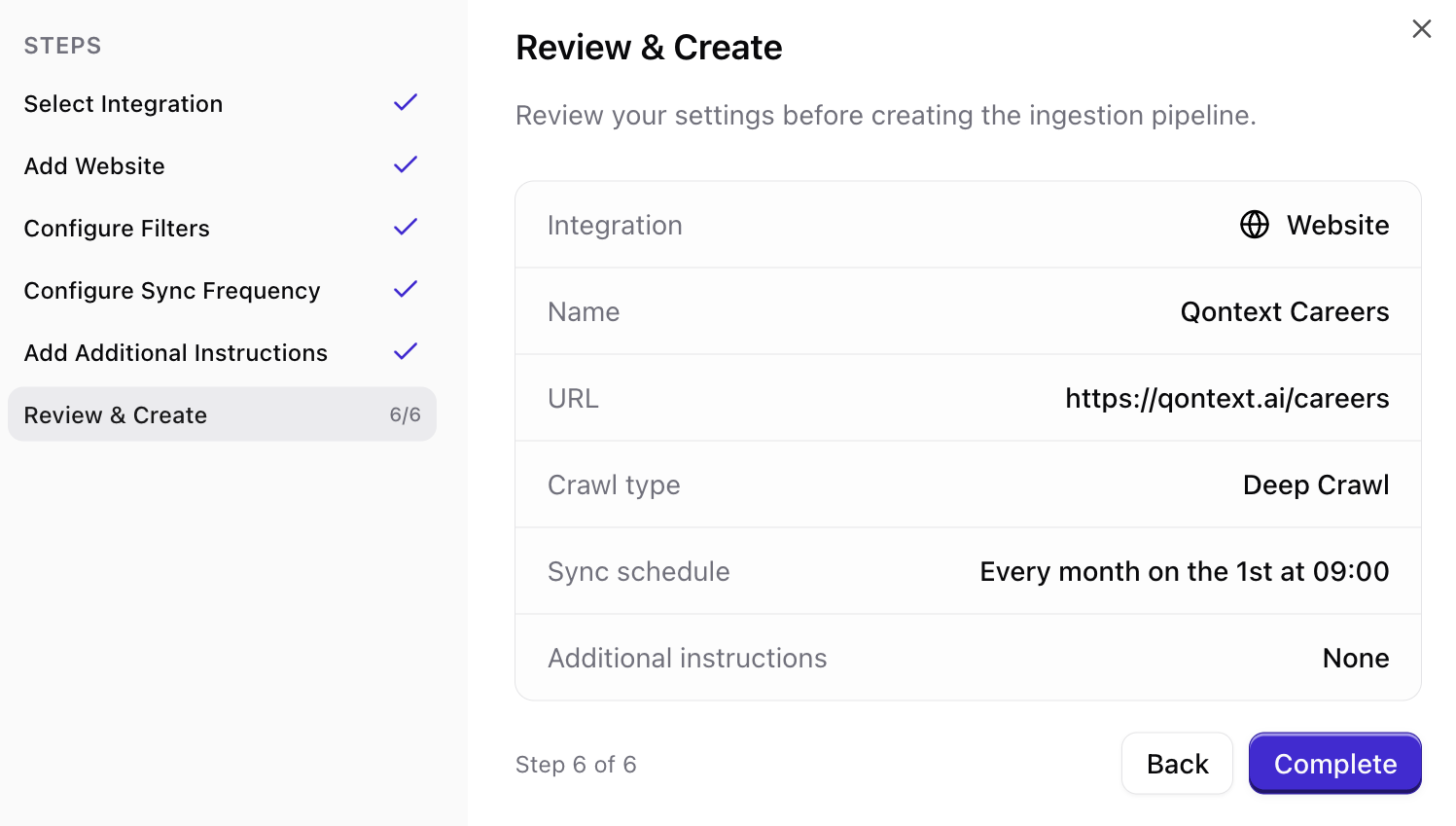
Sync latency
The crawl time depends on the crawl type and the size of the website. Most can be ingested within minutes.FAQ
When should I use Single Page vs Deep Crawl?
When should I use Single Page vs Deep Crawl?
Use Single Page when you want to ingest a specific article, blog post, or landing page. Use Deep Crawl when you want to ingest an entire site or documentation portal. Qontext will follow all internal links starting from the URL you provide.
How many pages does a Deep Crawl include?
How many pages does a Deep Crawl include?
A Deep Crawl follows up to 100 pages starting from the provided URL. If you need to limit the scope, consider using Single Page for specific URLs instead.
Can I add multiple websites to the same workspace?
Can I add multiple websites to the same workspace?
Yes. You can add as many website connections as you need from the Sources tab. Each website is a separate data source with its own crawl type and sync schedule.
How do I manually refresh website data?
How do I manually refresh website data?
Manual refresh for website connections is available via the Sources tab. Navigate to the respective website connection and open the Syncs tab. In the Sync settings, select Sync latest data to pull recent changes, or Resync all data to rebuild the source from scratch.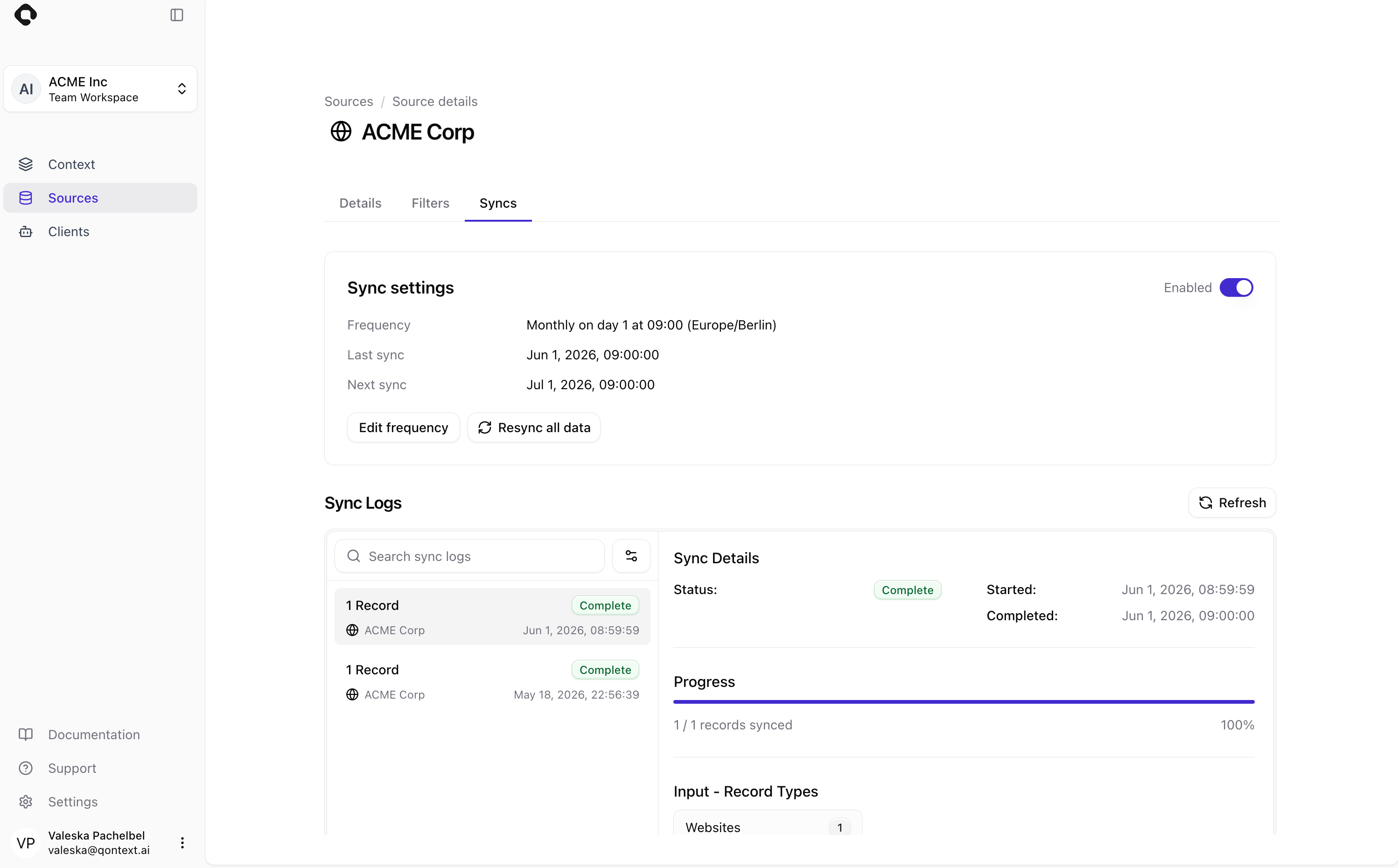
What happens if a page is removed from the website?
What happens if a page is removed from the website?
If a previously crawled page is no longer accessible, it will not be updated during the next sync. Content already ingested remains in your context repository. For data removal, contact support@qontext.ai.
Is the crawled content kept up to date?
Is the crawled content kept up to date?
Qontext re-crawls the website based on the sync frequency you set (daily, weekly, or monthly). Each sync picks up the newest version of the pages and discovers new pages (for Deep Crawl).